How to Split Screen
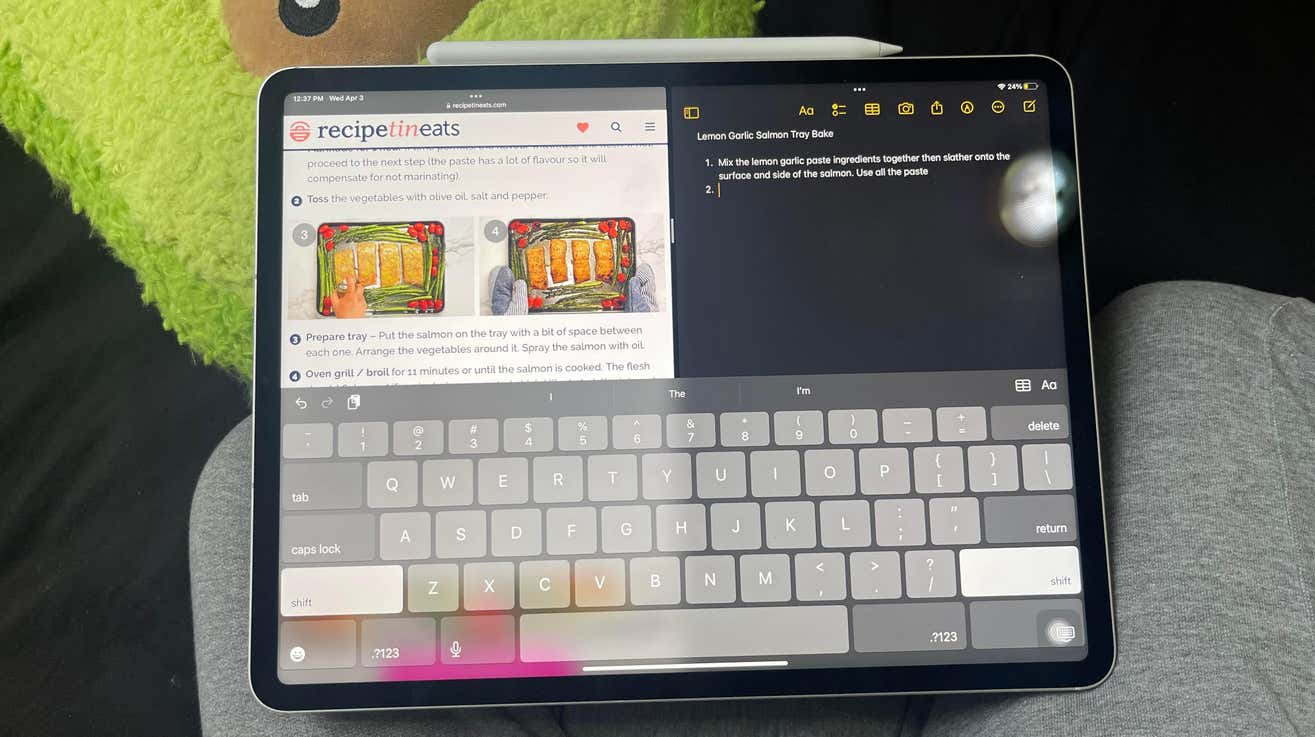
Open any app and tap the three horizontal dots at the top of your screen. Click on the view of your choice (Split View or Slide Over). As soon as you do that, the app will move to one side of the screen to allow you to pick your second app. Feel free to swipe on your home screen pages to select any app you want. You can also choose an app from the dock at the bottom of your screen. Tap on your second app, and it will show up on your screen according to the view you picked.
If you picked Split View, it will appear side-by-side with your first app. Picking Slide Over will make the second app appear in a smaller window that you can place on any side of the screen.
You can split your iPad screen into two apps: the multitasking menu, the dock, or Spotlight. We just went over the multitasking menu. To learn about the other two ways, head over to this guide.