5. Spread Out Across Multiple Desktops
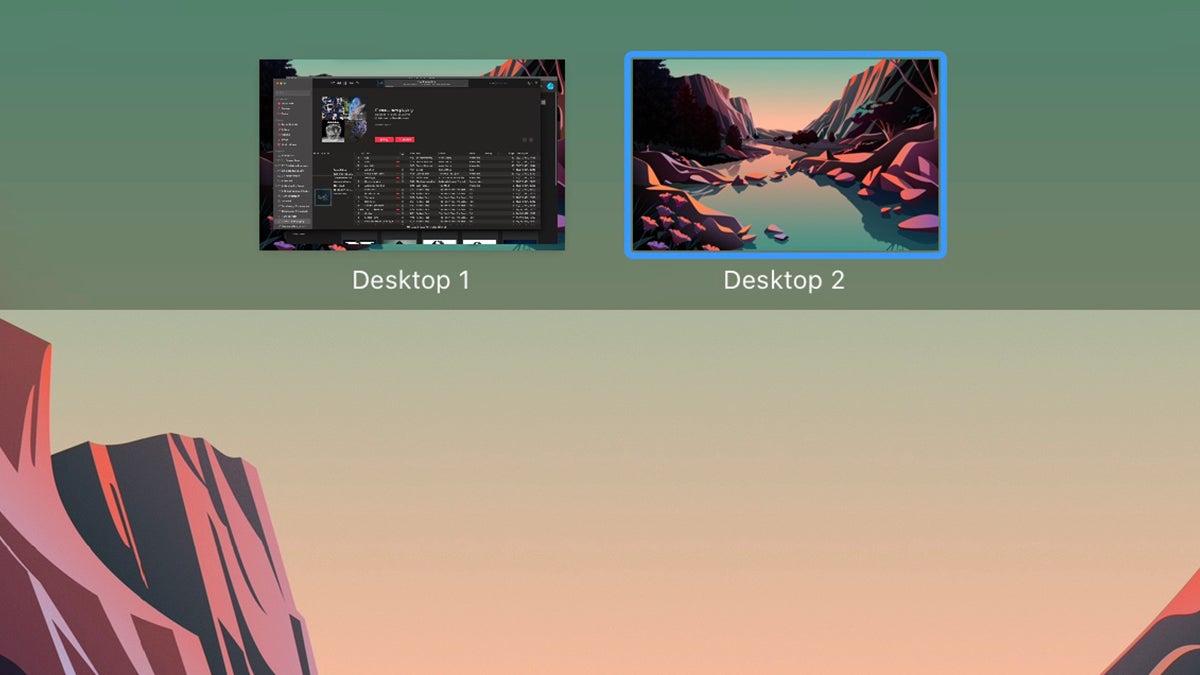
You don’t need another monitor to get more room in Windows or macOS—there are software options, too. On macOS, you can use what’s called Spaces, and you can add one by hitting Ctrl+Up or swiping up with four fingers on the trackpad, then clicking the + (plus) icon.
On Windows they’re just called multiple desktops, and you can add a new one by clicking the Task View button (to the right of the search box), then New desktop. Whichever platform you’re using, you can now give your open apps a bit more breathing space.