Create Your Own Gestures, Such as Opening Spotlight Search from Any App
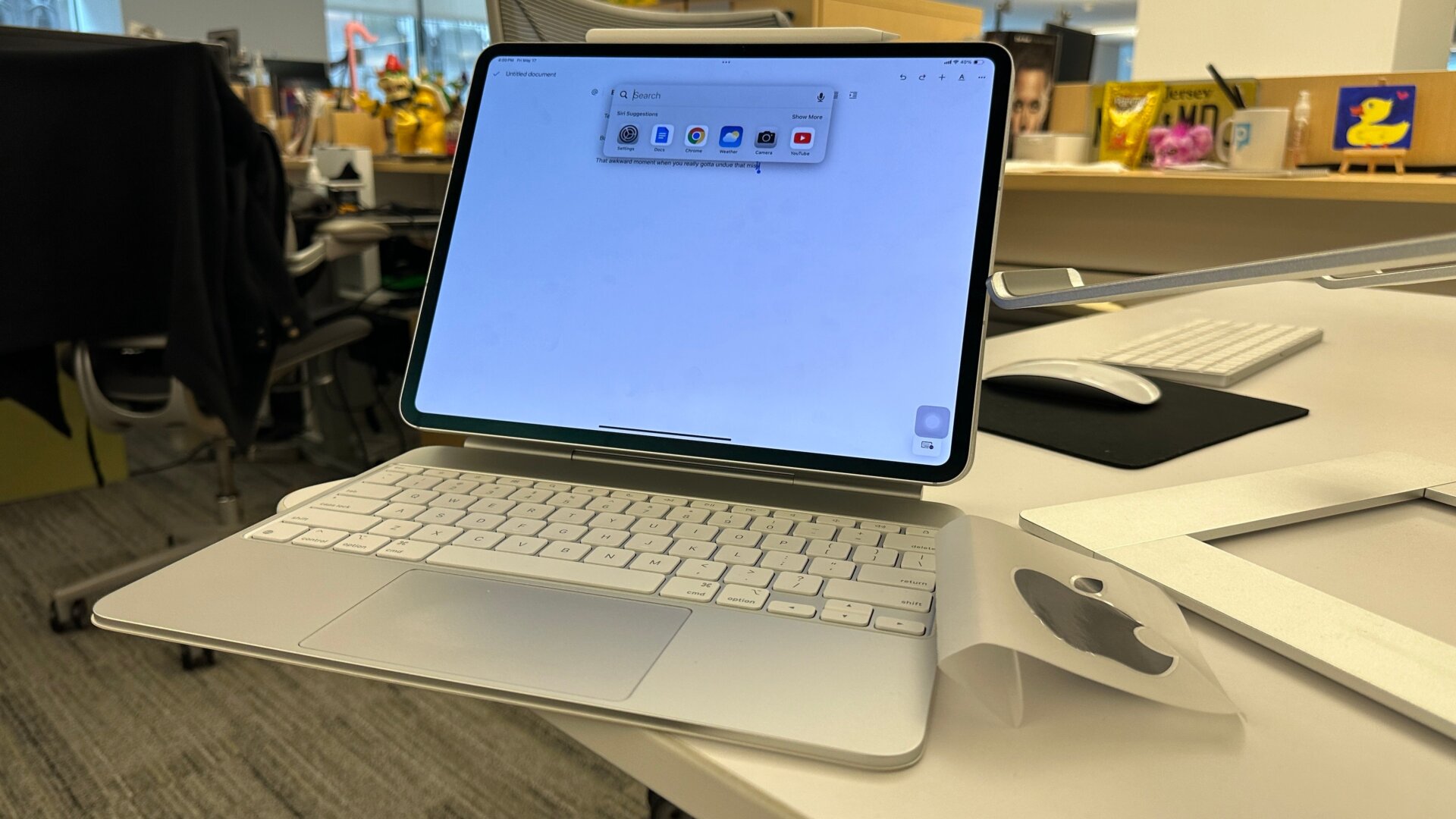
You can use some of the basic Accessibility options to access actions like Spotlight Search with a few customized gestures. First, go into Settings, then Touch. Click on the Assistive Touch and toggle it on. This creates a small icon on the iPad Screen that looks like a circle inside a square. Next, scroll down to the Custom Actions panel; you can set a custom action for when you long press or double tap. I personally set my Spotlight to open on a double tap on my screen, but you can set it to do something as simple as take a screenshot or bring up Siri. You can also create your own gesture using the Create New Gesture function as well.
Now, if you double press the Assistive Touch button, you can access specific functions like Spotlight or your camera without bringing up the app. This can be very helpful for some folks, though I’m sure some others might not like how much it clutters up the screen.
While there’s no basic calculator on iPad, funnily enough, Spotlight does also have a built-in calculator for solving simple math equations.