Nobody likes being a guinea pig in some grand experiment, especially when you have to pay for the privilege. Anybody who buys a Googlebook at launch is essentially signing themselves up for an expensive trial where headaches and heartache are the price of entry on top of a near-$1,000 asking price. You are buying into an ecosystem in the hopes it may become the Android-centric Mac-like experience you’ve dreamed of. It’s certainly not there right now.
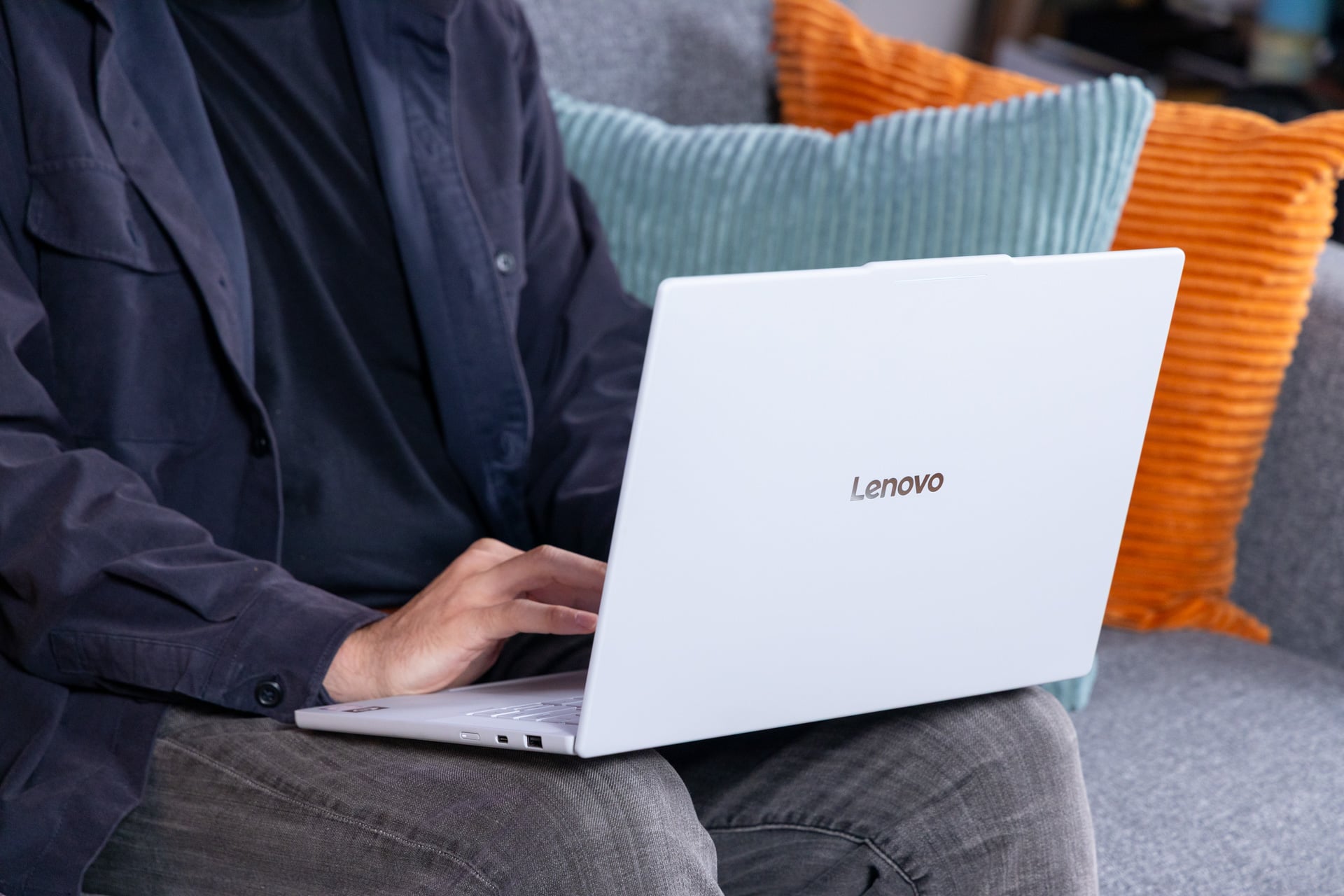
The $1,150 Lenovo Googlebook 15 would be a fine laptop with any other operating system. But I don’t review products based on what-ifs or what-may-bes. This is an awkward laptop that becomes more or less annoying depending on whether you want to use it for more than browsing or checking emails (spoiler, it’s rather limited). Lenovo’s beefy machine is currently the largest Googlebook of the five options available at launch. That pretty 15.3-inch OLED display means this is a great device for watching content without hefting around some thicker and heavier laptop in your bag.
Lenovo Googlebook 15
Lenovo's Googlebook may offer a better experience than some others of its kind. Googlebook OS is still more annoying to use than any other laptop OS.
Pros
- Solid-feeling shell
- Pretty and bright OLED display
- Rambler is a bright spot of Gemini features
- Android continuity capabilities can prove useful
Cons
- Hardware bugs like touchscreen ghosting
- Android continuity features don't work everywhere
- Pointless Gemini features
- Missing OS features at launch
- Dissapointing battery life
Couldn’t I have said the same thing about a Chromebook, Googlebooks’ predecessor? Yes, but I can at least remark that the new laptop format may be an upgrade over what came before. Or, if you’re a developer who used to enjoy getting Linux apps on your low-cost laptop, it’s a definitive downgrade. You have more access to more native Android apps, and that would indeed be a significant step in the right direction. Allowing the mountain of Android applications to run in a desktop environment will go a long way toward helping these laptops step out of the shadow of Windows or Mac. Again, note the “woulds” and “wills” in those two statements. Because what’s here now is not what you were hoping for, not when so many apps—even Google’s own—don’t support a big screen as well as they should.
The bigger issue at play is how there are too many new capabilities with dubious usability or that are simply not fully baked. Case in point: the headlining Android handoff features. They work, sure, but only if you’re staying at home.
Android to Googlebook features may not work everywhere
Google’s “Better Together” continuity features are all built to give Android phone owners a way to use their favorite apps on a larger screen. There are a few problems with that. For one, you have to be running Android 17. Google reps have since said you’ll be able to use these same features on Samsung Galaxy devices running One UI 9.0 and Android 17. All Android 17 should be supported at this point, though I haven’t had the opportunity to test the whole gamut of Android phones.
There are more limitations besides which device you use. The first time you set up your Googlebook, you’ll want to tie it all to your main Google account. Then, you need to ensure both devices are fully updated and that you have pushed the latest versions of Google Play Services and Cross-Device services. These are supposed to automatically install on both my laptop and phone, but I had to manually enable both. Google confirmed that all these features should be enabled by default.
It shows how Google’s features are more complicated than what you may find on the other side of the mobile ecosystem. Apple’s iPhone mirroring feature on Mac is relatively simple. You tie your phone to your account, and when it recognizes the iPhone is nearby, you can simply use a digitized phone screen with keyboard and trackpad. Google’s more-ambitious ideas for continuity require more steps. You need to ensure both your phones are connected to the same Wi-Fi, have Bluetooth on, and are paired within the same device family in both devices’ settings.
Google claims you need to host both devices on a Wi-Fi network that allows for mDNS local device communication. Makes sense, right? But I had issues pairing both devices on a variety of networks I had to rely on when on the move—airport Wi-Fi, hotel Wi-Fi, and my hotspot connection—which is especially glaring when I didn’t have a router nearby. Eventually, Google may enable direct Wi-Fi pairing between devices when you don’t have a network that supports Better Together.
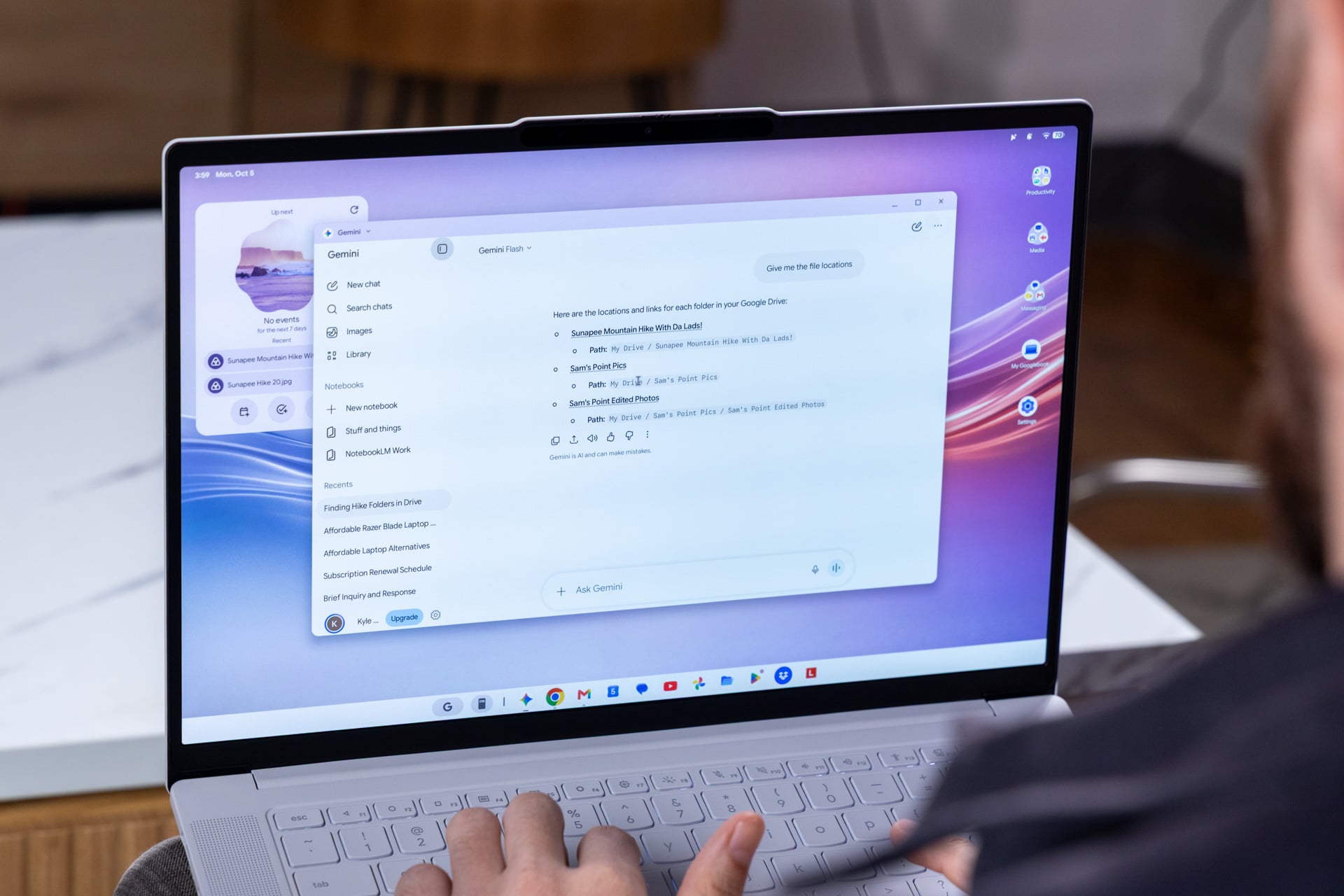
When on my home network (and with every device fully connected and updated), I could finally make use of the phone connectivity. So let’s run through them all. The best of the bunch may be the ability to look at all your files on your phone and bring them directly to your Googlebook. If you, like me, get increasingly annoyed at how difficult it can be to find rogue PDFs or saved photos on your phone, navigating with the help of a keyboard and mouse is a godsend.
“Continue On” lets you access some apps currently on your phone right on your taskbar, meaning you can move from typing up an email from Gmail or a Google Doc on your phone and decide that (correctly) a PC is a better place for it. This works, at least most of the time. I could easily open up documents, but trying the same with emails or my Calendar app was hit or miss. Google doesn’t want to allow continue on for every time you open an app, only when it makes sense. But Google shouldn’t be the one determining when its best to move from phone to desktop, that should be up to the user to decide.
You can also “cast” apps from your phone by clicking on them on the phone icon in the taskbar. This may prove more or less useful, especially if you call up an app that isn’t designed for a large screen.
The Play Store lists various apps by how well they work on a desktop. Some are fully Googlebook qualified. These are apps like Adobe Photoshop (we’ll cover this in a bit) or Netflix. Of course, all regular Google Workspace apps are in this category. Other apps are built for desktops but still have some awkwardness. There are more apps that were only designed for Android on mobile.
The app situation on Googlebook is necessarily going to be awkward at launch. How much time you spend groaning will depend on which mainstay apps you use. For instance, Slack is especially annoying on Googlebook at the moment. It’s essentially the mobile app but expanded outwards. You’re stuck clicking through multiple tabs just to get to the threads that you need to routinely swap between. Using a touchscreen isn’t any faster, either.
There are plenty of apps with this same problem. The popular concert-tracking app BandisinTown appears with massive tiled band icons that blow up the UI to incoherent proportions. Instagram uses so much wasted space. Inevitably, you’ll find the controls were built with a touchscreen first, making the experience feel worse than the experience you’ll get on Android for tablets. The hope is, eventually, the situation may change. Who can say when the lion’s share of apps will feel natural on a 16:10 display?
Pretty, but not as ‘premium’ as it could be

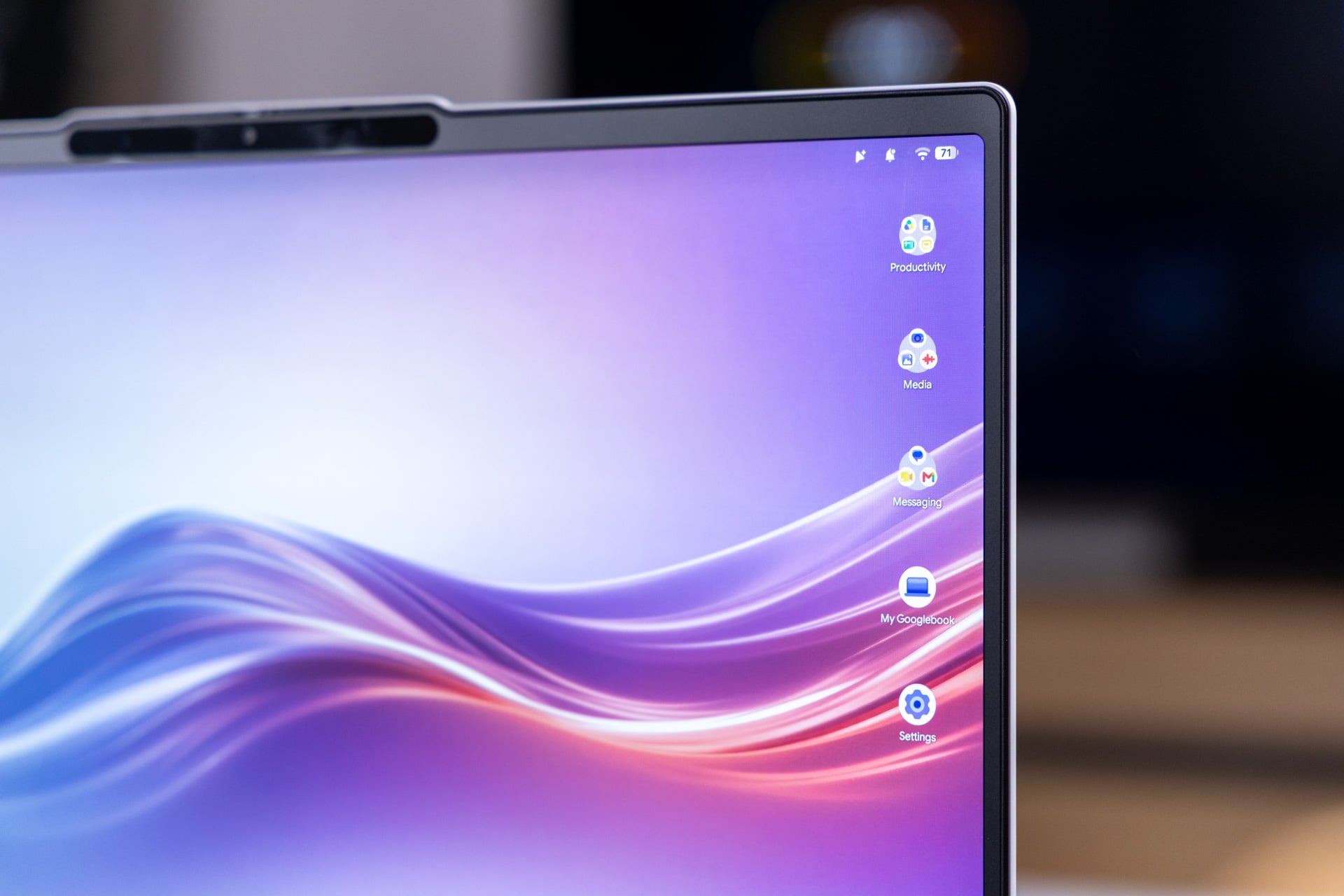
Every launch Googlebook from the various OEMs (original equipment manufacturers) each tried to stand out in some way. Some, like Acer, promised to be the cheapest of the bunch. Lenovo, doing what it does best, presented its bright 15.3-inch, 2.8K (2,880 x 1,800) OLED display. It’s pretty, it’s bright, and it’s not too reflective. It also hits a max 120Hz refresh rate, just in case that matters to you. We’ll talk about gaming later, but it’s certainly an upgrade over the mass of slower Chromebook displays.
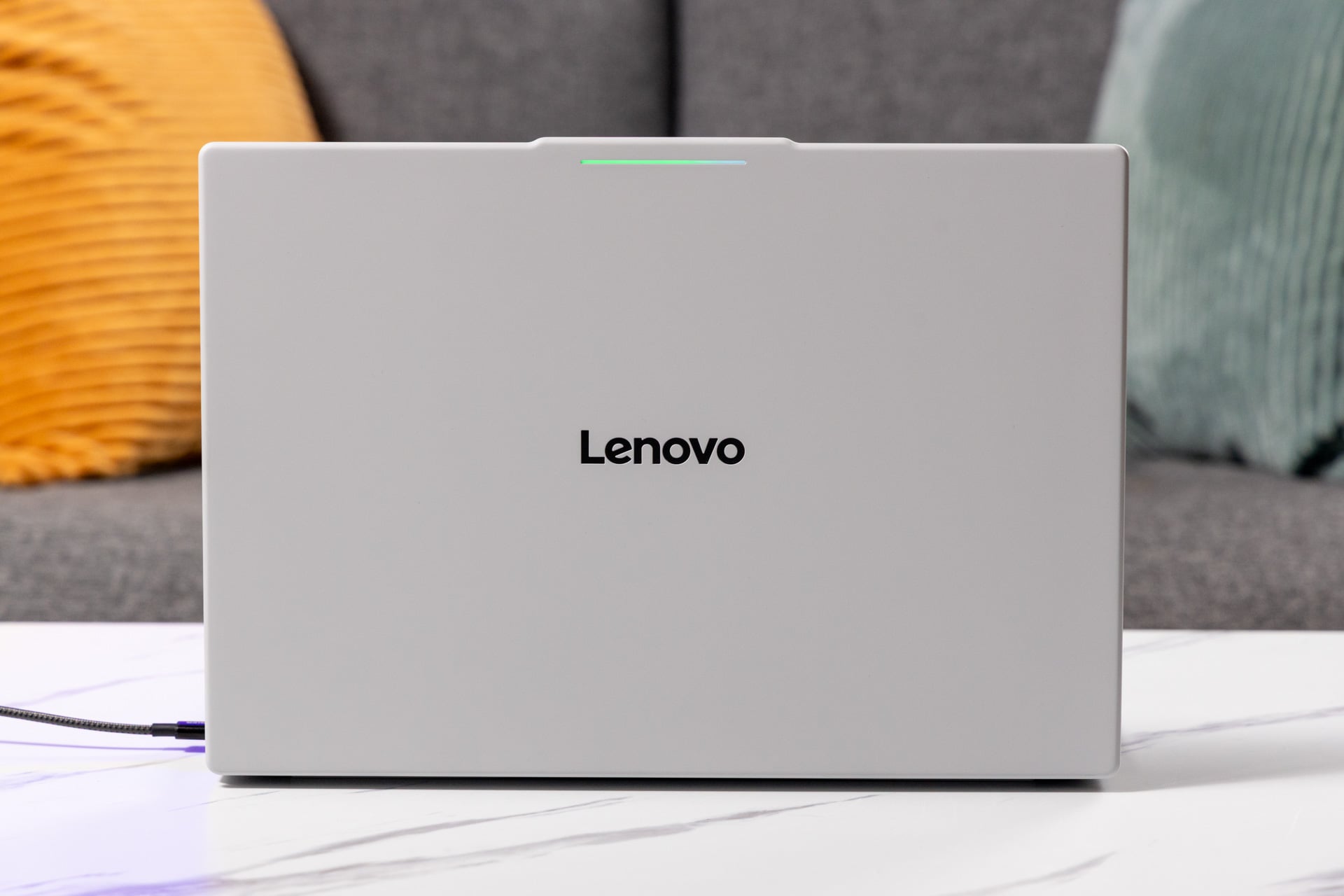
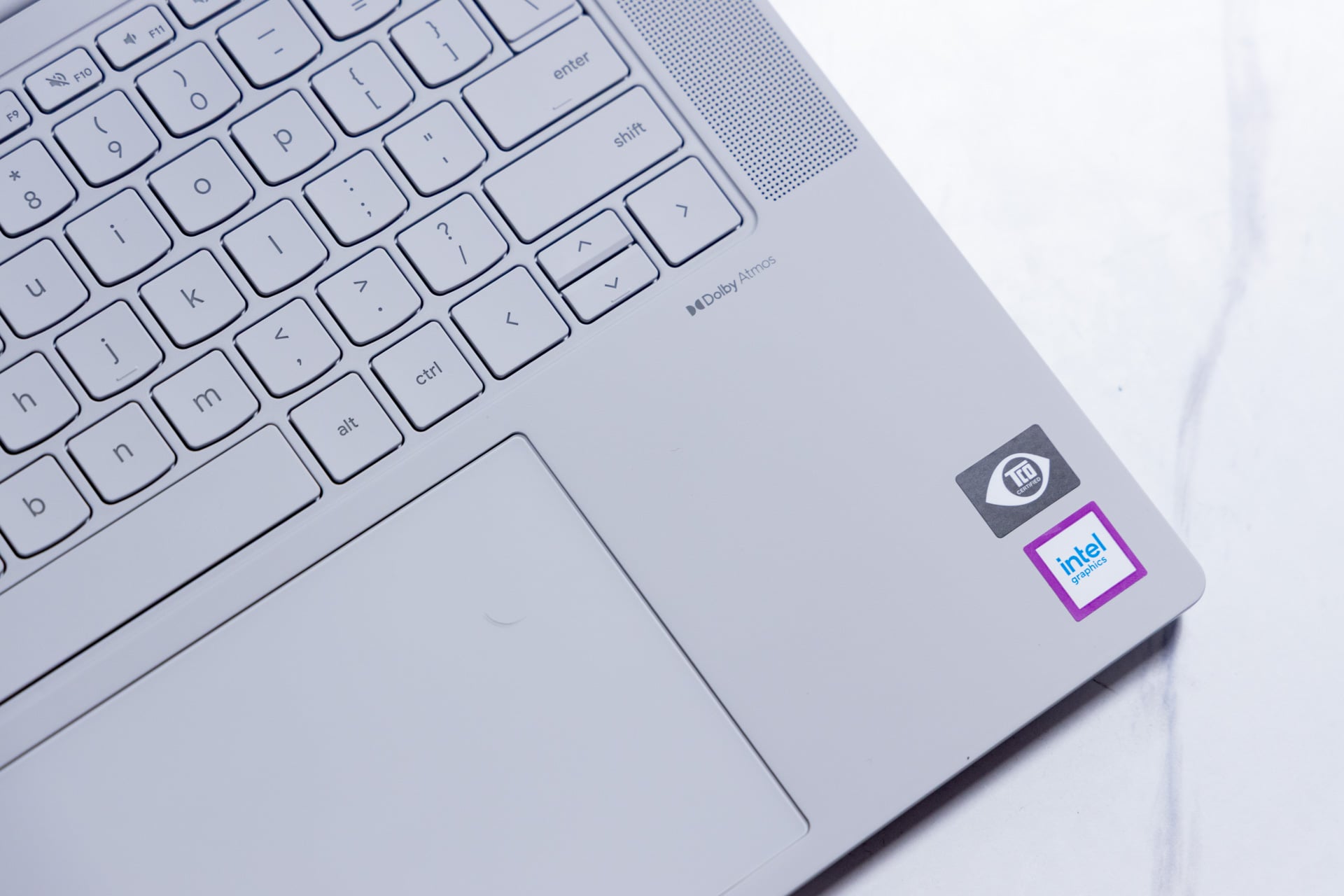
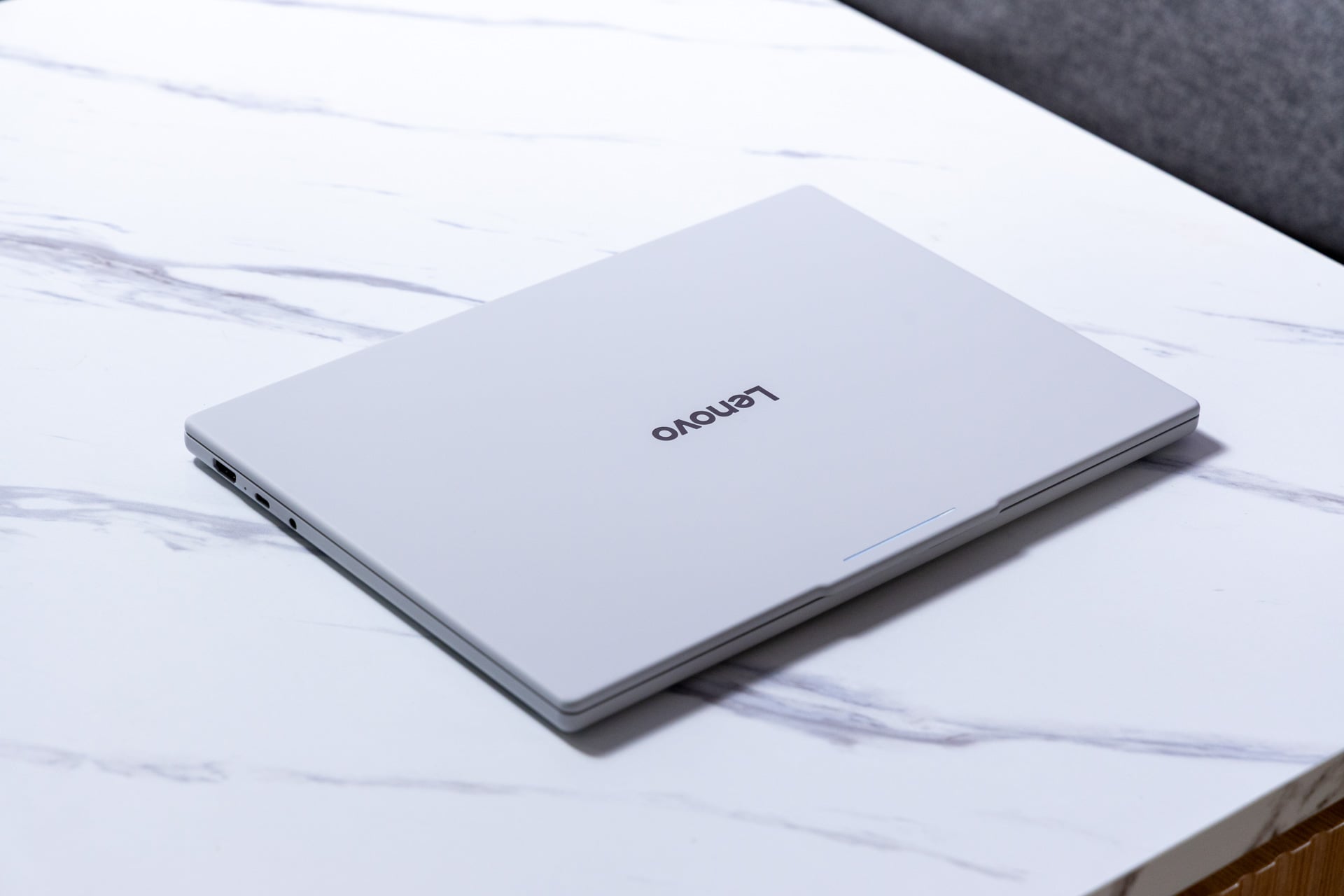
Google wanted all the new Googlebooks to feel “premium,” and Lenovo obliged with a magnesium-aluminum laptop lid and input shell with a silky finish that’s extra pleasant in-hand. The bottom casing is made mostly out of PC plastic, making the whole design seem lopsided. Let’s not put the cart before the horse, because the Lenovo Googlebook 15 is also extremely sturdy. Despite its wide base, the keyboard essentially has no flex to it. You can easily carry it around in your bag, even if it’s slightly heavier than other Googlebook options at 2.84 pounds.
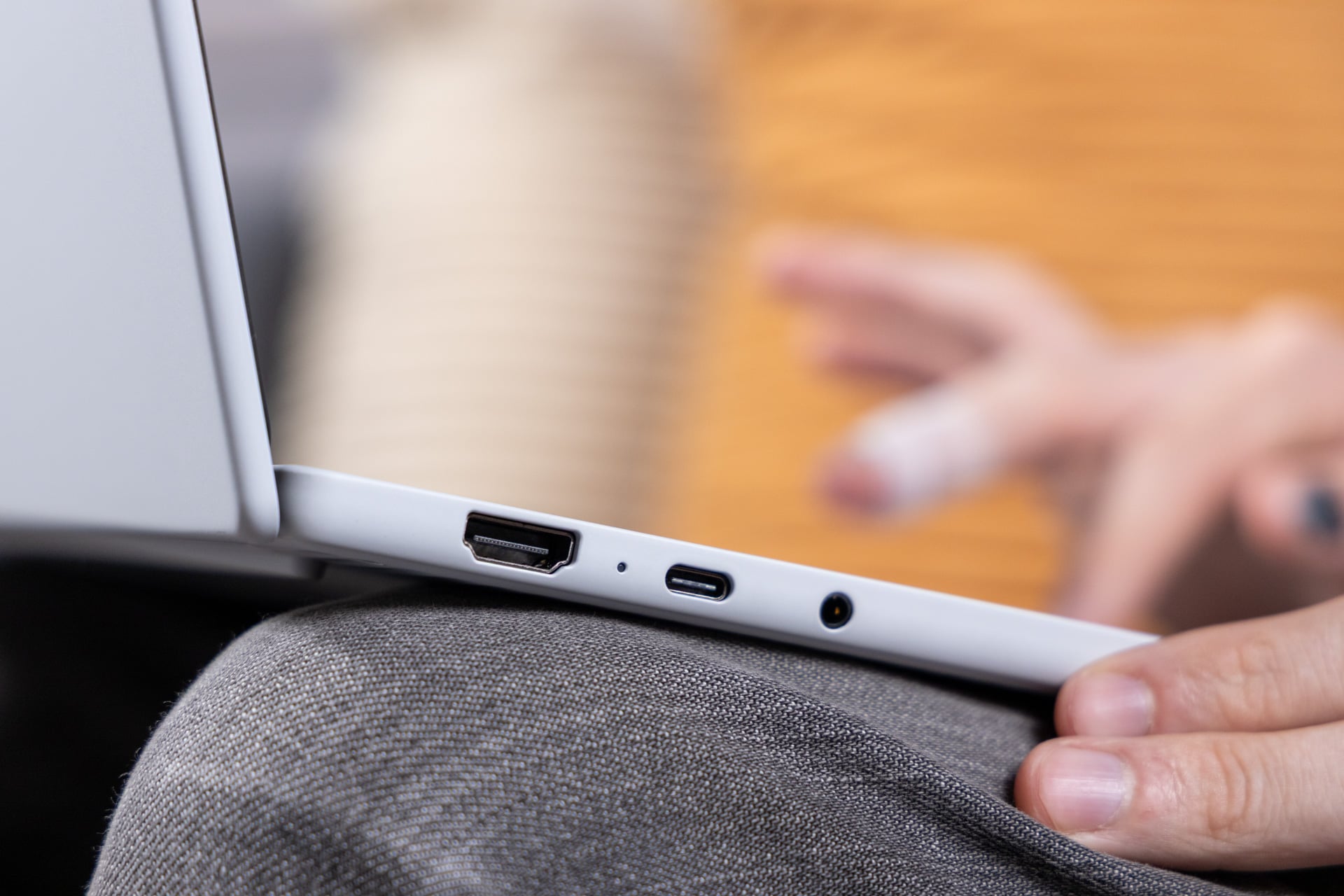
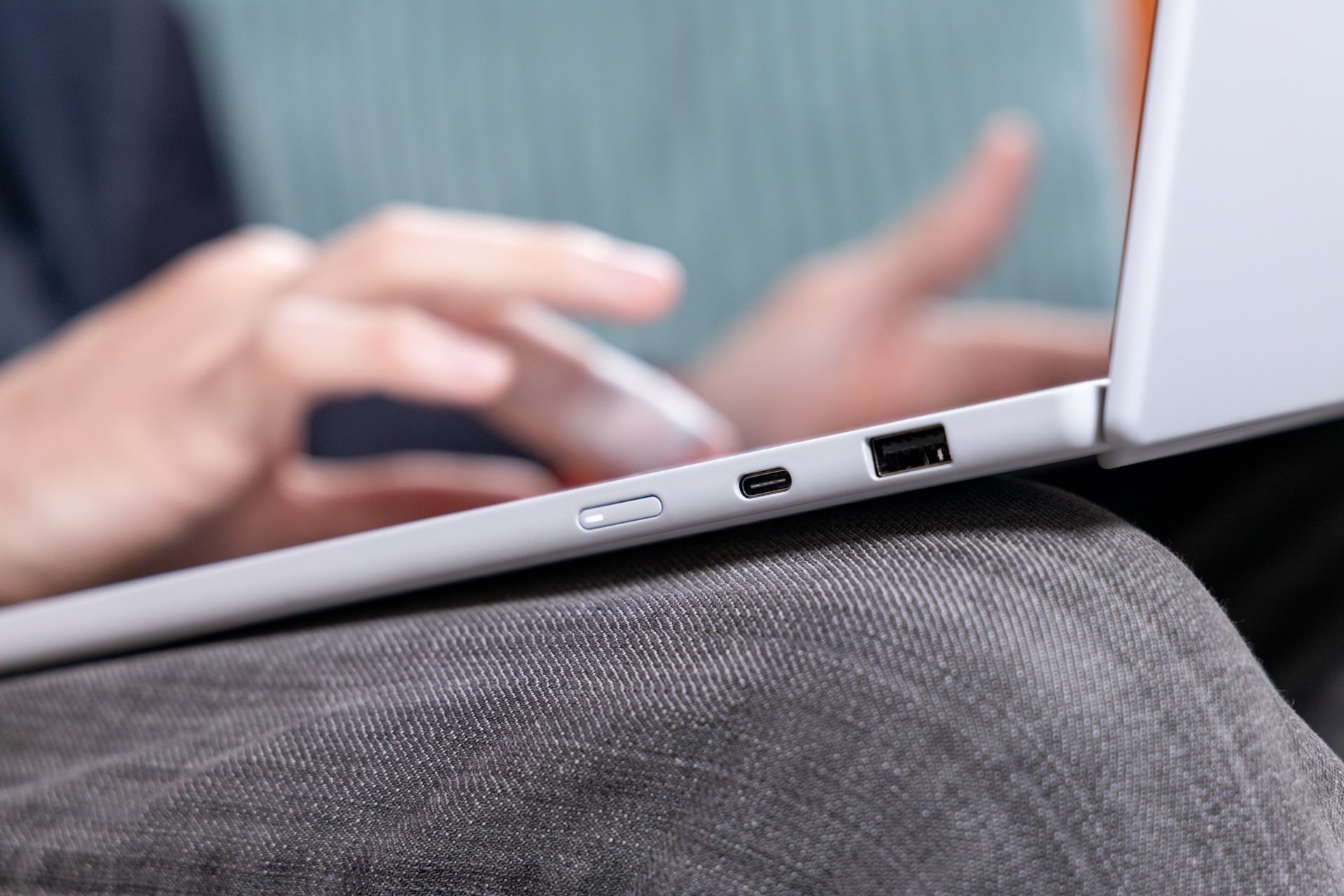
The laptop provides a solid selection of ports. There are two Thunderbolt 4 USB-C for fast power delivery and data transfer on both flanks (something you won’t find on the Snapdragon X Elite-based Googlebooks from Dell and HP). Plus, there’s an additional USB-A, HDMI 2.1 port, and headphone jack to round things off.
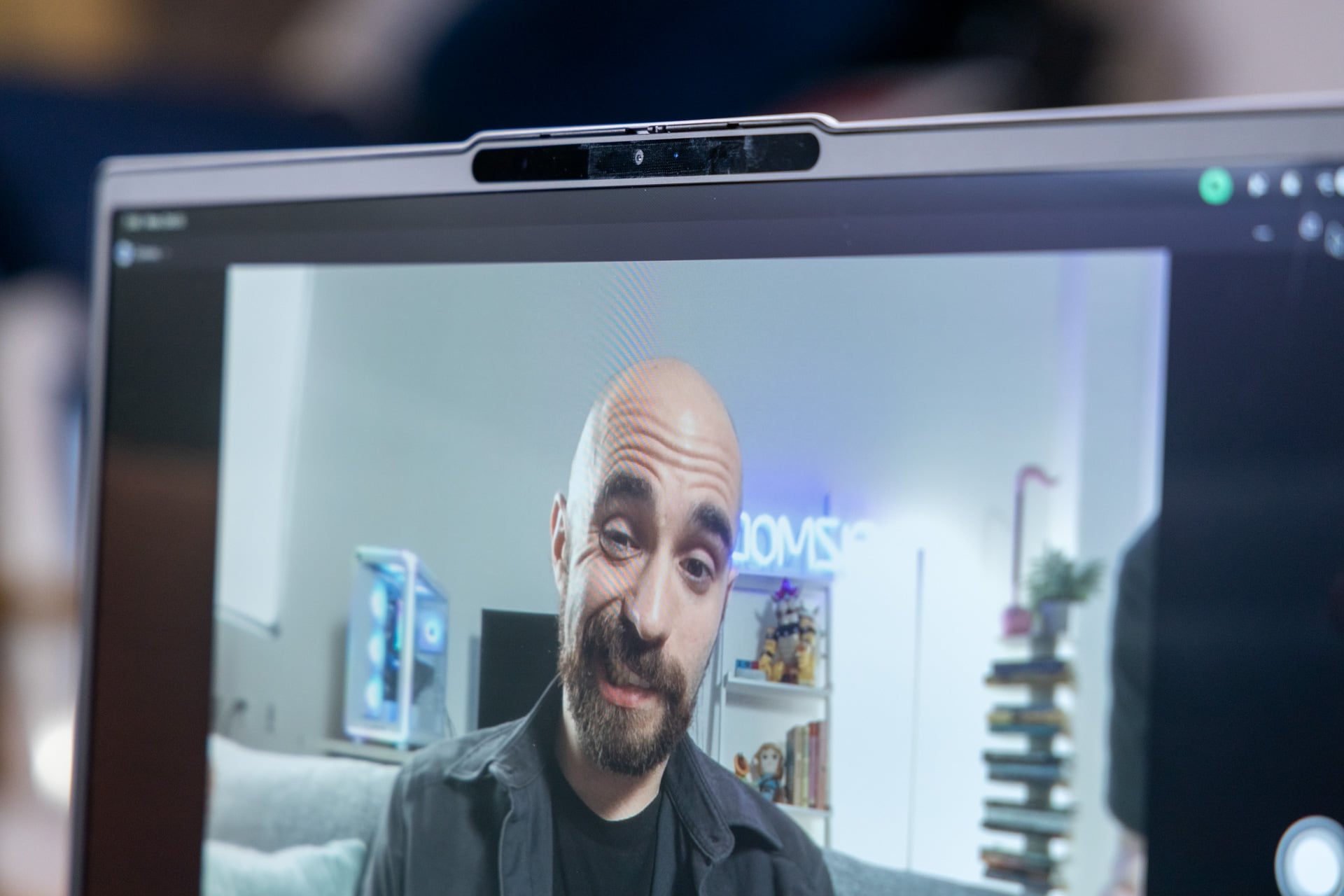
That pretty screen also proved to be my biggest hurdle. I had it in hand for a week, sticking it in my bag for a flight to San Francisco to attend Microsoft’s Surface Laptop Ultra launch event. In between ripping it out of the box and setting it up in my hotel room, the laptop screen started developing ghosting issues. I had not been playing much with the touchscreen to this point, so I was surprised how fast it had developed issues that persisted even after I cleaned the laptop. The ghosting plagued my time with the laptop all the way across the U.S. and back. It could be an issue with my device, but it’s one of the reasons I prefer laptops without a touchscreen.
An okay keyboard and trackpad
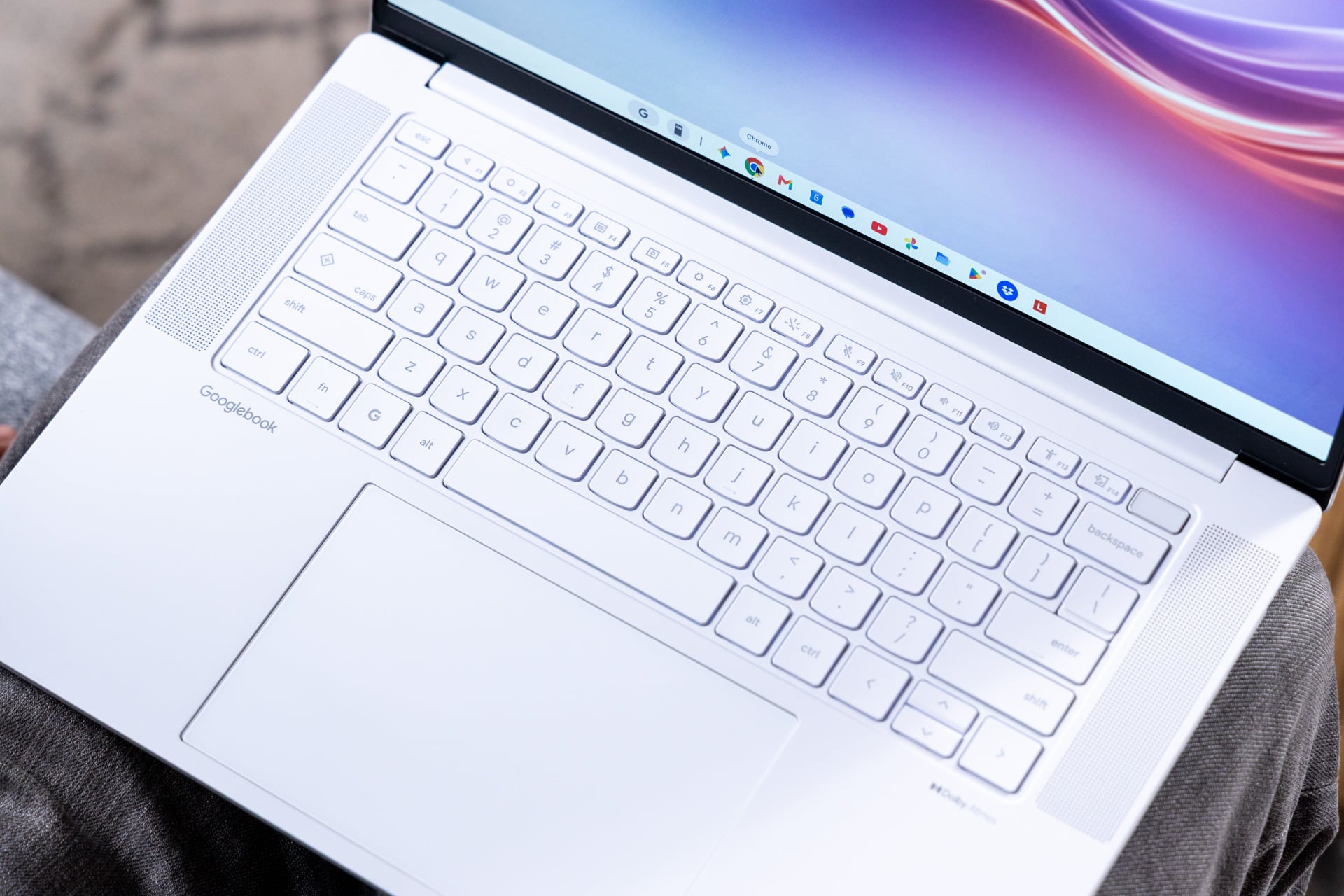
If I managed to get a few minutes of work done without my laptop suddenly freaking out and shoving random windows in my face, I tended to find the typing experience to be… fine. The fully backlit keyboard was bright and made for a pleasingly glow-filled experience typing up this review in an airplane cabin. However, the keys didn’t have much presence, with a 1.3mm key travel not allowing me to get into the groove as much as I would have liked.
The large haptic trackpad is also a bit of a sticking point. As an anecdotal assessment, I found the haptics to be too strong to my liking, giving the pad a bouncy rather than clicky feeling. It provides quite a lot of surface area for a finger skating rink, being 150mm wide. Having a pad that large means the palm rejection needs to be on point. In my experience, I found it could occasionally fail and result in accidental misclicks at inopportune times.
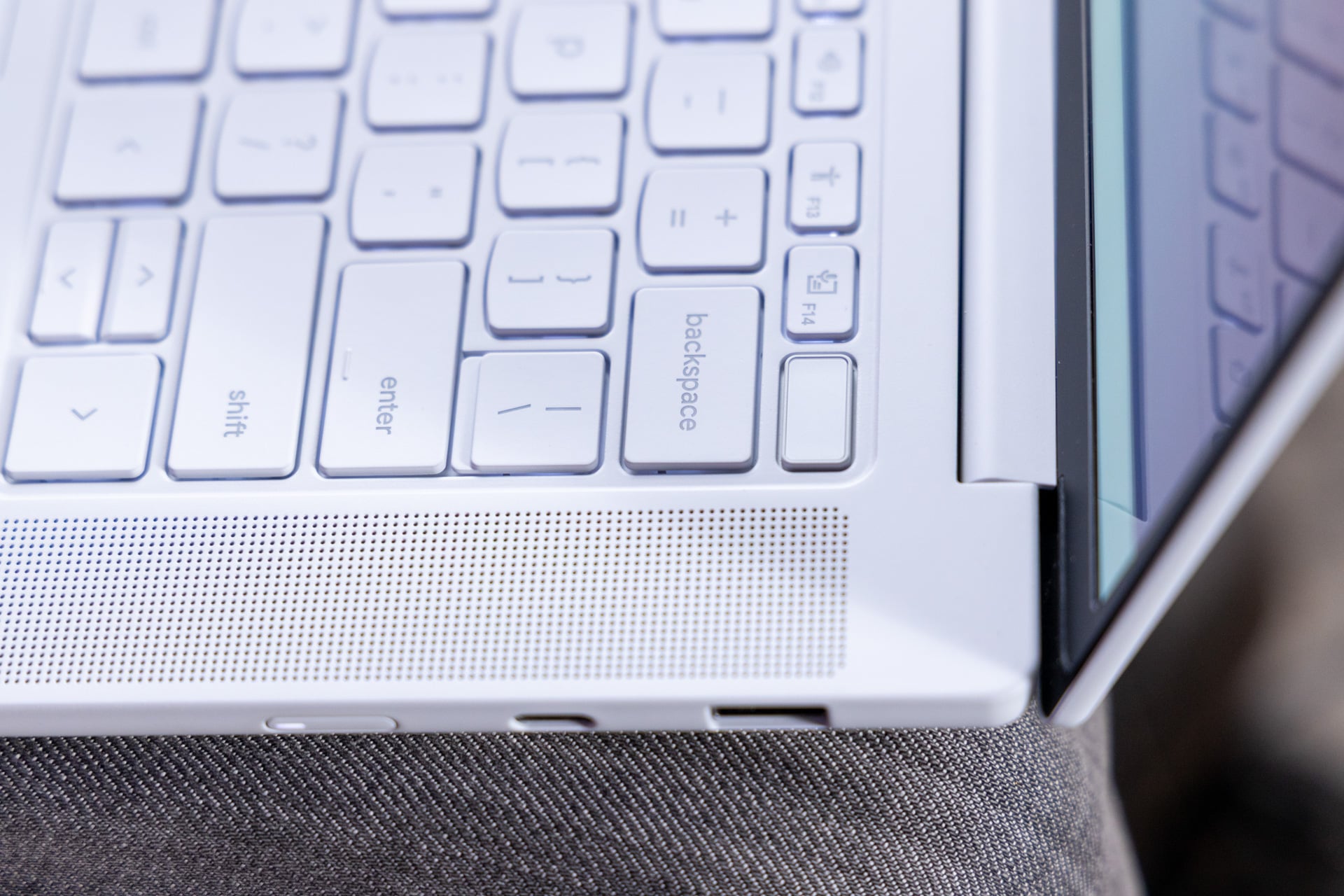
Googlebooks have kept a few of the specialty keys found on previous Chromebook Plus models while doing a “screw it, why not” and adding a few extra exclusive buttons to spice things up. The “G” key will bring up your Android-like app drawer by default, and it also acts as a launching point for several customizable shortcuts. The Caps Lock button also defaults as the the “Quick Access” key. It’s a tool that you can bring up on any text bar to add emojis, access your copy and paste clipboard, translate text, or bring up a Gemini prompt. There’s one extra key, the Rambler button, sharing space on F14. I’ll talk about this feature later in the review, but I can at least mention here that some of these capabilities are welcome and don’t distract much from the baseline laptop experience you should expect.
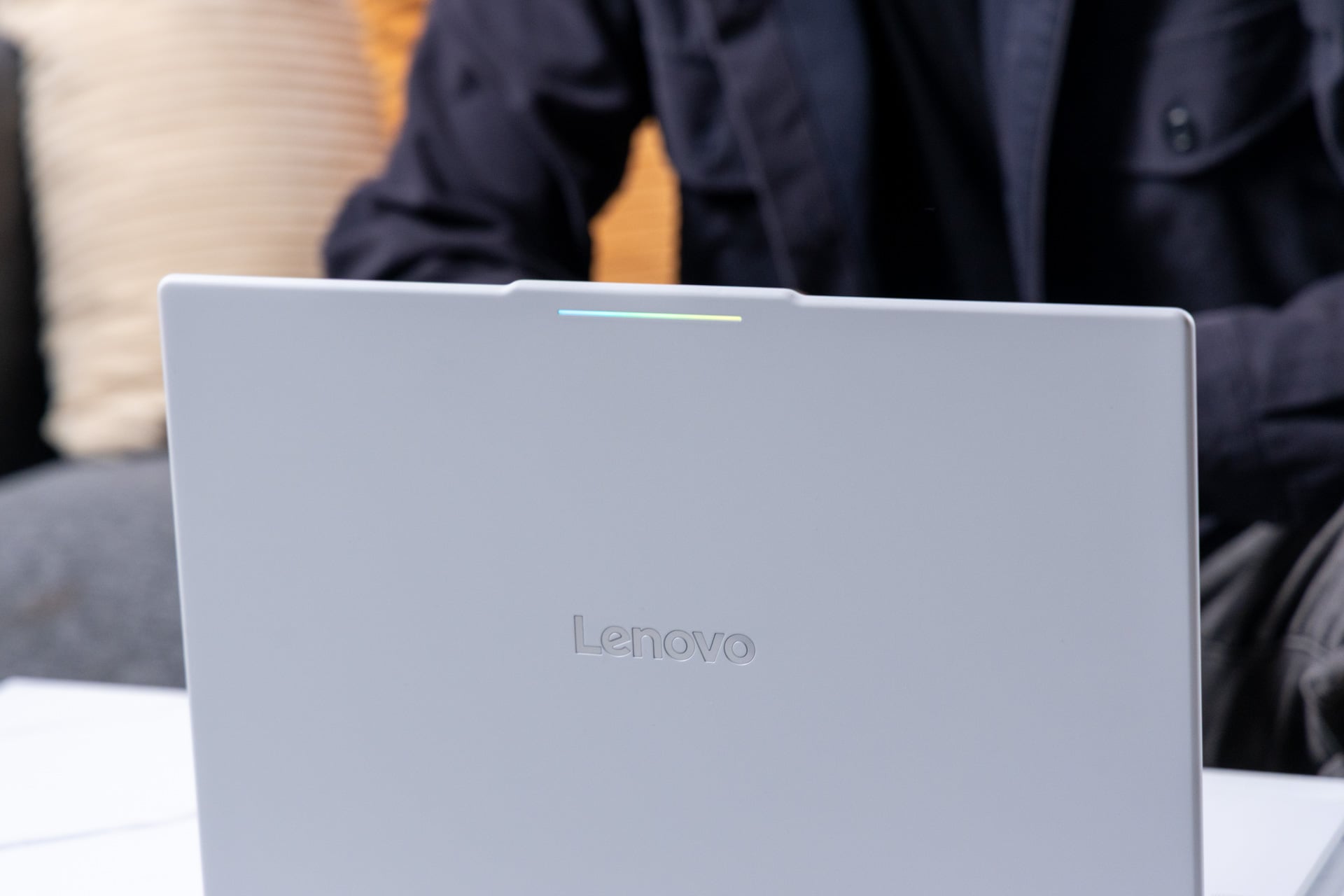
The one other accent that sets this laptop apart from any other humdrum clamshell is a single LED strip, called a “Glowbar.” These lights are built into every Googlebook model, and they seem to follow Google’s trend of sticking minimalist LEDs on its devices for no obvious reason. The Glowbar lights up to give you a general impression of your battery level when charging, though it may shine green even if you’re only at 60%. It will also play the rainbow of Google colors during shut-down or wake-up. Google’s weird obsession with random lights, like with its Pixel 11 Pro HiLight feature, just don’t do enough to justify their existance.
Googlebook OS needs more work
In between grinding my teeth over the continuity features and holding back from slamming my Pixel phone into the table, I was sitting there flummoxed by routine bugs, some more distracting than others. Flickering windows and occasional app crashes, bugged Chrome pages and apps that don’t load—the list isn’t long, but it is notable. This is not a pristine initial release.
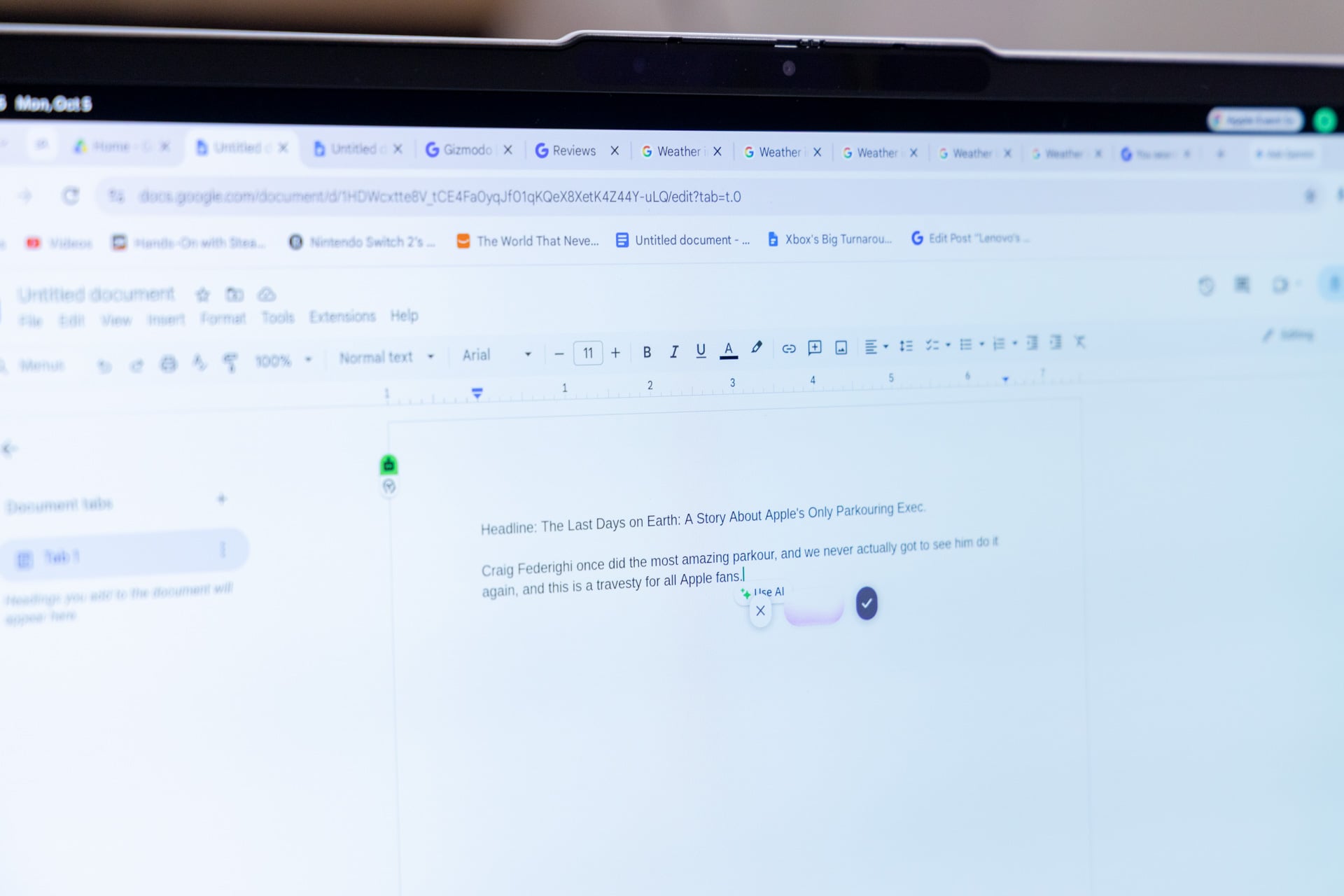
There are a few features I can say work well right out of the box. First on the list is Rambler, the new speech-to-text model built into the laptop. It’s designed to remove any “umms” and “ahhs” as you dictate an email or text document, and based on my tests it works pretty damn well. As a writer, I pay extra attention to how my sentences are laid out. I still have to go in and edit each Rambler session, but I don’t have much problem with that.
There are many more launch features for users to inevitably bounce off of. One is an AI widget generator (Google still lists the feature as “beta”), which lets you create your own interactive desktop tools. The first time I tried it, I wished to create a running feed of Gizmodo articles broken down by sections. Google’s AI told me it is incapable of creating any RSS-like features and simply linked to our site instead. Then, I tried creating a widget that located nearby taco spots, but Google’s AI didn’t like that either, saying it couldn’t connect to Maps in that way.
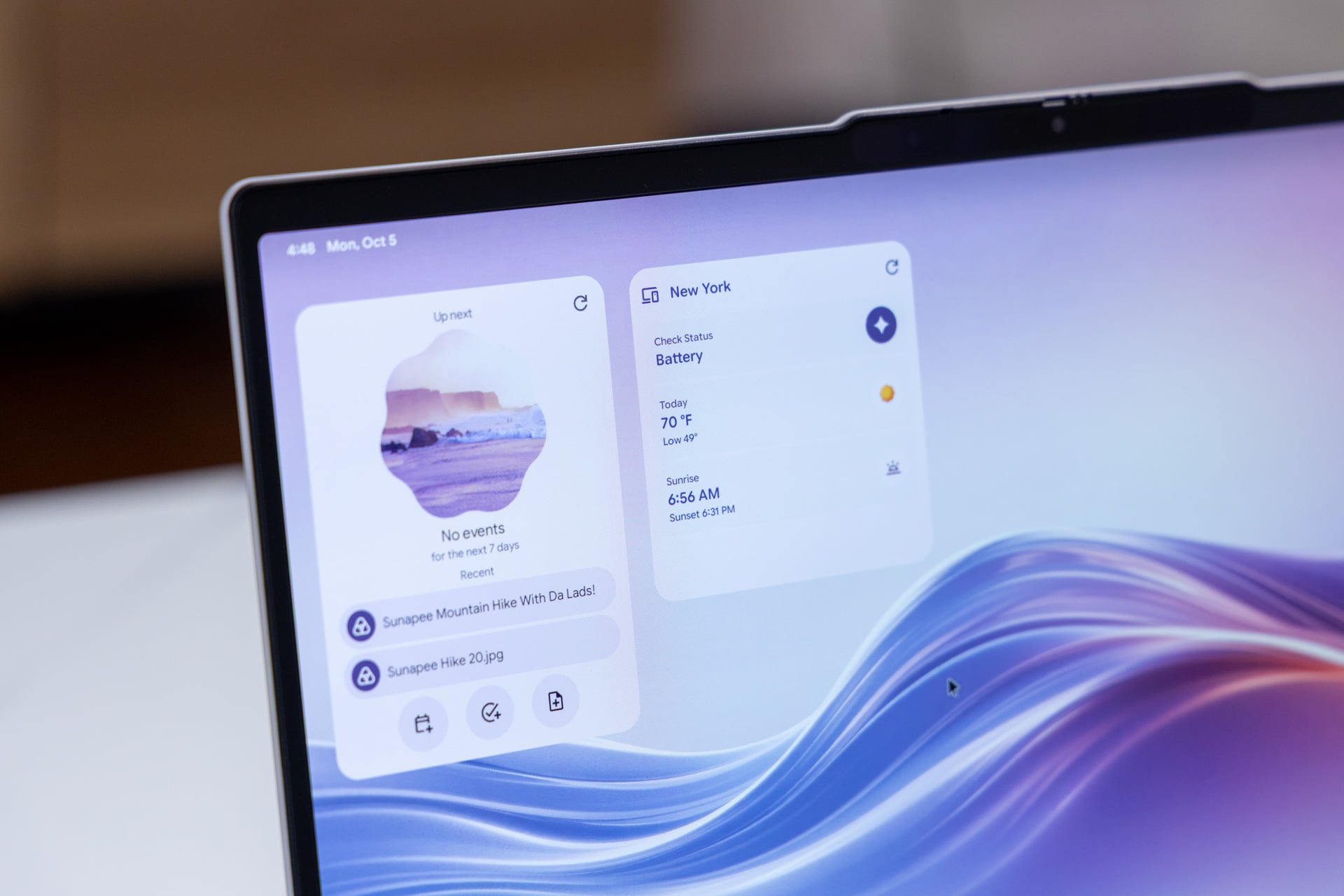
Even the simplest widget, like weather, proves utterly pointless. If you click on the link, instead of taking you to the pre-installed weather app, it takes you to a Google Search page. The feature seems to only rely on Google Search results, so a widget showcasing the latest New York Knicks game will only show a score and date, not any kind of highlights you’d hope to pay attention to.
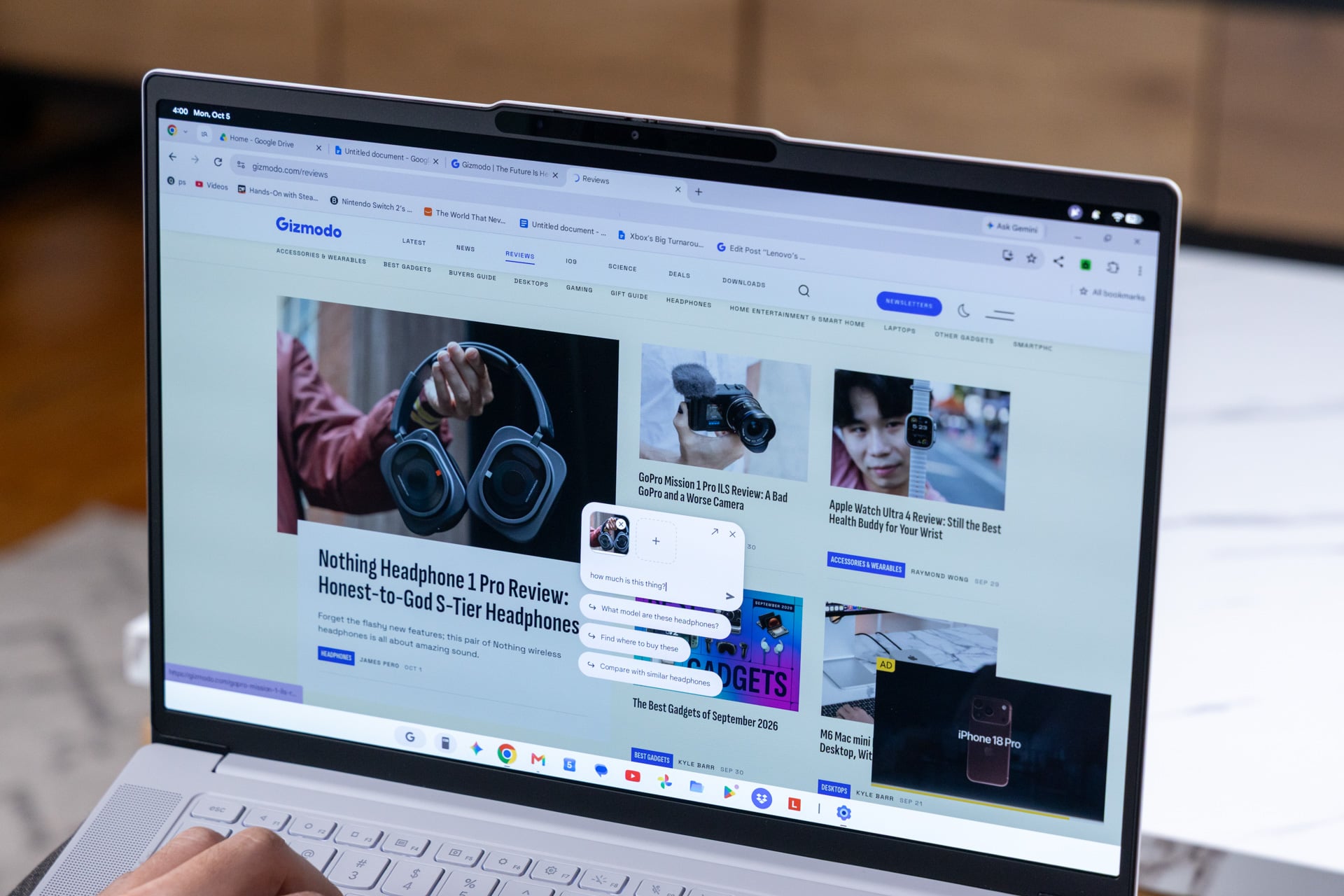
In my experience, users will normally only give a feature a few tries before never returning. Another feature that has dubious usability is Magic Pointer. It’s essentially a kind of Circle to Search type capability that can highlight text blocks or images and then lets you run a Gemini prompt based on what you click. For instance, I wanted to take a text block of an upcoming concert and add it to my calendar. Simple, right? When I type it into the prompt box, Gemini refused to complete the task the first time. Even when I highlight the same text and use one fo the suggested “add to Calendar” prompts, the AI gets the date wrong. If I’m forced to fix the calendar dates myself, can I really claim to have saved any time? At least, when I highlight a product on Gizmodo’s review page and ask it how much it costs, Gemini will instantly get the product right and show me multiple links to buy it. Good to know Google’s got its Amazon and Best Buy links down pat, as if I already didn’t have enough things telling me to spend money on more stuff.
In another instance, I managed to get the AI to add an email as a reminder the first try. Inconsistencies are the death knell of any feature. If you spend time babysitting the AI to complete a simple task, users will inevitably decide to regain autonomy and just do it themselves.
While Google was so busy sticking AI in every nook and cranny of its nascent operating system, other features you’d expect on a $1,000+ PC fell by the wayside. Something as simple as operating multiple accounts on Chrome still isn’t available on Googlebooks. You can get a better experience with Chrome browsers on any other Windows PC or Mac.
Performance that’ll do the job… just
What are you going to use a Googlebook for? After all, it’s not like you can install Steam natively on this laptop and start plugging away at your demanding Steam games (at least, not yet). So you have all the various Android apps, all of which were designed first for lower-end mobile chips and not the PC-centric Intel Panther Lake processors. At the very least I can say, despite some initial fears, that at least I didn’t experience any issues running many ARM-centric apps on Intel’s beloved x86 microarchitecture.
This makes it hard to compare. I can use the Photoshop app to do some basic photo editing or CapCut to piece together a simple social video. But what you won’t find are any apps like Blender or Davinci Resolve. So you’re buying a machine that emphasizes snappiness on your browsers and various Android apps, the ones you can use natively on the big screen, at least.
In Geekbench 6 CPU benchmark tests, the Lenovo Googlebook 15 and its Intel Core Ultra 5 325 sit at around 17% better than a Dell XPS 13 running Windows and a lower-end Intel Core 5 320 chip. Both these laptops pack the same amount of RAM, though even after recent price hikes the XPS 13 is still $150 less than Lenovo’s Googlebook. At the same time, the Lenovo Googlebook’s Intel Panther Lake processor is only around 13% better than a MacBook Neo—a $700 laptop.
The other side to this equation is the fact that this Intel processor actually has better GPU capabilities than many of those sub-$1,000 laptops—and of course they’re much more capable than many of the older Chromebook processors. Lenovo’s Googlebook 15 is larger and therefore has potentially more power draw, meaning it can hit 14% better scores in tests like 3D Mark Steel Nomad Lite than an Acer Googlebook 14. It manages 19% better in 3D Mark Solar Bay ray tracing tests than Acer’s laptop with the same Intel Core Ultra 5 325 chip. If you were looking for a reason to spend the extra money on a slightly beefed-up laptop instead of devices like the XPS 13, this is it.
You have to scrape and scrounge to find apps that would make use of those GPU capabilities. It’s not like there’s a port of Blender available that’s built to run both on Intel’s x86 microarchitecture and Android. Gaming-wise, you’re locked down to the native apps built for mobile devices. Some of these games do work well on a big screen. Games like TMNT: Shredder’s Revenge work fine with keyboard and mouse. Other games, especially those that don’t support this laptop’s 2,880 x 1,800 resolution and 16:10 aspect ratio, will require you to manually assign touchscreen controls to your keyboard, a feature that’s a holdover from the Chromebook Plus days.
Instead, just like Chromebooks, Google has implied you’ll end up streaming content more often than not. Nvidia said it will craft a Googlebook-native version of GeForce Now and will share more details on that “later this year.”
Yes, the Lenovo laptop’s OLED touchscreen and haptic trackpad help tip the scales toward a higher cost, but if you were simply looking for a laptop with processing power for all your daily tasks, you could save some money, achieve around the same performance, and not have to deal with Googlebook OS’ quirks.
Why get a Googlebook instead of any other laptop?
One last point of contention I had with the Lenovo Googlebook 15 is the battery life. For the most part, I didn’t struggle all that much getting most of a full day’s worth of longevity from the Lenovo Googlebook 15. However, I also experienced a period of rampant power draw, even when the laptop was put on battery saving mode, which made leaving the house or hotel room without a power brick a potentially hazardous proposition.
During a full day with my laptop open, I managed to do about four hours of straight work, just typing on a page, before the laptop hit 40% battery. I can get most of a full day on this device. I was just expecting a bit more. Windows 11 is notoriously RAM intensive and demanding, which can cause havoc with battery life. My time with Googlebooks felt inconsistent. I was desperate for a power mode setting that would enable lower power-drain, something Google didn’t provide in its nascent Googlebook OS release.
There used to be a clear and established realm in which Chromebooks could play. The sub-$500 class laptops could stand on their own and offer the most simple laptop experience available. At $1,150, the Lenovo Googlebook 15 is confusing. It lacks certain features you would want on a PC, like various power modes you can swap to. At the same time, it maintains pointless Android features, like an “auto-rotate” toggle in the quick settings menu, that are out of place for this size of device.
And there used to be things Chromebooks could do that you can’t on Googlebooks. You used to be able to install Linux apps to the taskbar through its “Linux development environment” setting, something that’s not available on Googlebooks. Now, the only way to access those Linux apps is through the Debian terminal, one that’s actually running in a virtual machine environment. You have to do everything through a command line interface. It’s obvious Google wants to pay attention to Android apps first. It seems like making mobile apps desktop-friendly is going to be its biggest hurdle by far.
Here’s where I can get controversial. Most people who end up buying a laptop never make use of its more interesting capabilities. Chromebooks fit a niche for people who only ever needed Google Workspace apps, a browser, and a means to stream content. You can say the same things about Googlebooks, but at least the Lenovo Googlebook 15 has a solid shell and a pretty screen.
In the end, you end up buying the promise of a Google-native PC experience. The Search giant and Lenovo want you to stick around, hence why it’s packing a year of Google One membership and GeForce Now. Which then makes me ask why I need this much processing power with this much memory inside this relatively limited laptop. It’s because of the promise of more apps and more capabilities in some vague roadmap.
Google has said it is committed to Googlebook OS, so there’s reason to keep paying attention. If the question is whether the Lenovo Googlebook 15 is a good buy now, it’s only good if you really want to hand off apps between your Pixel phone and laptop. Otherwise, you’d be hoping and waiting—pining—for something better.