Streaming from a PC Will Make All Those Unsupported Games in Your Steam Library Viable
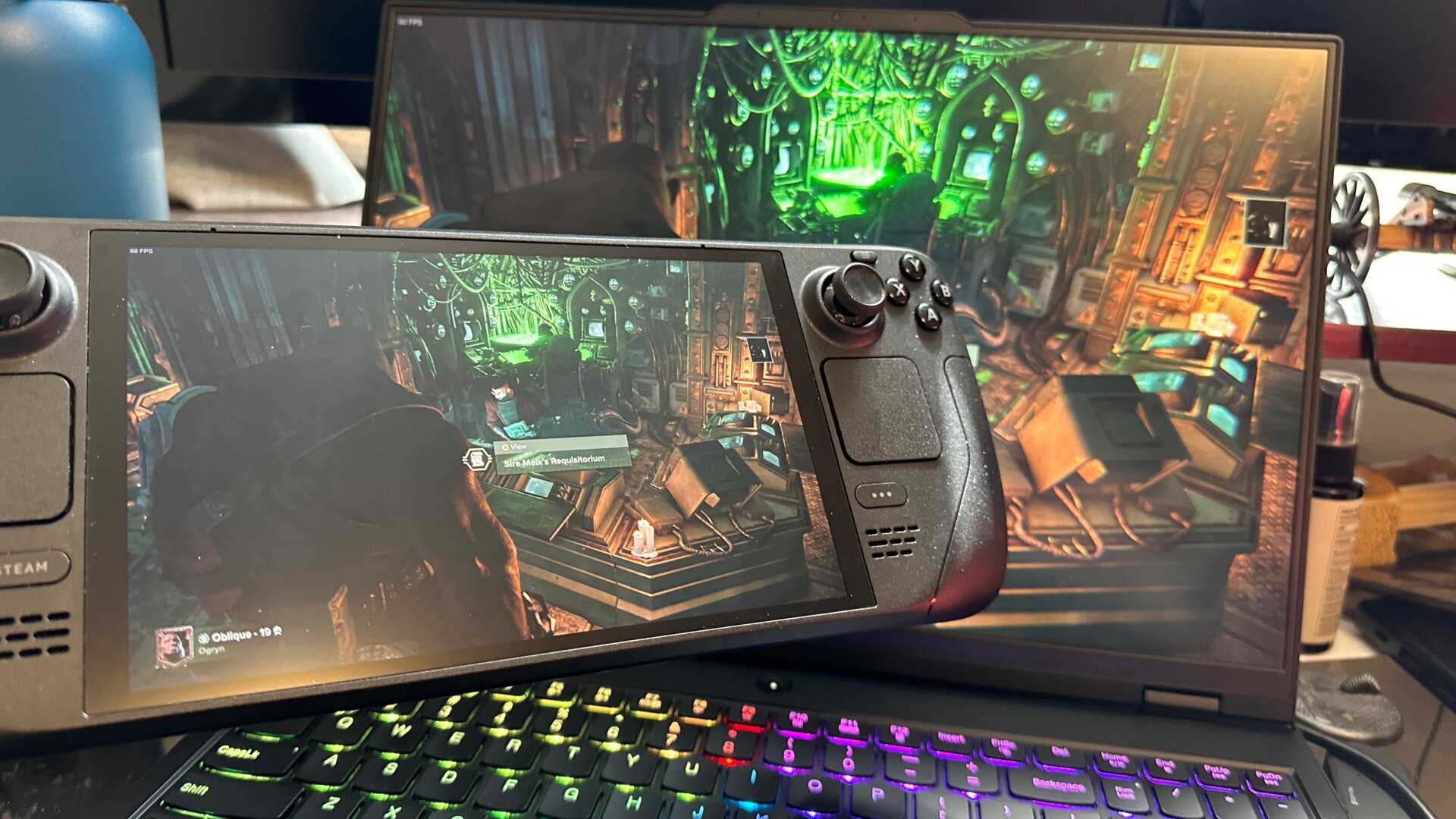
The Steam Deck might not be the most powerful gaming handheld out there, but it also might be the easiest to use for streaming from your other gaming devices, whether it’s a PC or a console.
Enabling remote play from your PC means you can get better graphics output than what the Steam Deck can natively handle, so if you’re playing at home and your computer’s on, you can enjoy your gaming experience right from the couch. Going through Steam is–obviously–going to be your easiest option here. First, on your PC, make sure the streaming setting is enabled by going to your Steam app, hitting the Steam button up top, and then going to Settings. Under the Remote Play section, make sure Remote Play is enabled and Enable Advanced Host Options is also toggled on. Make sure Change desktop resolution to match streaming client is also clicked on.
Then, on your Steam Deck, you’ll need to click on the game you want to stream, hit the arrow next to the play button, and then select the device you want to stream from. Hit Stream, and it should launch the game on the computer while streaming to your Deck.