Get Your Epic Games Store, GOG, and Other Non-Steam Titles Working on Steam Deck
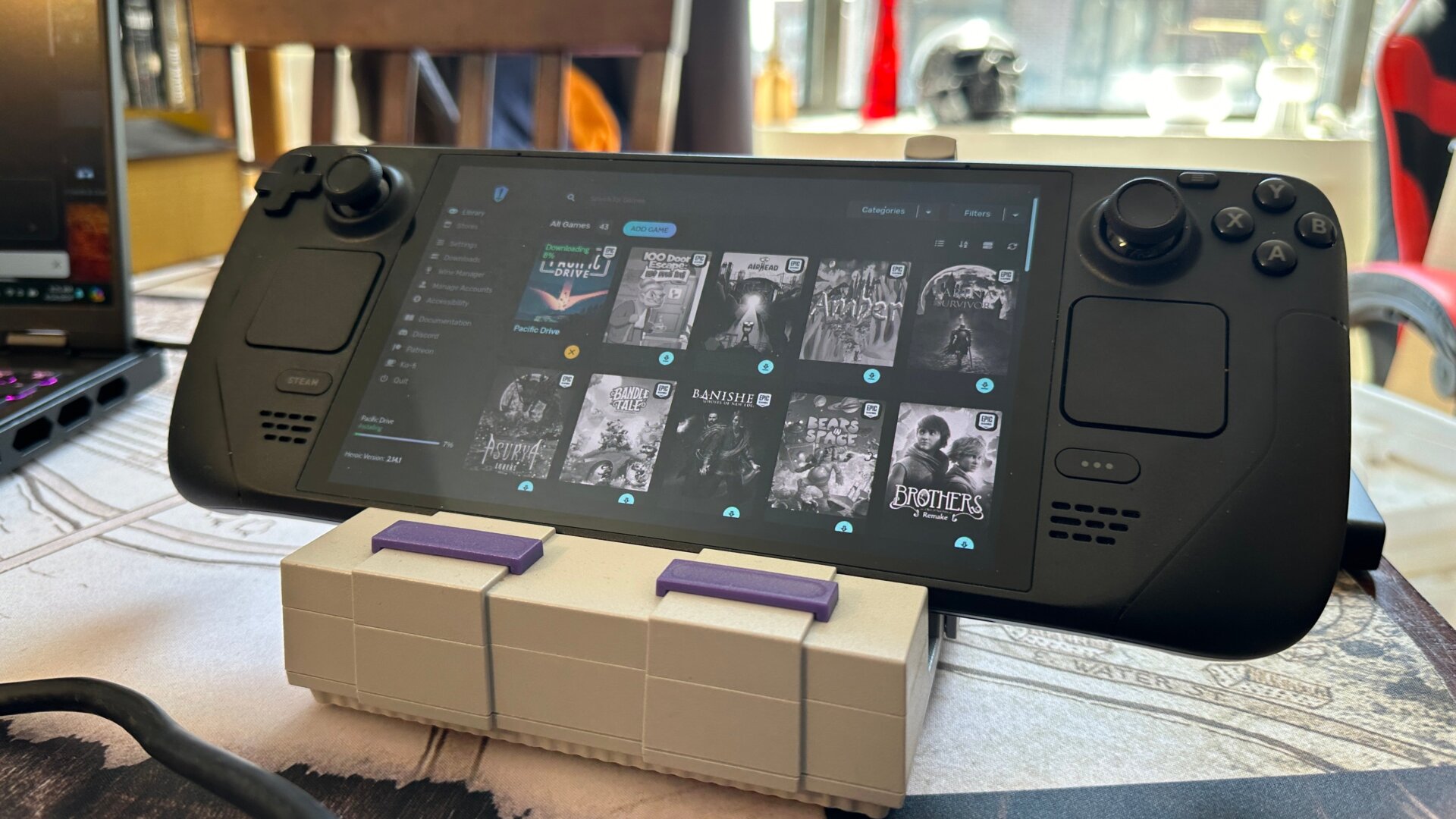
If you’re one of those folks who has their games split between multiple clients, this is your best option for getting these to work on a Steam Deck. Epic Games Store currently doesn’t support Linux, so if you want everything in one place, it’s far easier to use the Heroic Launcher. The app is essentially a third-party multimodal launcher that you can log into your Epic Games, GOG, and Amazon to access some of your titles. We should note that you don’t need Heroic or any other separate launcher to add non-Steam games to the Steam Deck, but we found it a bit easier overall.
You’ll probably want to have a keyboard and mouse plugged in to make this process smooth. First, go to the Discover app on the KDE Plasma taskbar. Then, search for Heroic Launcher, download it, and hit the launch button at the top.
Once in, choose Log in along the left side column and sign into your accounts. To make things easier, you’ll want to be able to access these non-Steam games from your main account. So, while you’re in Desktop Mode, open up the Steam client and look up on the top row where it says Games. Click that, then hit Add a Non-Steam Game to My Library. Scroll until you see the Heroic Games Launcher. Click that, then hit Add Selected Programs.
You should now have access to some of your non-Steam games, though you might encounter other runtime problems. First, you will be asked to switch to a version of the proton that requires you to install Visual C++ libraries. In that case, you’ll need to download them and extract them into whatever folder through desktop mode. You’ll want to switch the game .exe to “vcredist2015_2017_2019_2022_x64.exe,” then run it, install it, then go back to the game in Heroic, return the game to its normal .exe, and play it again (remember to offer props to the Redditors who discovered this fix).