Use EmuDeck to Get Netflix or Other Streaming Apps Running on Steam Deck
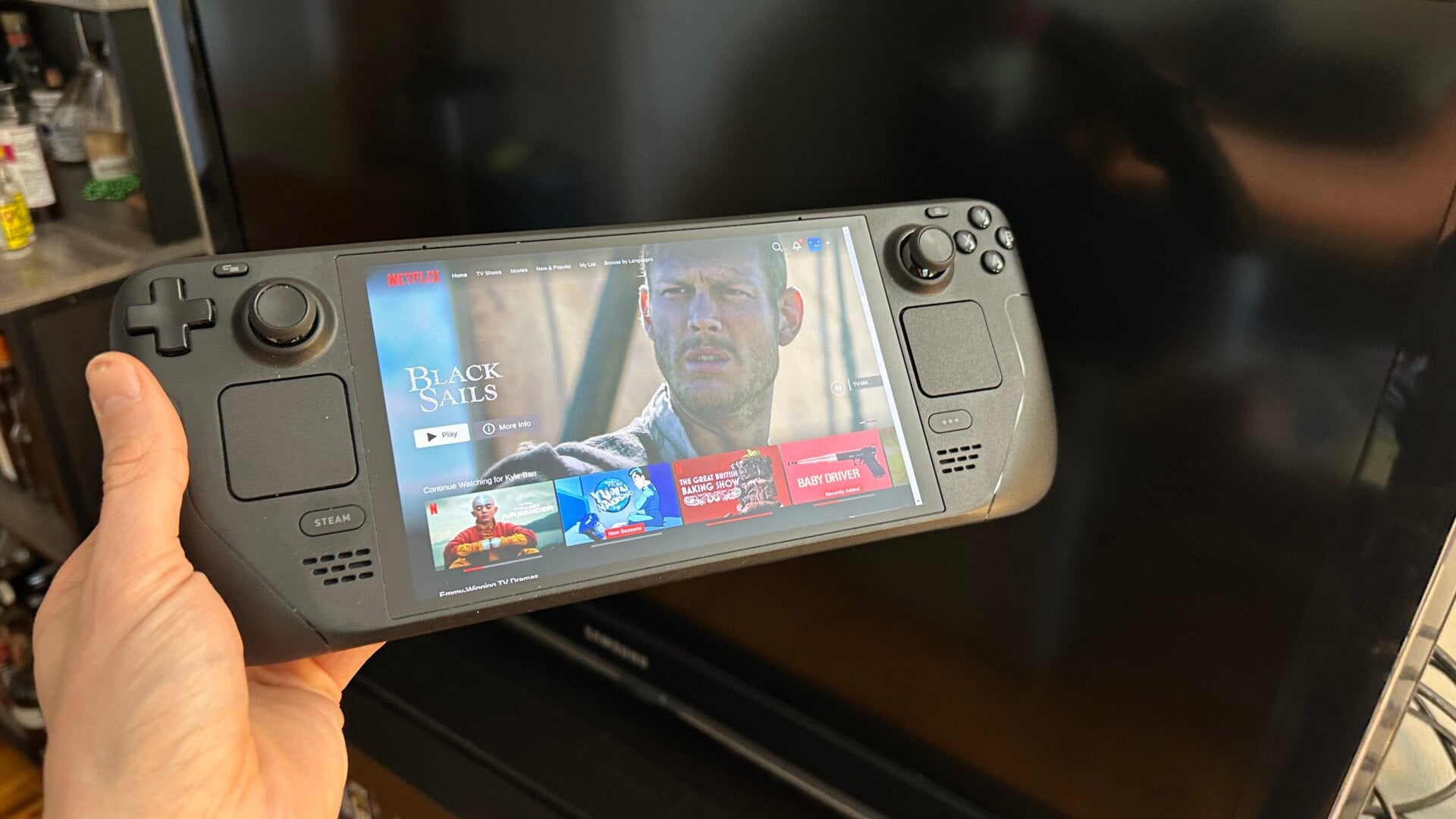
Do you like EmuDeck? Good, cause it gets even better. You don’t have to go through the rigamarole of going into a browser to watch your Netflix. Instead, you can have the app right at your fingertips from when you first boot up the console.
Go into Browser Mode, then hop into EmuDeck after you’ve installed it. On the left-hand column, slide down until you see Cloud Services. Click on that, and then select Manage Cloud Services and hit OK.
From here, select all the streaming services that apply to you. The list includes the gamut of cloud gaming and streaming services. Paramount+ still doesn’t work with Linux, and you might be restricted from watching 4K content on Netflix. It’s not like that’s really going to matter if you’re watching on the small Deck screen, but keep it in mind.
Once you hit OK, you’ll get a pop-up telling you to run Steam ROM Manager. Quit out of this screen and EmuDeck, then head over to your SteamROMManager app (if it’s not on your desktop, search for it after you click on the Steam Deck icon on the bottom left). Once in the app, go to Add Games, then hit Parse. This will show you your ROMS and front-end emulators currently installed with Steam. Search for Cloud Services under the Category drop-down menu if the list is too much. After you find the right streaming services, you can hit Add to Steam.
Go back into Game Mode, and under Collections, you should find your streaming apps. The UI isn’t perfect since it requires you to use the trackpads or sticks to move a mouse cursor, but it’s perfectly workable, and you should now have easy access to your shows when you open up your Deck.