Upgrade Your Gameplay With Game Dashboard
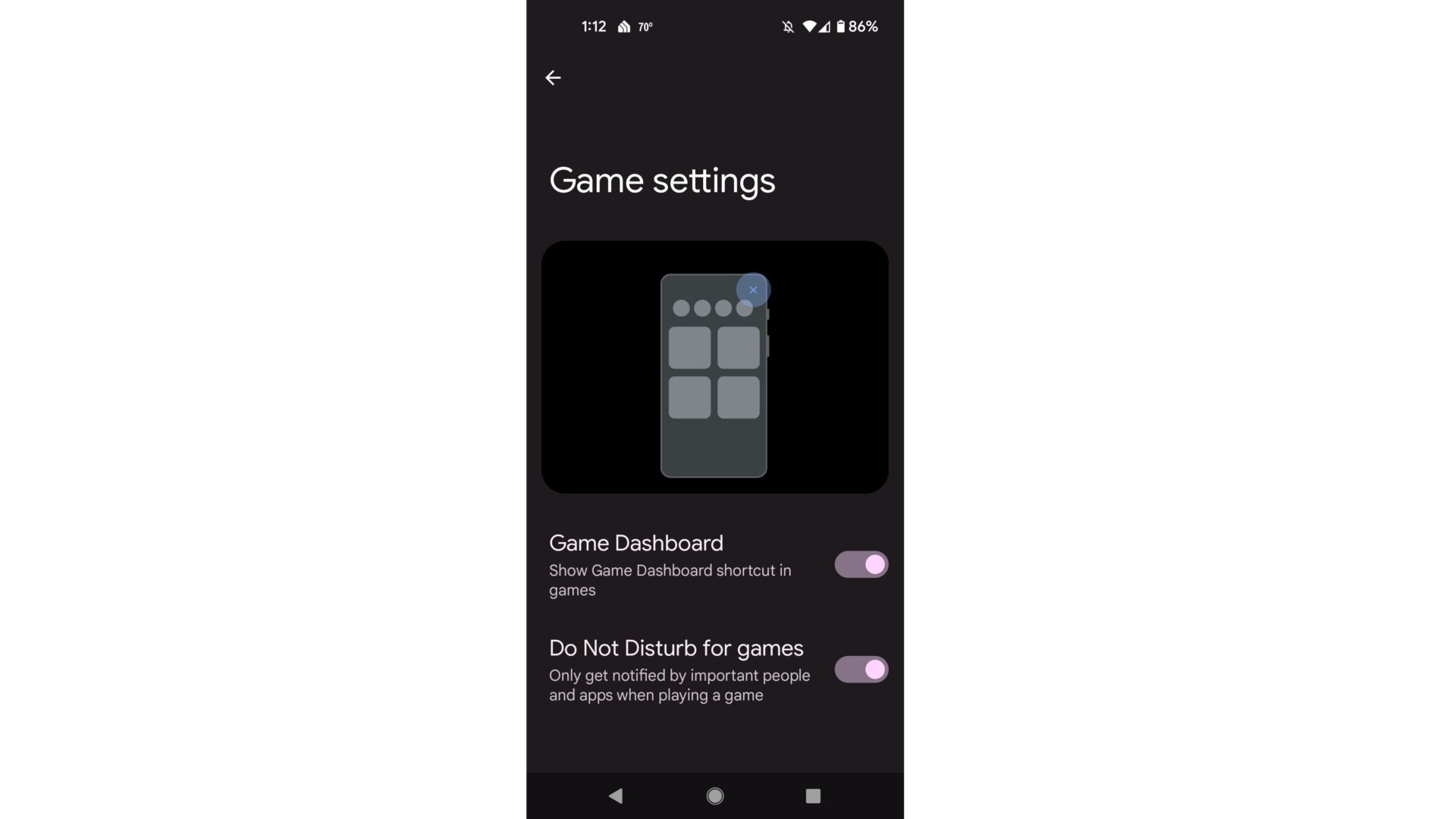
Finally, Google has its own version of a Game Dashboard for Android. It’s a feature that’s been available on Android smartphones by manufacturers like OnePlus and Samsung for awhile now. The Game Dashboard not only blocks out notifications and other interruptions while you’re playing a game, but it also lets you record gameplay, spruce up the hardware, take screenshots, and in some instances, drops you into your broadcasting suite of choice. In Google’s case, it links you to YouTube Live.
To turn on the Game Dashboard, open the Settings app, tap on Notifications, then scroll down and tap on Do Not Disturb. Scroll down when you get to the screen, and select Schedules. Tap on the Gear icon next to the Gaming choice, and you’ll see two options for the Game Dashboard. You can choose whether to toggle on the Game Dashboard shortcut in games or whether Android should go into Do Not Disturb mode when you’re in a game. You can also find this menu by simply searching for “Game settings” in the Settings panel.
Unfortunately, I couldn’t get the Game Dashboard to appear while I was in Pokémon Go, though there are screenshots showing games that are compatible with the overlay. The Game Optimization options are not yet available, but there are other options to turn on the frames-per-second (fps) counter, stream directly to YouTube Live, record, or snap screenshots.