You Can Disable a Part of the Touch Screen on Top of Apps
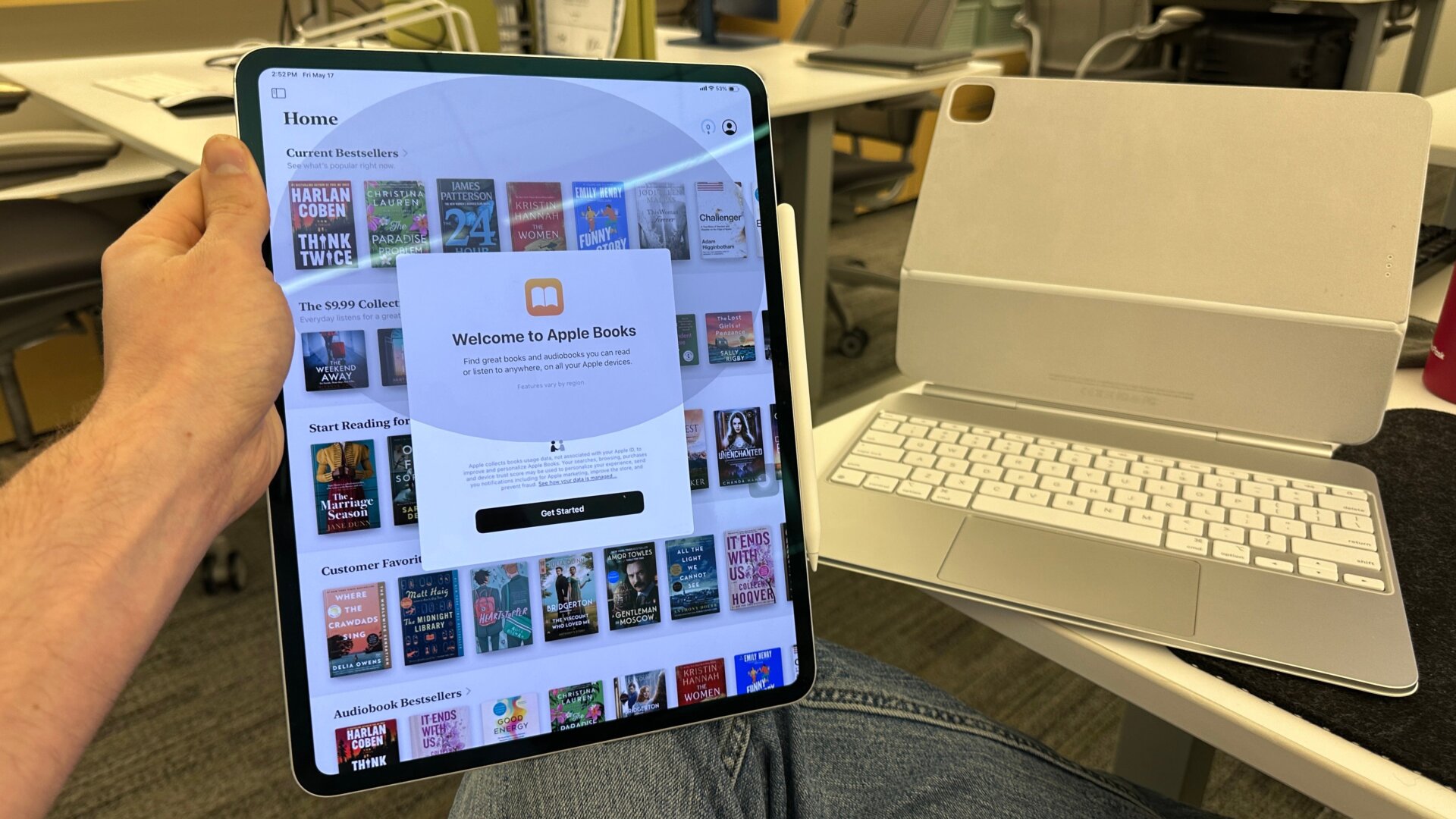
For whatever reason, you may need to disable the touch sensitivity on a part of the screen. Well, surprisingly, the iPad’s Guided Access lets you do that.
First, you’ll need to go into the Accessibility menu under settings and toggle on Guided Access. Note that sometimes the iPad won’t allow you to use Guided Access until you restart it. This happened my first time trying it, but it was working fine once I restarted the tablet.
Now, when you triple-click the power button when in an app, you should see a separate Guided Access menu on top of your app. Here, you can go down to Options and select which functions you don’t wish to work. You can set a timer for how long this lasts. If you ever need to disable it, you need to hit the power button three times once more and click End.