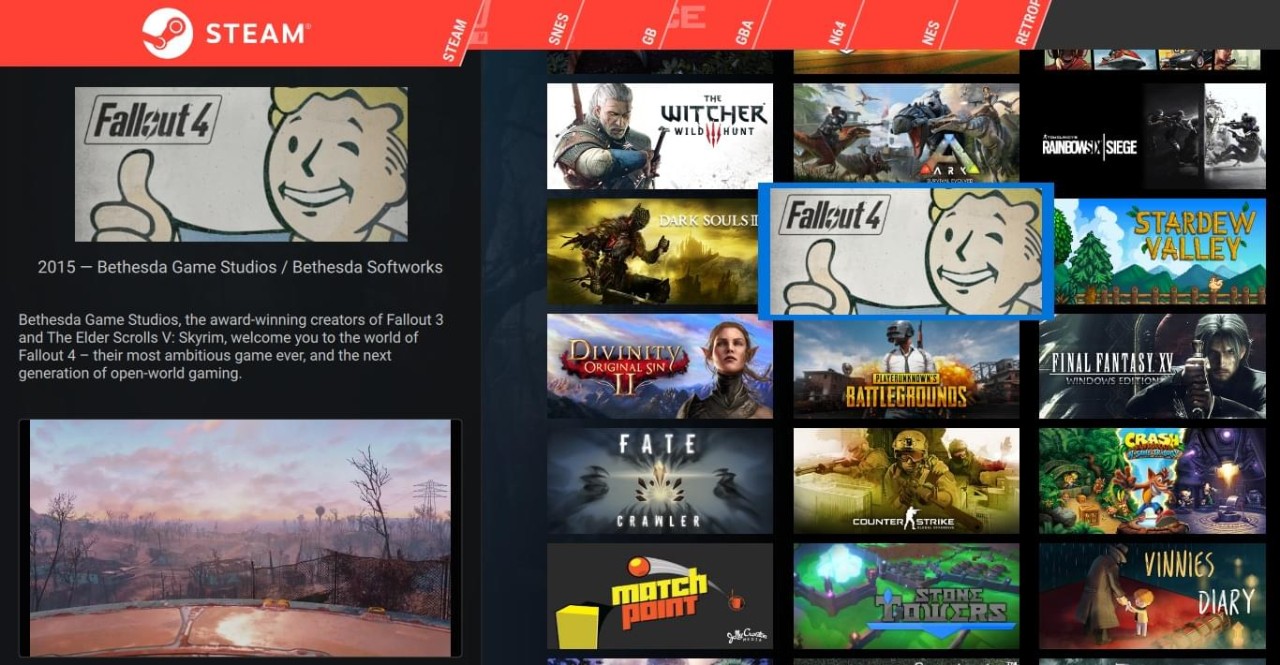
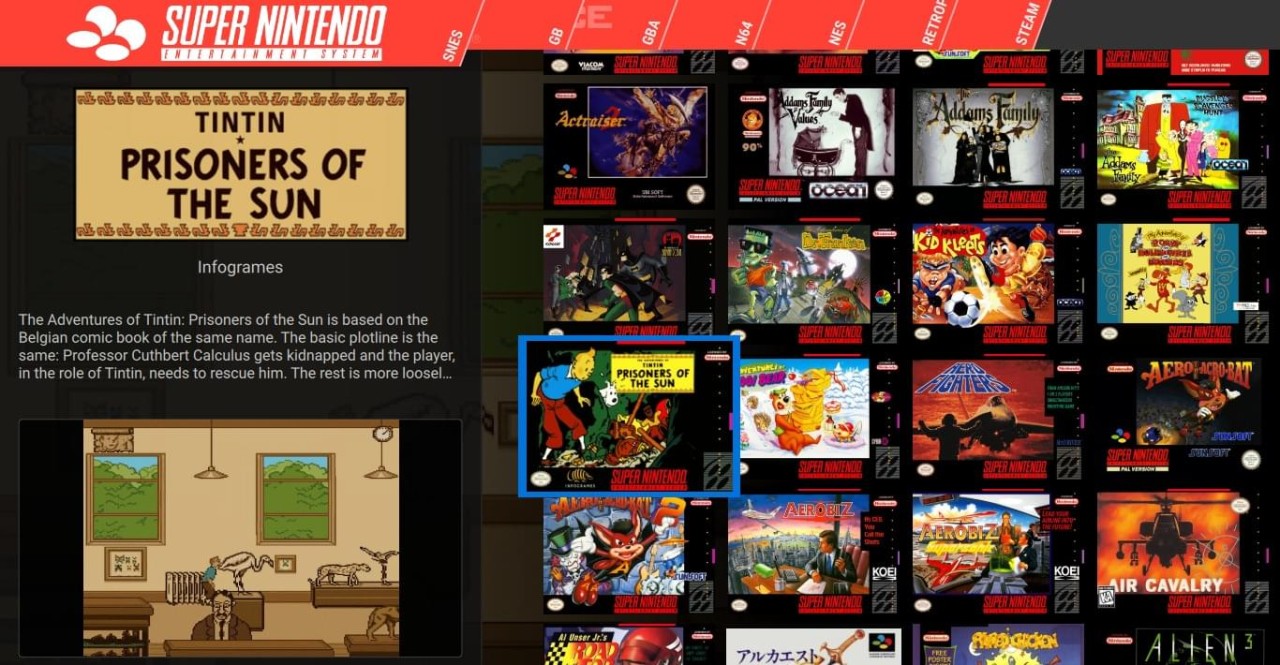
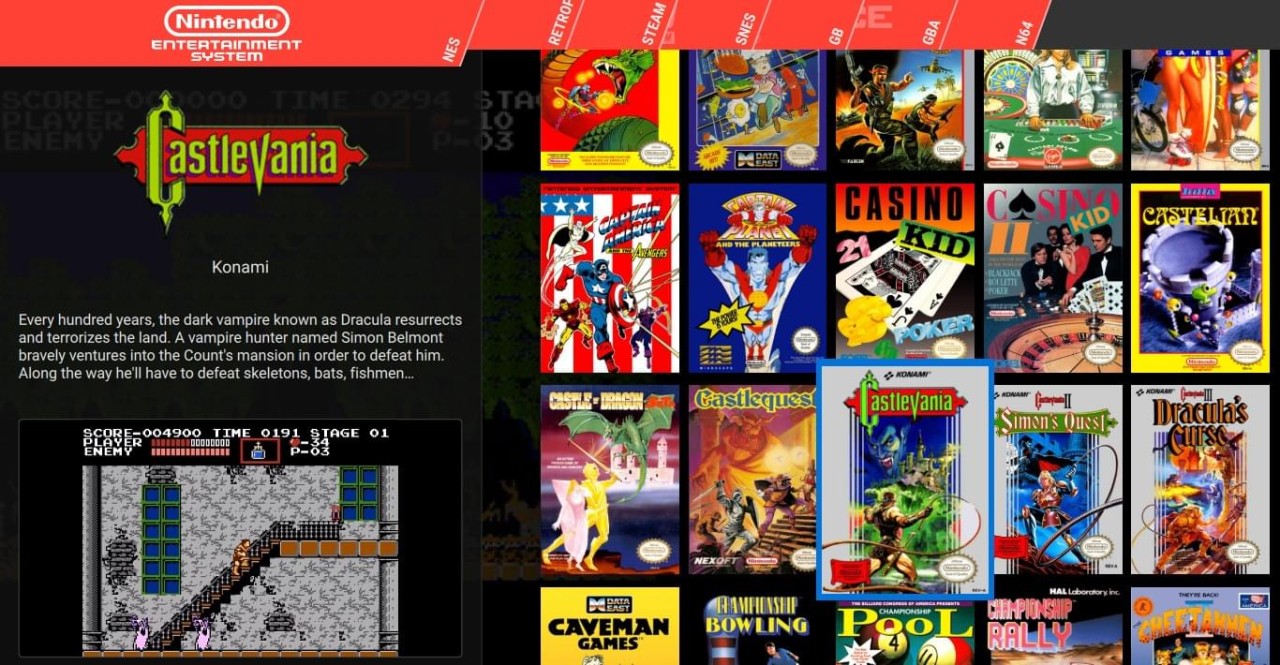
Pegasus is a frontend for your games that sits on top of emulators and storefronts, then turns everything into one browsable library instead of a pile of separate launchers and ROM lists. It is mainly about tidying up a modern retro gaming setup. Instead of opening one app for PlayStation, another for Game Boy, and Steam on the side, you point Pegasus at each source and browse the whole collection from a single screen.
Pegasus is not an emulator itself; it just handles the browsing and launching, including artwork, metadata, and video previews, if you want your library to look more like a streaming service than a folder tree. The trade is that you do a bit of setup work up front (pointing it at collections, adding art, picking a theme), and in return you get something that feels like a unified console dashboard, media center, or arcade front end instead of a stack of tools.
Why Should I Download Pegasus?
Pegasus is worth a look if you enjoy the building part of retro gaming as much as playing. It gives you a lot more control than most launchers: themes can completely replace the UI, changing layouts, menus, animations, and even adding 3D scenes or custom shader effects. Some setups are minimal, just a grid of box art. Others look like a living room media center or a full arcade marquee.
It also plays nicely with tools people already use. Pegasus can read EmulationStation metadata and gamelists, and it auto‑recognizes Steam games, so existing collections don’t need to be rebuilt from scratch. Once everything is wired in, you can sit on the couch with a controller, flip through platforms or playlists, and launch straight into games without thinking about which emulator or launcher they came from.
For anyone who has slowly built up a Raspberry Pi box, an Odroid system, or a mixed PC setup, Pegasus is the piece that makes it feel like one machine instead of several glued together.
Is Pegasus Free?
Pegasus is completely free and open source. There are no locked features, paid tiers, or “premium” themes behind a paywall. You download the build for your platform, set up your collections, and everything is available from the start.
The project does accept donations, including Patreon support, but those are optional and don’t change what the software can do.
What Operating Systems Are Compatible with Pegasus?
Cross‑platform support is one of Pegasus’s main selling points. It runs on Windows, macOS, and Linux for desktop users, and also on Android for living‑room boxes and handheld devices. There are builds for Raspberry Pi and Odroid too, which are staples of the retro community and often sit inside DIY arcade cabinets or small emulation rigs.
In practice, that means the same frontend can cover a Windows gaming PC, a Pi‑powered cabinet, and an Android TV box. You still configure each instance, but the look, feel, and launcher logic can stay consistent, which is useful if you like your setups to match across devices.
What Are the Alternatives to Pegasus?
Playnite is probably the closest alternative if you mainly play on PC and want a single launcher for Steam, Epic, GOG, and other stores as well as emulated games. Compared with Pegasus, Playnite is easier to get running and feels more “plug it in and go”, while Pegasus gives you more freedom to build a custom retro‑focused frontend across PC, Pi, and Android.
LaunchBox is another favorite among retro fans who want a polished front end with box art, video snaps, and cabinet‑style views. Compared with Pegasus, LaunchBox offers more guided tools and a paid Big Box mode for Windows setups, while Pegasus stays completely free and open‑source, and stretches across Windows, macOS, Linux, Raspberry Pi, Odroid, and Android.
Steam can also stand in as an alternative, even if it’s primarily a store. It lets you keep a PC library in one place and add non‑Steam games to that list. Compared with Pegasus, Steam works well if you mostly care about modern PC titles, while Pegasus is better if your collection spans multiple emulators and you want a launcher that isn’t tied to a storefront.