The history of computing is littered with the remains of forgotten operating systems—some rendered obsolete by technological progress, some that never quite captured the public imagination, and some just so aggressively useless that everyone would rather forget they ever existed. But we shouldn’t forget! And happily, there’s a new project devoted to preserving the history of all manner of strange and wonderful OSes: the Virtual OS Museum, a repository of some 1700 operating systems that date back to the dawn of computing as we know it.
This project is all the more remarkable for being the work of one man: Andrew Wartenkin, who has been collecting OS images for over two decades. Of course, Wartenkin didn’t write all the emulation software himself, and he maintains a list of credits to give credit where it’s due. But the work of collecting all the Museum’s material, making sure the various emulations work, and creating a single, fairly seamless point of entry for people interested in exploring them—that’s all Wartenkin.
If you’re interested in having a look yourself, you should know that the Museum isn’t a website where you can just click through to different OS emulations: you need to download and install the project on your computer, and you might need to do a bit of hacking to get it to work.
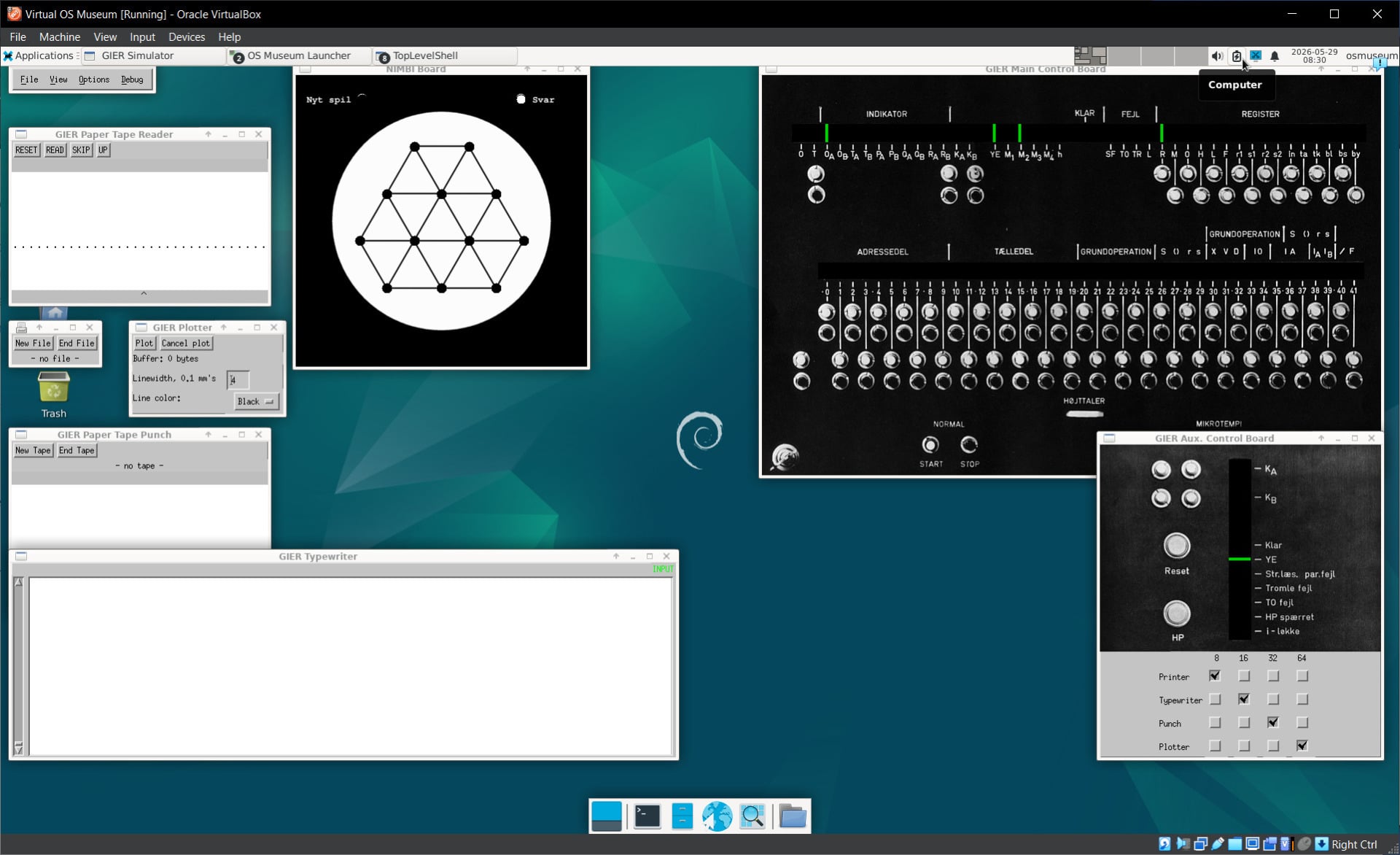
It’s worth the effort, though, because there’s a ton of fascinating history here to play with. The Museum itself runs in a virtual machine, which seems kinda fitting—it opens in a virtualized Linux installation and presents you with the full list of available operating systems. Did you know someone has written a GUI for the Commodore 64? Neither did I!
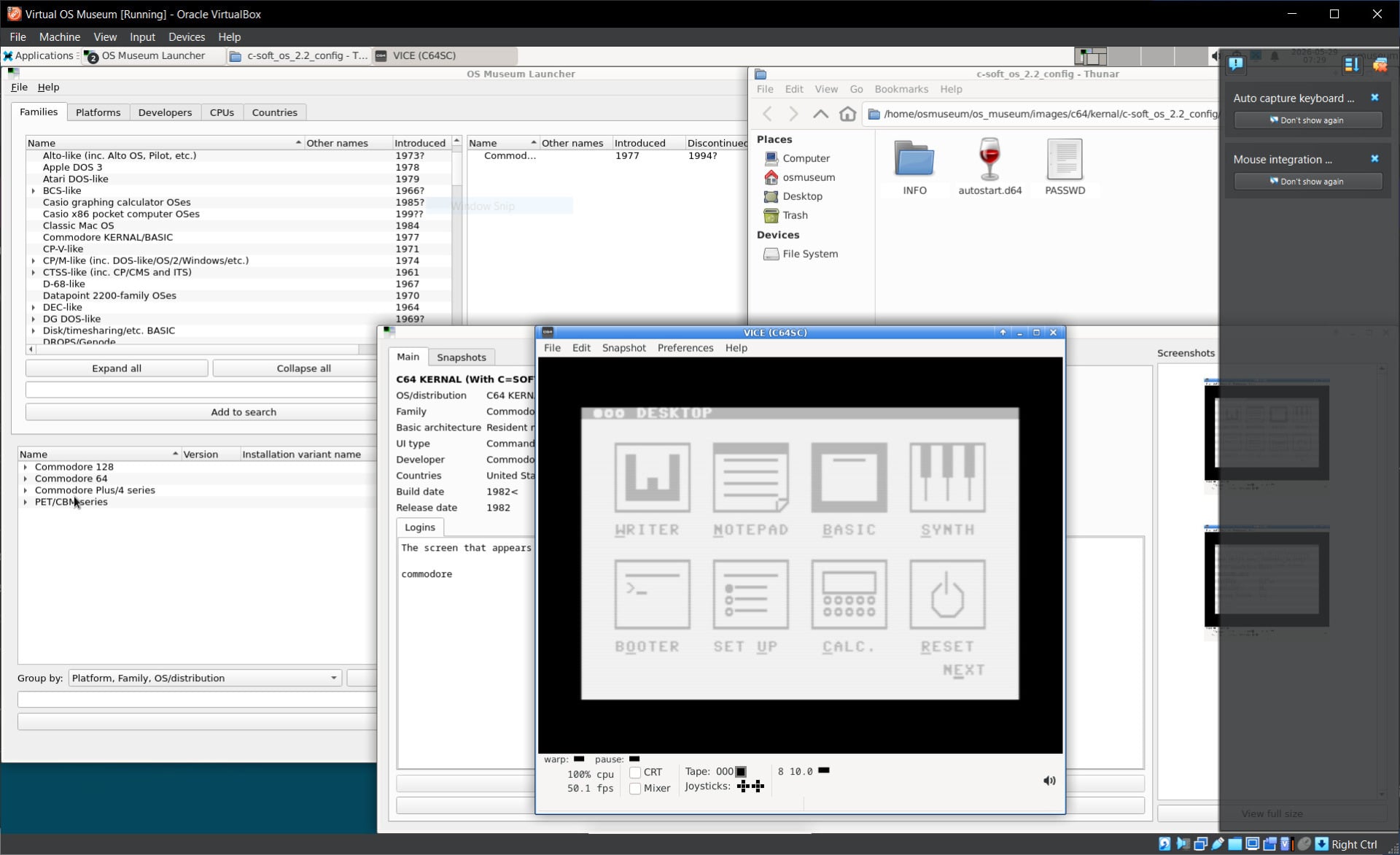
There are simulations of ancient mainframes, like the IBM 1130 (yours for the low, low price of $32,280—or $41,230 with a disk drive—back in 1965). And then there are the truly esoteric ones, like the GIER, which, as far as I can tell, was an early transistor-based calculator built in the mid-1960s by Danish company Regnecentralen—most famous for their RC-4000 operating system, which is also included—and sold only in Germany:
Perhaps you’ve always wondered about the IBM 5110, an early attempt at a portable computer? Well, place a stack of cinderblocks on your lap and then boot up the 5110 emulator! which truly stretched the definition of “portable.” Or perhaps you’ve always wondered what it’d be like to play around with the late Terry Davis’s batshit crazy decidedly idiosyncratic TempleOS? Er—well, that one will have to wait, because it doesn’t work at the moment.
Now, as I mentioned, getting started will take a little work. There are two downloads to choose from. As well as the “Full” version, which weighs in at 175 GB when unzipped and contains the entire archive, there’s a “Lite” version, which contains everything you need to get the museum up and running but not the actual OS images themselves—they are downloaded automatically when you choose whichever one you’d like to run. The Lite version is only 21GB unzipped, so unless you’ve got storage space to burn, I’d recommend it over the whole shebang. I’d also recommend using the provided BitTorrent files to download the archive, because they’re a lot faster than the direct download server.
Once you’ve downloaded and extracted the archive, you can move on to getting the Museum up and running. For me, at least, this wasn’t super straightforward, though the issues I encountered are apparently known to Wartenkin and will be fixed in an upcoming version.
For now, the main problem seems to be with VirtualBox’s management of file locations. It needs two large .vdi files to run, and it insists on looking for them in one place only—presumably their original location on Wartenkin’s computer—rather than in the location where you’ve actually extracted them. You can get around this issue by creating a couple of symbolic links to the files. The way to do this will depend on your actual operating system. If you’re on Windows and comfortable with the command prompt, you can use mklink to create links to the files:
mklink "C:\data1\common1\disk_images\os_museum_vm\dist\virtual_os_museum-2026.05.19-lite\VirtualOSMuseum.utm\Data\host_x86.vdi" “[actual path]”
([actual path] is the location of the file on your computer.)
If you’re on macOS or Linux, you can do something similar in the Terminal using the ln command. And if you’re wondering whether you can just create shortcuts to do this: no, you can’t. Well, not on Windows, at least, because I tried it and it doesn’t work.
It’s remarkable that this is all the work of one developer, because it’s often a significant amount of work to get one ancient OS working under emulation, let alone hundreds of them. With that said, I do hope that the project arrives at a place where it’s a little more user-friendly, because it’s a hugely valuable endeavor, and it’d be great if it were easy for casual users to explore with a minimum of friction. We look forward to future updates!