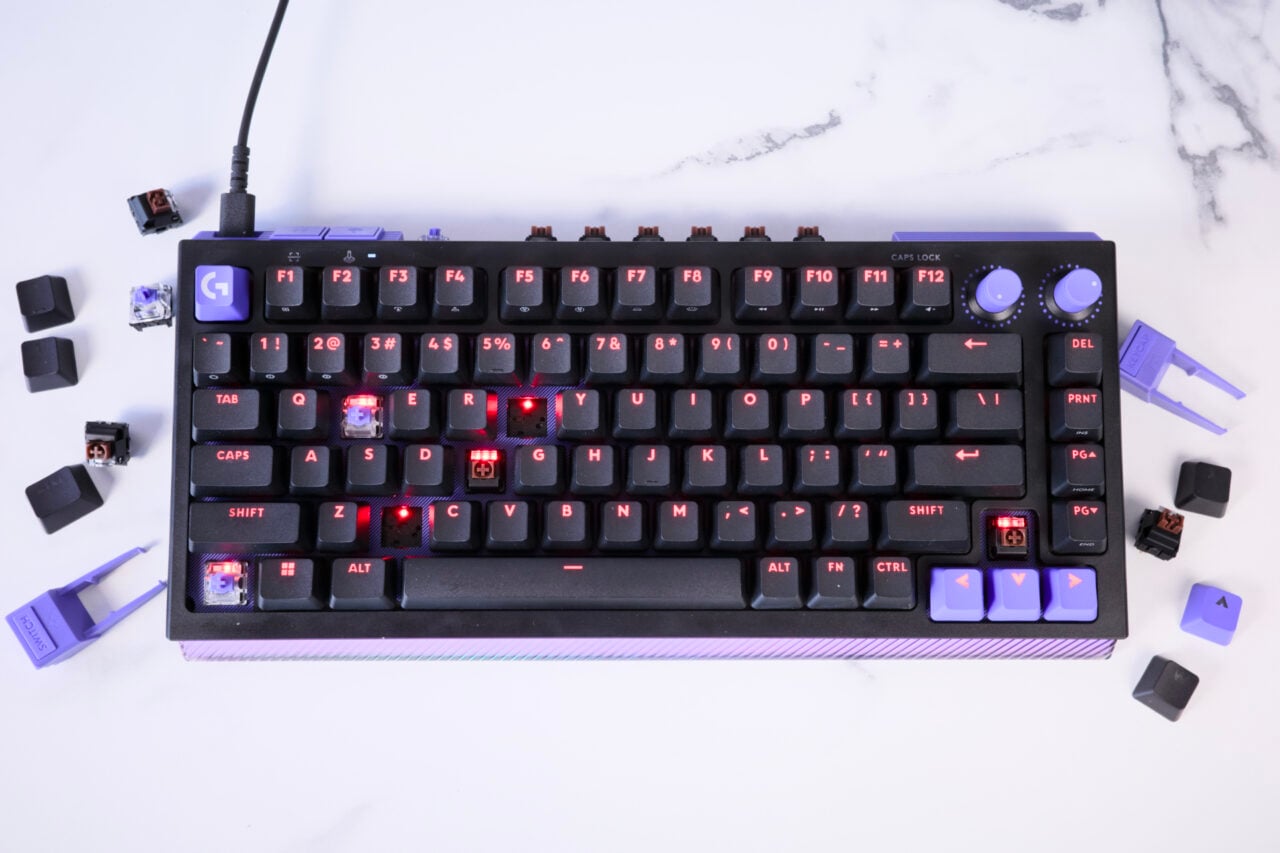
A while back we asked you all to tell us which keyboard shortcuts you found most useful—we wanted to know about keystrokes that went above and beyond the basics. Here’s the best of what you had to say, culled from some 200 responses. Are you ready to get your motherfraking optimize on?
https://gizmodo.com/what-are-your-favorite-keyboard-shortcuts-829061632
From your desktop…
Of all the tips you gave us, some of our favorites are not necessarily well-known ways to get your computer into (or out of) an idle or locked state quickly by using a shortcut to bypass menus.
Windows+L: Lock your computer (Windows) —Thanks, Jimstoic
https://gizmodo.com/windows-key-l-to-lock-my-computer-were-supposed-to-l-830814838
Opt+Cmd+Eject: Puts your computer to sleep (Mac) — Thanks, PrestigeWorldwide
https://gizmodo.com/cmd-opt-alt-eject-sleeps-computer-for-macs-if-y-832668415
Ctrl+Opt+Cmd+Eject: Hard shutdown without prompt (Mac) — Thanks, CRUMBshot
https://gizmodo.com/mac-ctrl-opt-command-eject-insta-no-prompt-shutdown-830513885
Ctrl+Shift+Eject: Turn off your monitor without going to sleep (Mac) — Thanks, Zack Pyle
https://gizmodo.com/turn-off-the-display-on-a-mac-without-going-to-sleep-s-829334608
Ctrl+Shift+Esc: Bypass Ctrl+Alt+Del and go straight to the Task Manager (Windows) — Thanks, SQLGuru
https://gizmodo.com/ctrl-shift-esc-task-manager-windows-l-lock-windows-829724442
Eradicate faster…
Getting rid of stuff is sometimes the most productive thing you can do.
Fn+Backspace: Delete item to the right when you don’t have a delete key (Mac) — Thanks,Bostonmodo
https://gizmodo.com/mac-fn-delete-will-delete-to-the-right-of-the-cursor-831553623
Ctrl/Opt+Backspace: Erase whole words (Windows/Mac) – Thanks, Nick Berkowitz
https://gizmodo.com/option-delete-is-my-favorite-delete-whole-words-that-834977711
Shift+Del: Permanently delete a file by skipping the Recycle Bin (Windows) —Thanks, atatassault47
https://gizmodo.com/im-not-sure-how-well-known-this-is-in-windows-shift-829468721
Navigate your text…
No more jabbing at your keyboard endlessly to move back and forward. Be the Usain Bolt of the text box.
Ctrl/Opt+L/R Arrow: Jump forwards or backwards by entire words (Windows/Mac) — Thanks, Sketcher 0204
https://gizmodo.com/i-use-adobes-creative-suite-for-a-living-so-i-use-more-830006097
Ctrl/Cmd+L/R Arrow: Jump to the beginning or end of a line (Windows/Mac) — Thanks, brunski82
https://gizmodo.com/control-left-and-right-arrows-or-home-end-to-move-thr-832597601
Browse better…
Ctrl/Cmd+L: Select the address bar — Thanks, MylarShoe
https://gizmodo.com/ctrl-l-and-ctrl-enter-are-two-that-keep-my-hands-on-830068261
Ctrl/Cmd+Shift+T: Reopen the tab that you accidentally (and stupidly) just closed (Windows/Mac)—Thanks, DeadlyFatalls
https://gizmodo.com/this-probably-wont-be-new-to-most-people-but-the-most-829348495
Ctrl/Alt+Down arrow: Scroll down just a little bit —Thanks, nobody
https://gizmodo.com/control-alt-down-arrow-829442093
Screenshot it…
Personally, I use this at least twenty times a day. A personal favorite.
Cmd+Shift+4: Pull up crosshairs for a selection screenshot — Thanks, Jservalli
https://gizmodo.com/command-shift-4-and-http-getcloudapp-com-changed-830570805
Cmd+Shift+3: Capture a screenshot of your entire screen.
Holy crap how many displays do you have?
I never thought this would be a problem but user thisisharderthani thought clearly needs this one:
https://gizmodo.com/windows-p-change-how-many-currently-connected-scree-830077553
Windows+P: Change how many connected screens or projectors you want to use.
Why?
It’s great for me to go from using my monitor and TV for browsing the web and watching Hulu to just my TV for gaming or a movie without having to go into the Control Panel.
OK!
Make Office useful…
In Microsoft Office, userChris Straughn likes:
https://gizmodo.com/ctrl-shift-k-to-make-small-caps-writing-my-dissertati-829874934
Ctrl+Shift+K: To make “small capitals” (Windows)
Why?
Writing my dissertation in linguistics would have been so much more painful without this, as we use small caps a lot in our morphological glosses.
For Microsoft Office shortcuts that will probably be more useful to you, check out this nice PDF listing.
Obvious, maybe, but this Photoshop tip blew my mind…
Ctrl/Cmd+Alt/Opt+Z: Successive undos in Photoshop (Windows/Mac) — Thanks, candytaco
https://gizmodo.com/ctrl-z-ctrl-z-its-not-working-ctrl-alt-z-829763267
Why is this so crazy? In Photoshop, the old Ctrl/Cmd+Z toggles back and forth between your last step making it easy to compare the results of an option on your project. But add “alt” to the whole equation and you can keep going back in time forever and ever.
Now, I polled my colleagues and it turns out that I’m a total idiot for using Photoshop as long as I have without knowing this. But that’s the beauty of shortcuts; just when you think you’ve learned them all, another one pops up that you’d somehow managed to overlook.
Image via Juan R. Velasco/ Shutterstock.com
A few more resources…
Those are just a few of the shortcuts out there; if you want a more universal listing for Macs, check out Dan Rodney’s neatly categorized collection. Microsoft, meanwhile, has a nice listing of shortcuts for Windows.