On our iPhone 17 Pro, NordVPN moved the public IP address to another country and recorded 52.11 Mbps on a UK server, compared with 54.7 Mbps on home Wi-Fi. iCloud Private Relay gave Safari a new IP address but kept our location; Airplane Mode brought a new mobile IP address, and a router restart left the home IP address unchanged. NordVPN comes first because a VPN changes the IP address for every app and lets you pick the country.
Change Your iPhone IP Address: Steps for October 2026
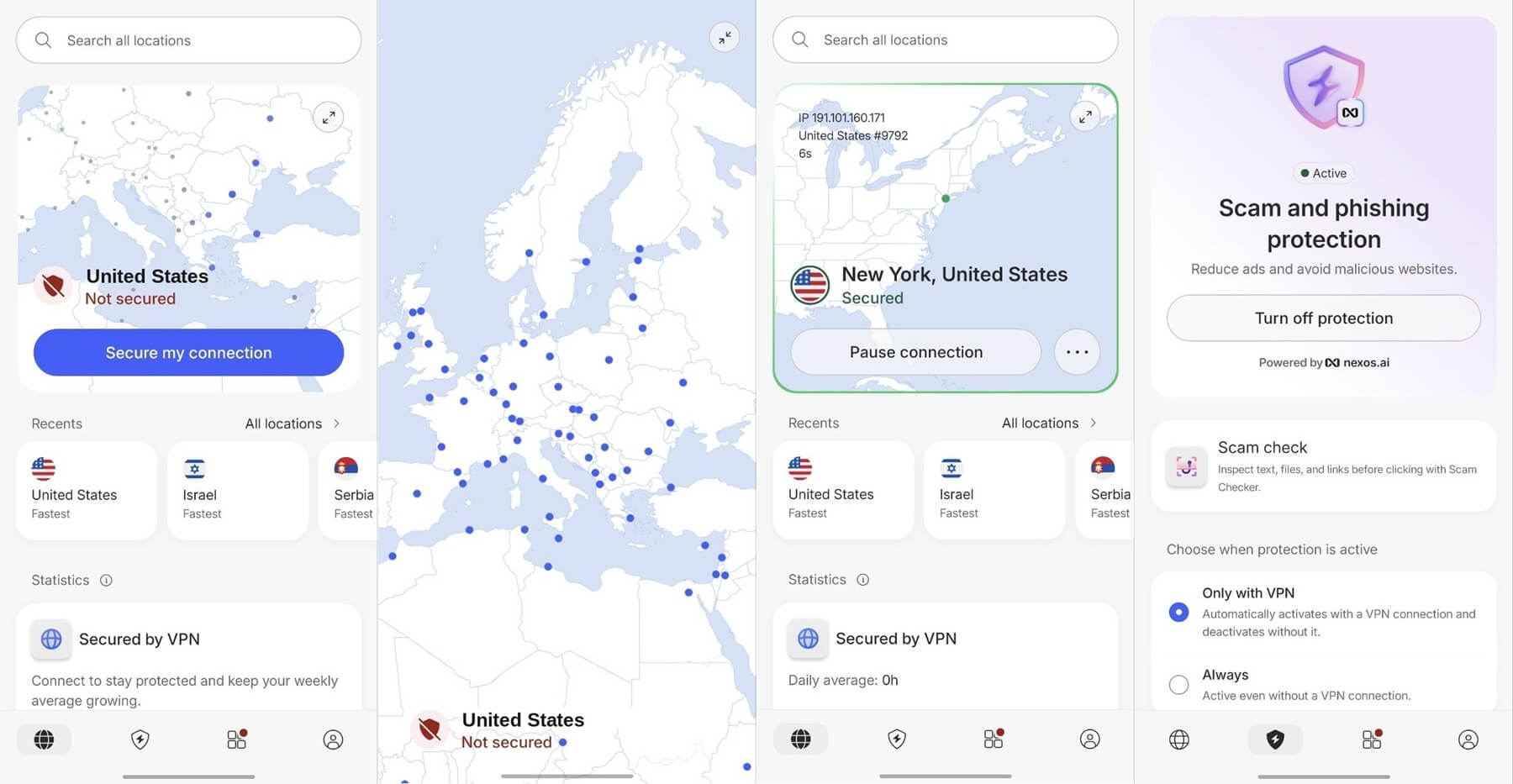
- Subscribe to NordVPN and download it from the App Store.
- Sign in and allow the VPN configuration iOS asks to add.
- Search for a country or scroll the location list, then tap it.
- Confirm the change by opening an IP lookup page in Safari.
iPhone IP Address Methods Compared
| Method | What changes | Pick a country | Encrypted |
|---|---|---|---|
| VPN | Public IP address for every app | Yes | Yes |
| iCloud Private Relay | Public IP address in Safari | No | Yes |
| Airplane Mode | Public IP address on mobile data | No | No |
| Router restart | Home IP address, if the ISP reassigns it | No | No |
| Onion Browser (Tor) | Public IP address in that browser | No | Yes |
| Proxy | Public IP address on Wi-Fi traffic | Yes | Usually not |
| Manual IP setting | Local IP address only | No | No |
How to Change Your IP Address on an iPhone With a VPN
A VPN sends all iPhone traffic through a server in the country you choose, so every app sees that server’s IP address. Our guide to the reasons to use a VPN covers the other benefits, such as encryption on public Wi-Fi.
Subscribe and Install the App
Buy a NordVPN subscription on the website, then install the app from the App Store and sign in with that account. The first time it connects, iOS asks to add a VPN configuration. Tap Allow and confirm with Face ID or the passcode.
Pick a Country and Connect
Type the country name in the search box, or scroll down the list and tap the one you want. NordVPN covers 152 countries, and our iPhone VPN rankings compare it with other iOS apps.
Confirm the New IP Address
To double-check, open whatismyipaddress.com in Safari and compare the country with the server you chose.
Other Ways to Change an iPhone IP Address
iCloud Private Relay
Turn it on in Settings > your name > iCloud > Private Relay. It requires an iCloud+ subscription and covers Safari, DNS lookups, and unencrypted app traffic. With it on, our IP address changed, but the location stayed the same. Apple offers two settings, general location or country and time zone, and neither moves the IP address to another country.
Airplane Mode on Mobile Data
Switch Airplane Mode on for a few seconds, then off. The iPhone reconnects to the carrier, which often assigns a new public IP address from a shared pool, and it did on our iPhone. Some carriers keep the same IP address for a while, and the new one still shows the same country.
Restart the Router
Unplug the router for a few minutes, then reconnect the iPhone to Wi-Fi. Our home IP address stayed the same after the restart. Many ISPs reassign the same IP address to a subscriber’s router, and a static IP address never changes. Our guide to changing an IP address covers more methods for home networks.
Use Onion Browser
Onion Browser, the iOS app the Tor Project recommends, sends browser traffic through Tor and shows sites the IP address of a Tor server in a random country. Only traffic in that browser changes, and pages load slowly.
Set Up a Proxy
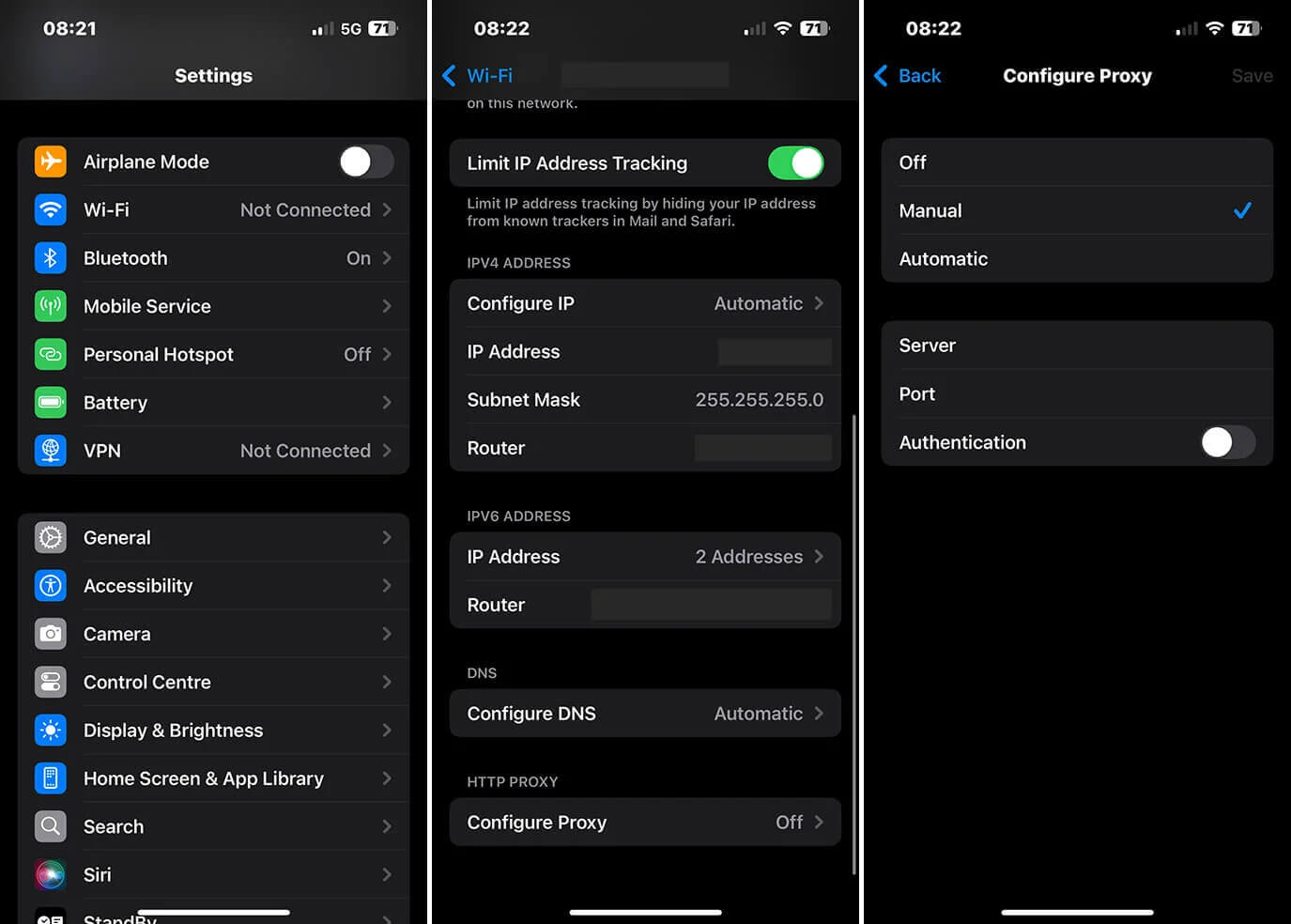
A proxy changes the IP address for Wi-Fi traffic but rarely encrypts it, as our proxy vs VPN comparison explains. Free web proxies such as Hide.me Proxy work in the browser only. For a paid proxy:
- Open Settings and tap Wi-Fi.
- Tap the info icon next to the connected network.
- Tap Configure Proxy and select Manual.
- Enter the server, port, and login details, with Authentication on.
- Tap Save.
Proxies lack the kill switch and leak protection of the most secure VPNs.
Change the Local IP Address Manually
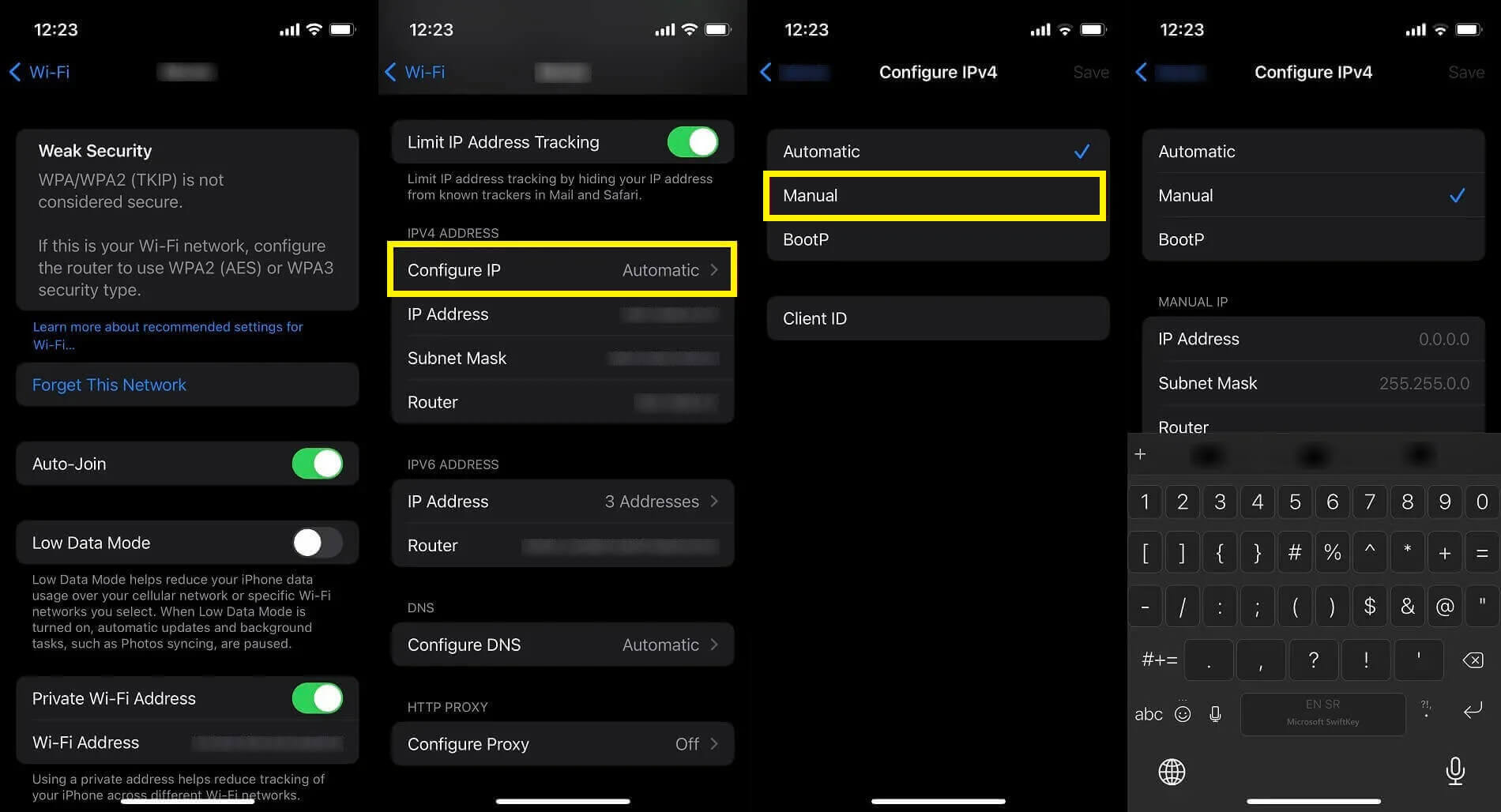
In Settings > Wi-Fi, tap the info icon, then Configure IP > Manual, and enter an IP address, subnet mask, and the router’s IP address from the home network’s range. This changes only the local IP address the router assigns to the iPhone. Websites still see the same public IP address, and the ISP can still see the traffic and throttle the connection.
Best VPNs to Change an iPhone IP Address
We measured each app in October on an iPhone 17 Pro, over home Wi-Fi that measures 54.7 Mbps without a VPN, averaging UK, US, and Japanese servers. A small speed loss is one of the trade-offs in our VPN pros and cons guide.
- NordVPN: Best overall, with the smallest speed loss we got on iOS.
- Proton VPN: Best for privacy tools, with Stealth and Secure Core in the iOS app.
- ExpressVPN: Best for one-tap setup, with post-quantum Lightway on by default.
1. NordVPN: Best Overall VPN for Changing an iPhone IP Address
Pros
- Post-quantum NordLynx
- Obfuscated servers
- Double VPN servers
- Meshnet included
Cons
- Price increases on renewal
- Anti-malware starts at Complete
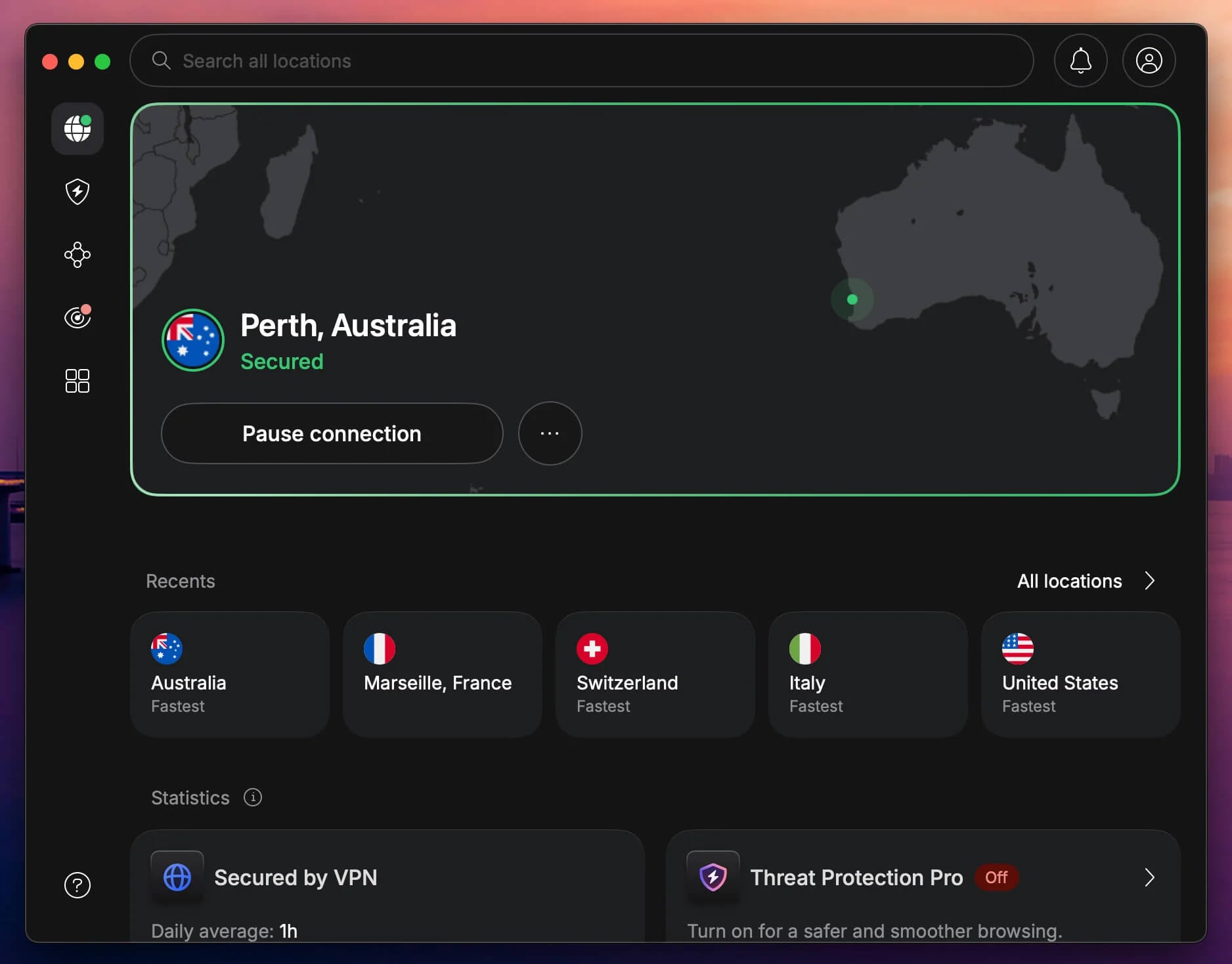
NordVPN lost 13.6% of our iPhone’s Wi-Fi speed on average, the smallest drop we measured on iOS, with 52.11 Mbps on the UK server. Its app lists 152 countries, searchable by name. The Basic plan leaves out Threat Protection Pro, NordVPN’s anti-malware layer, which starts at the Complete plan. Subscribing for 27 months on the Basic plan costs $94.23, or $3.49 a month, and the plan renews at $139.08 annually. 10 devices can connect.
2. Proton VPN: Best for Privacy Tools on iPhone
Pros
- Swiss jurisdiction
- Open-source apps
- Annual no-logs audits
- NetShield blocker
Cons
- No post-quantum cipher
- Slower on distant servers
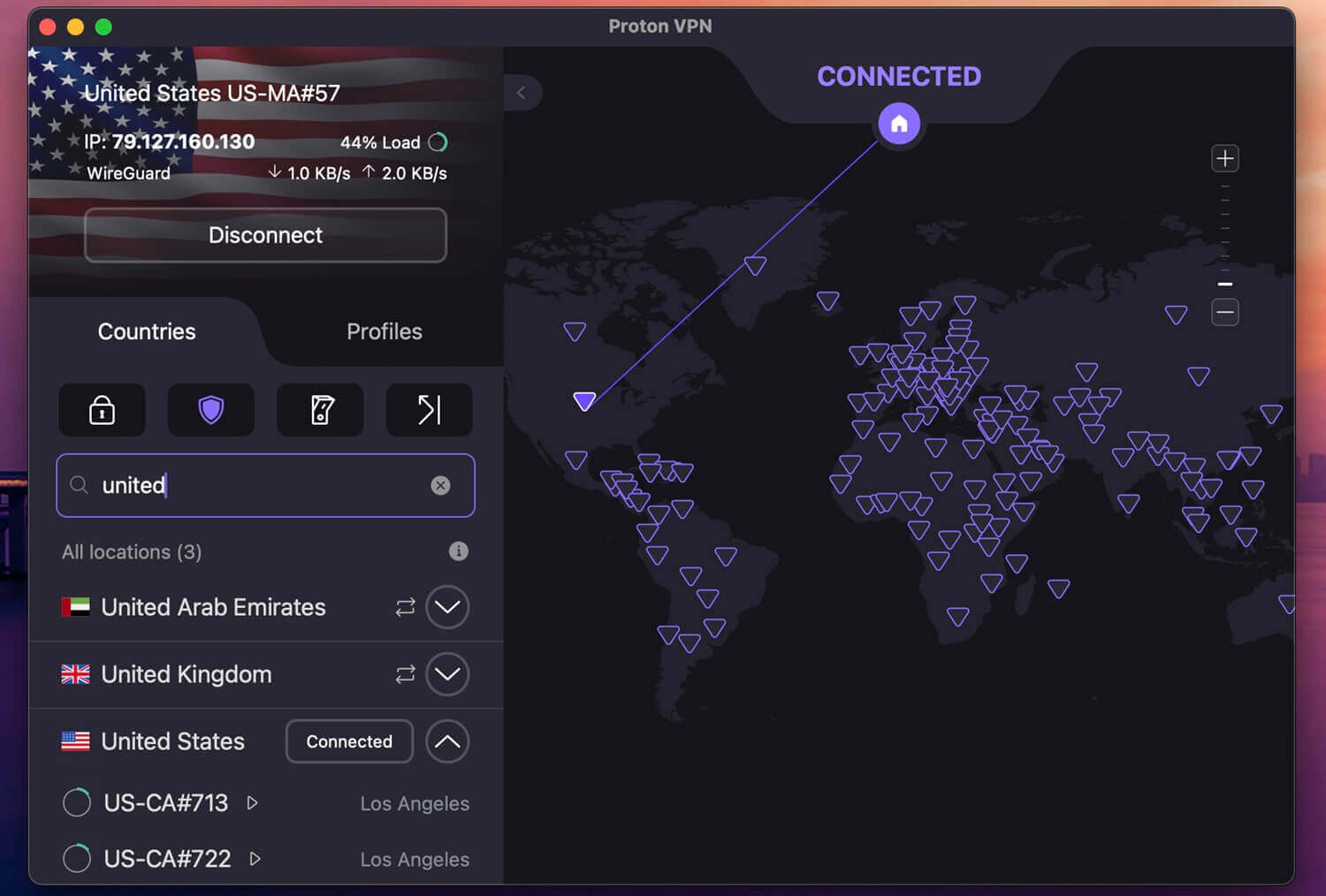
Proton VPN averaged a 17.5% speed loss on the iPhone 17 Pro, with 50.48 Mbps on the UK server and 38.74 Mbps on the Japanese one. The iOS app includes Stealth, which disguises VPN traffic on restrictive Wi-Fi, and the VPN Plus plan adds Secure Core. Post-quantum encryption is still missing from every Proton VPN app. VPN Plus costs $2.99 a month on a two-year term, $71.76 at checkout, followed by $83.88 a year.
3. ExpressVPN: Best for One-Tap Setup on iPhone
Pros
- RAM-only servers
- Automatic obfuscation
- KPMG-audited no-logs policy
- Dedicated router app
Cons
- No Double VPN
- Limited customization
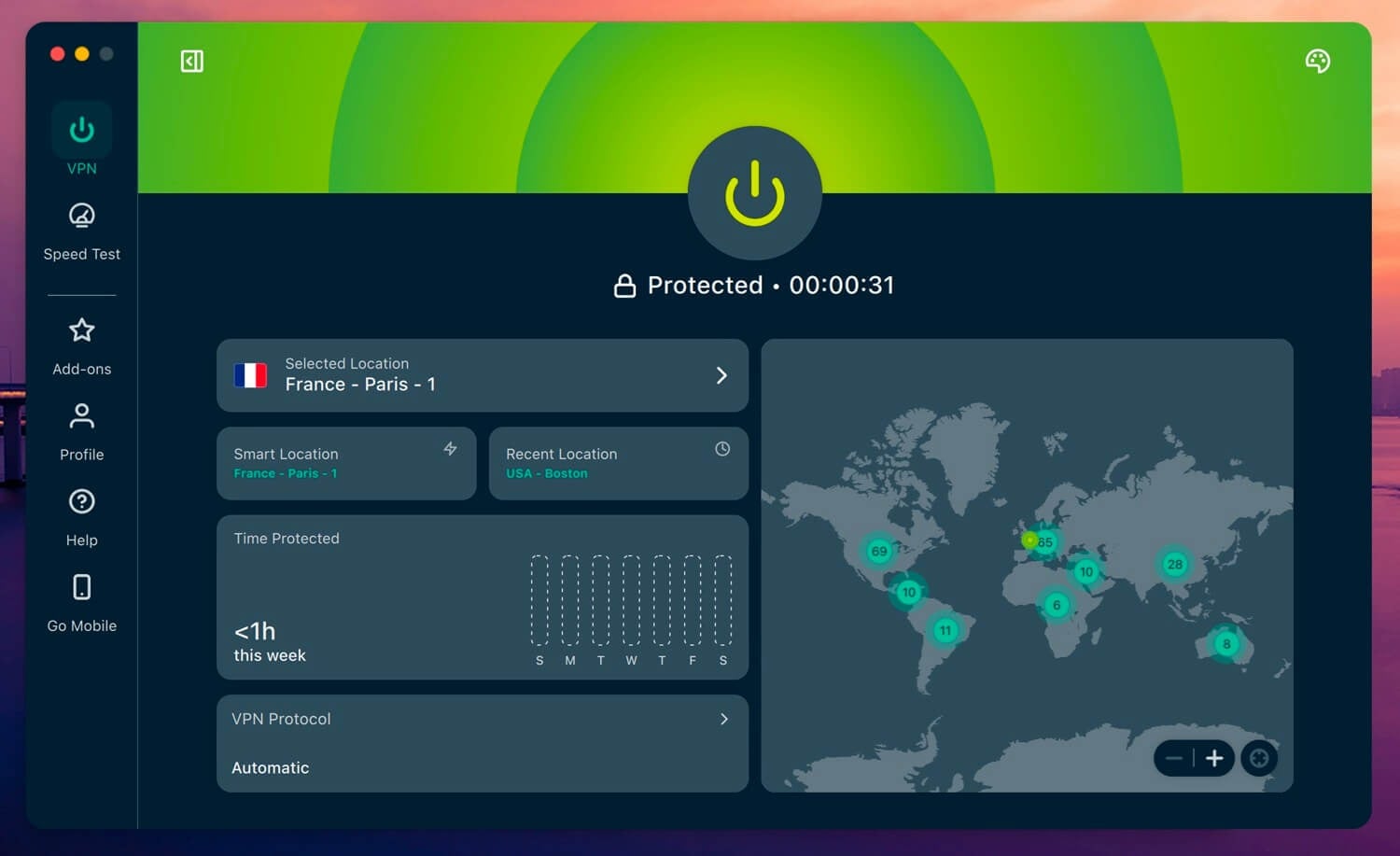
ExpressVPN averaged a 16.2% loss on our iPhone, with 51.23 Mbps on the UK server. Its iOS app opens with a single connect button, and Lightway uses post-quantum encryption without a setting to change. The trade-off is fewer settings to adjust and no Double VPN. The Basic plan is $83.72 for 28 months, about $2.99 a month, and ExpressVPN renews it at $99.95 a year. Plans cover 10 to 14 devices.
Can You Change an iPhone IP Address for Free?
Yes, with limits. Airplane Mode, a router restart, Onion Browser, and web proxies cost nothing, but none of them change the IP address for every app in a country of your choice. Among free iPhone VPNs, Proton VPN‘s free plan covers one iPhone with no data cap, though it assigns the country itself. NordVPN and ExpressVPN refund the full price within 30 days.
Which Method to Use on an iPhone
Match the method to the goal. For a new IP address in the same country, toggle Airplane Mode on mobile data. For more privacy in Safari without an app, turn on iCloud Private Relay if you pay for iCloud+, and for an IP address in another country across every app, install NordVPN, which kept the most speed on our iPhone. Proton VPN adds Stealth and Secure Core for users who want more privacy on public Wi-Fi.
FAQs About Changing an iPhone IP Address
How do I change my iPhone's IP address to another country?
Use a VPN. Connecting to a server in the chosen country with a VPN such as NordVPN or Proton VPN assigns every app on the iPhone an IP address from that country.
Does Airplane Mode change the IP address on an iPhone?
Yes, usually. A fresh mobile data session often comes with a different public IP address after Airplane Mode is switched off, although some carriers reissue the same one for a while.
Does iCloud Private Relay change the IP address?
Yes, in Safari. Private Relay assigns a temporary IP address that still points to the user's own region, so it can't make an iPhone appear to be in another country.
Is it legal to change the IP address on an iPhone?
Yes, in most countries. VPN apps are sold openly on the App Store, and changing an IP address is lawful, though illegal activity stays illegal on any IP address.
Does changing the local IP address hide my location?
No. The local IP address only identifies the iPhone on the home network. Websites see the router's public IP address, which a manual Wi-Fi setting doesn't affect.