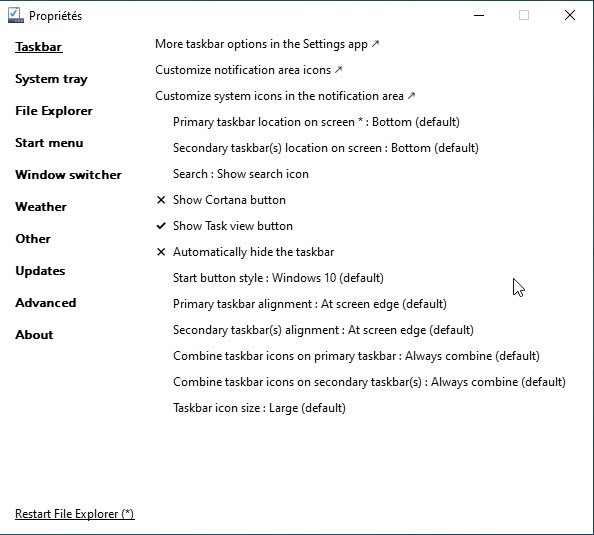
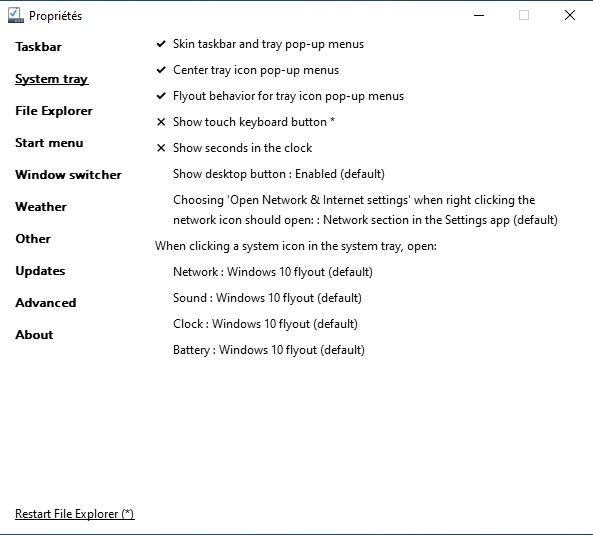
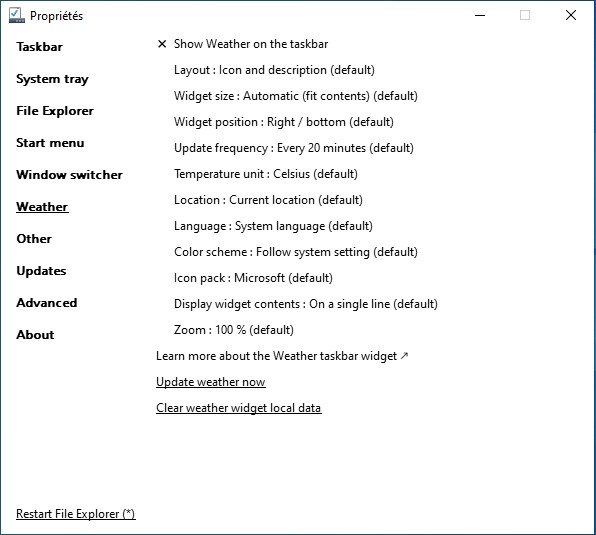
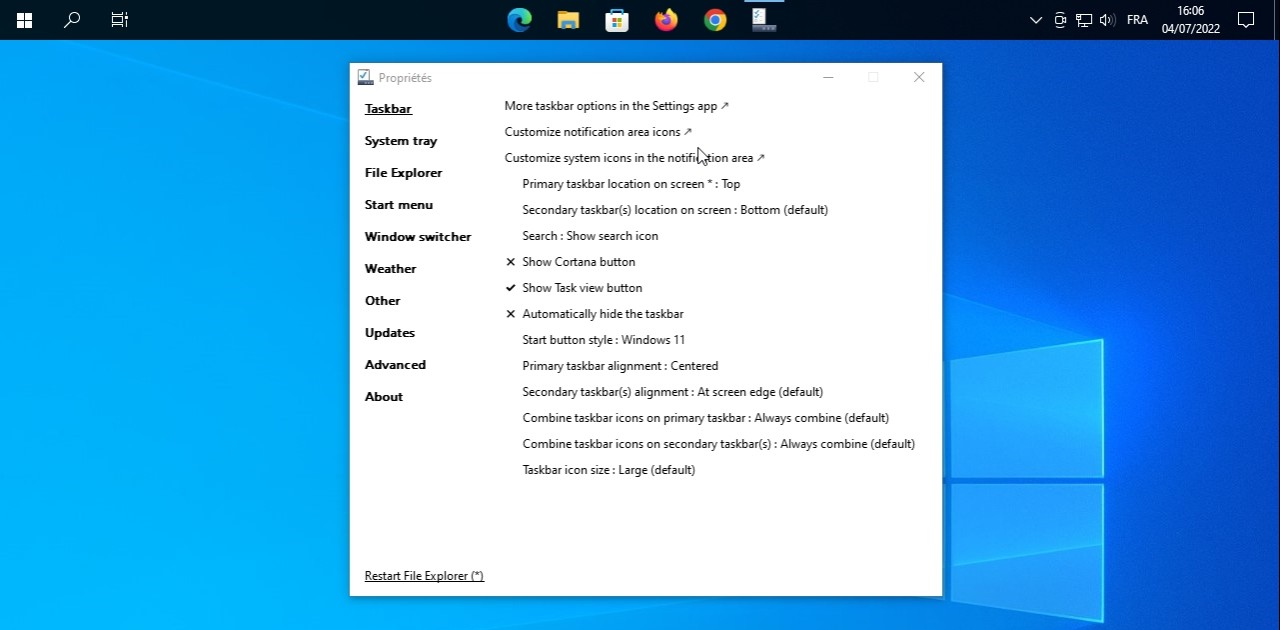
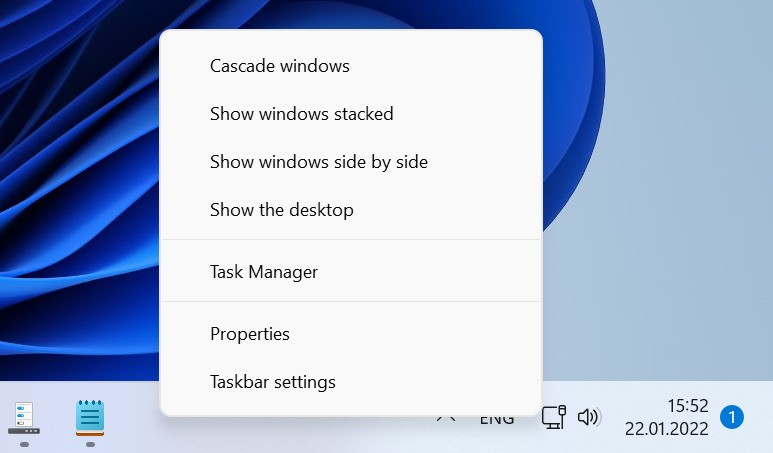
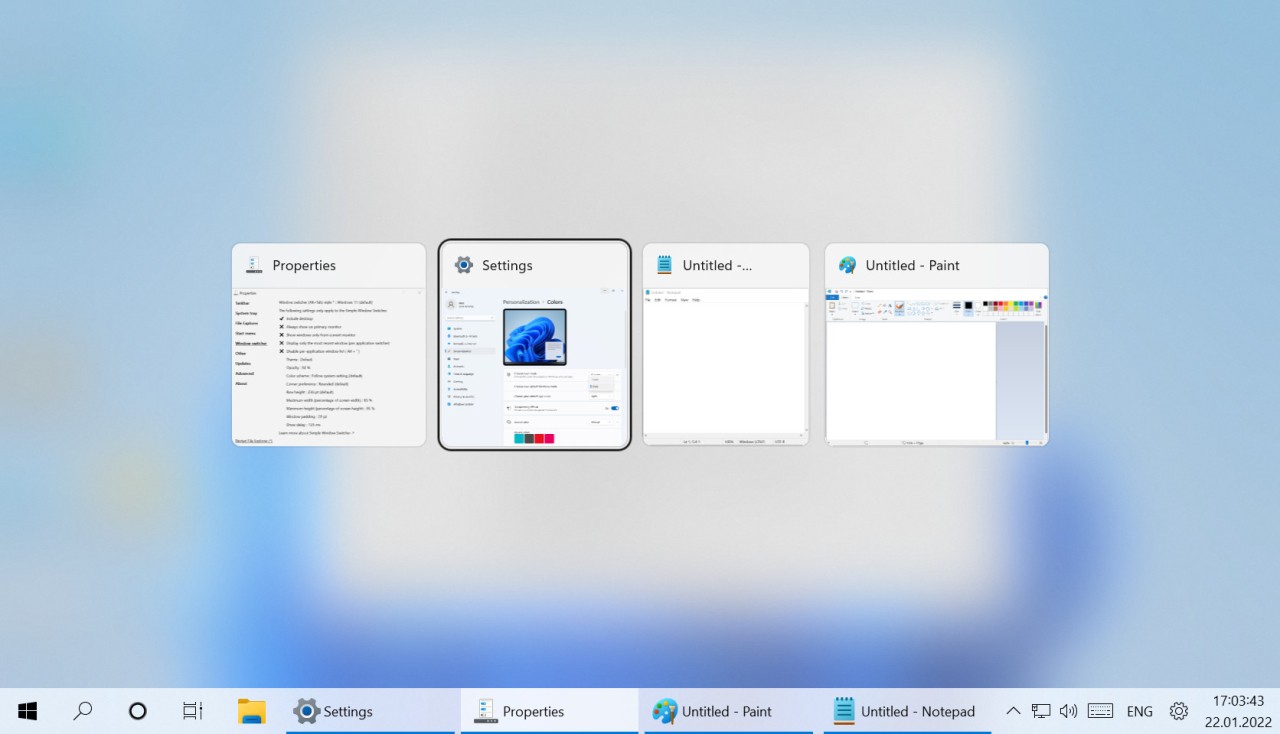
ExplorerPatcher is a Windows system customization program that takes over where native settings feel inadequate. It is directed at those who are not satisfied with the way Windows operates anymore (or just prefer having more control over its form and design). It does not strive to be flashy and overwhelming. Instead, it focuses on giving you back the elements of Windows you believed were lost forever: the classic taskbar, the old Start menu, the customary system tray arrangement, and the freedom to twist things anywhere but in the way that Microsoft deems they should be.
Installing ExplorerPatcher does not install a new skin or a theme. You are re-projecting functionality. It is possible to restore the Windows 10 taskbar in Windows 11. It is also possible to change the spacing, size, alignment, and behavior of taskbar icons. Want to align them to the center or left? Done. Would you like to re-enable labels and discrete buttons as in Windows 7? It is possible as well. It lends you the level of detail control that the core UI of Windows has been losing gradually with every new major release.
However, it is not about the looks. There are also minor enhancements of usability in ExplorerPatcher. It can allow you to deactivate useless animations, restore the previous style of file explorer, and customize the behavior of the corner of the screen. It restores not just appearance, but also efficiency.
Why Should I Download ExplorerPatcher?
Windows 11, with all its sheen of modernity, took away many things long-time users felt comfortable with. Basic settings were hidden. The taskbar became lacking. There was an overhaul to the right-click menus. And though Microsoft is taking back a few of those modifications gradually, nevertheless, some users feel they have lost the freedom to control their desktop interface. ExplorerPatcher brings that back.
You do not even need to be a power user to love what it does. Perhaps all you want to do is have your Start button back on the left. Perhaps you are missing drag and drop on the taskbar icons. Perhaps you are fond of how notification trays used to work some years ago. ExplorerPatcher returns all those features not as hacks or research-project add-ons, but as proven, stable mods that are part and parcel of Windows.
The most pleasant fact is that it does not want to substitute Windows, but rather collaborates with it. It occupies very little space, is fast, and does not slow down your system. You install it once, open the configuration menu, and then you’re in full control: a world of customization is at your fingertips. And when you are not the kind of guy who changes much of the settings, then you can just run the default ones, which put back everything to the taskbar, Start menu, and the system behavior to something quite familiar.
An additional reason why ExplorerPatcher is different is that it is focused on detail. ExplorerPatcher isn’t a one-size-fits-all tool. You can switch between items individually, such as making the “Search” icon invisible and preserving “Task View.” You are allowed to customize the clock look, modify the icon spacing, the management of the tray, and even restore the full title bar appearance in File Explorer. It gives one the ability to customize it to a very personal extent, which has been gradually fading away from Windows with each update.
And those things are even more significant when you spend the greater part of the day on your PC. Where your button is, how your menu acts, and how your taskbar looks, these minor things can all feel more comfortable and helpful to keep you concentrated and more at home on your own system.
Is ExplorerPatcher Free?
Indeed, ExplorerPatcher is free to use. It’s completely free with no subscriptions, upgrades, or paywalls. It has no ads, no trial period, and no locked features. It all becomes available to you initially, and the community about it will keep supporting and optimizing it. It is updated often, bugs are patched fast, and everything is transparent. Do you care about free software that does not abuse your control and privacy? Then this has everything you are looking for.
What Operating Systems Are Compatible with ExplorerPatcher?
ExplorerPatcher is compatible not only with Windows 11 but also with specific builds of Windows 10. Its primary intention is to restore legacy features and UI behavior in Windows 11, so the newest OS would be more similar to what longtime users used to have in the past. It also integrates smoothly with the Windows shell and works effectively in the background. It is lightweight, so there are no issues in installing it without interfering with updates or other apps. It should be straightforward to set up, provided you’re on an up-to-date version of Windows.
What Are the Alternatives to ExplorerPatcher?
If ExplorerPatcher isn’t quite your style, or you need other methods of improving your Windows environment, there are a couple of other contenders that are rather similar, only with minor differences, worth mentioning.
The productivity suite of Microsoft itself is Microsoft PowerToys. It is focused more on enhancement than restoration. It has all kinds of functionality: window management with FancyZones, bulk renaming with PowerRename, and an embedded color picker. It also does not alter the taskbar and Start menu, and instead, adds tiny quality-of-life improvements to the daily workflow. PowerToys is a safe, solid choice, provided you do not want to mess with the UI significantly.
There is also Phoenix Customizer, a third-party application, but designed with a more personal touch. One can redesign themes, color schemes, and even animation settings using it. Phoenix provides you with the tools to create something new, while ExplorerPatcher helps with the restoration of the old. It's great if the user wants a more visually rich desktop experience, but it is less stable and lightweight compared to ExplorerPatcher. Nevertheless, it is a good option for visual customization.
Finally, Flow Launcher is an option in case you feel like working faster and without ever touching the Start menu. It is a launcher that is keyboard-based and can open apps, files, web search, and web plugins with a few keystrokes. It doesn’t modify the taskbar or visual settings, but replaces how one uses Windows by making everything faster to reach. You can imagine it as Spotlight on macOS or Alfred, fast, effective, and intelligent.