
IDrive is a phenomenal online backup service that blends online backups with cloud storage features. This makes IDrive extremely versatile, as it skims the best features of both worlds. Our experts have tested the service for you, and in this IDrive review, we’ll uncover our secrets.
It’s no secret that we love IDrive and think it’s excellent overall. With incredible backup features, simple setup, and robust encryption, you can’t go wrong with it. However, we also found some downsides that may influence your final decision. Instead of rushing ahead and buying it, stop!
Read our comprehensive IDrive review for 2026, as we explore its every nook and cranny, and decide afterwards. We have ample ground to cover, so let’s make haste and see what’s on the table.
IDrive
IDrive combines online backup with cloud storage services, providing maximum flexibility, affordable storage, and strong encryption. However, it has slower transfer speeds and is not ideal for privacy.
Pros
- Cheap subscription plans
- End-to-end file encryption
- Robust backup features
- File versioning
- Outstanding customer support
Cons
- Slow transfer speeds
- Not the best user privacy
Is IDrive Easy to Set Up and Use?
Our IDrive review covers the setup process, which is, luckily, extremely simple.
There are two ways to get started:
- With a free account
- With a paid account
Starting with a free account is straightforward. You download the app, make a new account, and sign in. This takes two minutes, and you can back up, sync, and upload files immediately. In the second scenario, you must select a plan and provide a valid payment method; the rest is identical.
IDrive offers applications for all systems, including:
- Windows
- macOS
- Linux/Unix servers (Debian, Linux Mint, Ubuntu, Fedora, CentOS)
- Android
- iOS
Unlike some cloud storage providers, IDrive allows you to back up your mobile data. If you’re selling your phone, you can use it to back up all files and restore them to the new phone when you get it. Simultaneously, you can do this with a computer or laptop, making IDrive handy.
IDrive Ease of Use
IDrive offers full-fledged desktop and mobile apps in addition to a web-based app.
The latter is excellent. It allows you to upload files by dragging and dropping them onto the interface. You can also schedule backups and file syncing without leaving your web browser. Alternatively, you can download its desktop app, which, based on our IDrive review, is the most customizable.
You can determine the amount of bandwidth you’ll use for transfers, use selective syncing, schedule backups, and access your cloud drive. IDrive’s desktop apps allow you to back up servers with a click, ensuring maximum flexibility. For some strange reason, we encountered a sign-in issue with it.
We couldn’t sign in with our Gmail account during the setup, so we had to create an account with an email and a password. That solved the problem, and we were able to sign in.
Its mobile apps are no less impressive.
IDrive nearly mirrors its desktop capabilities, adding a few quirks, such as camera auto-uploads, which automatically back up all photos and videos. Moreover, IDrive allows you to back up contacts, call logs, and calendar events, ensuring nothing gets left behind when you get a new phone or tablet.

We love that IDrive can transfer files using WiFi or cellular data, leaving the user ample freedom to choose. You can, for instance, enable Wi-Fi-only transfers and preserve cellular data. Conversely, if you have enough cellular data for a transfer and need it urgently, you can go that route.
Overall, IDrive’s ease of use is fantastic. The only nitpick is related to the web app, which is sluggish for some reason. Unlike buttery-smooth pCloud, IDrive is sometimes slow, as each menu takes more than a few seconds to open and load. This is a persistent issue that IDrive should address.
Which Features Does IDrive Offer?
Our IDrive review concerns both its cloud storage and backup services. After all, IDrive is a blend of both, and we think it would be unfair to examine just one of them. After testing IDrive, we concluded that it performs admirably in both cases, offering more features than many “separate” online storage and backup services.
The following part describes our experience with them:
Backup Features
Let’s start with backups, IDrive’s base.
Backup Types
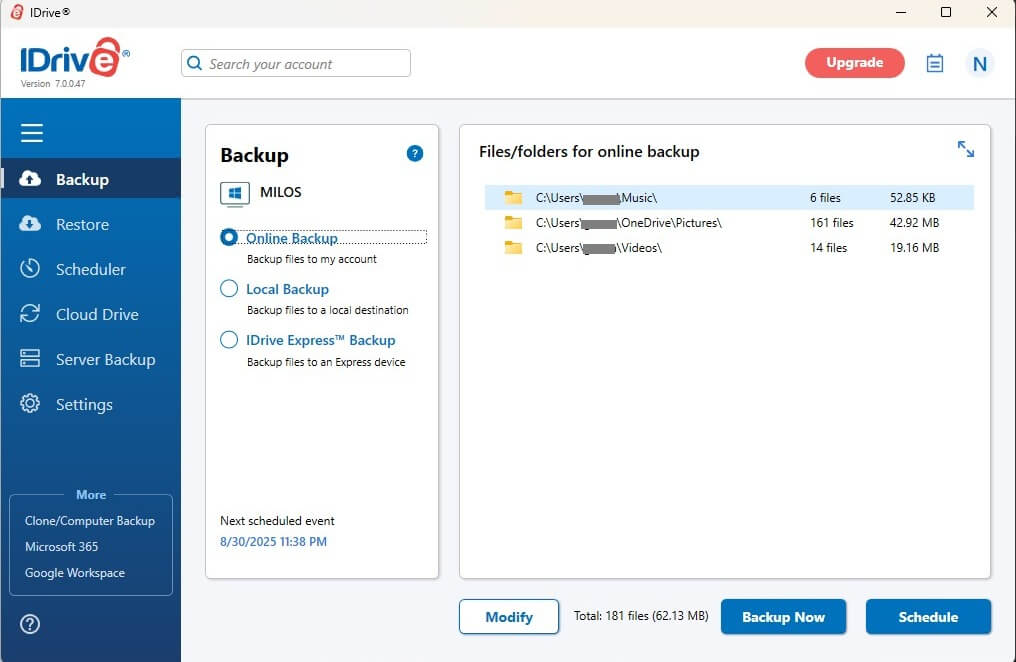
IDrive supports online and local backups, as well as IDrive Express backups.
Online backups are the simplest. You must designate folders and files and click Backup Now to upload them. Moreover, IDrive allows you to schedule backups if you don’t want to start uploading immediately.
Another option is a local backup. What does it do?
Instead of uploading your files to the cloud, it stores them on a local hard drive. You can use this to back up a device on a portable SSD. Finally, there’s an IDrive Express backup, one of IDrive’s trademark features.
This feature backs up data to your online account and secures it with 256-bit AES encryption with an optional private key. The transfer is encrypted end-to-end, so even the file path’s encryption is in play.
You can perform an IDrive Express backup once a year. However, users of Team and Business plans can do this three times. IDrive Express backups are facilitated through a temporary storage device that IDrive sends you. Once you pick it up, you back up your files and return the storage to the company.
When you want to retrieve your data, IDrive returns the storage. You can then plug it back in and effortlessly restore your data.
Backup Scheduler
We used its Backup Scheduler regularly during our IDrive review for 2026.
It’s one of IDrive’s best features, allowing you to schedule backups and customize their repetition. You can schedule a single backup, but if you want to keep your file up to date, you can make a whole backup schedule from Monday to Sunday, plus you can alter the backup frequency.

This means updates can be daily or repeated in the given period.
Another thing we like is the option to add a cut-off time. This means you can set update hours and initiate updates, let’s say, from 3:00 pm to 6:00 pm every day, where the latter is the cut-off time.
Server Backups
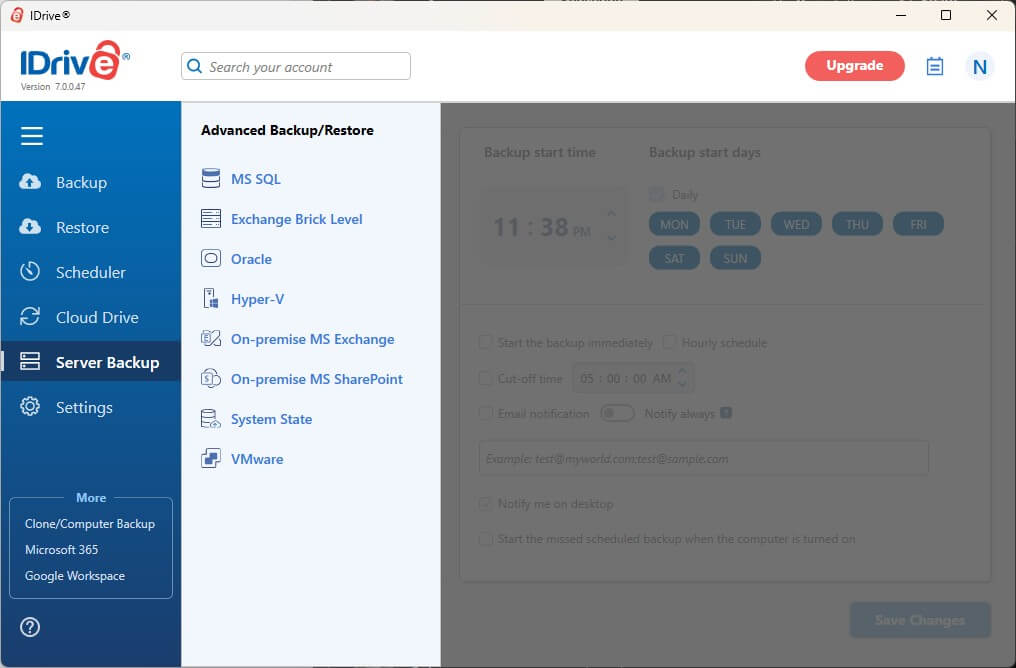
IDrive doesn’t back up only mobile and desktop devices: you can also back up servers!
It offers a vast selection, ranging from MS SQL and Oracle to VMware, Exchange Brick Level, and others. Server backups function differently, based on the server you’ve chosen. For MS SQL, you must log in to the server to back up or restore it. Hyper-V needs to be installed on a computer, and so on.
Third-Party Backups
Based on our experience, IDrive’s third-party backups are extremely helpful, especially for more demanding users. When we say third-party backups, we refer to:
- Microsoft Office 365
- Dropbox
- Google Workspace
All three will help you deter data loss and provide quick access to your documents, presentations, and sheets. The best part is the ability to integrate IDrive with Office 365, which allows you to edit and create documents and collaborate within IDrive’s interface, with exclusive file-sharing and permission editing.

The app also includes the Clone/Computer Backup option, which allows you to back up an entire machine or a specific hard drive. When we reviewed and tested IDrive, we backed up our Windows 11 computer. When we examined our backup copy, we noticed no missing files; even previous OS versions were kept!
Cloud Storage Features
Now, let’s explore its online storage features.
File Versioning
Earlier in this IDrive review, we mentioned its extensive cloud storage features.
For a full-on backup service, you’d expect IDrive to lack on the cloud storage front. Well, not this time, as IDrive still offers file versioning, which many ‘dedicated’ cloud storage services lack (NordLocker is a prime example).
IDrive’s time versioning isn’t time-bound, which means previous file versions are kept on the server indefinitely. IDrive saves up to thirty versions of your files, which isn’t too much. However, since the time constraint is removed, it’s not a big deal. Plus, IDrive lets you enable Continuous Data Protection.
If you set it to Real-Time, IDrive automatically recognizes a modified file and backs it up, keeping the previous version on the cloud.
Account Snapshots
Snapshots are closely related to file versioning.
Account snapshots, as they’re usually titled, are used for a so-called rewind function. When you take a snapshot of your account today, you can return to that “state” by rewinding the account. IDrive retains up to thirty versions of your files, as with file versioning.
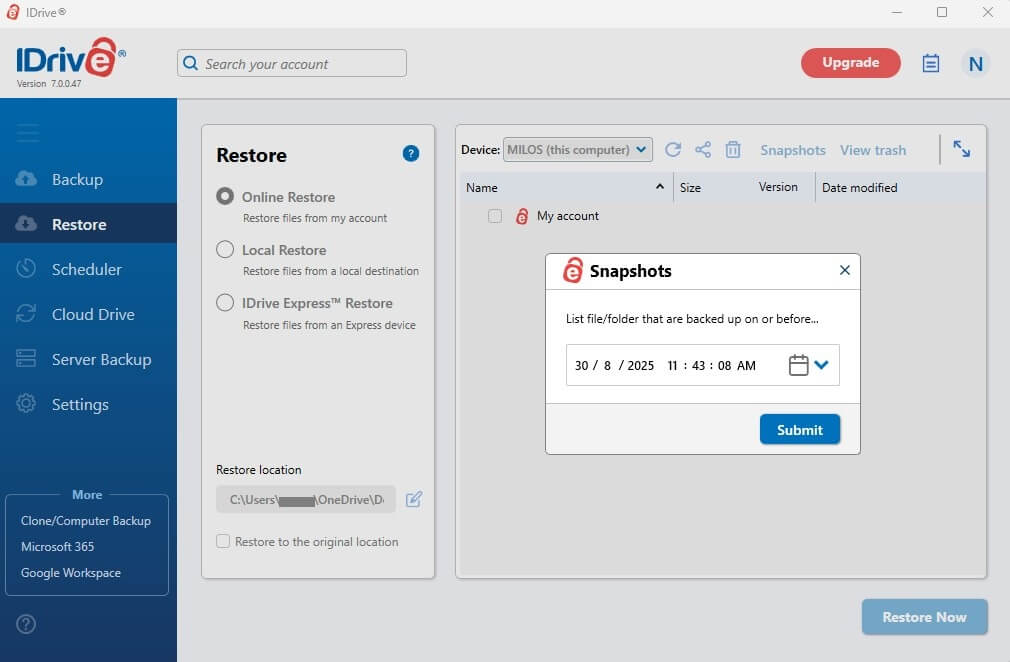
Think of IDrive Snapshots as system recovery. To use them, click Restore in the app, select Snapshots, and pick the date and time. After clicking Submit, press Restore Now, and IDrive will do its job. It’s straightforward and takes less than a minute to set up.
File Sharing
Cloud storage is nothing without safe file sharing, and our cloud storage definition perfectly explains that.
IDrive won’t offer the most robust file-sharing options, especially compared to pCloud. However, you can still create shareable links and introduce advanced options like password protection, download limits, and expiration dates. pCloud and Sync, which we recently compared, offer custom branding.
Nevertheless, IDrive’s options are far from insufficient.
It allows you to limit the number of times a file can be downloaded and set an expiration date if you don’t want the link to be available forever. We always recommend using password protection, as it ensures that only the recipient can preview and/or download the file.
IDrive Speed Test Results: Is It Fast for Transfers?
Before we move on, you can take a quick detour and peek at our list of the speediest cloud storage services. You’ll notice that pCloud and Internxt lead the pack, but IDrive hasn’t made it to the list.
Is that deliberate, or did we forget to test it and add it in?
Since we tested IDrive long before making that list and now again, we surely haven’t forgotten about it. It’s just that IDrive’s transfer speeds are strangely slow, and it’s not just us. If you do a quick search, you’ll notice that people are unimpressed with its overall performance.
Unfortunately, we think the same.
So, let’s start with our internet speeds to give this test some context. After running a test through the official Speedtest app on Windows 11, we received these results:

To test IDrive’s transfer speeds, we created a 3 GB RAR file by grabbing photos, music, and videos from our computer. We then fired up IDrive’s web app through the Brave Browser, dragged the file, and dropped it.
Once we measured the upload time, we downloaded it through the browser and measured that time. After repeating the process three times, our average transfer times were:
- Upload time: 50 minutes
- Download time: 17 minutes
You can fire up your calculator and do the math. If IDrive used our full network power, it would upload the file in about 40 minutes and download it in 8 minutes. The results are far off, especially when downloading the file, where IDrive used approximately 50% of our download speeds.
Based on our testing, pCloud and Internxt are much faster and better for large transfers.
IDrive Security and Privacy: Is It Safe?
IDrive’s combination of cloud backups and online storage begs for Alcatraz-like security.
Security Features
Thankfully, IDrive is well-versed in this aspect and leaves no bullets in the chamber. As explained, IDrive uses 256-bit AES encryption to protect your files in transit and once they ‘land’ on the cloud.
One of the key aspects of IDrive is the ability to create an encryption key.
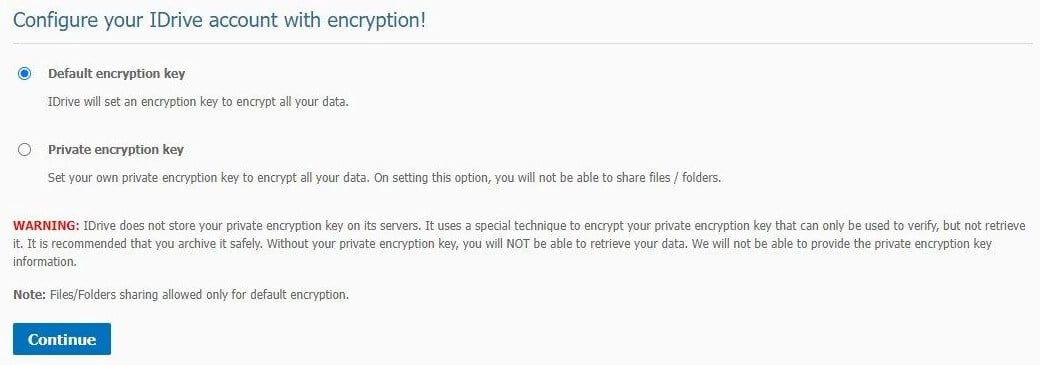
The provider allows you to use a default key, but you can always create a private encryption key to decrypt your files. Since IDrive doesn’t store the encryption key on the server, you have to store it safely, as there’s no option to recover it. If you lose the key, you will lose access to your files forever.
You’ll notice that encrypted cloud storage functions the same. It hands you the encryption key and gives you full control over your files.
If you choose a default key, you let IDrive handle your security, as the company holds the encryption key. This isn’t great from a privacy standpoint because of IDrive’s jurisdiction and privacy-unfriendly practices.
Privacy
So where is it based? Glad you asked: the United States.
Moreover, IDrive’s servers are stationed in the US, so the company could be forced to disclose specific user-related information to the authorities. The US is known for many so-called acts requiring companies to store and hand out user data per request. Will IDrive comply?
It must, as it’s legally obligated. Otherwise, it could face million-dollar fines and other forms of punishment.
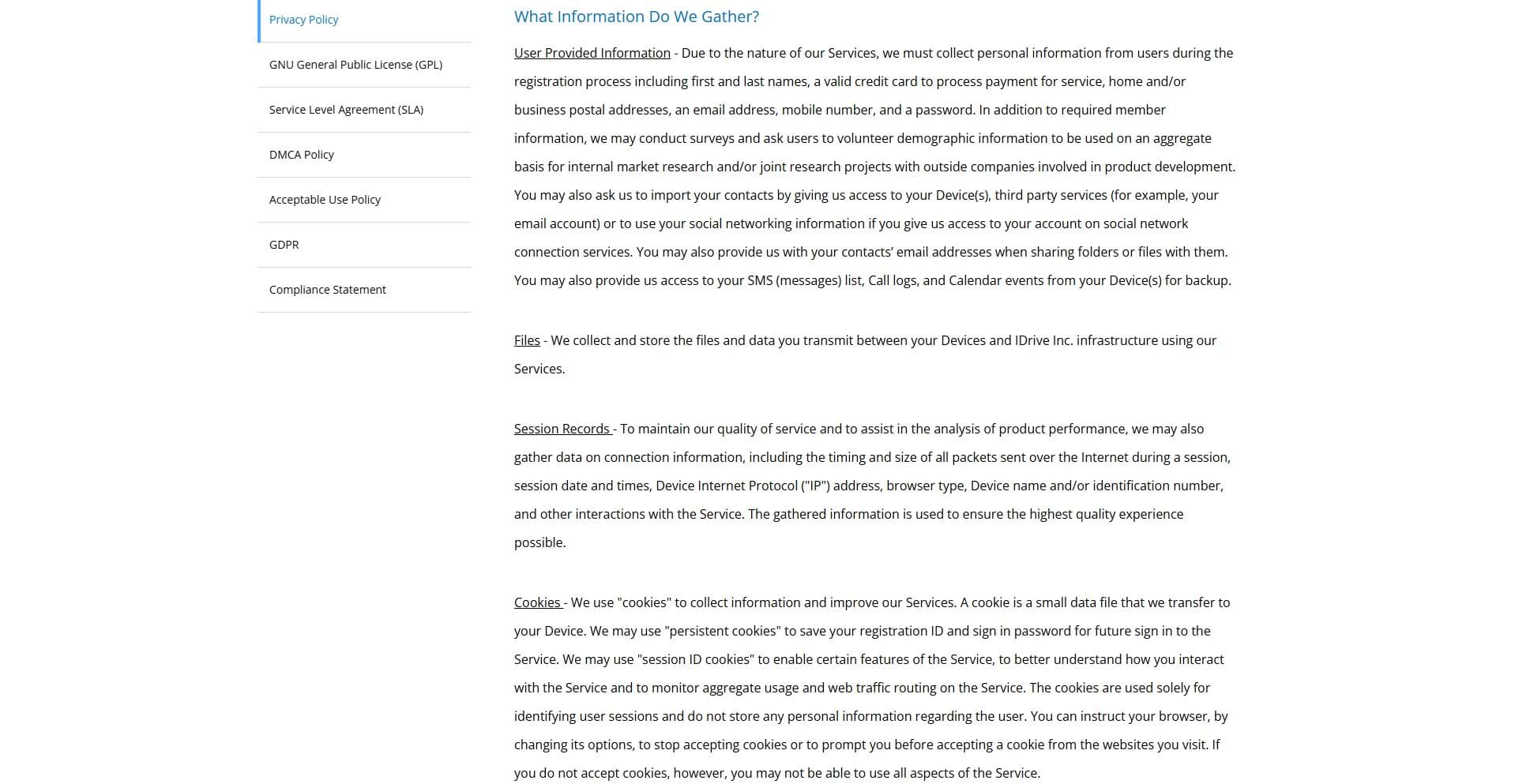
This usually isn’t an issue if it’s a no-log service. However, our privacy policy examination showed that the company stores session records, files, and user-provided information. Further down the privacy policy, you’ll also see that IDrive will comply with law enforcement requests and share your data.
We prefer servers in a privacy-friendly jurisdiction, such as Spain or Luxembourg, like Internxt and pCloud. While IDrive is by no means unsafe and dangerous, we expected a bit more from the online backup giant.
How Much Does IDrive Cost? Pricing Review
IDrive’s flexible pricing has one side-effect: it’s confusing.
Let’s start with the free plan. IDrive offers 10 GB of storage for free, without a credit card. You can use it forever without a few features. The free plan includes 10 GB of cloud storage and is great for small photos and documents. So what about its paid plans? Well, they’re divided into several categories:
- Mini
- Personal
- Team
- Business
Each plan has multiple tiers. For instance, the Mini version has two storage options: 100 GB and 500 GB. The Personal version is the most flexible, with 5 TB, 10 TB, 20 TB, 50 TB, and 100 TB storage. Team and Business plans are multi-user options with even more storage, up to 500 TB for 500 users.

As an individual, you’ll likely opt for Mini or Personal plans, and they cost:
- 100 GB – $2.95 annually
- 500 GB – $9.95 annually
- 5 TB – $69.65 for the first year or $149.25 for two years
- 10 TB – $104.65 for the first year or $224.25 for two years
Considering IDrive’s features, it’s not overly expensive. The 5 TB plan is desirable at about $150 for two years. Even the 500 GB plan, roughly $10 annually, offers nice value for money, as it’s suited for one user and multiple devices, allowing for multi-device backups and syncing.
It’s worth noting that Mini plans exclude IDrive Express backups. However, this is rectified if you upgrade to the Personal plan. Only Business plans are business-compliant and support server backups. Cloud application backups, such as Office 365 and Google Workspace, are charged additionally and cost $20 annually per seat.
Finally, there’s a 15-day refund policy for all plans.
Customer Support
Think about all the customer support means and imagine having them in one place. That place is IDrive, which excels in customer support by offering:
- Live chat support
- IDrive Bot (AI support)
- Ticketing system
- Phone support
- FAQs
You’re spoilt for choice here, especially with phone support with British, American, and international numbers. Technical support is available 24/7, so you can hop on the phone and get in touch. The same goes for live chat support, where IDrive responds usually within a few minutes.
We also tested IDrive’s ticketing system. After sending a ticket to the support team, it returned to us in about an hour, which is an excellent result. Above all, IDrive’s support team is helpful, so it’s not only about instant responses. The agent will do their best to answer your question or tackle the problem.
During our IDrive test, we were thoroughly impressed with IDrive’s support.
The Final Verdict
IDrive is a jack of all trades; if you read our review carefully, you already know that.
It’s an affordable cloud storage service and an outstanding backup service. The provider offers many exciting features, such as easy-to-use apps, end-to-end encryption, flexible backups, file versioning, robust storage, and round-the-clock customer support. Best of all: it doesn’t cost much!
You can get it for as little as three quid annually or spend around ten for five times more storage. However, remember that IDrive isn’t the best option privacy-wise, and its lukewarm transfer speeds won’t impress you if you’re used to pCloud, Internxt, or Dropbox.
While we prefer pCloud overall, we wouldn’t blame you for settling with IDrive, particularly if you need comprehensive backup features that are lacking in a typical cloud storage service.