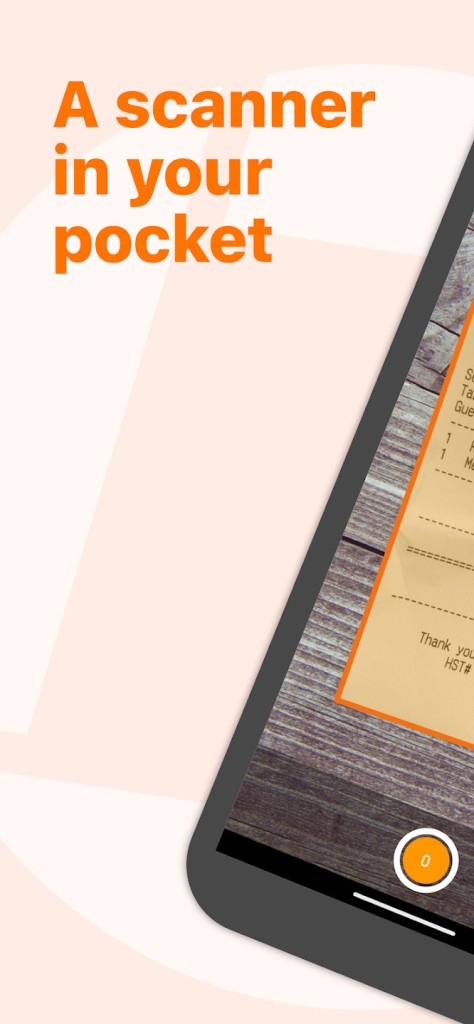
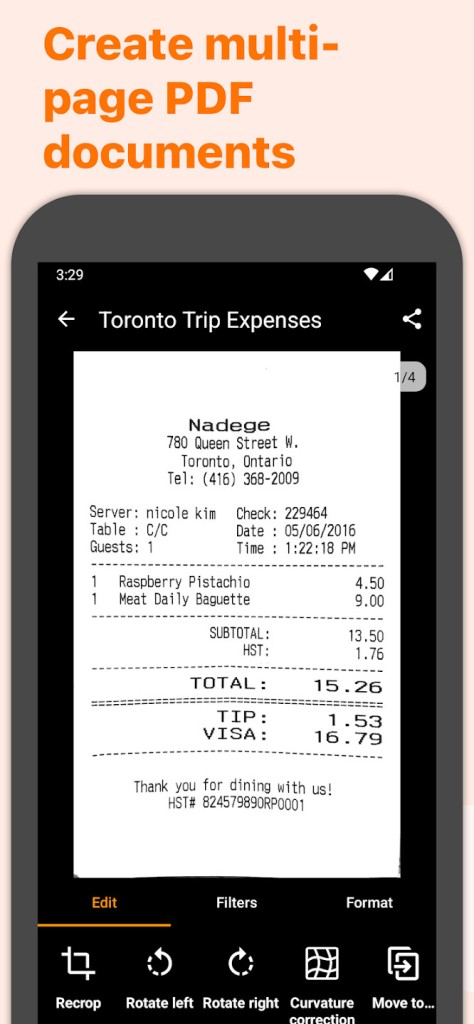
Genius Scan is a mobile scanner that turns your phone into a fast, clean way to capture paper and turn it into multipage PDF files. You place a document in front of your camera, and the app detects the page against the background, fixes perspective, cleans shadows, and defects, so the result is crisp and readable. You can apply simple filters, such as black and white or photo, when you need a different look, and then keep moving without getting stuck in a heavy process. Batch scanning helps when you have many pages and run through them in one go.
You can combine scans into a single PDF, merge or split existing documents, and import photos or PDFs to bring everything together. OCR adds a text layer so you can extract text and create searchable PDFs. Processing happens on your device, which keeps your pages private.
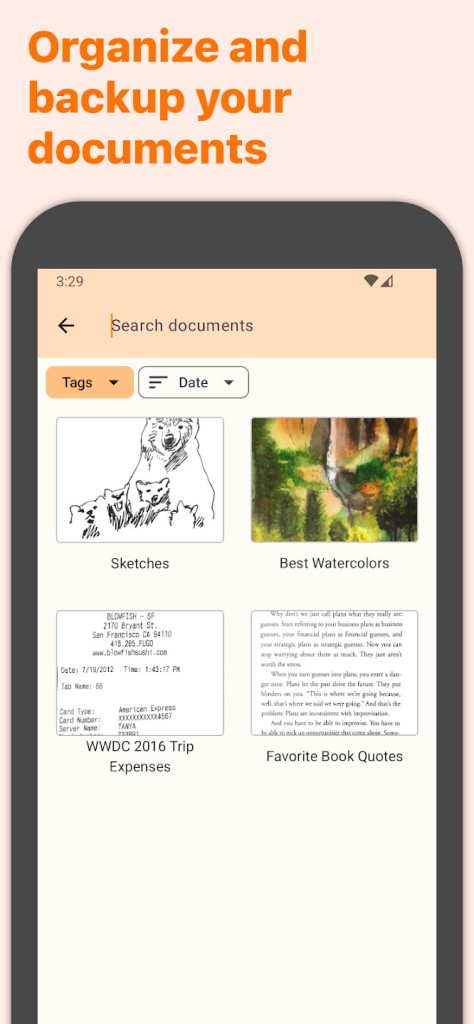
The app allows you to lock access with Face ID or other biometric unlock, and you can encrypt PDFs. Tags, metadata search, and smart renaming with your own templates help you keep files organized and easy to find later. If you want backup and sync across phones and tablets, you can use Genius Cloud from the same team in Paris that builds the app.
Why Should I Download Genius Scan?
You download Genius Scan to save time and cut friction from everyday paperwork. You can scan receipts, contracts, mail, assignments, sketches, or scores in seconds and send them where they need to go without touching a desktop scanner. Document detection, distortion correction, and shadow cleanup give you legible results even when the page is not perfectly flat.
Batch mode keeps momentum when you have a stack and want one PDF at the end. PDF tools are built in so you can reorder pages, split a section, or merge two related documents without jumping to another app. OCR means you can search inside your scans instead of skimming every page, and you can pull text when you need a quick quote or a serial number.
Organization is practical: you can tag documents by project or client, set up smart names that follow your template, and find what you need with metadata or content search. Export is broad and direct.
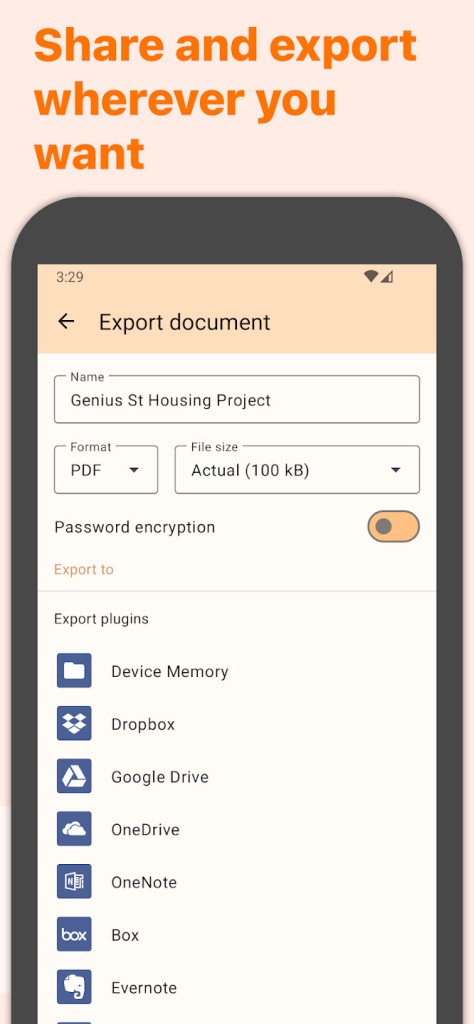
You can email a scan or send it to Box, Dropbox, Evernote, Expensify, Google Drive, iCloud Drive, OneDrive, OneNote, FTP, SugarSync, or any WebDAV-compatible service such as ShareFile, Nextcloud, ownCloud, Synology, and Yandex. You can even set automatic background export so new scans go to the right place while you move on to the next task. If you later want backup and multi-device sync, you can turn on Genius Cloud and keep your archive consistent.
Is Genius Scan Free?
Genius Scan is free to use. You can scan documents, build multi-page PDFs, apply filters, and share your files without adding prices here. Some features are marked as part of a premium plan. Those include options such as automatic background export, PDF password encryption, business card scanning with contact creation, and other advanced tools noted with a plus sign in the official feature list. Backup and multi-device sync are available with Genius Cloud as a separate subscription if you choose to use it.
The app shows the duration and price of any subscription at the time of purchase inside the store interface, and subscriptions renew automatically unless you change the renewal in your account settings before the next period. This section keeps to the official wording and avoids adding numbers or conditions not stated by the editor. If you prefer to stay on the free tier, you can continue scanning and exporting with the core feature set.
What Operating Systems Are Compatible with Genius Scan?
Genius Scan is compatible with iOS and Android. You can install it on your iPhone or your Android device and use the same capture, cleanup, PDF creation, OCR, tagging, and export features described by the editor. If you choose to add backup and multi-device sync, Genius Cloud lets you keep scans in sync across your compatible mobile devices. The app performs document processing on the device, and you can secure access with biometric unlock, where your phone supports it.
This keeps the setup simple: you can scan on your phone, organize on your phone, and send to your storage or workflow from the same place. When you plan your workflow, note that the official materials highlight mobile use, mobile capture, and mobile-first tools. This section follows the official information and lists the operating systems as provided by the editor.
What Are the Alternatives to Genius Scan?
One such popular mobile document scanner that can be put in the list when you compare capture apps is CamScanner. It is geared towards transforming camera shots into documents and transmitting them to the store, just like a standard phone-based scanning process. When you already have that app and are considering switching to it, you can preview how Genius Scan works on-device, export, OCR, organize, and check out which workflow better supports your daily work.
There is another general space mobile scanning application called Simple Scan. It is constructed on the concept of fast capture and PDF generation on a phone, which is the fundamental arrangement most users require. This type of app will feel natural in case your work is not complicated, and you are concerned primarily with a clean image and sharing action. You can compare the impact of tags, search, and smart renaming in Genius Scan on your capacity to maintain an expanding archive orderly over time.
Clear Scan is a document capture with PDF output that strives to make the process as fast and straightforward as possible. It is located in a way that it is meant to be used by those who need to scan their phone in a rush without an additional process. In case you just require a basic pass to access a page in a PDF, this kind of alternative might be the one that can suit your needs. When you add such features later, such as on-device OCR in searchable PDFs, custom naming templates, or automatic exporting of backgrounds to a certain cloud folder, you can trade off between that need and the basic workflow you currently have today.
Another alternative to mobile scanners would be SwiftScan. It is concerned with the creation of readable documents based on the camera shots and transmitting them to where they are required. To the users who switch between personal and work files, it can usually be reduced to three items you can test within a few minutes: the speed with which the app recognizes and purges a page using your actual light, the ease with which your files are made searchable following OCR, and the ease with which your exports will appear in the correct cloud folder/service.