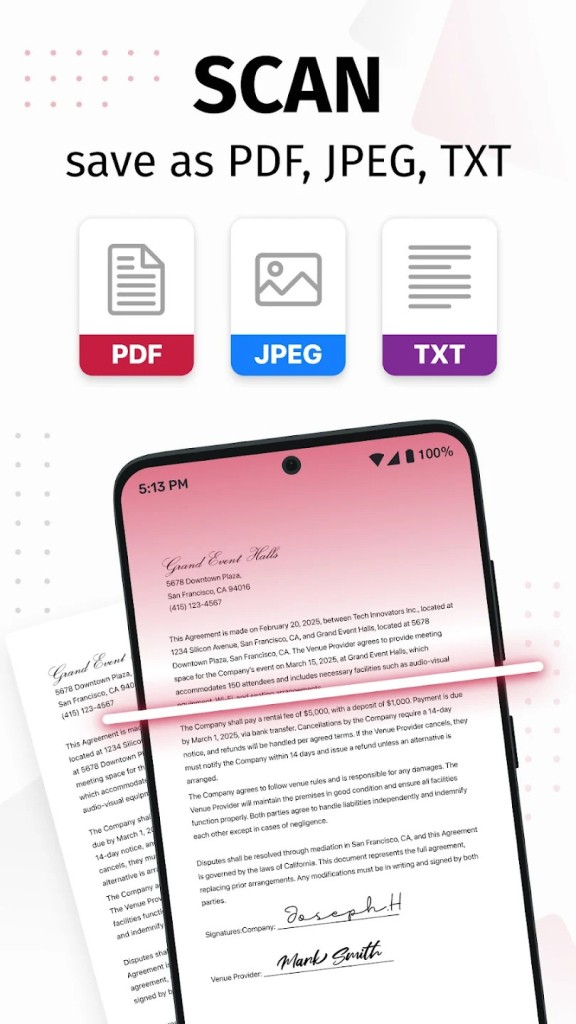
SwiftScan is a mobile scanner app for documents and QR codes that turns paper and screens into tidy digital files with very little effort. You open the camera, hold it over a page, receipt, whiteboard, note, barcode, or code, and it detects the edges, fixes perspective, and captures a clear scan in a moment.
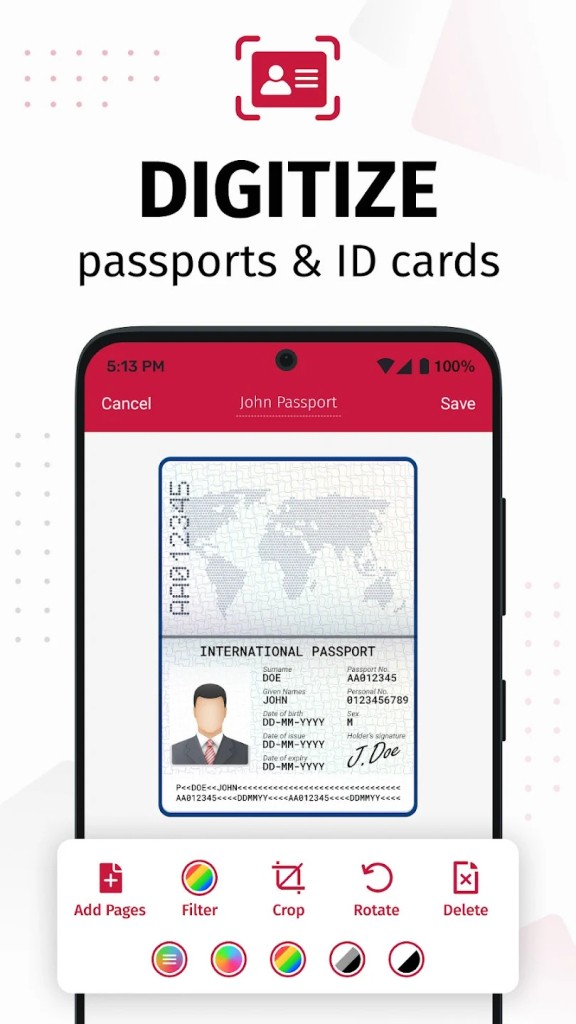
The created file can be saved as PDF or JPG, handle single pages or a stack, and lean on automatic optimization that evens out lighting and lifts contrast, so text is easier to read. Quality starts at 200 dpi and goes higher, so scans look sharp. You can switch between color, grayscale, or black and white and keep the version that reads best.
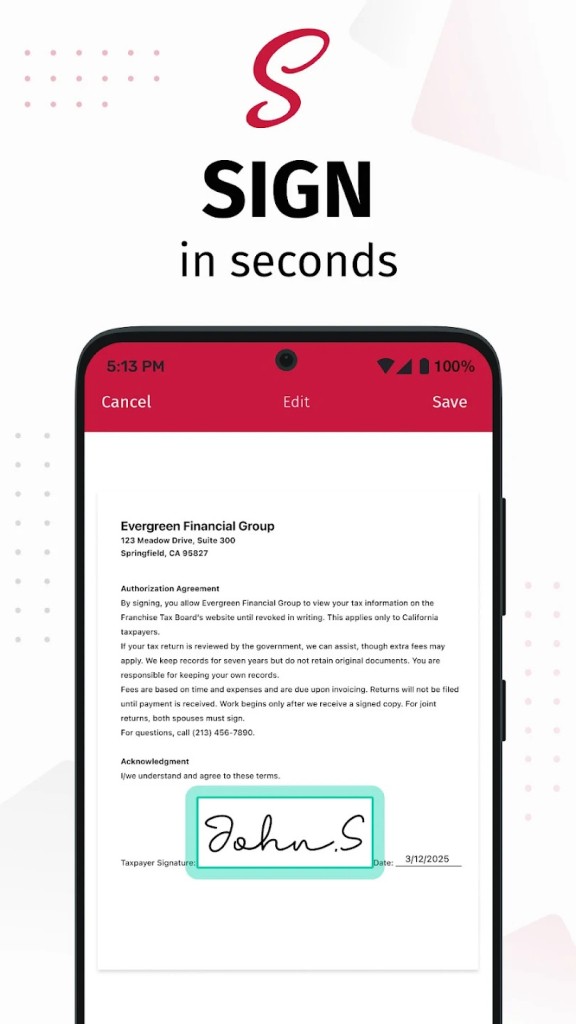
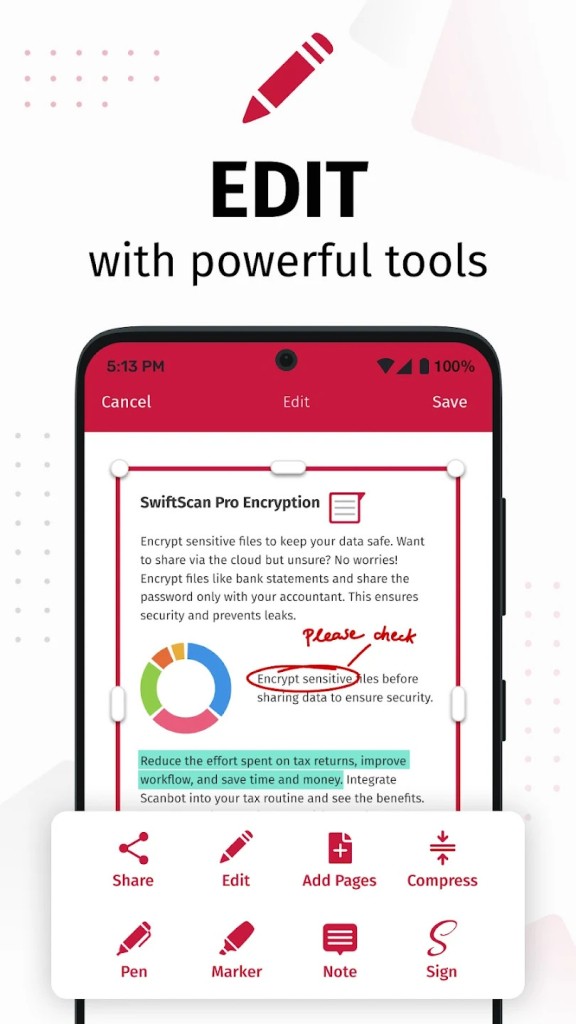
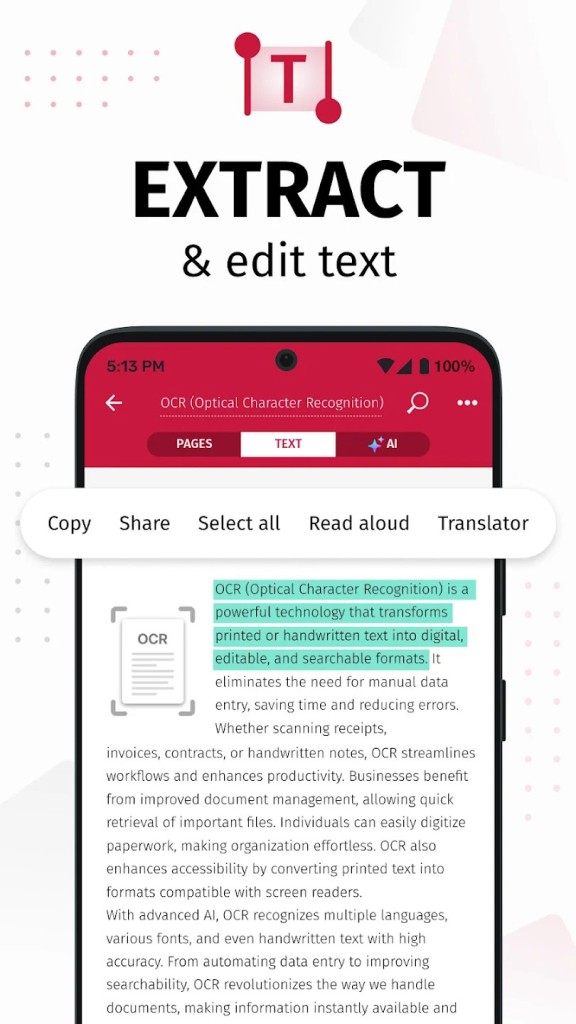
You can add text, comments, and drawings, insert an e-signature, redact sensitive parts, and rearrange pages by moving, rotating, adding, or deleting. SwiftScan is not only about capture. There is a built-in OCR, so you can extract text to search, copy, and look things up without retyping.
When you want control, you can protect a PDF with a password and lock the app with Touch ID or Face ID. Smart file naming helps you keep order with tags like dates and keywords. A home screen widget gives quick access to scan, search, or recent documents, and one-tap actions let you email or print fast.
Why Should I Download SwiftScan?
You should download SwiftScan if you want fast capture that produces clean results and a simple path from camera to shareable file. Point the camera, the edges lock in automatically, and a neat document appears with straight lines and true corners. This saves time compared with a raw photo that needs cropping and tuning.
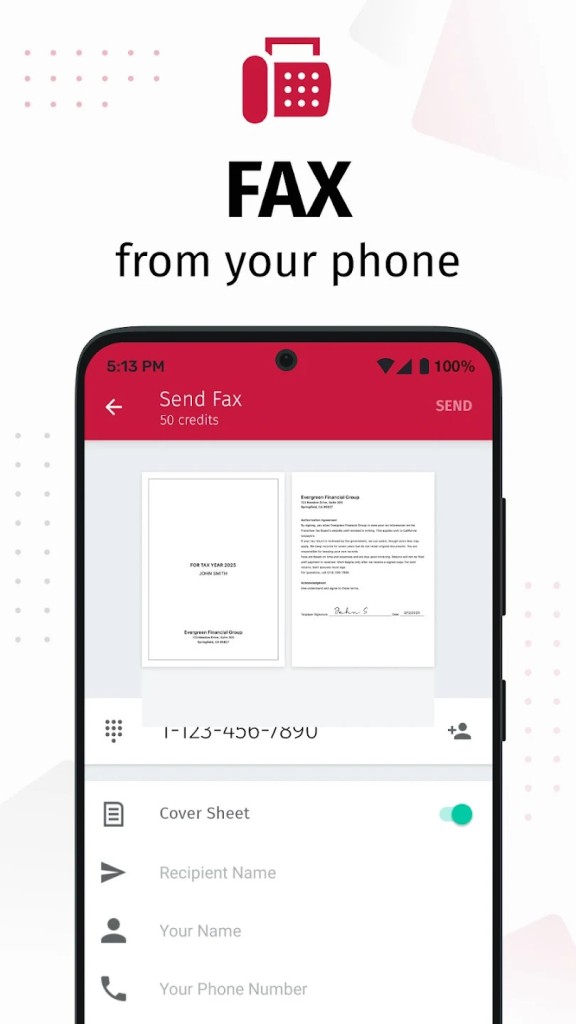
Automatic optimization gives you a ready page on the first try, and multipage scanning keeps related sheets together for receipts, study notes, onboarding forms, or client packets. When a business asks for a fax, you can send one directly from the app, which keeps the whole chain in one place.
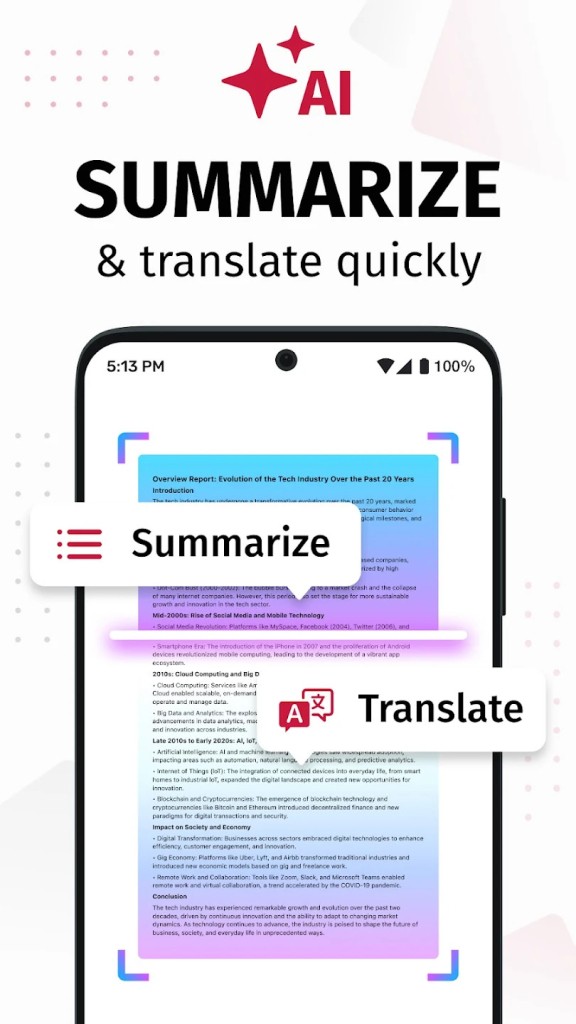
SwiftScan helps you act on information rather than just store it. With OCR, you can search inside scans the same way you search in notes. If you want to get the gist quickly or work across languages, you can use AI tools to summarize content or translate documents. When someone needs your signature, you can add it without leaving the app.
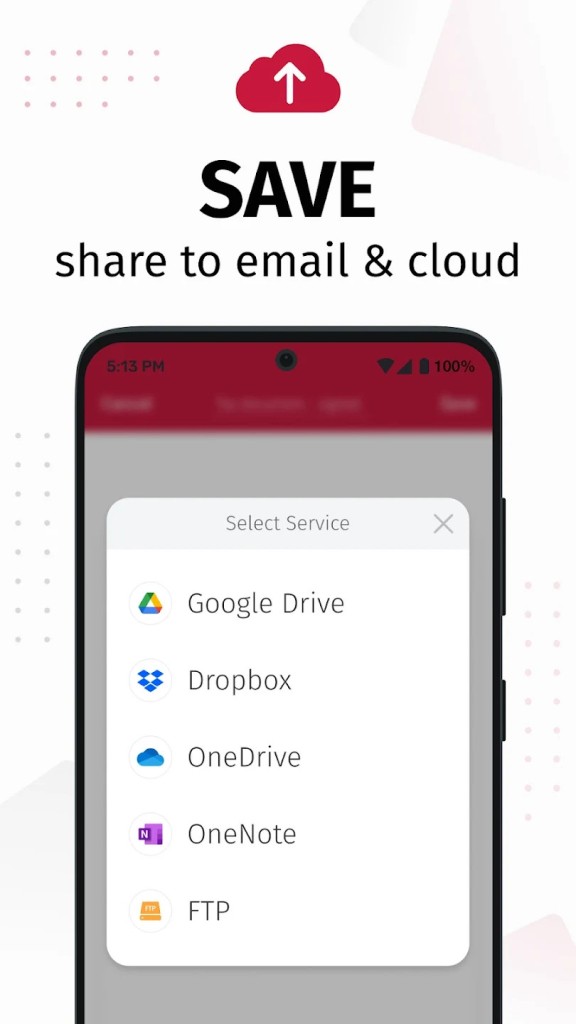
Cloud integration means you can save to iCloud, Dropbox, Google Drive, OneDrive, Box, Evernote, and other supported services, with WebDAV and FTP options for specific setups. The layout stays straightforward, so you can focus on the task and keep moving.
Is SwiftScan Free?
SwiftScan is free to download, and you can start scanning, saving, and sharing right away with core features in place. You can check capture quality, edge detection, filters, OCR, and file handling with your own documents and see how the workflow fits your routine. You can send a fax from the same app, add a signature where needed, organize pages, and route files to cloud destinations you already use.
Advanced capabilities are available in the app, so you can extend your setup when your workload calls for more control or automation. The important point is that you can rely on a solid base and expand only when it makes sense.
This approach keeps the first run simple. You scan, you optimize, you export, and the document lands where it should without extra steps. If your needs grow, you can switch on additional functions inside the same interface rather than jumping to a different tool. You keep the same capture flow and the same organizational habits, which matters when you are working under time pressure or handling repeated tasks.
What Operating Systems Are Compatible with SwiftScan?
SwiftScan is compatible with iOS and iPadOS, and it is compatible with Android. The experience is tuned for phones and tablets, with a camera flow designed for handheld capture. On Apple devices, you can save to iCloud Drive, apply filters, use Touch ID or Face ID where available, handle multi-page jobs, and protect PDFs with passwords.
On Android devices, you can link your preferred cloud services and keep the same edge detection, OCR, filters, annotation, signing, and stacking that make mobile scanning efficient. The goal is the same on both platforms: point, capture, polish, and send with as few steps as possible.
SwiftScan keeps behavior consistent, so you do not have to relearn basic actions when you switch devices. You open the camera, the app recognizes the document, and the frame locks in. You review the result, pick a filter if needed, adjust pages, and export. Whether you work in a personal iCloud setup or route to Google Drive or Box, you can keep the same flow. That predictability is what lets you trust a scanner day after day.
What Are the Alternatives to SwiftScan?
Simple Scan allows you to use the camera of your phone to create PDFs. You can access the camera, select edges, crop, apply a few simple filters to make the image brighter, and save it to the location of your choice. It suits the simple-tool conscious, where a person does not want a bulky and heavyweight tool with many layers that are not needed to capture and share content fast. Text can be indexed on an OCR, and there are simple cloud targets that can be used to have files transferred to the space you already use to store or back up files. You want a clean layout and consistent results, then this option stays as much like its name as possible and helps keep you going without making decisions that are going to slow you down.
CamScanner offers a broader scope of document control to users who wish to perform intensive capture tasks on the phone. It is compatible with multi-page jobs, OCR, and numerous enhancements, as a result of which it is possible to work with unbalanced light or poor source paper. You can take notes, leave marks, create folders, and have access to popular cloud services to save or share files. You can do more volume work or just more organization within the app; this way tends towards the whole document management, but has the capture still accessible by the camera.
Tiny Scanner is concentrated on speed and simplicity. You can point, scan, export, and the filters improve contrast to allow text to be read on screen and on paper. It has a lean structure so that you can easily submit scans and get back to the actual job. It is a solid favorite among students, freelancers, and anyone who just wants a simple method to make the paper neater in PDF and move on. This style will keep out of your way and keep a lean process when you need a familiar, minimal flow and do not want a long list of panes or toggles.