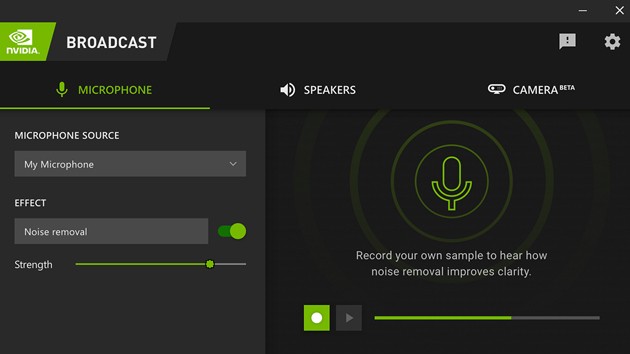
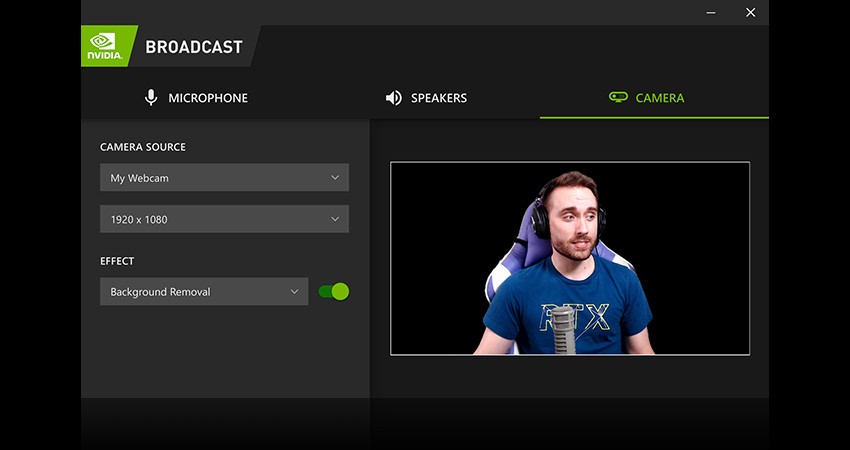
NVIDIA Broadcast is a platform for everyone who wants to improve their audio and video quality while streaming or video calling. The app offers a selection of AI-powered tools that focus on audio and video upgrades. It is popular among streamers and podcasters, but individuals and professionals in other fields appreciate the application as well.
One of its most important audio features is noise removal. Ambient and background noises can be very distracting. If you want your message to come across with clarity, then you need to make sure there is nothing standing in its way. That includes keyboard clicking, the sound of your air conditioning, and echo. If you’re using a low-quality microphone, you can enhance the audio with the help of NVIDIA Broadcast too.
When it comes to video quality, you can create artificial studio lighting with NVIDIA’s help. The app also offers a variety of virtual background options: blur your background, change it, or remove it completely. Other features help you maintain eye contact with the camera and stay in the frame.
Why Should I Download NVIDIA Broadcast?
You should download NVIDIA Broadcast if you plan on streaming, podcasting, or video conferencing, and could use the help of smart AI-powered tools to polish your audio and video quality. While the platform is great for professional streaming and presenting, you can also use it as a student, teacher, individual, or professional in any other field for video calling.
The audio features include noise and echo removal. Your listeners might pick up on noises you can’t even hear, and they can be incredibly distracting. Those can be as small as keyboard clicks and computer fan sounds. NVIDIA Broadcast will help you get rid of them in a couple of clicks. The tool can be applied to the other speakers on your calls, removing their background sounds as well.
Video features are just as important, with background blur, replacement, and removal at the forefront. Background tools can effectively replace a green screen and hide the details of your background from view. If you choose to replace your background, you have many great options to choose from. The auto-frame feature tracks your moving head to ensure you are always centered in the frame and in focus. The eye contact feature adjusts the image so that your eyes look directly into the camera.
Is NVIDIA Broadcast Free?
Yes, NVIDIA Broadcast is entirely free of charge. You can download and use the platform for free, with no features locked behind a paywall. Please note that the platform has robust hardware requirements that all users need to adhere to.
What Operating Systems Are Compatible with NVIDIA Broadcast?
NVIDIA Broadcast is only compatible with Windows systems. There is no native application for macOS or Linux at the moment. You can use NVIDIA on your 64-bit Windows 10 computer or Windows 11 computer. Older versions of Windows are not supported, and 32-bit processors aren’t either. You will need at least 8 GB of RAM to run the program.
What Are the Alternatives to NVIDIA Broadcast?
Anyone looking for an alternative to NVIDIA Broadcast with similar features will have a lot to choose from.
OBS Studio is a popular program used by streamers, vloggers, presenters, and anyone who deals with video recordings. The program helps users channel and connect multiple sources at the same time, such as a webcam, computer screen, and microphone. That makes it especially popular among gamers and streamers who want to show more than just their face. OBS Studio integrates with YouTube, Twitch, and Facebook Live to allow for intuitive streaming.
Streamlabs has a slightly different angle, as it targets content creators and streamers directly by providing monetization support. With its help, you can stream to different platforms at the same time, apply templates to make your video look more professional, and display live notifications with widgets. The cross-clip feature allows you to turn short podcast or stream snippets into vertical videos for Instagram Reels, TikTok, and YouTube Shorts.
Camtasia is a screen recorder and video editor in one. With its help, you can put your webcam footage, computer display recording, and audio track together, add visual effects, and create a finished product. AI tools will help you do so with relative ease. The platform has a wide selection of video editing tools and templates that will make your video look professional.