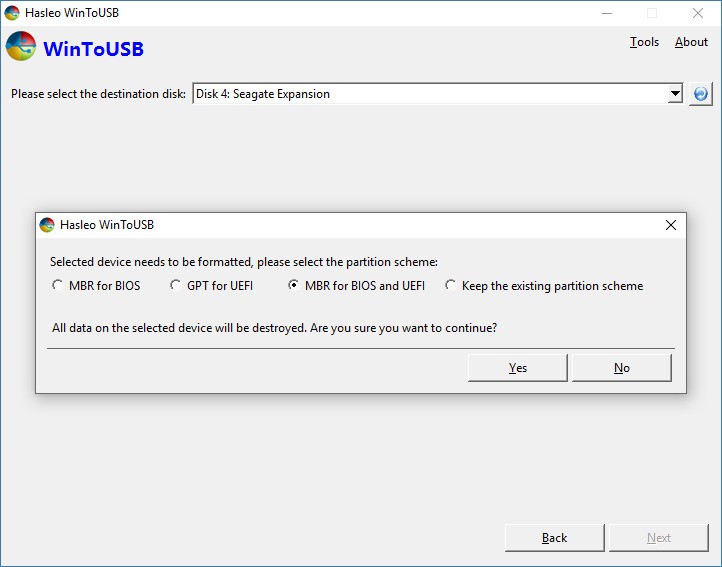
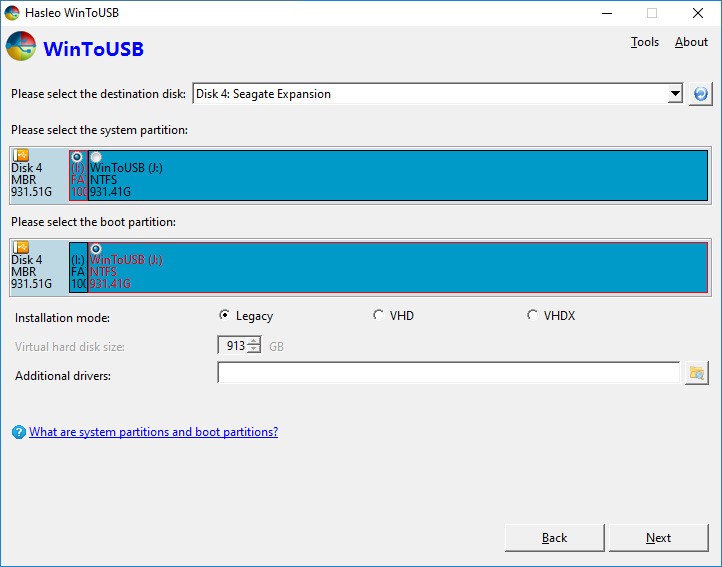
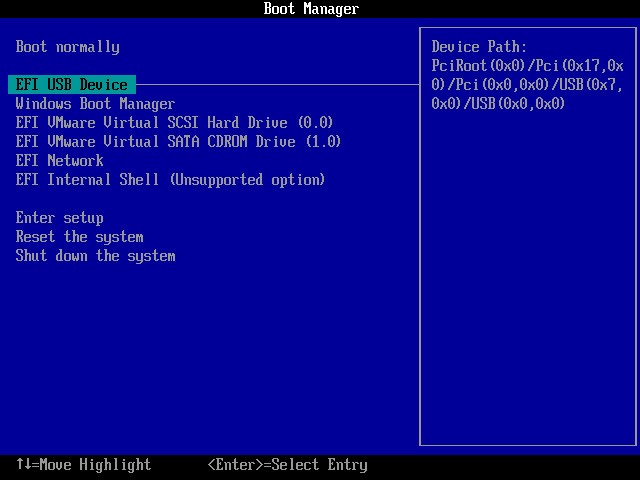
WinToUSB is a powerful software that allows users to install or clone Windows into a portable drive like a USB, so you can quickly boot a Windows environment on a different machine. You can either set up a brand-new system installation from an ISO image or a software CD/DVD, or just copy all of your settings, configurations, and even applications to the external device.
The software allows its users to create portable Windows, Windows To Go USB drives, Windows installation USB drives, bootable WinPE USB drives, and even clone their Windows system. WinToUSB supports various versions of Windows, including Windows 11/10/8/7 (X64, X86, ARM64) and Windows Server editions (2008 and later). You can even download the official Windows ISO from Microsoft's servers. Note that it is possible to encrypt your USB drive. It offers a simple interface, which is easy to use and understand, even if you are not a professional.
A new feature, Delta Clone Windows, helps users quickly update an existing Windows To Go drive. Instead of recreating the entire system from scratch, Delta Clone only copies and updates the files that have changed since the last cloning process. This greatly reduces cloning time and ensures your portable Windows environment stays synchronized with your main system without the need for a full reinstallation.
Why Should I Download WinToUSB?
If you need a portable way to run Windows on various PCs, choose WinToUSB as the default option. Whether you're an IT support professional who requires a reliable method for installing Windows without an entire hard-drive-based process or someone looking to run legacy games or software, you should download WinToUSB for this purpose.
With this utility, you can run Windows on almost every computer and troubleshoot different issues or reinstall the system easily. WinToUSB has a clear interface and a wizard that guides you through the process without the need to manually perform complex configurations. Advanced users can still utilize the tool with more configuration options, but novice users can just keep the default settings and get what they require from this utility.
Another advantage that WinToUSB offers is for gamers, as they can run older games on newer devices without worrying about system and hardware requirements, since the needed Windows version can be installed on their USB drive and just booted from a computer. In this way, you can run older applications or games out of your portable Windows, which can preserve all your drivers and settings so you keep your gaming environment intact. You can also optimize the installation image further to improve your gameplay on different hardware and software setups.
When you download WinToUSB, you can choose from multiple installation methods. They include cloning your current Windows installation and configuration, installing a fresh system copy from an ISO file, or converting an existing image. You can also retain all your system and data partitions, which could prove highly important if you want to ensure Windows remains functional on different PCs. All of those features make WinToUSB an essential tool for anyone needing a portable solution for running legacy versions of applications and games or troubleshooting and fixing system problems.
Is WinToUSB Free?
Most users will be completely satisfied with the free version of WinToUSB, to the point they may not even be aware there's a premium, paid option. If you're using WinToUSB for free, you still get to create a bootable Windows installation system on a USB drive. And it's perfect if you need it for a one-time situation, as the speed of the whole process can also be a bit slower, or you can find limitations in advanced features or partition management.
If you require a more professional approach and enhanced features, it's worth exploring the paid version of this utility. Once you download WinToUSB Professional or Enterprise and pay for it, you get support for more Windows editions and versions, the cloning speeds are much higher, the resulting bootable drive is much more stable, and you can customize the process with advanced options. The paid versions of WinToUSB will be perfect for anyone who requires higher performance and a broader set of options when creating and managing portable installations of the Windows system.
What Operating Systems are Compatible With WinToUSB?
WinToUSB, as the name suggests, is a utility designed specifically for Windows. The great thing about it is that it covers a wide range of versions that it supports. The newest releases of WinToUSB work great with Windows 7, Windows 8, Windows 8.1, Windows 10, and Windows 11 in both 32-bit, 64-bit, and ARM64 architectures.
Older versions of WinToUSB can also give you options to work with Windows XP or Vista, but note that they will have limited customer support. All of this helps you when you have an older machine or hardware because the installation can still run effectively. This backward compatibility extends the tools and applications or games you can use to include the ones that have been taken off the market or their previous versions that are no longer available on newer PCs.
What Are The Alternatives to WinToUSB?
For anyone needing to create a bootable USB drive, Rufus is a great open-source and lightweight solution that's available for free. This utility is known for its speed, and it supports multiple operating systems, including different versions of Windows and Linux. With its simple UI, it also delivers very powerful options, but please note that this tool is more for the creation of installation drives rather than creating portable Windows or Linux environments. With that said, Rufus supports multiple file systems and booting modes like UEFI and Legacy BIOS, and is constantly updated by its open-source community to support new features and options.
If you need a USB boot specifically for Home, Enterprise, or Education editions of Windows 11 or Windows 10, then you should use the Windows Media Creation Tool. It is specifically developed to help you install a new Windows on your current PC. You can choose between Windows 10 Media Creation Tool and Windows 11 Media Creation Tool depending on the system you wish to install (afterward, the ISO contains all versions: Home, Enterprise, etc.).
Another useful option is Ventoy. This is a free and open-source tool that makes creating bootable USB drives much easier. It lets you boot directly from ISO, WIM, IMG, VHD(x), or EFI files without extracting them first. You can copy as many system files as you want onto the same USB drive. When you start your computer, a menu appears automatically so you can choose which image to launch. The tool supports ISO files larger than 4 GB and works with many BIOS and UEFI types, including legacy BIOS, IA32 UEFI, x86_64 UEFI, ARM64 UEFI, and MIPS64EL UEFI. It also supports Secure Boot on UEFI systems. Ventoy is compatible with dozens of operating systems, such as Windows, WinPE, Linux, ChromeOS, Unix, and even virtual environments like VMware and Xen.