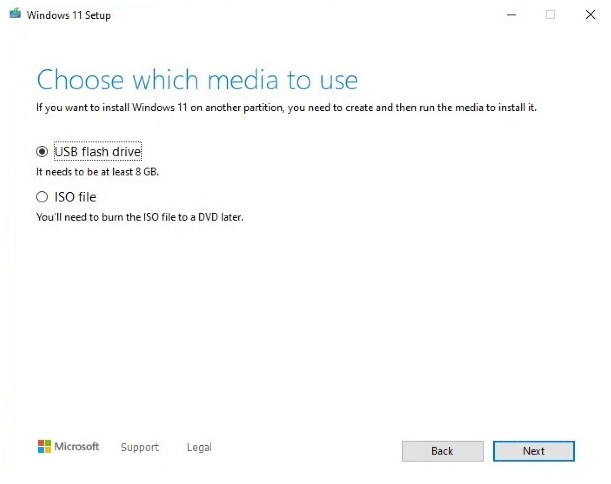
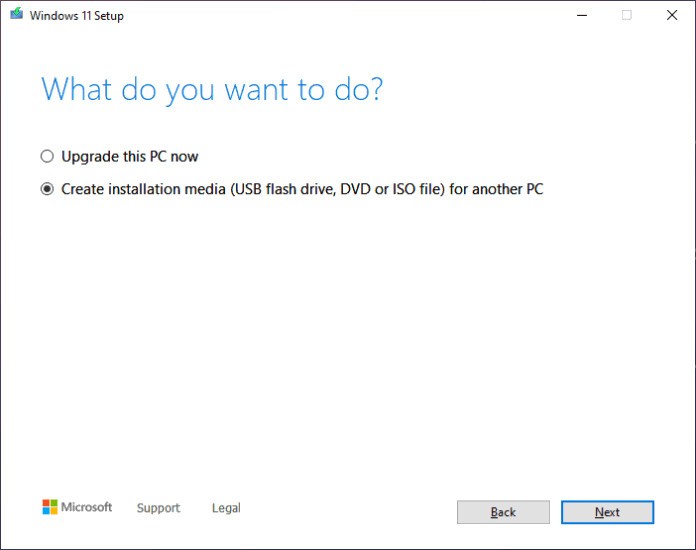
Windows 11 Media Creation Tool is an official Microsoft program that prepares bootable USB drives or ISO files for Windows 11 installations and reinstalls. It is a vital resource for users who want to keep backup installation media on hand, upgrade their operating system cleanly, or install Windows 11 from scratch on a new or wiped machine.
The tool downloads the Windows 11 ISO directly from Microsoft servers before organizing the files onto a USB drive or DVD. Whether starting from scratch or repairing a damaged system, users turn to the Media Creation Tool as their preferred method for installing the operating system on a computer without hunting through third-party sites.
Before running Windows 11 Media Creation Tool, it is worth checking whether the target computer is compatible. Microsoft provides a separate utility called PC Health Check for exactly this purpose. This small app scans hardware compatibility by checking for TPM 2.0, Secure Boot support, and an approved processor.
PC Health Check gives a direct answer about Windows 11 compatibility, flagging any hardware requirements that are missing. Using PC Health Check as the first step and Media Creation Tool as the second keeps the upgrade process clean and avoids installation failures.
Why Should I Download Microsoft Windows 11 Media Creation Tool?
Standard update prompts are not always enough. A PC might feel sluggish after years of accumulated software and system clutter, hardware components may have been replaced, requiring a matching reinstall, or a user may simply want a clean installation with full control over the process rather than relying on automated in-place upgrades that carry over old settings and files.
Windows 11 Media Creation Tool is built for these situations. With a few clicks, users can create either a bootable Windows 11 USB flash drive or generate an ISO file for burning to disc. That eliminates any need for manual setup workarounds or searching through multiple websites for a verified source. The tool provides a legitimate, current, and official installation file pulled directly from Microsoft's own servers, so there is no question about authenticity or whether the build includes the latest updates.
Before proceeding, the PC Health Check app provides a clear answer about system compatibility. It performs a brief hardware scan and identifies any missing requirements, including TPM support, the right CPU generation, or UEFI Secure Boot capability. Windows 11 has stricter hardware requirements than previous versions, which makes this compatibility check genuinely necessary rather than a formality. Knowing upfront whether the target machine qualifies saves time and avoids a failed installation.
Attempting an installation without first verifying compatibility usually leads to failure or frustration mid-process. Using both tools in sequence removes the guesswork entirely and makes the upgrade predictable.
Windows 11 Media Creation Tool also gives Windows 10 users flexible upgrade options. During the process, users can choose to preserve their files and settings, reset selectively, or perform a complete system wipe depending on how thorough they want the installation to be. A Microsoft account and digital license handle activation automatically, reducing the risk of driver issues or activation failures that can follow a manual reinstall.
For technical users, the tool enables deployment across multiple machines. IT administrators and anyone managing computers for a family or small office can create a single USB drive with Media Creation Tool and use it on multiple systems, saving significant time compared to downloading separately for each machine. Because the installer comes directly from Microsoft, users receive the most recent Windows 11 build with the latest security improvements already included.
Working together, PC Health Check and Windows 11 Media Creation Tool guide users through the upgrade without ambiguity. Check compatibility first, then create the installation media and proceed with confidence.
Is Microsoft Windows 11 Media Creation Tool Free?
Both PC Health Check and Windows 11 Media Creation Tool are free to download directly from Microsoft at no additional cost. Because the PC already holds a valid Windows license, no product key is needed during installation.
What Operating Systems Are Compatible with Microsoft Windows 11 Media Creation Tool?
Windows 11 Media Creation Tool runs on Windows 10 and later operating systems. It must be launched from within an existing Windows environment. The bootable USB it creates can install Windows 11 on any compatible PC regardless of what operating system was previously installed, as long as the hardware meets the minimum requirements.
What Are the Alternatives to Microsoft Windows 11 Media Creation Tool?
Note that if you need to install Windows 10 from an older version of Windows, the Windows 10 Media Creation Tool is an option, though support for Windows 10 ended in October 2025.
Ventoy lets users create bootable USB drives that support multiple ISO files stored via drag and drop, without reformatting the drive between uses. It is ideal for anyone who needs to keep several ISOs on a single USB for a multiboot environment. Ventoy works on Windows and Linux distributions and supports a broad range of bootable systems, which gives it flexibility for users who work with multiple operating systems regularly.
ISO to USB is a simple tool for burning ISO images onto USB drives. It does not have the full feature set of more advanced programs but is uncomplicated by design. Add the ISO file, select the target USB drive, and the rest runs automatically. It is a practical option for users who just need to put a Windows ISO onto a USB device without additional configuration.
Rufus is a popular choice for its reliability and speed when creating bootable media. It provides fine-grained control over USB formatting, with options for both BIOS and UEFI boot configurations, file system selection, and partition layout adjustments. Rufus also includes options to bypass Windows 11 hardware verification for machines that fall outside the official compatibility list, which some users with older but capable hardware find useful. When stability over a long flashing process matters, tools like Rufus are worth considering alongside or instead of the official Media Creation Tool.