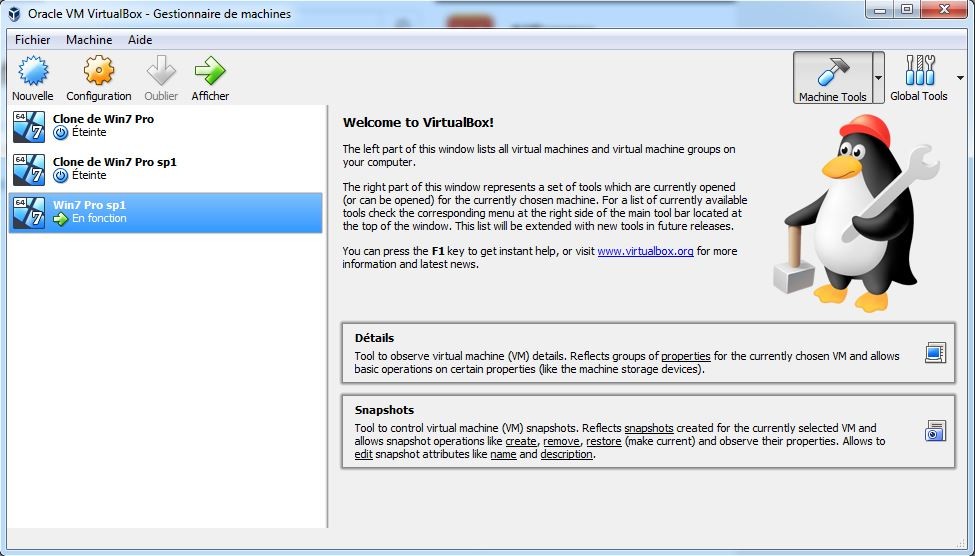
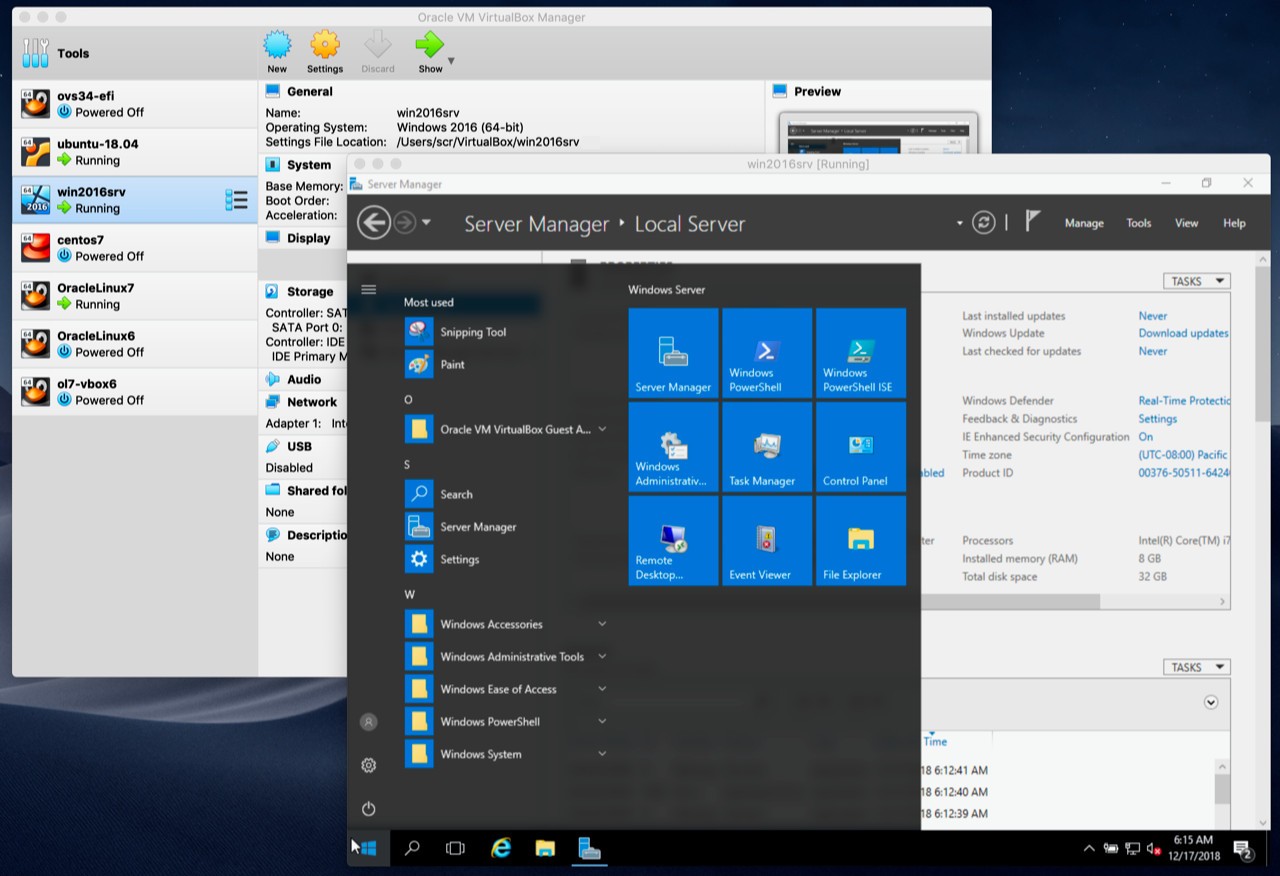
VirtualBox allows you to host virtual machines on your PC, and you can run multiple operating systems at once. This software emulates the given system in a separate window, and you can perform various actions on it as you usually would. VirtualBox supports a wide range of operating systems, from the most common ones like Windows or macOS to more alternative solutions.
You should download VirtualBox if you regularly need to test software, develop cross-platform tools, run legacy applications, or check a different operating system without switching the machine or affecting your original environment.
Since it's a free, open-source tool offered by Oracle, there are no limits on how you can use VirtualBox, and the community around it can contribute to its development and share modifications with others. VirtualBox is a great alternative to commercial and paid solutions, as it's as robust and flexible as other tools.
Why should I download VirtualBox?
If you're someone who needs to switch operating systems often or requires an isolated environment to run software, VirtualBox will be a great help here. Developers, IT knowledge workers, students, or legacy game enthusiasts get to quickly set up another system on their machine and use it as if it were their primary system.
You can download VirtualBox and install it on various host platforms; it runs natively on Windows, macOS, Linux, and even Solaris. This wide range of supported systems is great because you don't need multiple machines to use the tool, and you get reliable, stable performance across all platforms. The number of guest operating systems, so those you can install using VirtualBox, is even larger and includes Windows from XP to 11, macOS (can only be run from another Mac machine), Linux (Ubuntu, Fedora, Arch, Debian, etc.), BDS, and Solaris.
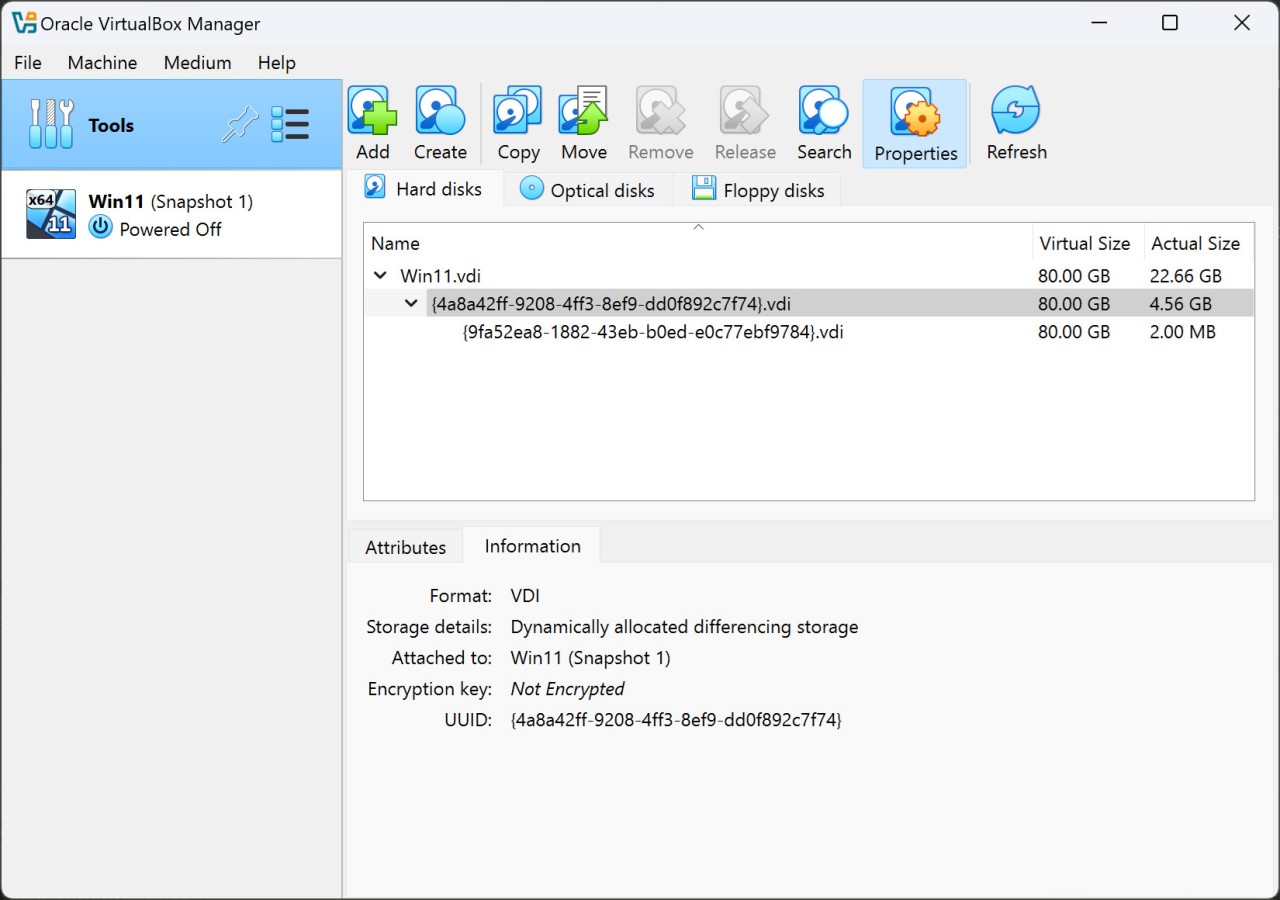
When you're done working on the virtual machine, you can create and save a snapshot of the system, capturing its exact state at that time. You can always restore this version and experiment freely with different settings without worrying or having to go through the whole configuration again. This is especially important in VirtualBox if you're working as a tester or developer.
You can move files between the host and guest systems, copy and paste content between them, and even launch Seamless Mode, where any software from the virtual machine will appear as if it's running on your native system. For more advanced needs, you can also adjust various network tools, set up shared development spaces and servers, or simulate different conditions and configurations.
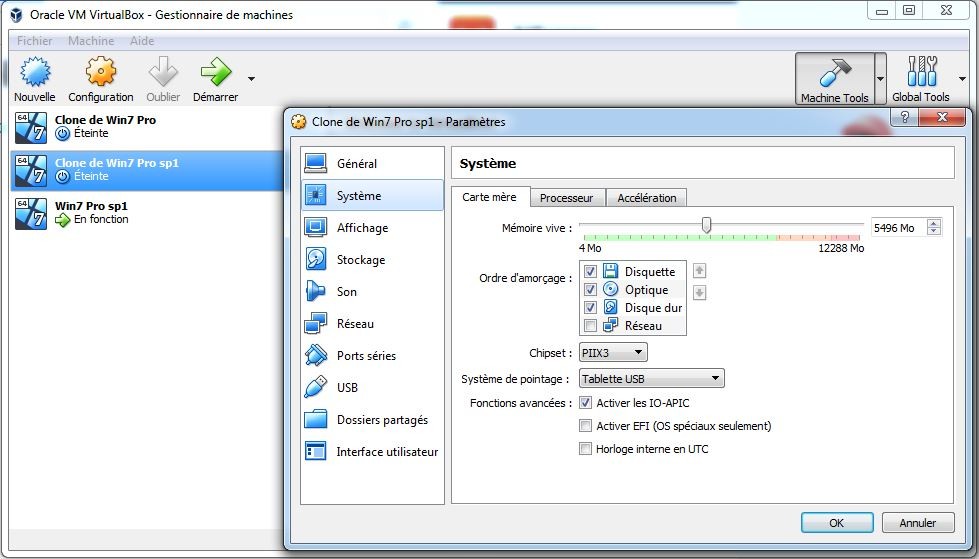
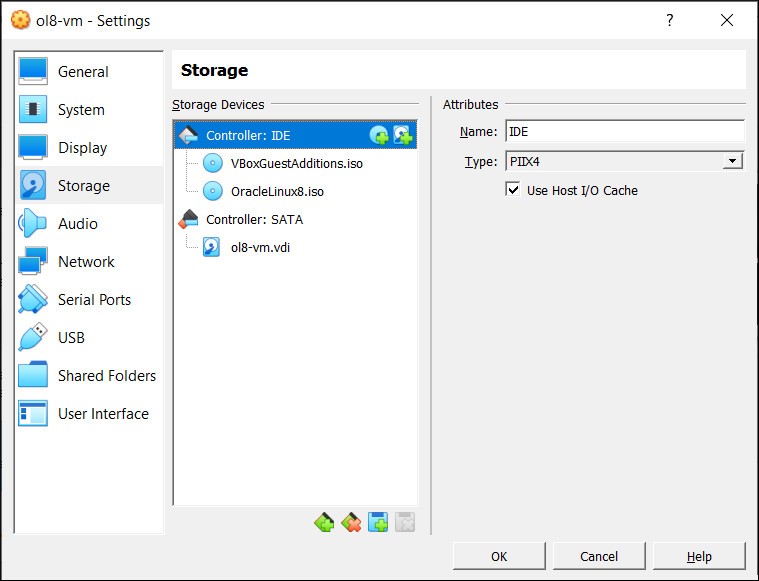
With VirtualBox, you can create virtual drives, launch virtual machines in the background, and control them through command-line tools or remote desktops. You can also apply different hardware virtualizations, emulate Intel- or AMD-based systems, and configure virtual CPUs, RAM, GPUs, and USBs, which are great for more technical users with advanced and complex needs.
Is VirtualBox free?
Yes, as open-source software, you can download VirtualBox for free for both personal and business use, and the tool is distributed under the GNU General Public License (GPL). There's also an extension pack that adds more advanced features, but it's only available for commercial use.
What operating systems are compatible with VirtualBox?
You can install VirtualBox on a broad spectrum of operating systems, so the software supports Windows (7, 8, 10, and 11 in 32-bit and 64-bit), macOS (10.13, and only those based on Intel), Linux (Ubuntu, Debian, Fedora, Arch, etc.), and Solaris.
There are even more guest operating systems you can set up when you install VirtualBox on your machine. The best thing is that VirtualBox's performance is consistent across all host systems and offers the exact same set of features, so you don't need to look for other solutions.
What are the alternatives to VirtualBox?
If you need a tool designed primarily to work on macOS computers, then VMware Fusion is a virtualization software for this purpose. You can use it to install Windows or Linux operating systems and choose between paid (Fusion Pro) and free (Fusion Player) options. With the paid license, you get more advanced features, including custom virtual networks, linked clones, and enhanced encryption. VMware Fusion is also one of the few solutions that support the latest Mac chips, Apple Silicon, which is especially useful if you have a machine like that. There are also ways in which you can blend Windows and macOS interfaces thanks to a feature called "Unity," which you can use to launch Windows software from your Mac dock. If you require it, you can enable 3D acceleration, but be mindful of the machine's resources, as this is a demanding operation.
Another Mac-only solution is Parallels Desktop, which allows you to run Windows and Linux virtual machines alongside your macOS system. This software lets you seamlessly integrate the two systems, share files between them via drag-and-drop, and copy and paste from the clipboard. It's another software with support for M1/M2 chips from Apple, but note that there's no free version, and you can choose between 3 paid tiers: Standard, Pro, or Business, depending on whether you need to integrate with cloud environments, manage a team, or perform nested virtualization.
VMware Workstation, on the other hand, is software for Windows and Linux computers that comes in both paid and free versions. It has robust system snapshot features and management, comprehensive network configuration options, GPU acceleration for better graphics, and even more secure encryption options. You can also enjoy features like multi-monitor setup, virtual machine cloning, and command-line automation and remote management. VMware Workstation is the best solution if you need to reliably run high-performance virtualizations, access deep configuration options, or handle enterprise-level workloads with custom server options and an extensive development setup.