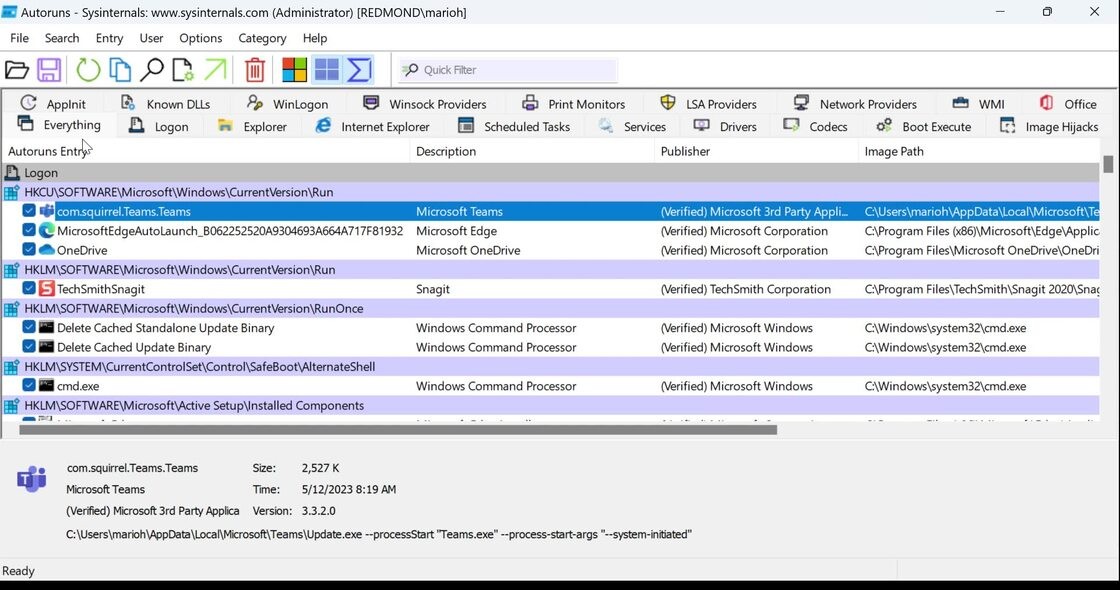
The hidden-gem tool Autoruns helps users detect system slowness and unusual behaviors that occur when their system runs in the background. The Sysinternals development team (now a Microsoft subsidiary) created Autoruns, which enables users to view an extensive list of programs that initiate automatically during Windows bootup or user login.
The program extends inspection beyond startup applications into an extensive range of tasks. The application presents information about all elements that automatically launch at boot time, including services and drivers, together with browser extensions and tasks, and even boot execute commands and codec entries. The program will identify all items that kick off during a Windows boot operation.
Its profound ability to display every launching program makes the tool particularly powerful. The startup section of Task Manager provides basic visibility, but Autoruns reveals every single point that programs may hide. The program provides complete system control to users at every experience level, from advanced to technical, who seek to manage their operating system.
Automated background processes running on your system will become easy to detect when you turn on Autoruns' illuminating display. The program works well for users who show a little interest in system processes. The interface design uses categorized tabs, which makes navigation uncomplicated, even though this tool seems complicated at first.
Why Should I Download Autoruns?
Most computer users tend to ignore the startup applications when their computers launch. Over time, things pile up. Your system slows down more than expected after multiple programs install silently, leaving your computer with a backlog of background tasks like walking through deep mud. That’s when Autoruns steps in.
The program provides comprehensive background information on system operations but lacks automated PC acceleration. You can identify and eliminate unnecessary processes, outdated startup items, and imposter malware services by taking a few minutes to examine the system.
The tool proves useful because it allows direct intervention beyond passive observation. Through the interface, users can operate entry deletion and disabling procedures instantaneously. Through the interface, you have immediate control to take action on anything that belongs to startup clutter or is foreign to system services. This utility becomes especially beneficial to users who have cleaned their PCs through conventional tools yet discovered limited results. The deep depths of registry locations and autostart folders fall within Autoruns' operating scope, whereas other tools remain above these depths.
The tool effectively detects abnormal behavior. When experiencing unpredictable behavioral events, some users detect their computer to have unexplained slowness as well as conflicts between programs. Through its interface, Autoruns shows you every process that participates in system operations.
The program provides color variations for unverified and nonexistent items, making it simpler to detect irregularities during analysis. Observing the platform’s elements will gradually lead to understanding, although complete comprehension from the start isn't necessary. The tool allows you to temporarily disable anything important, as the modifications are not permanent, and to re-enable it instantly with a single click.
As a security tool, Autoruns provides value to both IT professionals and malware analysts by effectively displaying all hidden autorun entries. Viruses, together with Trojans, exploit registry locations to hide from users who will activate them during system startup. The tool shows three essential details about hidden autorun entries: file locations, together with publisher names and command-line paths. A quick bit of research indicates that users can manually delete unusual entries since antivirus software lacks this capability. Through its level of control, the application restores user power in a way most programs do not.
People who want a proper system startup, fast boot times, and details about background operations should make the intelligent choice to download Autoruns. It doesn’t hog resources. The tool does not perform operations while your computer works in the background. The application arrives when needed with a system inspection capability like X-ray vision, so developers can monitor their IT installations.
Is Autoruns Free?
You can obtain Autoruns for free since it offers a free download option. The Microsoft Sysinternals suite includes Autoruns among its publicly available, Microsoft-driven maintenance tools. Users have access to all features of the utility without restrictions because Autoruns provides full functionality at no cost.
What Operating Systems Are Compatible with Autoruns?
Windows operating systems were the main platform on which Autoruns developers created the program. The program works on all Windows versions from Windows 7 to Windows 11.
This utility runs on both 32-bit and 64-bit systems and allows execution from USB devices without installation, which benefits IT professionals troubleshooting multiple computers simultaneously.
The deep Windows integration of this tool makes it an essential program for Microsoft operating systems, though it is unavailable on macOS or Linux. Using administrative permissions is advised to disable or remove startup items due to the significant functional advantage.
What Are the Alternatives to Autoruns?
Microsoft Sysinternals Suite serves as the main framework that contains all tools, including Autoruns, and features additional diagnostic tools beyond what Autoruns provides. Users who already use Autoruns should probably look into additional features in the full suite. The suite includes three important tools: Process Monitor, TCPView, and PsExec, which provide the means to explore, troubleshoot, and monitor your system operation. Users who want complete system visibility from a single place can obtain the complete suite in one package, but also use it without installation.
Microsoft PowerToys provides users with multiple tools that differ from its main purpose. The main purpose of these tools is to help users enhance productivity and customization without caring about system diagnosability. The utility provides additional Windows controls for people who want expanded system management. Workflow efficiency improves through the combination of FancyZones for graphical window organization and PowerRename for file renaming utility, in addition to Keyboard Manager. You should keep this utility on your system even though Autoruns provides more detailed system process analysis, because it helps users optimize their environment and improve their experience.
As an Autoruns substitute, Process Explorer provides the most similar functionality because of their close conceptual match. The tool provides instant access to monitor current system processes in real time, similar to an advanced version of Task Manager. The application displays detailed information about process structures, together with CPU resources, DLLs, and active handles from running programs. The tool proves most useful for analyzing which programs access specific files and for detecting potential security threats. The Sysinternals Suite incorporates this trusted application, which support teams and developers depend on. Process Explorer serves as your current running process monitor, so you can pair it with Autoruns to gain complete visibility into your system workings.