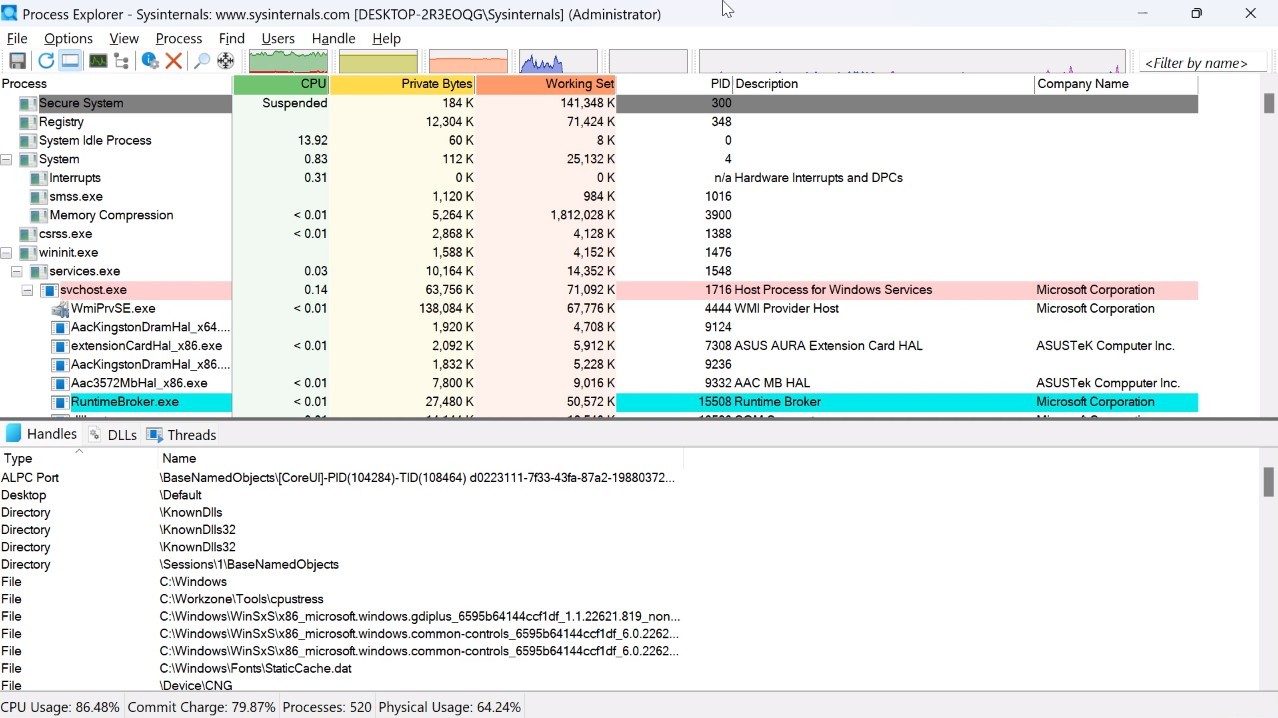
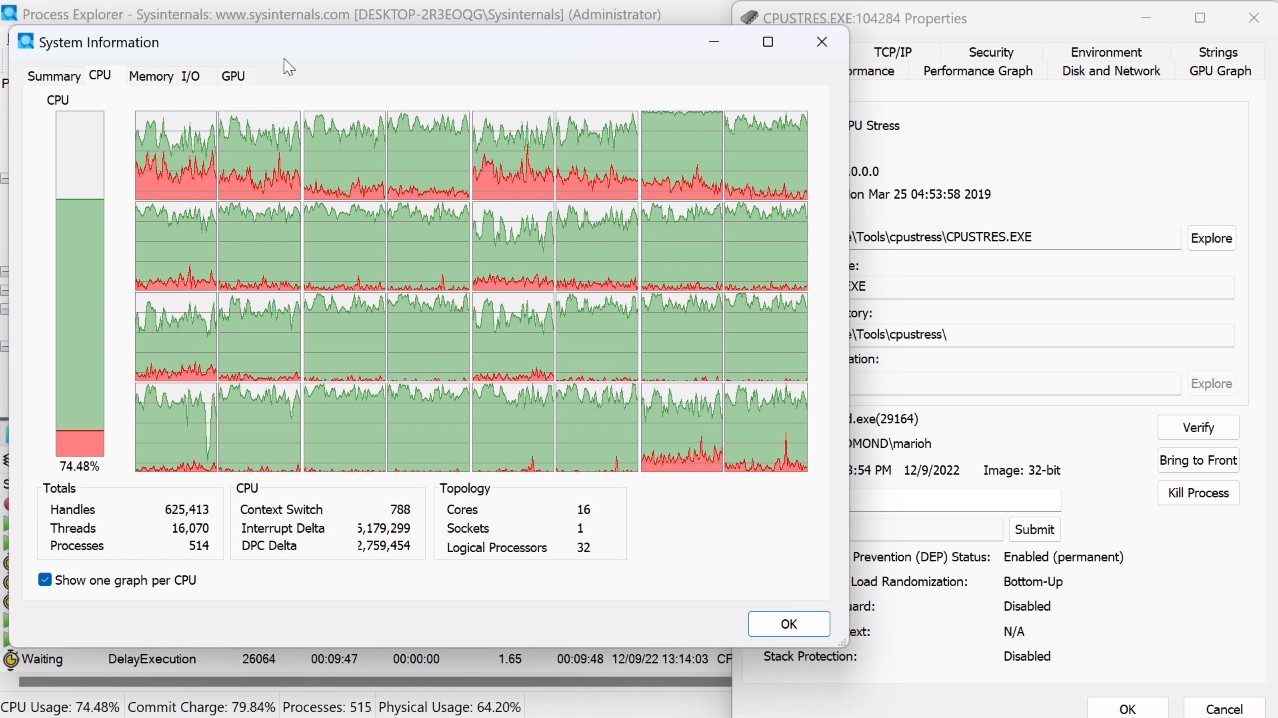
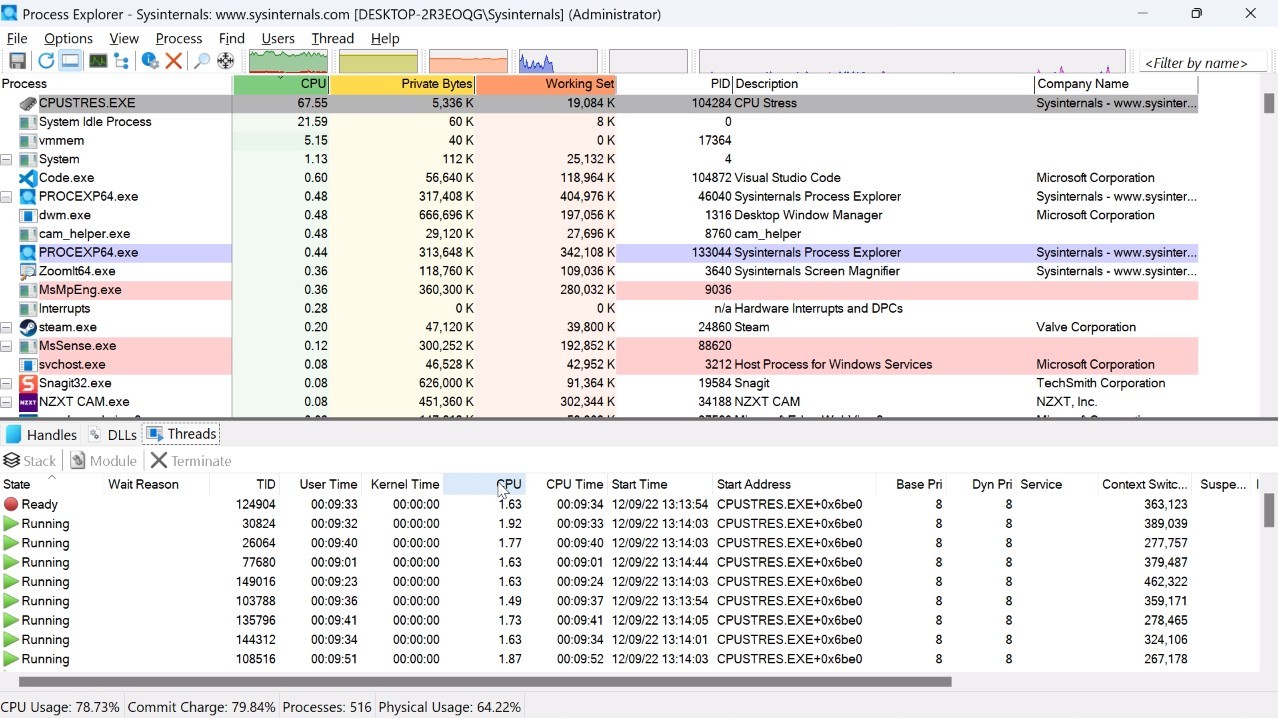
Through Process Explorer users gain extensive visibility into their Windows system operations. The program departs from basic task management functionality. The basic function of Task Manager lies in Showing Running Apps, yet Process Explorer provides much deeper visibility. The tool displays complete active process information, including connection details, together with used memory, along acquisition of file and folder access. This tool shows you the true causes behind your operating system slowing down or consuming resources, so you can easily detect them.
The tool serves as a diagnostic instrument for detecting malware, along with unknown background operations running in your Windows system. A tree-style visualization displays everything that's running when you launch this tool. Through Process Explorer, you uncover details on program-process relationships while tracing down suspicious activities by viewing process paths.
This tool provides an on-demand utility that operates from a single executable file without requiring full installation. Daily users who want to monitor their PCs together with IT support staff and system administrators regularly maintain Process Explorer as their go-to diagnostic assessment tool. Process Explorer shows you everything you need to locate the root cause of your system problems.
Why Should I Download Process Explorer?
Slowing computer performance becomes a mystery to you, but Process Explorer helps you pinpoint the cause. Using Ctrl+Alt+Del to launch Task Manager reveals hidden processes that Task Manager cannot detect. In particular, Process Explorer offers unique capabilities to provide solutions. Through Process Explorer, you can view all active processes within your system, even though some do not show up in Task Manager. Unlike standard tools, Process Explorer displays background services alongside child processes and threads, which stay hidden from most tools.
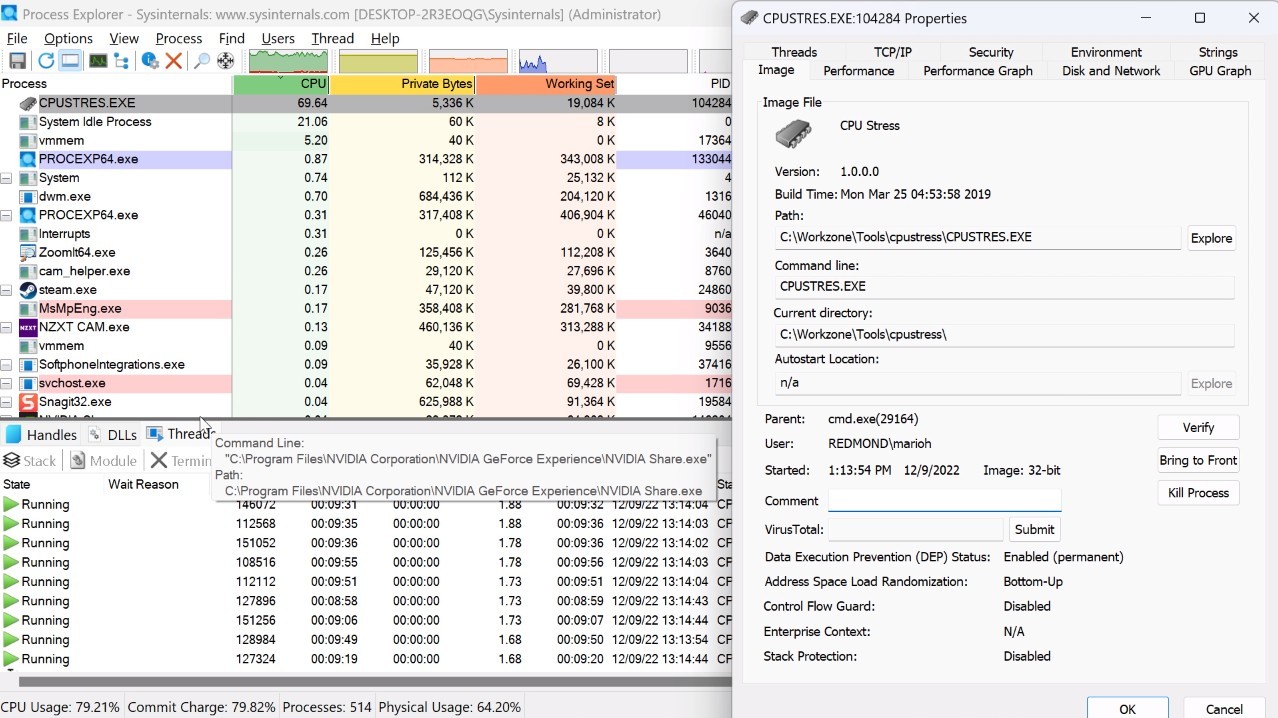
Process Explorer stands out because it shows the complete running process list, which reveals misbehaving applications along with their excessive memory usage and open files. Process Explorer lets you identify the exact file location for running processes and reveals their launch origin and execution time. No advanced technical skills are required to operate it because you only need the ability to examine process details. Process Explorer enables you to click any process to access detailed properties that reveal the creating company, making it easier to protect trusted applications from suspicious intruders.
The secondary detection value lies in Process Explorer when your computer shows indications of virus activity. Process Explorer creates barriers for malware programs attempting to hide from detection. A hover action over your processes helps you access information about dependencies, yet reveals its loaded DLLs and file usages. The tool directly connects you with the fundamental problem. Some users rely on the tool to access files that appear locked because a background process maintains control.
To solve problems and learn about system operations, it serves as a dual-purpose tool. By using this tool, you receive knowledge about how a computer functions. The system executes different actions after you run a browser or start a game, or place an app into your system. When you take a look, you can see all the operations that happen beneath the surface. By enabling better control and increased awareness, Process Explorer becomes a valuable tool for users. Users can gain system activity insight in real time through basic monitoring of its functionality without special operations or steps.
Process Explorer serves as your Windows machine's X-ray vision through which users can both monitor system resources and gain a better PC understanding. Process Explorer provides quick performance with a minimal system footprint that preserves your document integrity. This tool presents all essential information directly to you without modification.
Is Process Explorer Free?
You can use Process Explorer entirely free without having to pay anything. Users can access Microsoft's Sysinternals suite free of charge without needing to pay licensing fees or buy any other form of payment. Through Microsoft's website, users can get Process Explorer free of charge to use in personal or work settings.
What Operating Systems Are Compatible with Process Explorer?
Process Explorer provides full functionality across all major Windows installations. Process Explorer provides full functionality on Windows 10 and Windows 11 and supports operation on older systems, including Windows 7 and 8. As a portable application that operates as a standalone file, you can run it without installation demands. The application can be used by simply downloading its file before running the executable program. Process Explorer does not support Mac and Linux operating systems, so users need Windows to access the tool. Anyone with a Windows desktop or laptop should consider Process Explorer as an essential tool in their toolkit.
What Are the Alternatives to Process Explorer?
Process Explorer features several alternative solutions that deliver specific advantages based on individual monitoring needs. Many monitoring solutions exist as toolsets with multiple applications, whereas others concentrate on particular aspects of system examination. The applications function as equivalents to Process Explorer, even though they do not duplicate it exactly.
Microsoft Sysinternals Suite serves as the initial alternative to Process Explorer, followed by a close family association. Process Explorer operates as a component within a larger group of software that forms the Sysinternals suite. Your suite contains four fundamental tools, including TCPView, Autoruns, Handle, and Process Monitor. Users who need more than basic process viewing capabilities will find utilities in the full suite to check open ports and examine autorun entries while inspecting registry use and system events. Users benefit from the suite's reliability because Microsoft maintains the original developers who made Process Explorer and continues to support the software.
Microsoft PowerToys stands out as a newly popular Microsoft tool accessed by users. PowerToys functions as a utility package that delivers process monitoring perks for Windows system management and operation enhancement. FancyZones, along with PowerRename and the keyboard shortcut guide, represent some of the tools available in Microsoft PowerToys. This tool presents itself as a user interaction tool and functions as a system operability streamliner rather than a system processing analyzer. Users who combine the functionality of PowerToys with Process Explorer find that both tools work harmoniously together.
Then there’s Autoruns. The Sysinternals tool Autoruns examines all programs that start automatically with your computer during system boot. Performance problems sometimes stem from programs running at startup that users remain unaware of. Autoruns identifies additional startup locations that exceed both the visibility of Task Manager and msconfig. Through Autoruns, you can permanently delete or deactivate entries that seem useless or questionable to you. This tool helps manage startup procedures, yet fails to provide Process Explorer's real-time tracking capabilit,y but allows users to see background processes without explicit authorization.