Losing data to a failed hard drive, an accidental deletion, or a corrupted Windows installation is one of those situations that feels like a nightmare until it happens to you. Paragon Backup & Recovery Community Edition is a free Windows tool designed to ensure you are protected when something goes wrong. Developed by Paragon Software, a company with over 30 years of experience in disk management and data protection software, the Community Edition puts a solid chunk of that expertise in the hands of home users at no cost.
The software handles full system backups, meaning it can capture your entire Windows installation, all installed programs, your settings, and your personal files in a single image. So if your system becomes unbootable, that image is what brings everything back, but it also works at a more granular level. You can back up individual files and folders, specific partitions, or entire disks, depending on what you need to protect.
Paragon positions this software as everyday data protection for people who want something more reliable than just hoping nothing goes wrong for them. The interface is clean and straightforward, and the setup process walks you through how to create your first backup job without requiring any technical knowledge. Scheduled automations mean backups can happen quietly in the background on a timetable dictated by you. This means protection doesn’t depend on you remembering to do it manually.
Why Should I Download Paragon Backup & Recovery?
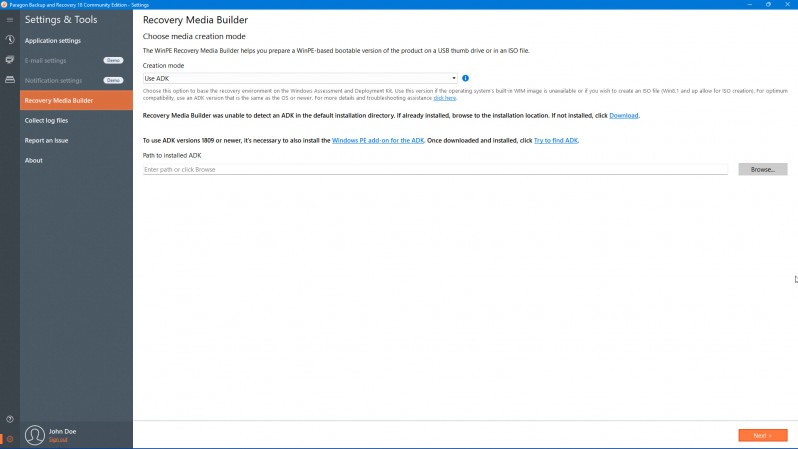
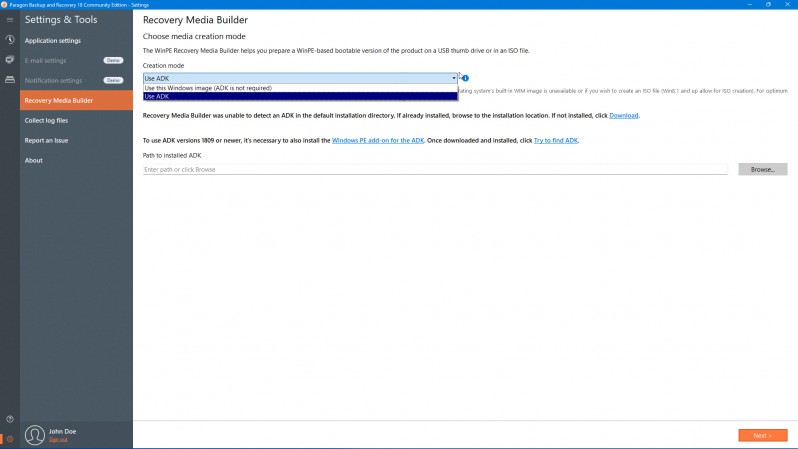
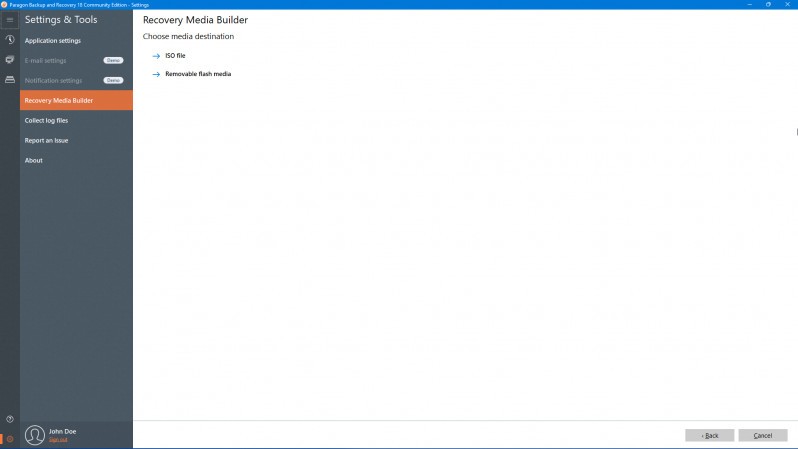
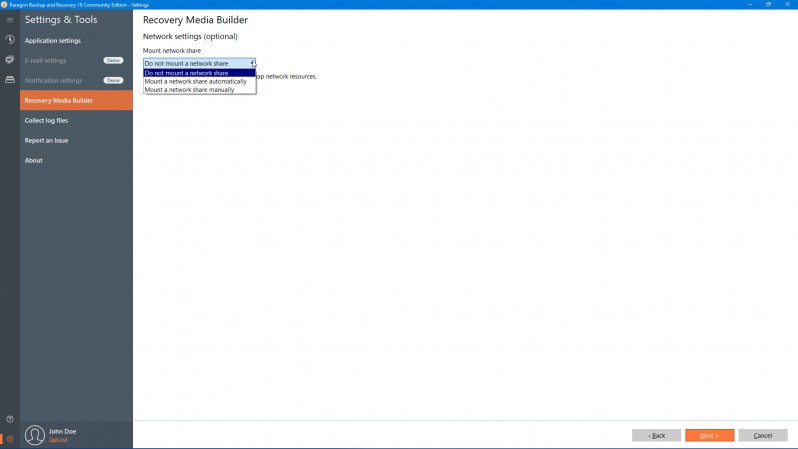
The simplest and most practical reason you should download this software is the combination of system image backup and bootable recovery media in a single free tool. Many free backup tools handle just one or the other, but Paragon Community Edition does both. You can create a full image of your Windows installation and store it on an external hard drive or a network location, then build a bootable USB stick using the built-in Recovery Media Builder. If your Windows computer fails to start, you can boot from your USB drive and restore your system from the image, getting everything back to its previous state without needing a fresh install.
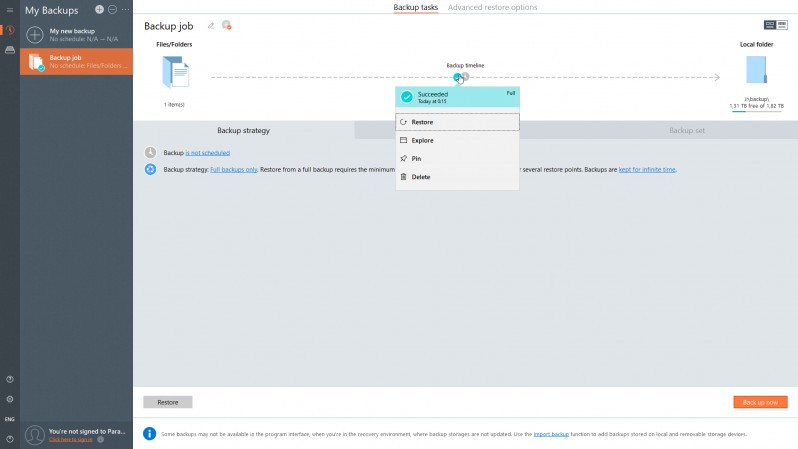
Backup flexibility is another key strength of the software. You can back up your OS partition, and the software will automatically include the boot partition alongside it. Individual files and folders can be backed up separately from the full system image, so you can easily set up daily file backups independently of a less frequent full system backup. Scheduled automation supports different backup frequencies. The version control system lets you manage which backup versions to keep and how many to retain before old ones are removed from your system.
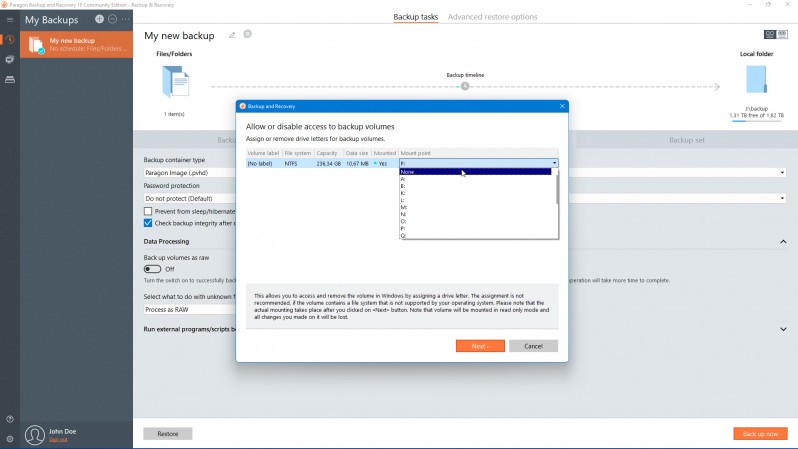
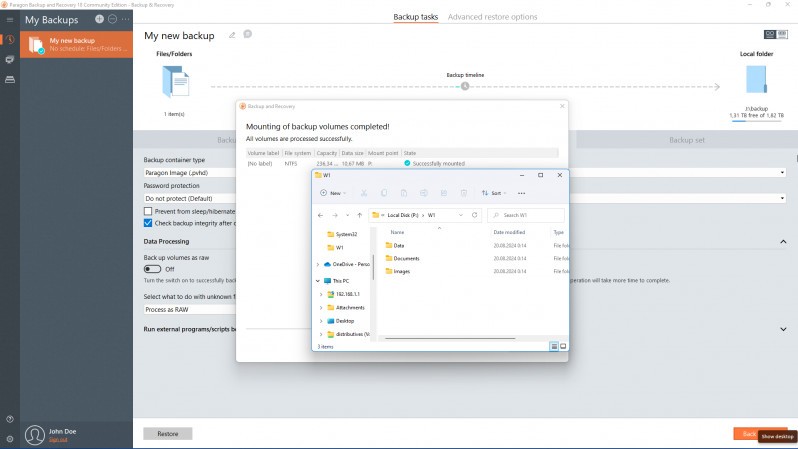
Paragon also includes the ability to mount backup archives as virtual drives, browsing them like a regular disk to pull out individual files without needing to run a full restore. This is useful in situations where you only need to restore one document from a two-week-old backup rather than rolling back your whole system.
Paragon recently added Arm64 CPU support, covering modern Windows devices running on Arm architecture. Other recent updates also added an account sync feature, letting you connect the software to a Paragon account to monitor the backup status of multiple devices from a single dashboard. For anyone managing protection across multiple machines, this feature centralizes oversight without having to check each computer individually.
Is Paragon Backup & Recovery Free?
Yes, the Community Edition is completely free for personal, non-commercial use. There are no time limits, no feature trials, and no paywalled core functions. The free tier covers system backup, disk and partition backup, file and folder backup, scheduled automation, WinPE recovery, and archive mounting.
Paragon does offer paid tiers above the Community Edition. Hard Disk Manager Advanced adds partition management tools, email notifications, and additional restore options for personal users who want more control over their backups. Hard Disk Manager for Business is the commercial license, adding Windows server support and features best suited to professional environments. Neither upgrade is needed for home backup use, and the Community Edition holds up well on its own for most personal use cases.
What Operating Systems Are Compatible with Paragon Backup & Recovery?
The Community Edition runs on all 64-bit versions of Windows 10 (version 1809 and newer) and Windows 11, including ARM64 editions. The software does not support 32-bit Windows, older versions of Windows 10, or Windows 7 and 8, There is also no macOS or Linux desktop version for this particular product, though Paragon does offer separate backup software for Mac. The hardware requirements are extremely modest: a 1 GHz or faster 64-bit processor, 2 GB of RAM, and just 250 MB of available disk space.
What Are the Alternatives to Paragon Backup & Recovery?
AOMEI Backupper Standard is a free Windows backup tool covering much of the same ground. It handles system backups, disk and partition backups, file and folder backups, incremental backups, and scheduled automation, all at no cost. It also supports file synchronization between drives, disk cloning for data drives, and bootable rescue media creation. The free version is powerful, though some features, such as differential backup, automatic cleanup of old backup versions, and OS migration to a new drive, are reserved for paid editions. It runs on Windows 7 through Windows 11, giving it broader version compatibility than Paragon's Community Edition. Users who need a free backup tool with a slightly wider Windows version range or who want built-in file sync alongside backup will find AOMEI Backupper Standard a capable alternative.
File Restore Plus takes a different approach. Rather than focusing on proactive backup, this file recovery tool is designed to retrieve data that has already been lost. It scans storage devices to find and restore deleted files, even from formatted drives or after a devastating system crash. It supports hard drives, USB drives, SD cards, external drives, and various file types, including photos, documents, videos, and Outlook emails. Deep Scan mode can recover partially overwritten files that simpler scans would easily miss. File Restore Plus is best used in situations where no backup exists, and something has already gone wrong. It was developed by WebMinds and is available as a free download with a paid license required to restore recovered files. For users seeking data protection after an incident rather than before it, File Restore Plus addresses the gap that backup software cannot.
EaseUS Todo Backup Free is another well-known free option in this space, with a similar feature set to both Paragon and AOMEI. It covers system backup, disk and partition backup, file backup, and scheduled automation, and includes a bootable media creator for recovery when Windows will not start. EaseUS also offers cloud backup integration and supports cloning drives for upgrades or replacements. Like the other tools here, some of its more advanced features are gated behind paid tiers, but the free version is solid for everyday personal backup needs. It runs on Windows 7 through Windows 11 and has a clean interface that tends to appeal to users who want guidance through the process rather than a more technical setup. People who find Paragon's interface slightly sparse often gravitate toward EaseUS for its more step-by-step approach to creating and managing backup jobs.