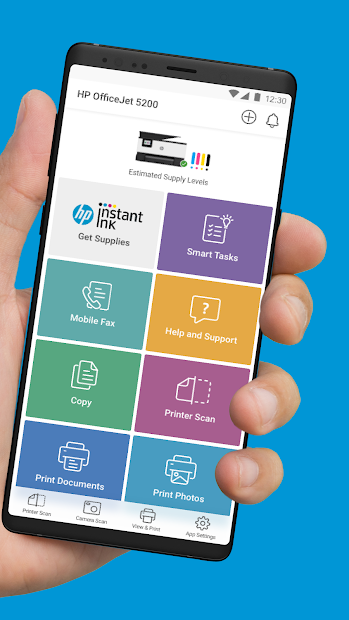
Formerly known as HP Smart, HP is an application for all of your HP needs. Though it serves as a wholesome solution for the entire HP ecosystem, including laptops and accessories, many people use it as printer support. The platform enables the printing and scanning of documents, monitoring ink and toner levels, and reaching out to customer support.
If you notice that you are running low on toner, you can place an order to replace it right away, directly through the HP app. Should your printer be experiencing difficulties, you can find helpful materials in the app before you contact support.
The same care can be applied to your HP laptop or desktop. Use the platform to check the health of your device and its battery. If you purchased a new HP device, you can set it up and connect it to your HP ecosystem in the app.
Why Should I Download HP?
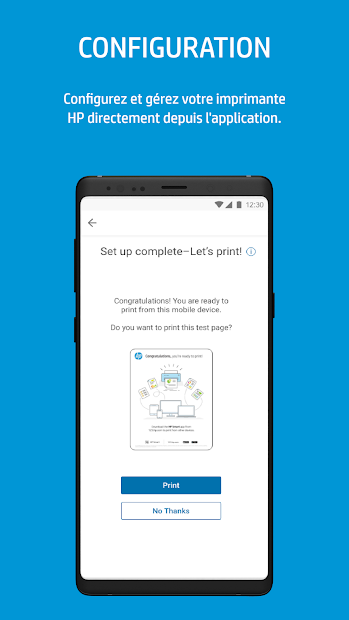
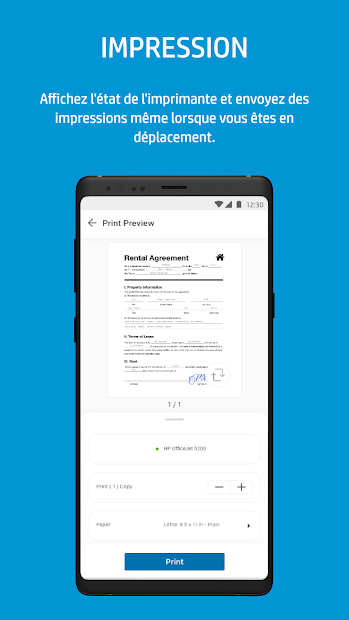
The main reason people download HP is because of its printer support capabilities. If you have an HP printer, you can monitor its health, check ink and toner levels, and order supplies via the app. You can also scan and print documents and images using the app. If you purchase a new printer, the setup process will be quite easy through the HP app. You can locate relevant manuals and instructions that will guide you through the setup process. Additionally, should you encounter any issues or need help with troubleshooting, the platform has a large library of helpful materials. Alternatively, you can contact customer support directly through the app.
People who use an HP laptop or desktop can run diagnostics and test the health of their device or battery through the application. That can be helpful in catching potential issues early on and solving them. If there is a bigger problem you require help with, you can get in touch with a customer support representative or find useful troubleshooting tips.
Finally, the HP app provides you with access to the cloud where your documents are stored. You can retrieve a document that you printed last week, should you require it again. Printing is easy, as you can even print files from different applications through your phone.
Is HP Free?
The basic version of the HP app is free to download and use on mobile devices and computers. The app may offer additional functionality, such as HP Instant Ink, at a cost.
What Operating Systems Are Compatible with HP?
HP is compatible with various operating systems. Among them are Android (10.0 or later) and iOS (iOS 17 or later). You can also download the app on your iPad with iOS 17 or later. The app is compatible with Windows computers—Windows 10 (Redstone 5, or version 1809 or later) and Windows 11. If you have an Apple computer, you will need macOS 12.0 or later.
What Are the Alternatives to HP?
Users looking for an alternative solution have many options to choose from. One of them is Smart Printer—a mobile app for all of your printing needs. Unlike HP, printing is its only capability. You can connect it to your printer and use it to print all types of files, including documents, photos, and emails. The app works with various file types, such as PDF, Word, Excel, JPG, PNG, PowerPoint, and more. You can preview your document before you send it to the printer. The app works with HP, Canon, Epson, Samsung, Xerox, Dell, and Toshiba printers, among others.
Another option is the Smart Air Print App. This app works in much the same way as Smart Printer. It allows you to connect to a large variety of printers via Bluetooth, WiFi, or USB-OTG, and scan and print documents from anywhere. Supported document formats include PDF, Excel, and Word, as well as PNG, JPG, and WEBP. Customize your printing requirements, such as paper type, black-and-white or color, and single- or double-sided printing, using the app.
Owners of Epson printers will appreciate the brand’s native app—Epson iPrint. The app allows you to connect to your printer and print documents directly from your tablet or phone. You can connect to any printer remotely, regardless of where it is located. The app supports formats such as PDF, Excel, Word, and PowerPoint. If you only have the printed document, you can take a photo of it, adjust it, and send it to the printer.