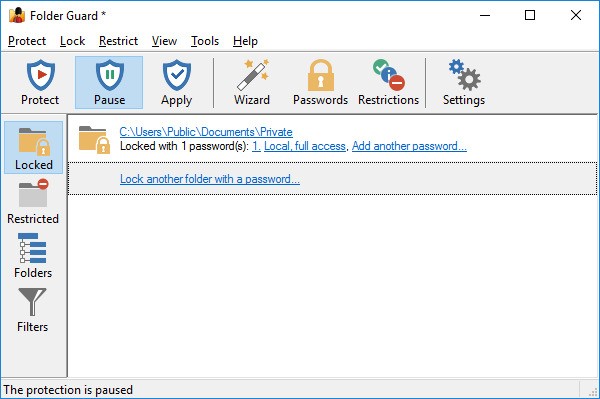
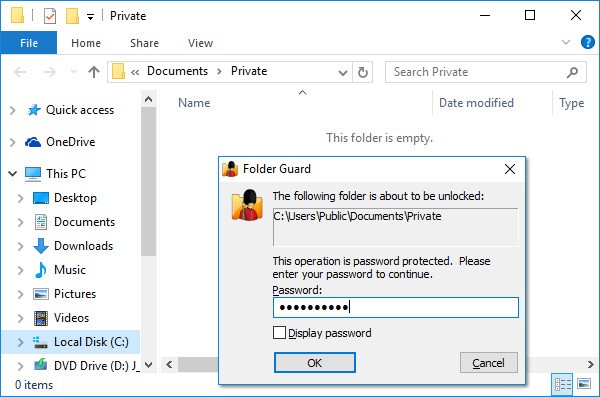
Folder Guard is a security and privacy tool designed to give you control over who can access the files and folders on your computer. Most of us store sensitive information on our PCs—things like work documents, financial records, or personal photos—that we don’t want just anyone to open. The problem is that the default tools built into Windows often don’t go far enough. That’s where Folder Guard steps in.
The software allows you to password-protect files and folders, restrict access to system settings, and even hide data completely from prying eyes. Hidden folders won’t even show up in File Explorer, which means casual users wouldn’t know they exist. Beyond simply hiding, you can set specific permissions. For example, you could make a folder read-only so its contents can be seen but not modified, or you could block access altogether unless the correct password is provided.
Another strength of Folder Guard is that it doesn’t just lock files—it gives you flexibility. You can apply restrictions to entire drives, lock down Control Panel options, and limit access to USB ports. It’s the kind of software that adapts to different needs, whether you’re a home user wanting privacy from family members or a small business owner who needs to protect client data.
Why should I download Folder Guard?
There are plenty of reasons to consider downloading Folder Guard, but the biggest one is peace of mind. Data security has become more important than ever, especially with how much personal and professional information is stored on computers. If someone else has access to your PC, even briefly, it doesn’t take much effort for them to stumble upon files you’d rather keep private. Folder Guard acts as a barrier, making sure that only the people you authorize can open those folders.
Another good reason is control. Let’s say you share your computer with family members or coworkers. Maybe you don’t want to lock the entire device, but you’d like to limit what they can access. With Folder Guard, you can customize restrictions so each person has just the access they need. That’s a much smarter approach than relying on one-size-fits-all protections.
The software also shines when it comes to usability. Some security tools are powerful but feel overwhelming. Folder Guard strikes a balance by providing advanced options while keeping the interface straightforward. You don’t need to be a cybersecurity expert to use it effectively. For example, hiding a folder or setting up a password takes only a few clicks, yet the protection it provides is robust enough to discourage unauthorized access.
Finally, it’s a great preventative measure. Too many people only think about file security after something goes wrong. By installing Folder Guard, you’re being proactive. You’re protecting sensitive material before it ever has a chance to be compromised. That simple step can save you from a lot of headaches later on.
Is Folder Guard free?
Folder Guard isn’t free software, but it does offer a free trial. The trial period allows you to explore its features, set up protections, and see how well it fits into your routine. This is useful because you can actually test the program in real scenarios before committing to a purchase. Once the trial ends, you’ll need to buy a license to continue using it.
The paid version is a one-time purchase, which makes it different from many modern apps that push subscription models. That means no recurring monthly or yearly fees. You buy it once, and it’s yours to keep. For people who prefer not to be tied into ongoing payments, this setup is a big plus.
While the free trial gives you a taste, the full version is worth considering if you want lasting protection. The cost is reasonable compared to the level of security it provides, and the long-term value is solid given how it helps safeguard sensitive data.
What operating systems are compatible with Folder Guard?
Folder Guard is designed primarily for Windows. It supports a wide range of versions, including Windows 11, Windows 10, and older systems like Windows 8 and Windows 7. That makes it accessible to most users, whether they’re running the latest operating system or something a bit older.
Because it’s tailored for Windows, Folder Guard integrates neatly with File Explorer and system settings. You don’t have to worry about compatibility issues or awkward workarounds. Once installed, it works in the background, applying the restrictions you’ve set while letting you access your files normally when you’re logged in with the right credentials.
At this point, there’s no dedicated version for macOS or Linux. However, since it’s built to align closely with Windows file systems and permissions, it feels smooth and natural for PC users. If you’re looking for reliable folder protection on a Windows computer, this is one of the more polished options available.
What are the alternatives to Folder Guard?
One of the most popular substitutes is Folder Lock. Similar to Folder Guard, it allows you to hide files and folders, although there are also such extras as file encryption and safe backup. The program enables you to create lockers in which to place sensitive files, and the lockers can be encrypted using powerful algorithms. The first benefit of this is that it not only avoids informal access, but it also secures your data even when someone transfers it to a different device. It is also well polished and easy to use, which makes the interface a formidable competitor should you desire both hiding and encryption in a single package.
Another good alternative is EaseUS LockMyFile. It has folder locking, folder hiding, and encryption; it is unique in terms of versatility. As an example, you may use a password on local folders and USB drives as well as shared network folders. It proves especially handy in the workplace environment, where the files can be accessed through several devices. The setup process is also easy, and thus, you do not need to take a lot of time to learn how to use it. In comparison with Folder Guard, it is more all-in-one and has an emphasis on simplicity.
Wise Folder Hider is at least user-friendly. It also allows you to conceal files and folders in haste, and you can password-protect them as an additional security measure. The only difference is that it has a dual-password option; you can use a password to start the program and then use another password to enter particular folders. Then, even in case one of them manages to crack one of the passwords, there is still no jeopardy to your files. It is light, free to use in basic mode, and has a pro version, which possesses additional features. It is not as feature-rich as Folder Guard, but it is a good alternative to those who prefer simple protection without having to pay much.