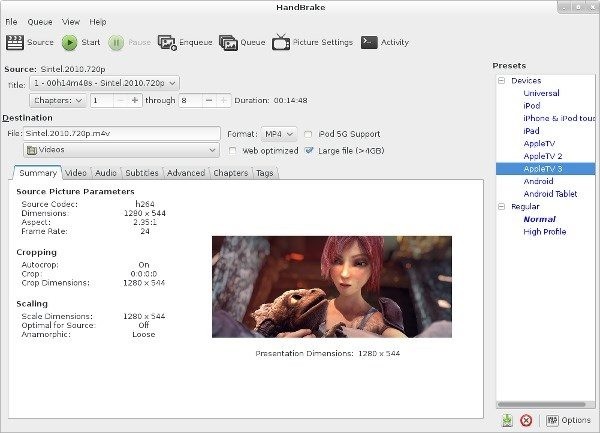
HandBrake is a free, open-source video transcoder that runs on Windows, macOS, and Linux. It converts video from nearly any format into modern, widely supported codecs, and it's been quietly doing this job for years. While it doesn't generate a lot of buzz, HandBrake is one of those tools that people discover and then never stop using.
For anyone who needs to convert or compress video without destroying quality, HandBrake is a go-to choice. You can shrink a 4K file down to a manageable size, convert between formats, or prepare video for a specific device, and the process stays straightforward even when the underlying technology is complex.
HandBrake started out as a DVD ripping tool, but it has evolved well beyond that. It accepts virtually any video file as input and exports to MP4, MKV, and WebM containers. Under the simple-looking interface, it runs the x264, x265, and SVT-AV1 encoding engines, which are among the best available. Beginners can rely on built-in presets to get quick results, while advanced users have access to a deep set of encoding controls. HandBrake gives you the flexibility to go as deep or as shallow as you want.
Why Should I Download HandBrake?
Large file sizes and format compatibility issues are two of the most common headaches when working with video. HandBrake solves both. If you download it, you get a tool that handles compression, conversion, and format standardization without asking you to understand the technical details behind any of it.
Here's a typical scenario: you recorded a 2 GB video on your phone and need to share it, but every messaging app or email client chokes on the file size. HandBrake lets you compress it without visible quality loss. Or maybe your editing software won't open a file because it's in an unsupported format. HandBrake converts it into something workable so you can get back to what you were doing. For users who rip DVDs or download video content, HandBrake processes everything quietly and consistently without requiring you to relearn the software each time.
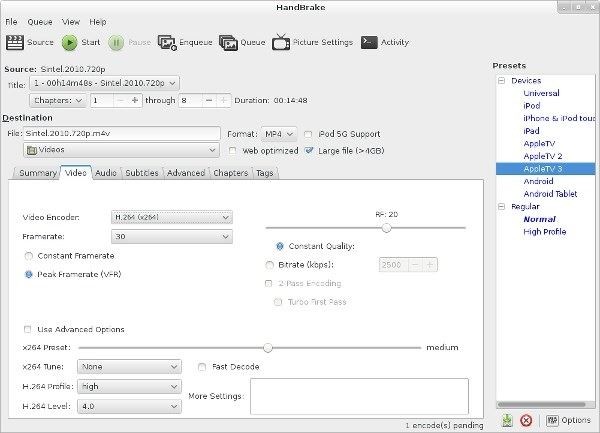
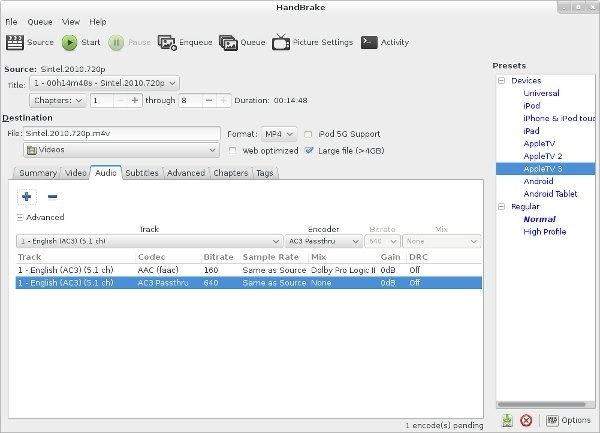
Customization is available without being forced on you. HandBrake includes device-specific presets for Android, Apple, Roku, Fire TV, and other platforms, so you can select one and let the tool handle the rest. If you need more control, you can adjust cropping, subtitles, frame rate, audio tracks, and encoding parameters manually. You get professional-level options without the software making decisions for you.
Reliability is another reason people stick with HandBrake. It doesn't crash. It doesn't try to upsell you on premium features. It doesn't bog down your system the way some heavier video tools do. HandBrake runs lean and fast, and because it's maintained by an active open-source community, it continues to improve with regular updates. You're not downloading abandoned software; you're getting a tool that evolves while staying stable.
HandBrake works well for a wide range of users. Students making media projects, parents converting old family videos, content creators preparing clips for upload, or anyone trying to bring order to a messy hard drive full of mismatched video files will all find it useful. It acts like a quiet workshop in the background, transforming your files into whatever format you need without requiring you to understand codecs or container formats. You just point it at a file, choose your output, and let it work.
Is HandBrake Free?
Yes, HandBrake is completely free. There are no subscriptions, no watermarks, no ads, and no trial period limitations. You download it, install it, and use it without restrictions. The entire codebase is open-source and available for anyone to inspect or contribute to.
What Operating Systems Are Compatible with HandBrake?
HandBrake runs on Windows, macOS, and Linux, so you're covered regardless of which platform you prefer. The interface and feature set remain identical across all three operating systems, which means you won't have to relearn anything if you switch machines.
The program also runs well on older hardware that might struggle with more resource-heavy video applications. As long as your system meets the basic requirements, HandBrake will handle the job without putting excessive strain on your computer.
What Are the Alternatives to HandBrake?
HandBrake is hard to beat for free video transcoding, but a few other tools take different approaches that might suit specific needs.
File Converter is a minimalist conversion tool that integrates directly into the Windows right-click context menu. Instead of opening a separate application, you just right-click a file, choose your target format, and the conversion happens in the background. It's ideal for quick, one-off conversions where you don't need to adjust encoding settings or fine-tune output quality. If simplicity and speed are your top priorities, File Converter delivers without any configuration overhead.
Format Factory handles video alongside audio and image conversion, making it more of a general-purpose media converter than a dedicated video encoder. The interface is more visual and button-driven, which appeals to users who prefer working with graphical layouts rather than dropdown menus. Format Factory is Windows-only and has a heavier system footprint than HandBrake, but it covers a broader range of media types in a single application.
Shutter Encoder is a professional-grade encoding tool that gives you precise control over compression, resolution, codecs, and output parameters. The interface can feel intimidating at first compared to HandBrake's simpler layout, but experienced video editors value the depth of control it provides. Shutter Encoder supports an extensive range of file formats and handles batch processing reliably, making it well-suited for production workflows where volume and precision matter. It strikes a balance between power and usability that more advanced users will appreciate.