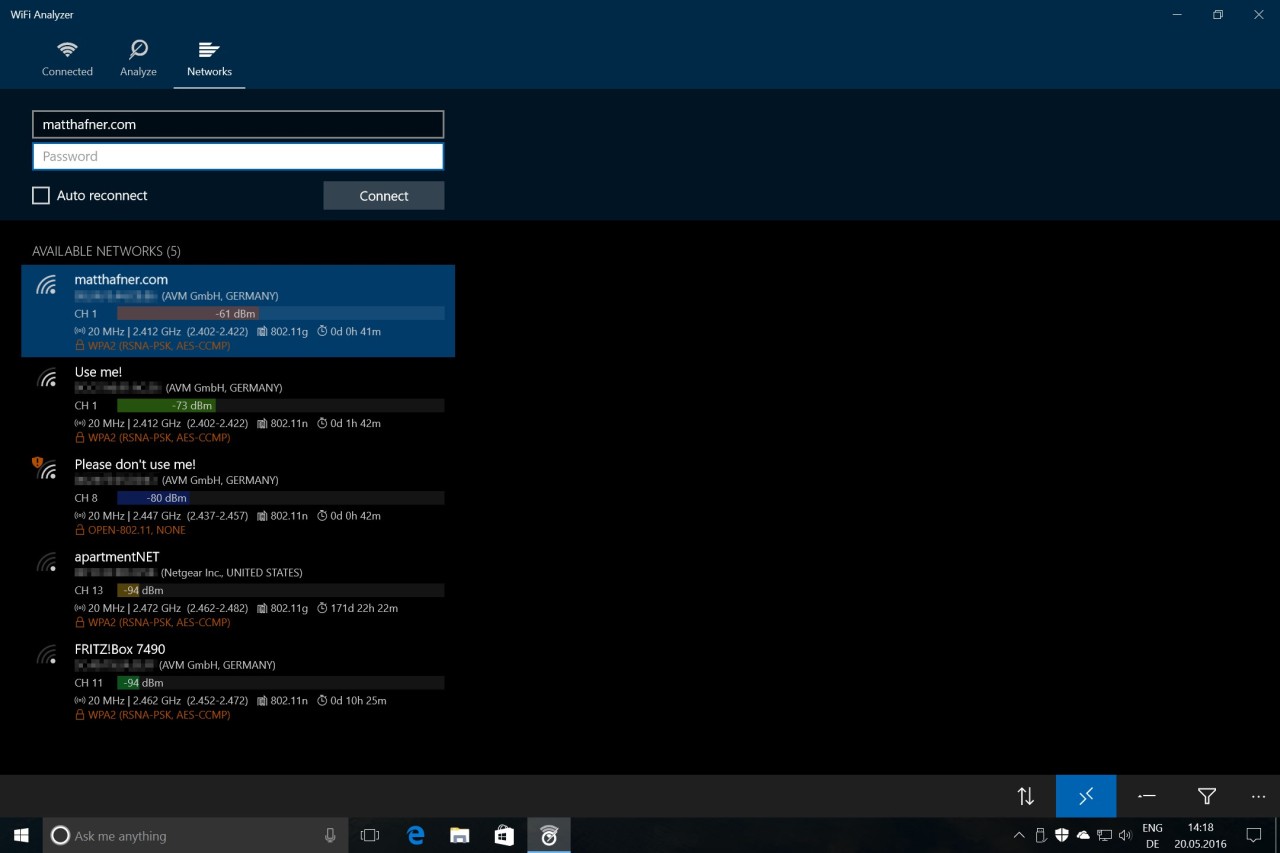
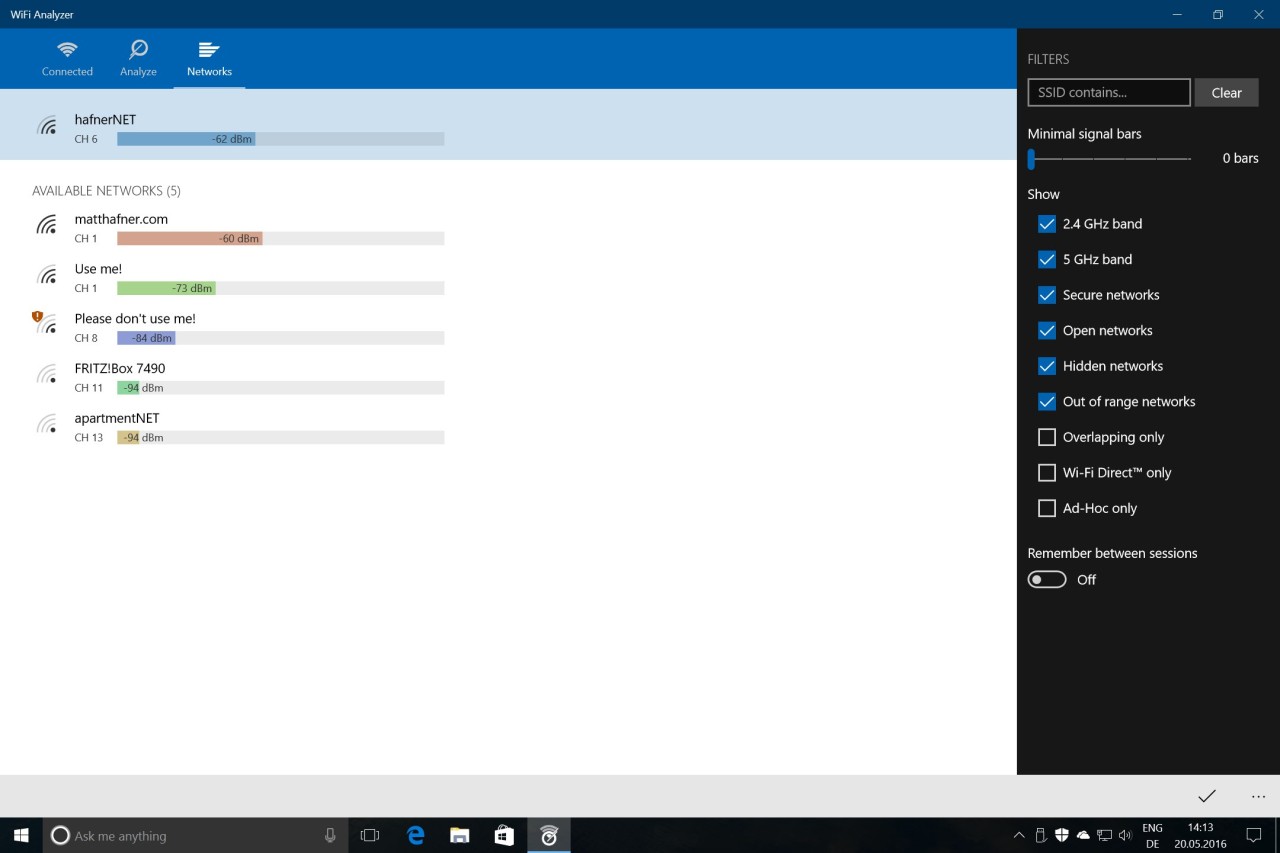
WiFi Analyzer is a handy software tool designed to help you understand, monitor, and optimize the wireless networks around you. Most of us use Wi-Fi every day, whether at home, in the office, or while sitting in a café, but very few people actually know what’s going on behind the scenes. WiFi Analyzer pulls back the curtain and gives you a clear view of how your network is performing.
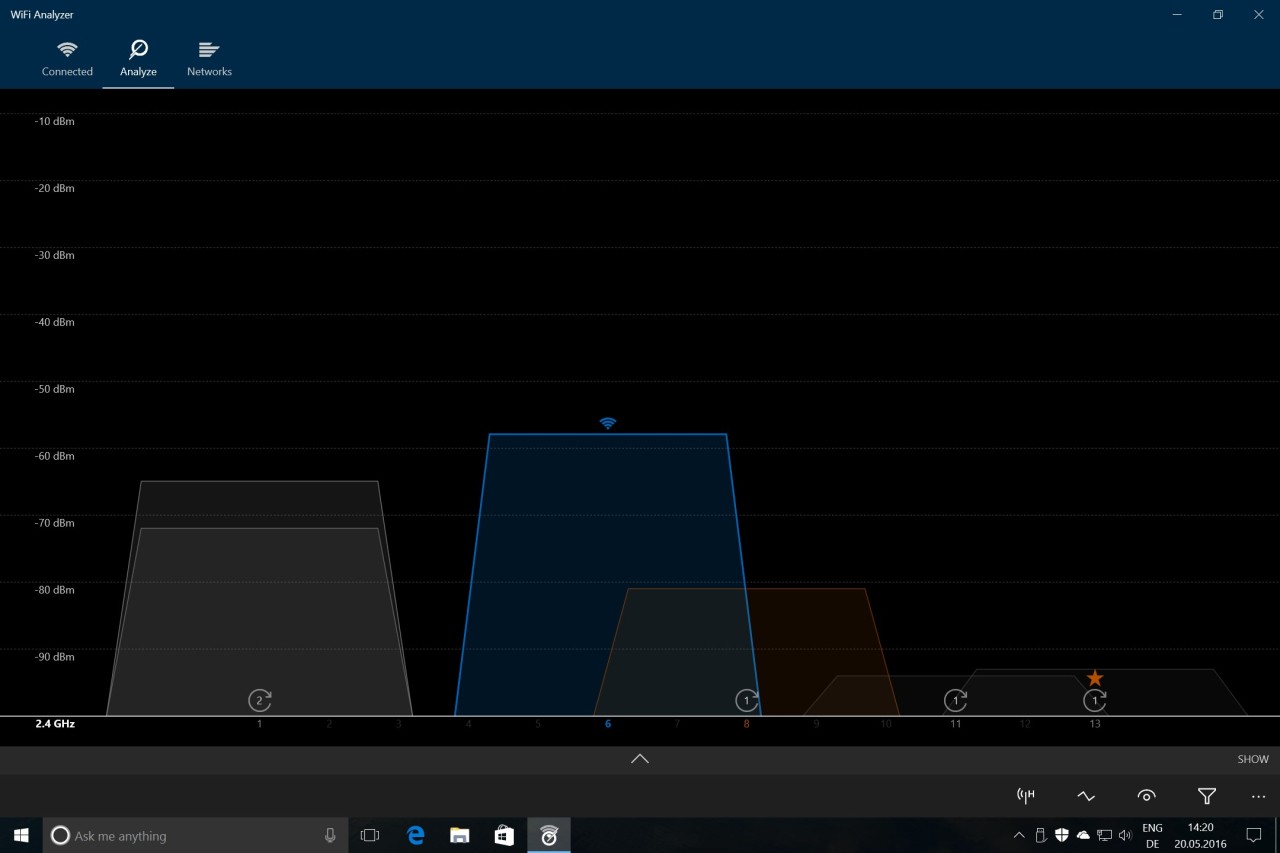
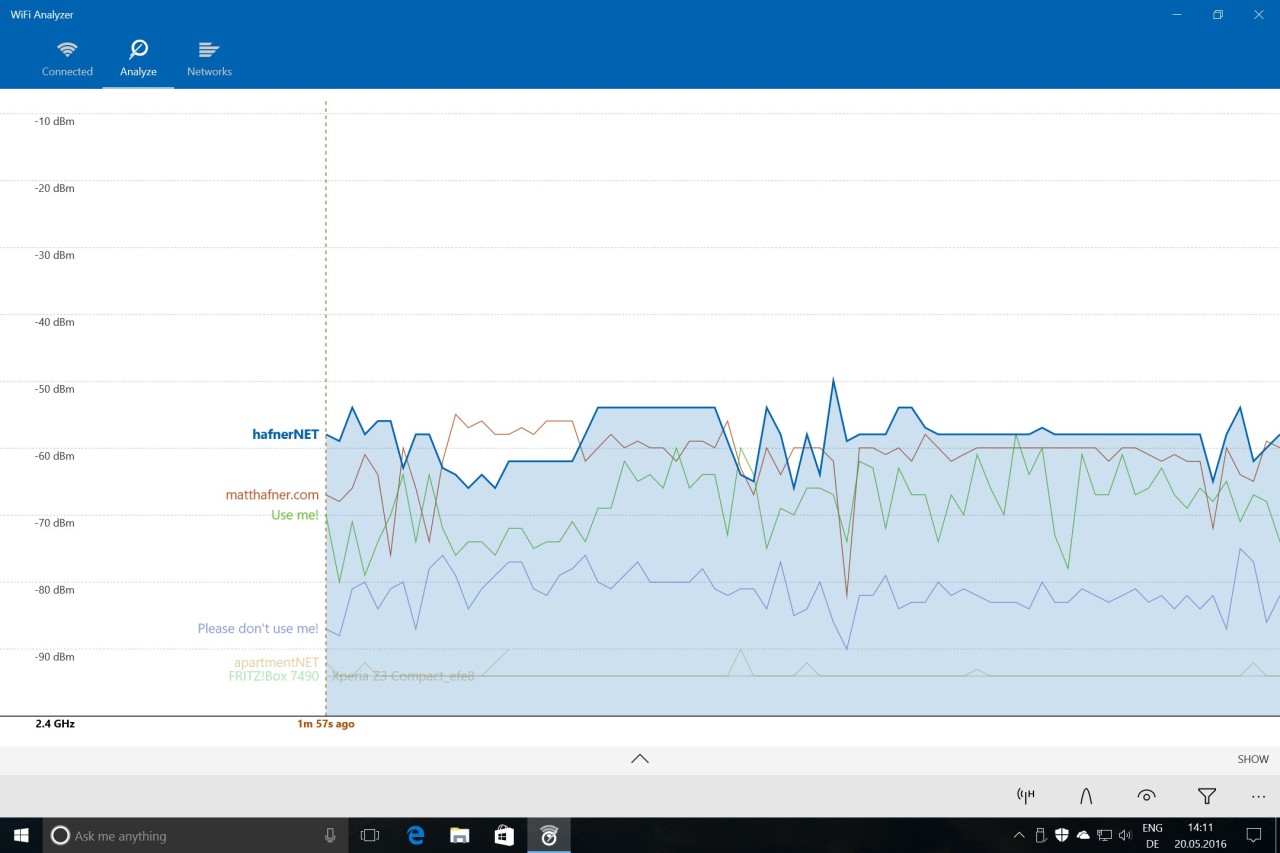
At its simplest, WiFi Analyzer shows you details like which channels nearby networks are using, how strong their signals are, and where interference might be affecting your connection. Instead of leaving you guessing why your Wi-Fi feels sluggish or keeps cutting out, the software provides data-driven insights that point you toward solutions.
It doesn’t require advanced networking knowledge to make sense of the information, either. The interface is straightforward, with graphs, charts, and signal strength meters that are easy to read at a glance. You don’t have to be a tech professional to get value out of it. Whether you’re just trying to improve your streaming quality at home or you’re a small business owner who wants stable internet for customers and staff, WiFi Analyzer is a practical companion.
Why should I download WiFi Analyzer?
The main reason to download WiFi Analyzer is control. Without a tool like this, you’re essentially guessing why your Wi-Fi works great one minute and poorly the next. With it, you can identify what’s going wrong and take steps to fix it. For example, you might discover that your router is using the same channel as three of your neighbors, causing interference. By switching to a less crowded channel, you immediately improve speed and reliability.
Another reason is troubleshooting. If you’ve ever tried to explain to your internet service provider that your Wi-Fi isn’t working, you know how frustrating that can be. WiFi Analyzer gives you the hard numbers—signal strength, channel congestion, network coverage—that make those conversations more productive. Instead of saying, “It just doesn’t work,” you can say, “My signal drops to -80 dBm in the living room.” That level of detail helps you get better support and speeds up the resolution process.
It’s also useful for placement. Many people set up their router once and never think about it again, but location matters. With WiFi Analyzer, you can walk around your house or office and see where the signal is strongest and where it’s weakest. That helps you figure out the best spot for your router or whether you need to add a Wi-Fi extender to cover dead zones.
Beyond the technical benefits, there’s a certain peace of mind that comes with knowing what’s happening on your network. Instead of relying on trial and error, you’re making informed decisions. That sense of control makes everyday internet use less stressful, especially when you’re relying on Wi-Fi for work, video calls, or entertainment.
Is WiFi Analyzer free?
Yes, WiFi Analyzer is free to download and use. That accessibility is part of what has made it so popular. Unlike many networking tools that lock their best features behind a paywall or require a subscription, WiFi Analyzer offers its core functionality without cost. You can install it, open it up, and start seeing results right away.
Some versions of WiFi Analyzer do offer premium upgrades, which add more advanced features like historical data tracking, detailed reports, or extended support. But the free version is more than enough for most people, especially if your main goal is simply to improve your home Wi-Fi or get a quick look at what’s happening with your connection.
The free model is also great for experimenting. If you’re not sure whether you really need a tool like this, you can try it out without spending anything. Once you see how much it helps, you may decide to stick with the free version or consider upgrading for extra functionality. Either way, you’re not locked in from the start.
What operating systems are compatible with WiFi Analyzer?
WiFi Analyzer can be installed on several platforms and is, therefore, accessible to a vast number of people. It is mostly used as a Windows application, and it is compatible with Windows 7 to Windows 11. It is especially popular in the Windows version, as it provides PC users with an easy method of analyzing networks without special hardware.
What are the alternatives to WiFi Analyzer?
WiFi Analyzer is a good option, and not the only one. You can choose some alternatives with different strengths depending on your requirements.
Wireshark is one of the alternatives. Compared to WiFi Analyzer, which concentrates on easy-to-use graphics, Wireshark is an advanced network protocol analyzer. It sniffs inside network traffic, and presents you with packets of data in transit over your connection. It is extremely powerful, but it also has a steep learning curve. Wireshark is a great choice in case you are a network administrator or just someone interested in the study of traffic. However, to ordinary users, it may be complicated.
The other alternative is Acrylic Wi-Fi Home - Scanner WiFi. This software lies in-between WiFi Analyzer and Wireshark. It provides deeper analysis than WiFi Analyzer with security evaluations, but it is still user-friendly with home users in mind. It gives elaborate reports on the surrounding networks, assists you in detecting congestion of the channels, and even mentions the possible weaknesses.
Then there is inSSIDer which is of long-standing. It is especially popular with small businesses and tech-lovers. inSSIDer will help you see detailed information about your network environment, such as signal strength over time, the activity of the channel, and security settings. It is not as intimidating as Wireshark and is more detailed compared to WiFi Analyzer.