Google Family Link is a parental control app developed by Google to help parents guide their children’s online activity in a healthy and balanced way. In contrast to traditional monitoring instruments like blocking or restriction, Family Link is meant to help parents promote healthy digital habits where children are free to learn, explore, and develop in the online environment.
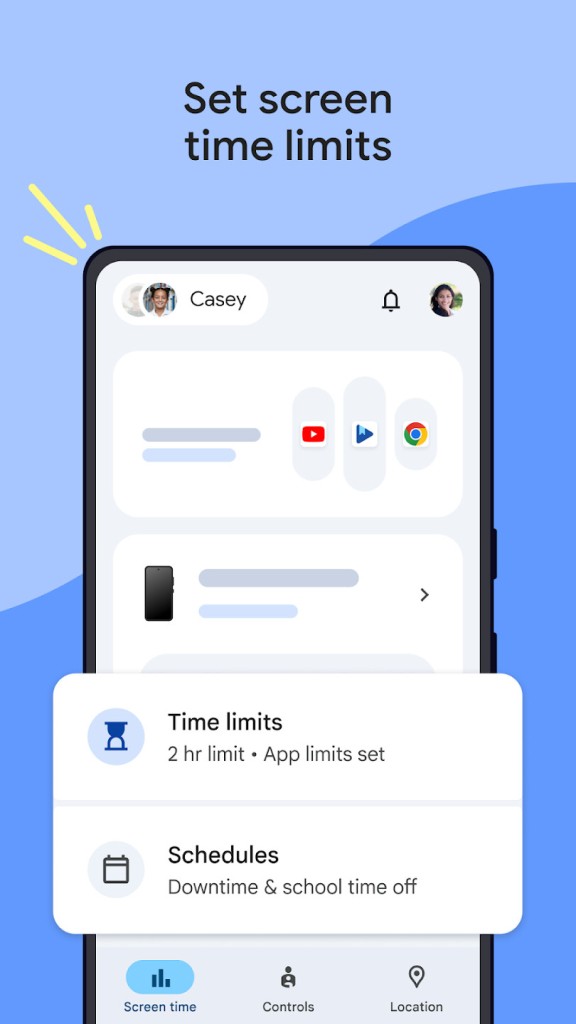
Using this application, parents can limit the amount of time spent on a screen, accept or reject application installations, receive usage reports, track devices, and go as far as to lock the phone remotely, when it is time to have a break.
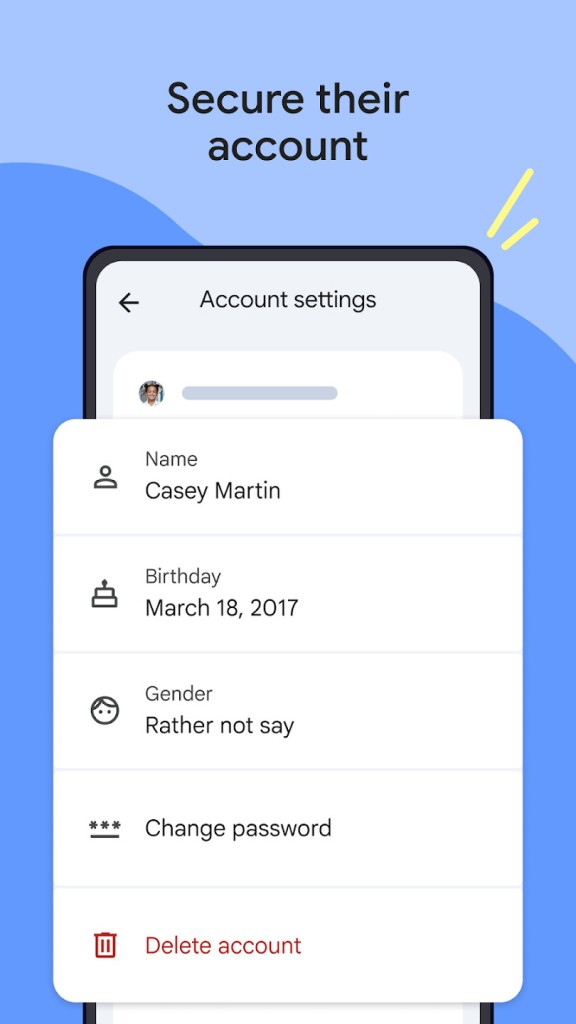
To use Family Link, parents and children both need a Google account. One of the parents needs to create a Google Family and add the other parents so they are both able to set up limitations or agree to add time or install apps. Once the Family is created, you will be able to create the child's account (otherwise you won’t because to have a Google account, one needs to be at least 13, and even more in some countries).
Of course, Google Family Link offers to monitor not only one child, but as many as you have in your family, and all devices linked to their account. Coupled with this connectivity, parents can set device and app permissions, monitor screen time, and gain insight into their child’s activity from their own device.
Family Link offers a clear and convenient interface, so parents can easily sign in, set limits, and change the settings whenever it is necessary. Being either the parent of a younger child receiving their initial phone or a family looking to provide a supportive environment to their teen by helping them learn and communicate online, Family Link offers parents the means by which to encourage healthy digital habits.
Why Should I Download Google Family Link?
The first thing that makes Google Family Link one of the best app downloads is that it allows parents to be informed about the digital activities of their children and stay actively involved in their digital lives.
Instead of asking yourself how much your child is spending on the internet or what applications they are using, you can have direct information at the palm of your hand. Family Link offers weekly and daily reports on all apps used by your child, the amount of time spent with the device, and the nature of the activities performed. This data can be used to initiate the discussion about healthy behaviors regarding screen time and enable the parents to provide their recommendations, powered by actual data, not guesses.
The other significant advantage of Family Link is the level of control offered to parents without compromising the child's trust and independence.
You can use the app to limit screen time to a specific number of hours each day. Once the limits are exceeded, the device locks automatically to remind children to have a break, but it also offers a way to ask for more time. These functionalities help strengthen family routines and achieve a healthier balance between online and offline life.
You can also establish times of the day when a device should not be used, say at school, when doing homework, at bedtime, or during meals. This way, the digital life of your child doesn’t overtake their real life.
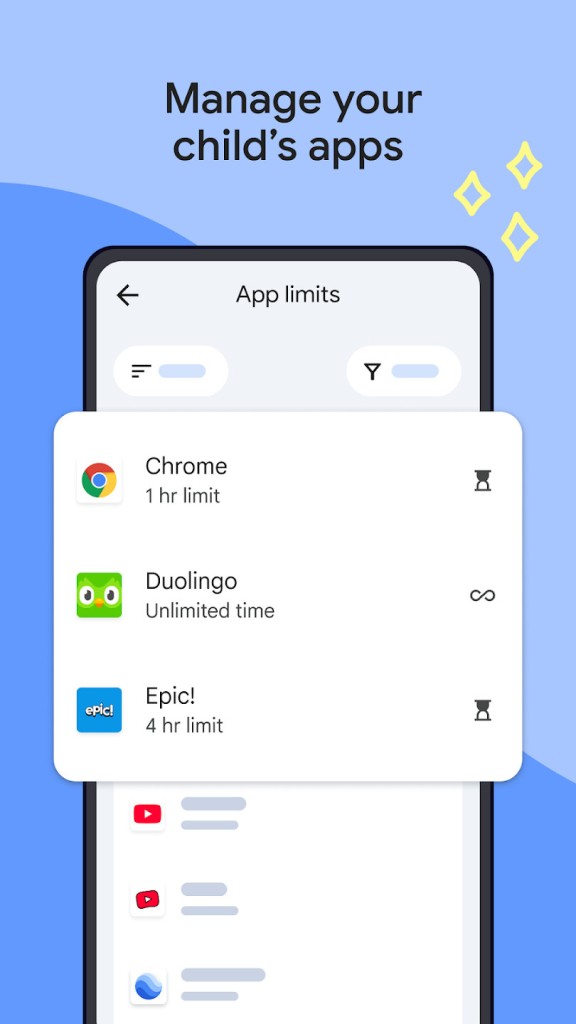
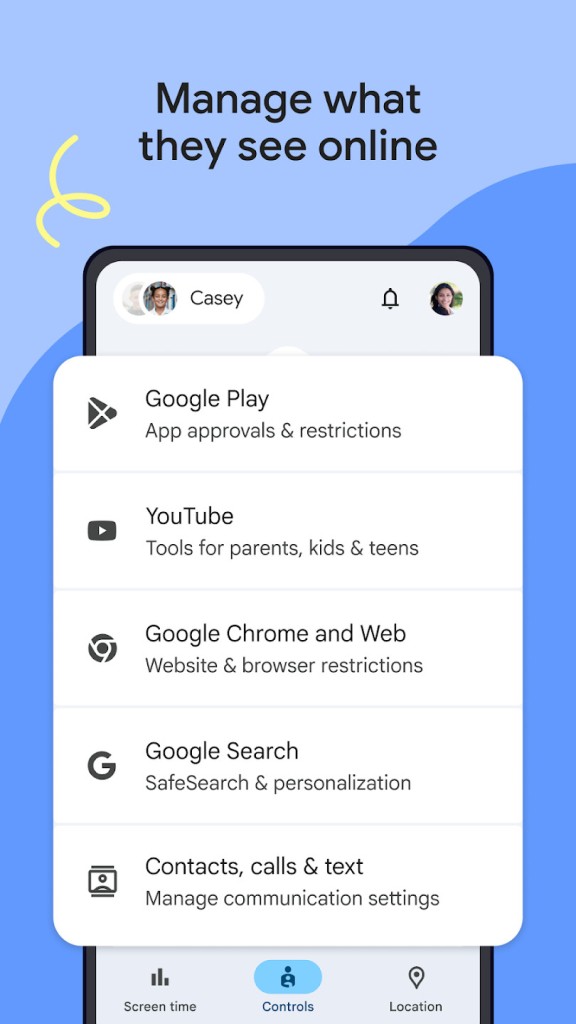
In addition to screen time, you can also define app time. For each app, you can choose between always available and set a daily length of use. Of course, parental filters are available, letting you configure YouTube settings (with age rating), web restrictions, and app installation restrictions.
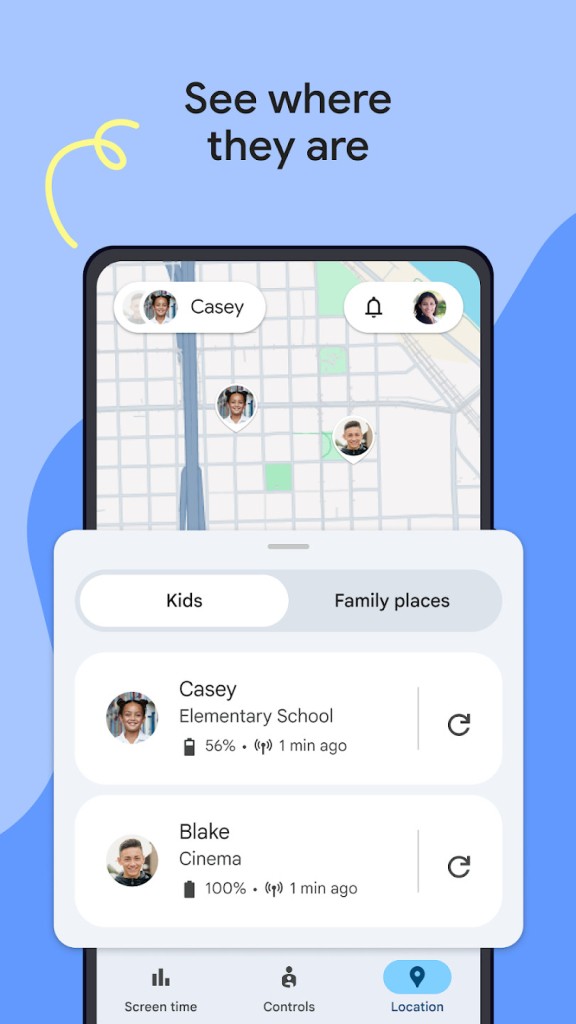
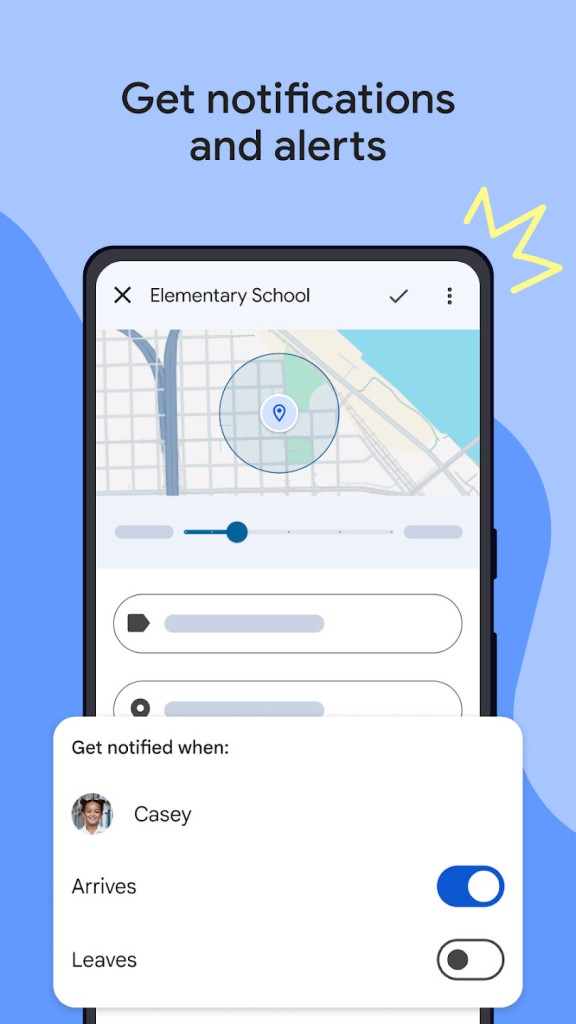
Family Link is additionally equipped with location-tracking capabilities. Parents can trace the location of their child in real time, providing them with peace of mind when they are away from home. Be it in school, at the house of a friend, or on an outing, you will be able to know their whereabouts or at least the location of the device. This is a particularly useful feature to arrange pick-ups, to monitor safety, or even to have a chance to talk as children become more independent. The app even offers a notification functionality, where you can configure it to warn you when the child leaves or arrives at a selected place.
Is Google Family Link Free?
Yes! Google Family Link is absolutely free. There are no hidden costs, subscriptions, or in-app purchases to access the app features. All functionalities, such as screen time control, application approvals (or denials), usage reports, or location tracking, are offered free of charge. That is why Family Link is a very convenient solution for parents who want to control the use of digital technology with children but do not want to spend money on the subscription model.
What Operating Systems Are Compatible with Google Family Link?
Google Family Link is mainly focused on Android devices, although it supports parents with iOS, as well. The child device needs to be an Android device for Family Link to operate. It could be a smartphone or tablet, and the parents' app displays every device with the child's account.
To be able to access the full range of features within it, the device that the child has to use needs at least Android 7.0 (Nougat), but some capabilities can be available even on slightly older Android versions.
Either Android phones or iPhones can be used by the parents to update the settings of their child, access reports, and block access to the device. However, iOS parents need to create a Google Family account, and some functionalities may be missing from the iPhone’s app.
This platform's versatility allows Family Link to work well within families with a diverse variety of devices, so you can conveniently and simply keep in touch with your family regardless of which technology your family prefers.
What Are the Alternatives to Google Family Link?
In case you want to consider other possibilities of controlling and supervising the digital activities of your child, it is also possible to find some Google Family Link alternatives that have advantages of their own.
Microsoft Family Safety is one of the most popular options. It offers screen time limits, app monitoring, and location tracking are only some of the similar tools that this app offers. It works perfectly with Windows PCs and the Xbox, and would be a perfect choice among families that have already invested in the Microsoft world. The driving safety report is also an added feature of Microsoft Family Safety for those families that have teen drivers.
The other very reputable choice is Qustodio Parental Control. Qustodio provides a wide variety of features like screen time restrictions, web filtering, app controls, and call and text monitoring, all tailored for cross-platform use. Operating on Android, iOS, Windows, macOS, and Kindle, it can cover a multi-device household to its fullest. Although Qustodio offers a free version of its services, most of the advanced tools are included in a subscription plan. This will be a decent option for parents who would like more thorough control and reporting.
A newer solution, Kids360, also places an overwhelming emphasis on knowing the location and limiting the time spent with a phone. Besides displaying the current location of your child, Kids360 provides geofencing features that will notify parents once a child enters specific areas such as home or school. Parents can also schedule screen-free time and restrict app usage. Though Kids360 has a basic free level, the premium one will give access to more features such as location history and zone-based notifications.