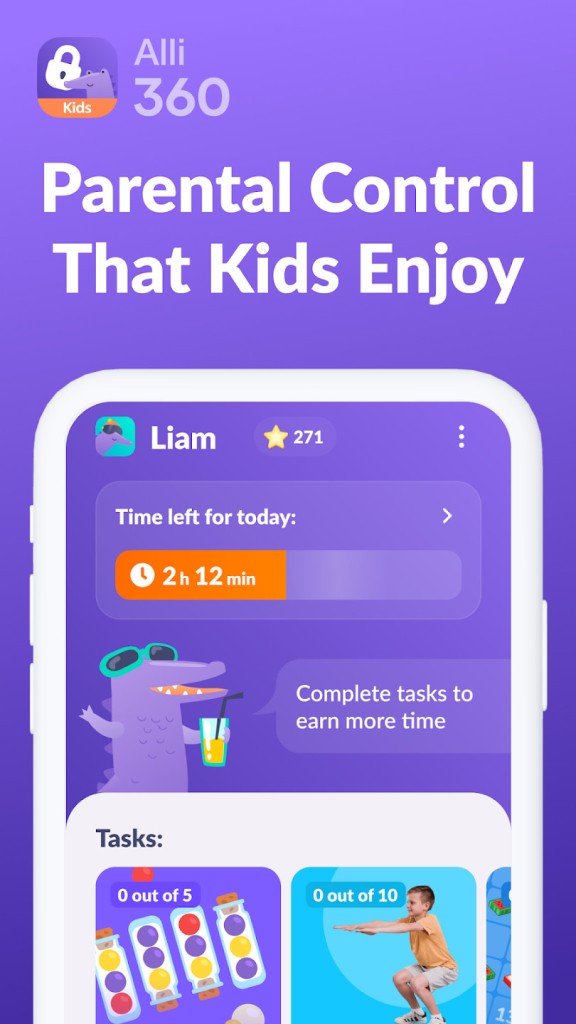
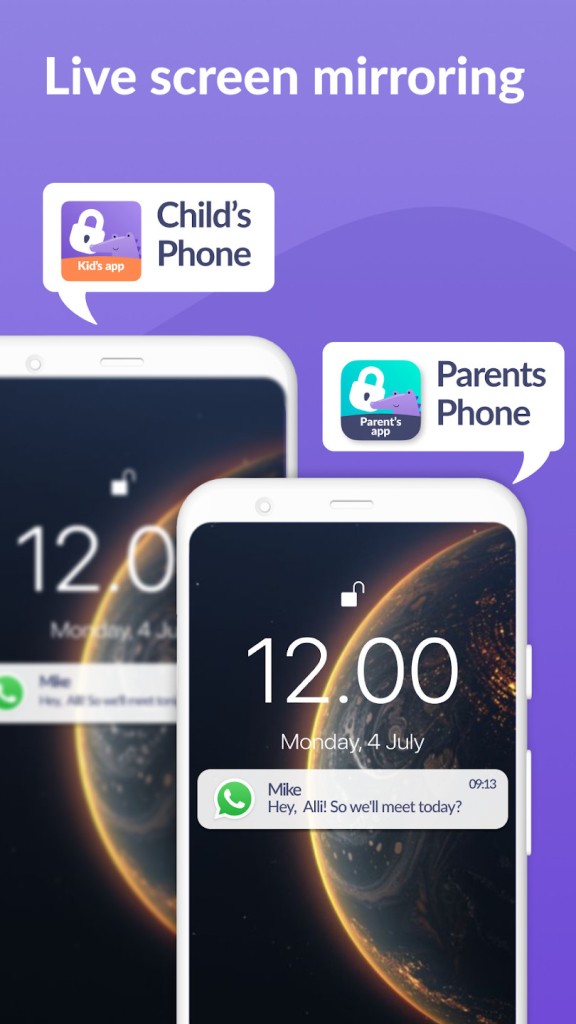
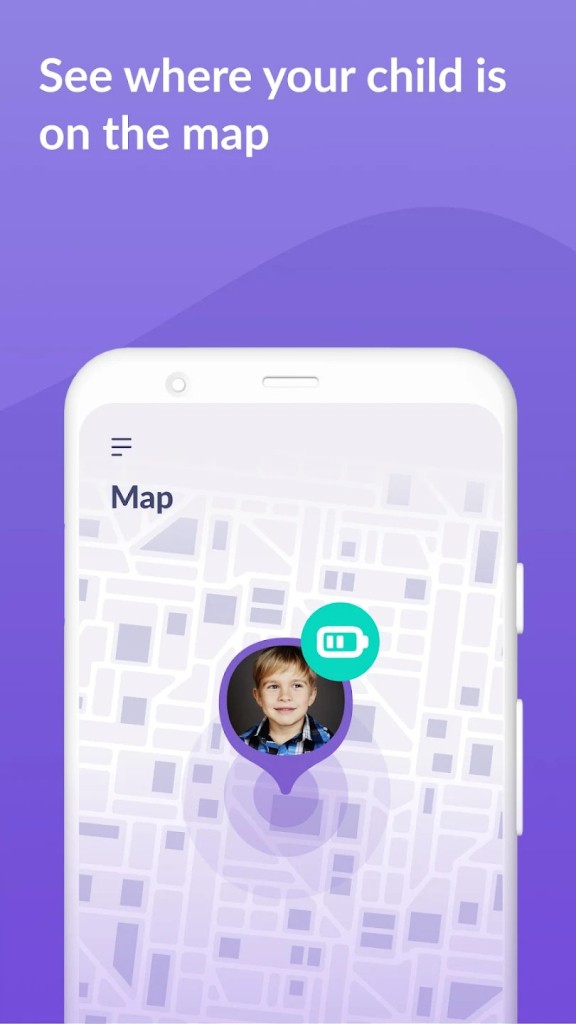
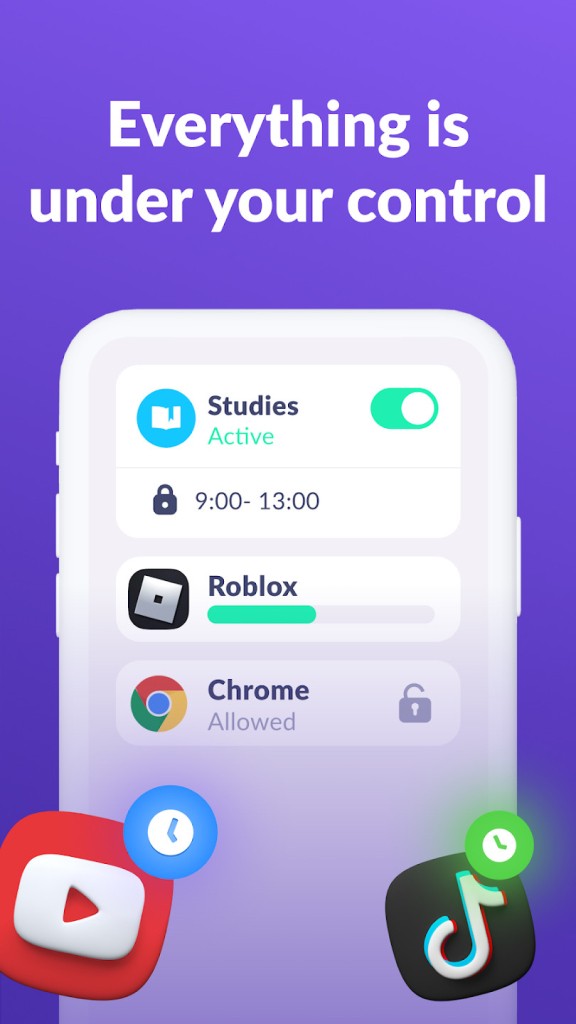
Kids360 offers a wealth of features that help parents and guardians monitor and safeguard their children. Once you connect the parent phone with the child's device, the devices sync every 5 minutes. With the app, you can check the kid's location on a map and their route, and Kids360 will also show you the battery level. You can also set up safe zones for home or school so that you get an alert when your kid leaves or enters that area.
Apart from the offline features, you can also track your kids' online activities, like time spent on each app, how many times a day they use the phone, or usage spikes. Parents can define daily limits per app that will count down when the kids reach the allocated time. Children can request single extensions by sending a notification to the parent's phone, which will also be saved to the app history for tracking.
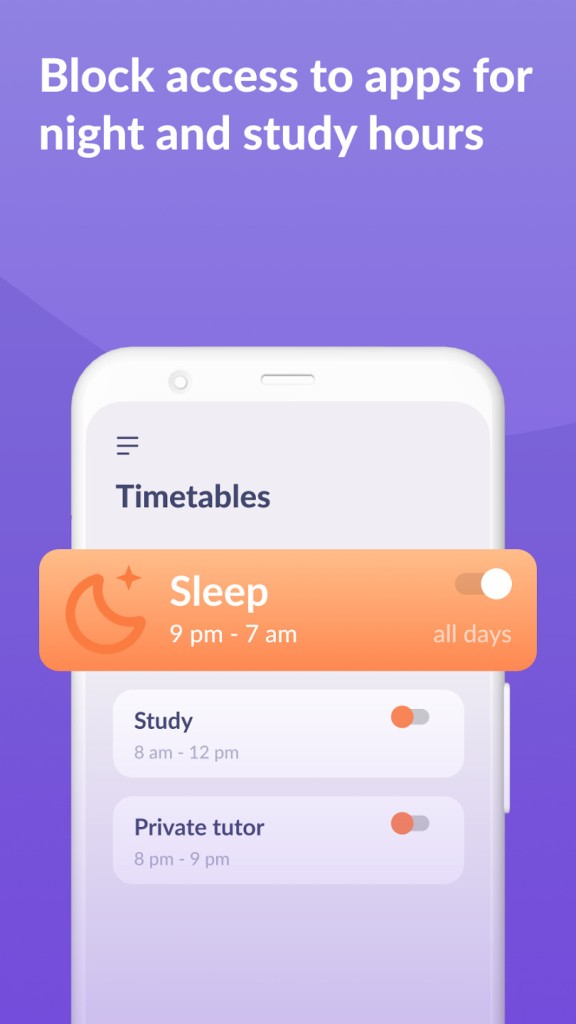
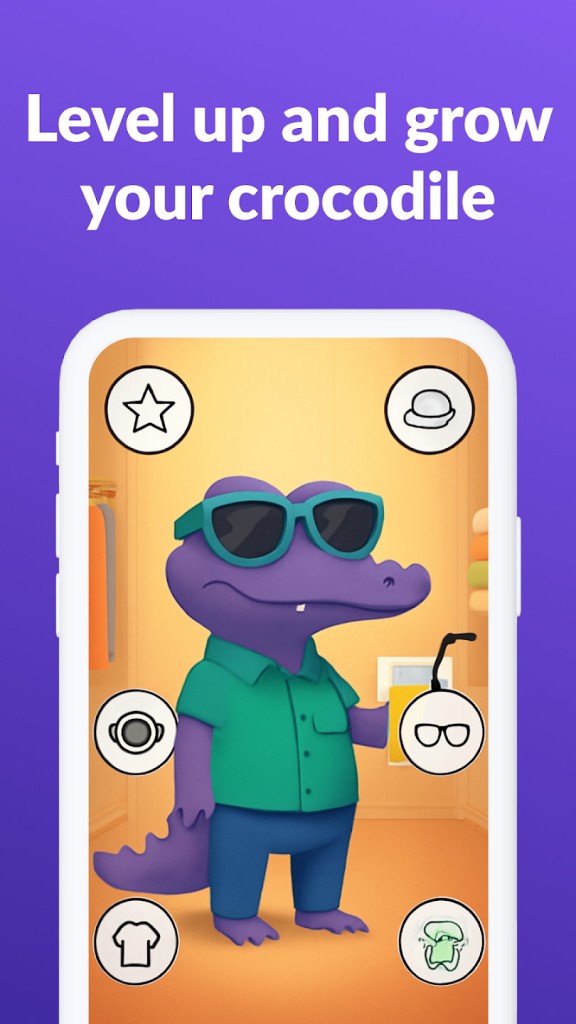
With Kids360, kids get different achievements for making better screen choices, and you can also create schedules where only certain apps are available. Kids360 also includes emergency options that send the location and an audio alert to all linked guardians. You can download the app for free on iOS and Android, though it does offer a premium subscription plan with more options.
Why should I download Kids360?
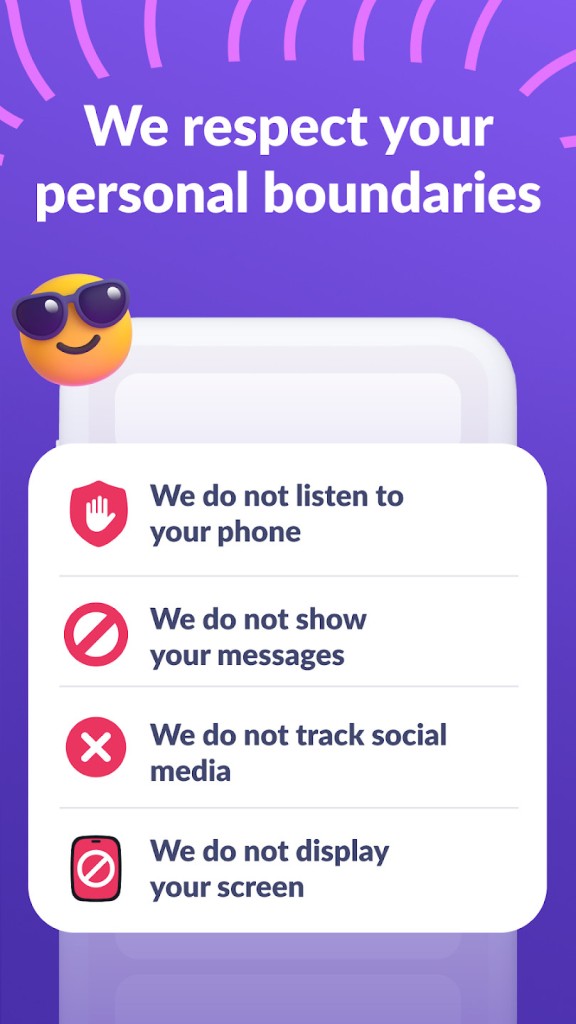
Kids360 is a robust parental control app where you can monitor and manage screen time for your kids while also keeping their data private. The app includes a live GPS tracking module so you can always view your kid's location on a map or check where the child has been and for how long over a specified period. This great feature allows you to track the kids' commute, after-school activities, and weekend trips.
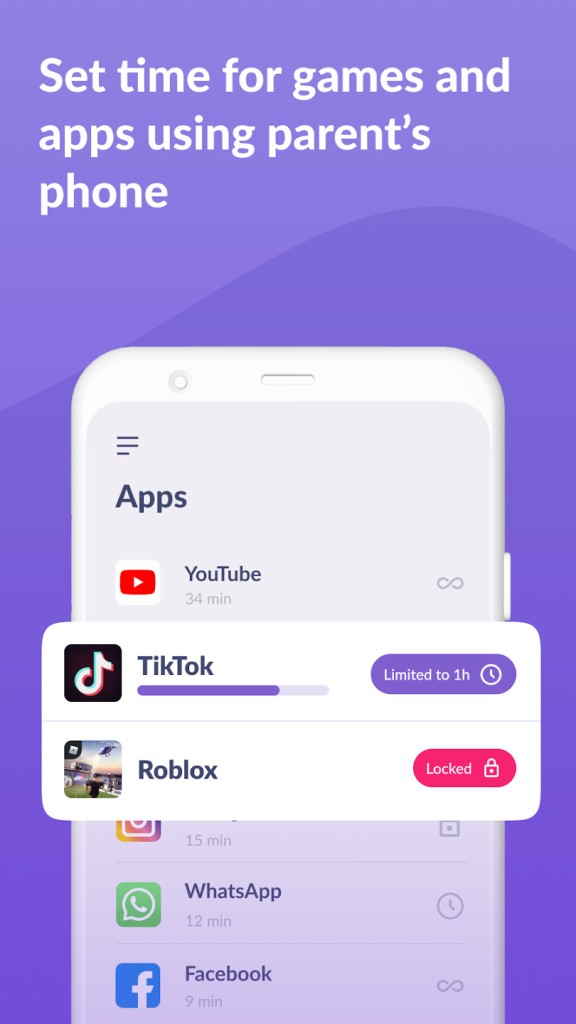
With Kids360, you can set daily usage limits with granularity so that you can define, for example, 2 hours of screen time on weekdays and 4 hours over the weekend. As a parent, you can choose between locking out the entire device or just blocking specific apps, so the kid can still call or text if they need something. You can also create limits for particular times so that no social media apps are available during school hours or after bedtime.
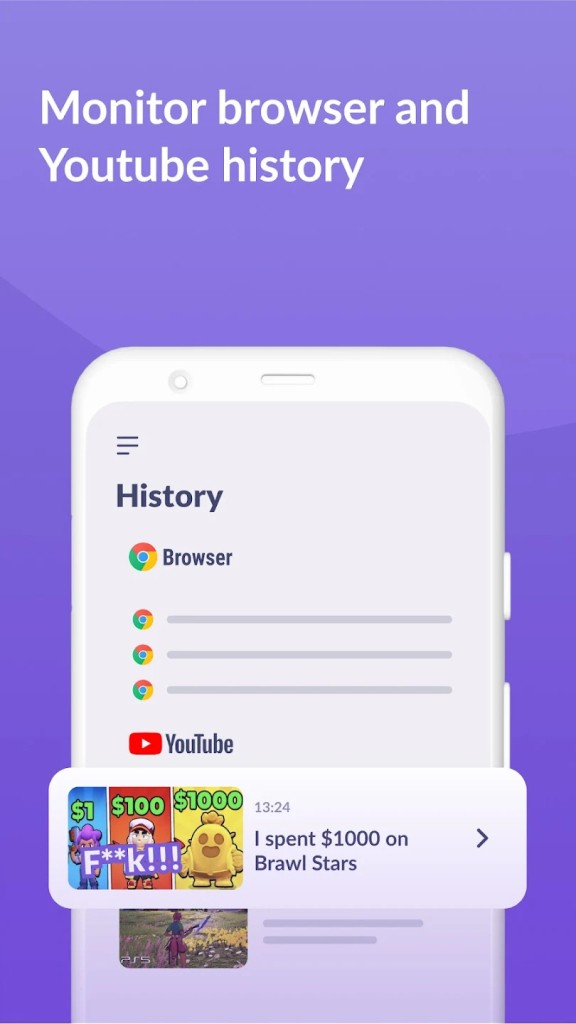
The restrictions you can apply with Kids360 can also work on a per-app basis, so that you can check the complete list of apps your kid has installed and verify how much time they spend on each of them. If you see some apps that tend to distract your children, you can lock just that single app without blocking the whole phone. You can also check the usage dashboard, which lists detailed stats on device activity. The app lists time spent on the device, top-used apps, hours with the screen turned on, and periods of inactivity. You can visualize all that information on charts to understand the trends, and Kids360 will also send you a notification when the kid installs a new app or goes over their limit. You can also check their YouTube viewing history.
Kids360 also has geo-fencing features where you're able to define safe zones like home, school, and friend's friend's place and get notified when your kid enters or exits a specific area. You can also check your kid's battery level or configure an SOS button so that your kid can quickly alert you when something is happening, and you'll get their detailed location.
You protect your access to Kids360 with a PIN or biometric login, which is required to bypass any limits or uninstall Kids360. The app also works great when you have multiple kids to manage, so you can set up profiles for each of them and track them separately.
From the kid's point of view, Kids360 shows them notifications about the remaining time or any upcoming restrictions, so they are aware at all times and won't be surprised when their app is suddenly blocked. It also gamifies the experience, where if you spend time healthier, such as reading a book or walking a dog, you can gain extra time for other apps, like games or social media. There are also built-in development games that can earn them extra phone time.
Is Kids360 free?
You can download Kids360 for free and test the app this way, but you'll only have access to limited features. These include app stats, tasks for kids, the child's location, sending a loud signal, and protection from uninstalling the app. You need a paid subscription to get features like app locks and limits, access schedules, installation bans, and more.
What operating systems are compatible with Kids360?
Kids360 works with most mobile phones, and you can download it from the App Store, Google Play Store, Huawei AppGallery, and Galaxy Store. The app works on Android 7.0 or newer devices and iOS 16.0 or higher.
You need to download and install two apps - one on the parent phone and then a dedicated kid’s app on your children's phone in order for Kids360 to work (all links are available here).
What are the alternatives to Kids360?
Google Family Link is an official parental control app for Android devices and Chromebooks. It also has a parent app for iOS. You can integrate it with your Google account and use the app for free to manage app installs, set screen time limits, approve in-app purchases, and track your kid's location.
Microsoft Family Safety is another parental control solution for Windows and Android devices and Xbox. You can define web filters, get activity reports, define screen limits, and get location alerts. The app comes in both free and paid versions and can also limit your kid's time in front of a gaming console.
Qustodio Parental Control offers detailed parental supervision tools on Android, iOS, Windows, macOS, Chromebooks, and even Kindle readers. Use it to control screen time, block certain apps, monitor text messages on Android devices, track social media usage, and apply web filters on your kids' phones. You can use it for free in a limited version on a single device, or get a paid subscription for more features.