Microsoft Family Safety is a cloud-based tool for parental control that automatically shares permissions across all devices under the Microsoft user account that has the app installed. It works holistically and is natively integrated into the Microsoft ecosystem, which makes it harder to bypass its limits and features.
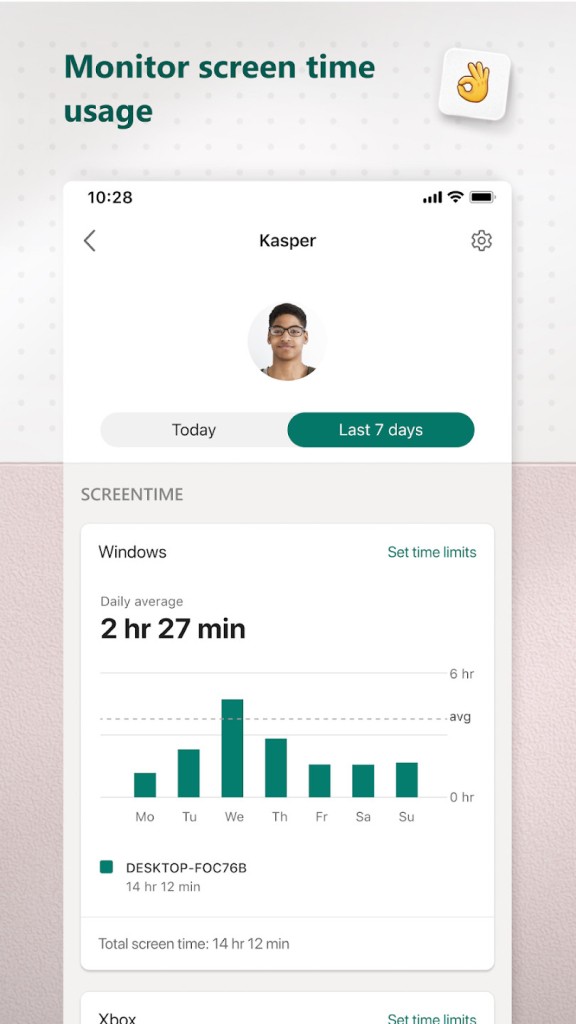
Everyone under the Microsoft Family Safety suite gets weekly emails with usage statistics and can open a dashboard with real-time usage data. As a parent, you can set up per-device permissions and limits, lock screens instantly, or review extension requests sent by your kid. Content filtering on computers and mobile phones pulls from the Windows Defender database and quickly detects malicious domains.
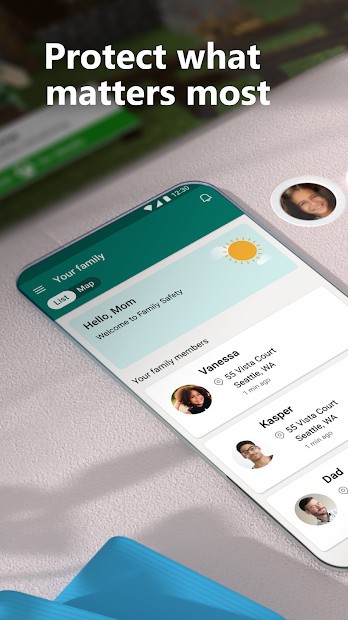
With Microsoft Family Safety, you can also set up location tracking so that anyone within your family can check where other members are, get arrival alerts, and check the location history over the last 30 days. There's also a feature that tracks driving behavior and delivers reports that help understand the usual speed, hard braking, or even phone usage over time. Microsoft Family Safety works on Windows PCs, Xbox consoles, Android phones, and iPhones.
Why should I download Microsoft Family Safety?
Microsoft Family Safety is a great solution for everyone in the Microsoft ecosystem that allows you to control your loved ones' digital habits and physical location. It works across different devices and helps you consistently manage access to devices and configure content filters on Windows, Windows, Xbox, Android, and iOS.
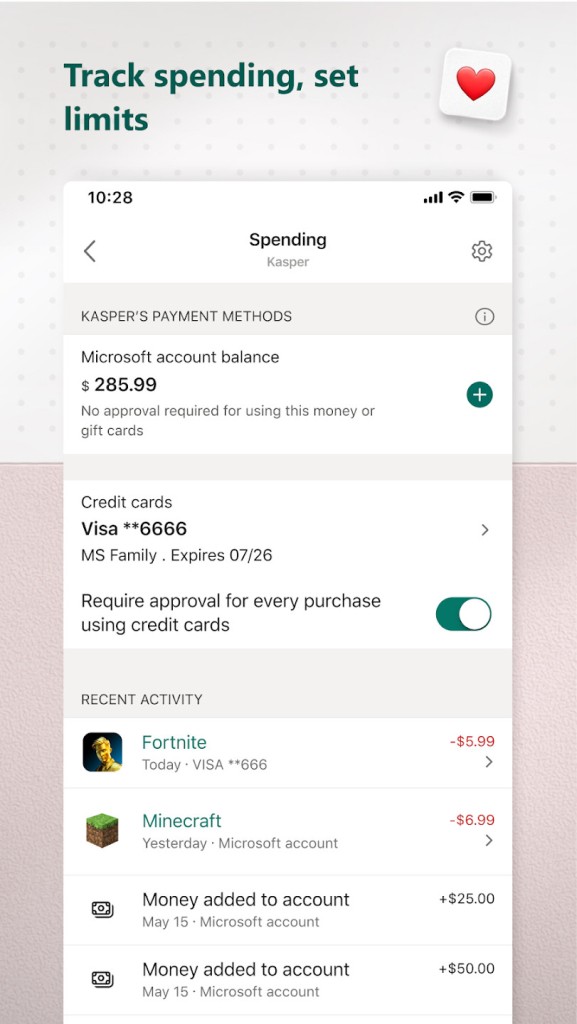
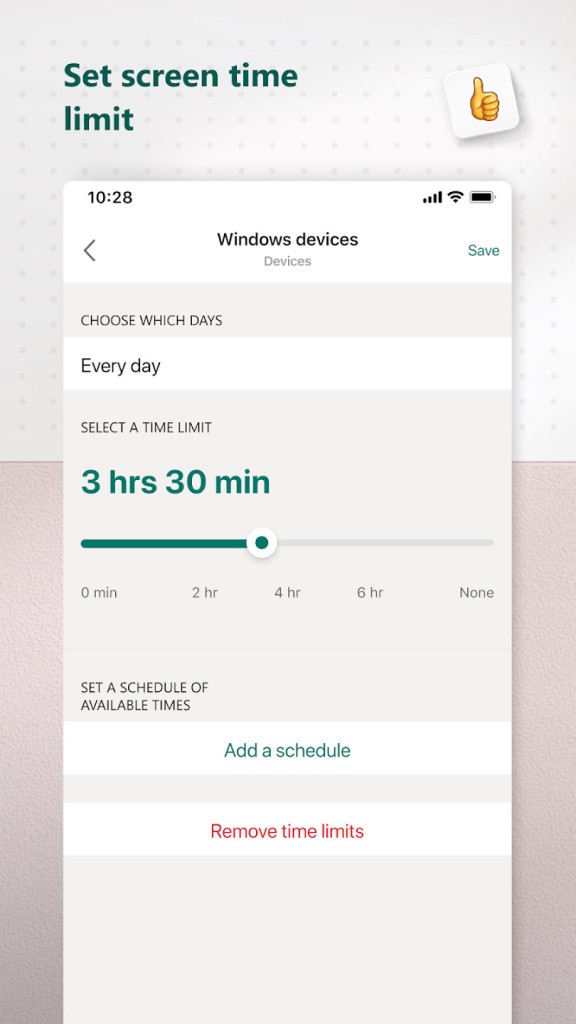
Using Microsoft Family Safety, you can define daily limits for specific apps, games, or even entire devices. This helps you block YouTube for your kids after they've been using it for one hour while still allowing them access to more educational options. Your child can also send you extension requests that you'll see as a notification on your phone that you can approve or deny. Microsoft Family Safety also works on Xbox and Windows computers, so you can lock any purchases or get alerts when someone downloads a new app or game.
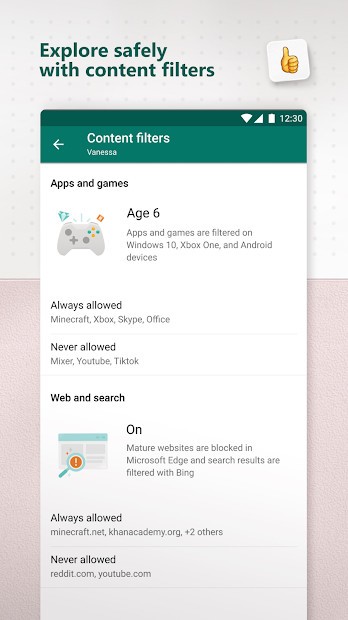
Based on the Microsoft Edge engine, Microsoft Family Safety offers content filtering features that you can use to block inappropriate websites, set up safe searches, or even completely restrict web access apart from a defined list of websites. You can use built-in maturity settings that adjust the content filters automatically to your child's age, or configure them manually. When someone attempts to access a blocked site, the parent app gets a notification in real-time along with the web address.
With Microsoft Family Safety, you can look up different activity statistics and monitor how much time your kids spend on a given device, app, or website. There's also an option to set up location sharing for all family members who have Microsoft Family Safety installed, where you can always see on the map where everyone is, their routes, and how long they've spent in a given place. You can even define safe zones for your home, the kids' school, or a friend's place and get notified when they enter or leave that area.
What makes Microsoft Family Safety stand out is that, with it, you can also receive reports on how safe you or your loved ones are driving. They list the routes, time spent on the phone while driving, but also such events as speeding or hard braking, which is great when you have teens with a driving license and want to check how they're doing behind the wheel.
Microsoft Family Safety comes in a limited free version or a full one if you have a Microsoft 365 subscription. The interface supports tracking and managing multiple devices or profiles for different kids. The app also clearly shows the time remaining in a given app or device so that no one is surprised when they are locked out.
Is Microsoft Family Safety free?
Yes, the majority of Microsoft Family Safety features are available for free. You can establish screen time limits, app approvals, content filters, and more at no cost. You'd need to purchase the Microsoft 365 Family subscription to unlock features such as location alerts, driving reports, and 30-day location history.
What operating systems are compatible with Microsoft Family Safety?
Microsoft Family Safety is a truly cross-platform solution that works natively with the Windows ecosystem and beyond. You can download it on Windows 10 and 11, Xbox One, and Series X/S, as well as iOS (16.0 or later) and Android (9.0 or higher) mobile devices.
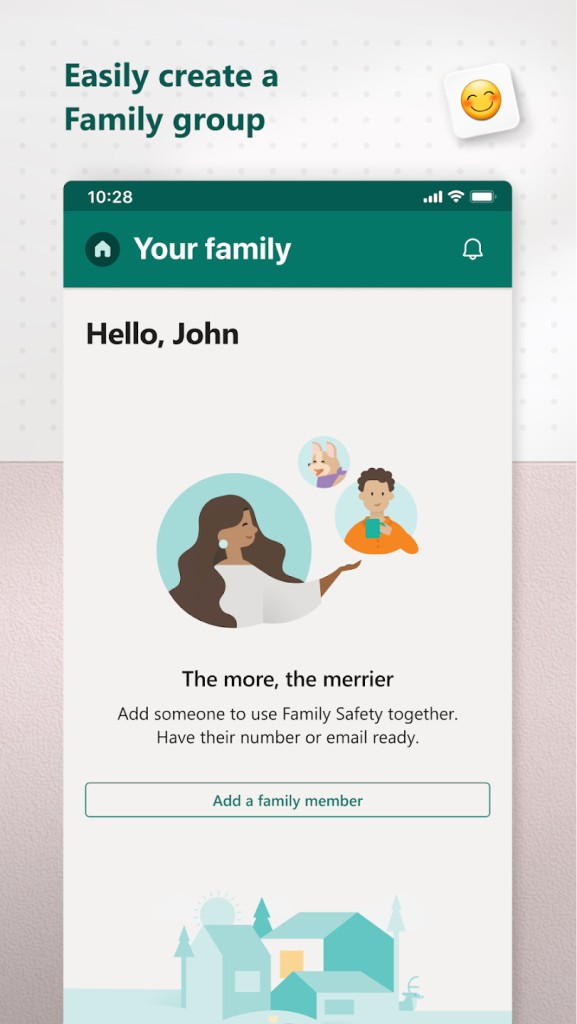
You can also log in to Microsoft Family Safety through its website to check the activity dashboard. For this service to work, remember to install the Microsoft Family Safety apps on every device you'd like to control, and each person needs to be added to the Microsoft Family Group.
What are the alternatives to Microsoft Family Safety?
Google Family Link is a free alternative from Google that works on Android, iOS (for parents), ChromeOS, and the web. Use it to establish app permissions, screen time limits, location monitoring, and website filters. It's a great option for scheduling bedtimes, getting activity reports, and approving new app downloads.
Qustodio Parental Control is a comprehensive suite of tools to manage screen time, force web filters, control usage statistics, and even check calls and text messages (Android-only feature). With the free app, you have a limited set of features, but the paid option adds additional tools like geofencing or social monitoring, and you can use Qustodio Parental Control on Android, iOS, Windows, macOS, and Kindle.
Kids360 is a primarily mobile app for controlling time spent on a device, app, or website, tracking your kids' location through GPS, and locking access after limits are passed. The app focuses on gamification, and you can also set up tasks for kids so that when they complete them, they gain extra screen time. It is available on iOS and Android.