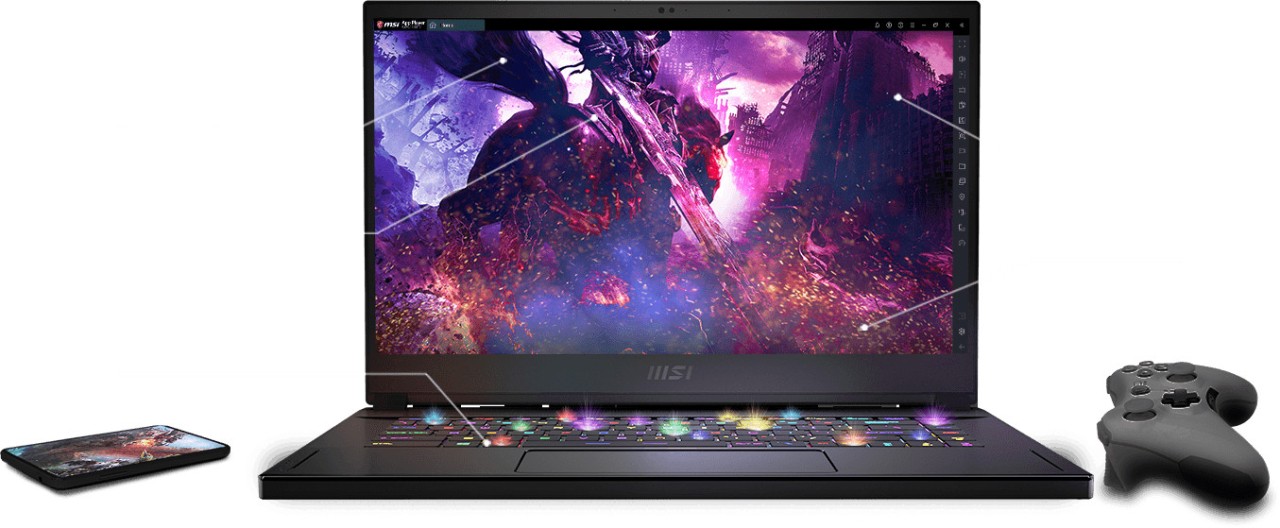
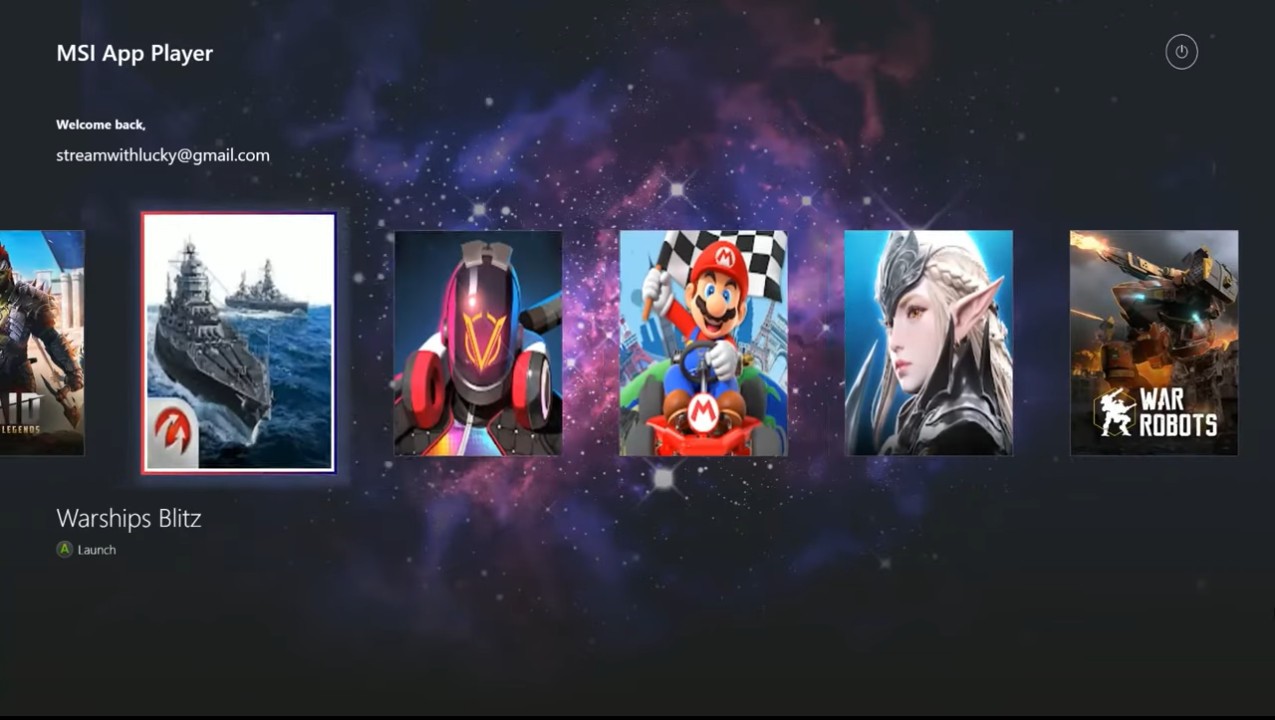
MSI App Player lets users run Android games and applications on their PC, making it easier to set up this virtual environment. Once you download MSI App Player, you can install it with a single click and run your mobile apps on a larger screen without any technical knowledge.
The software creates a virtual Android environment on your computer, giving users access to a full ecosystem of Android apps without needing a separate Android device. MSI App Player is built for running mobile apps on desktop and laptop computers, with features including custom key mapping, multi-instance support for running multiple apps at the same time, and compatibility with a wide range of Android apps.
This emulator is particularly useful for gamers who want to play mobile games on a bigger screen, or for developers testing Android applications in a PC environment. It also includes support for per-key RGB lighting effects on compatible MSI hardware, and automatic game resolution and graphics optimization based on the title and system specs.
The tool is optimized specifically for MSI hardware and deeply integrated with Windows to ensure the best possible performance. It also connects with MSI's system software, including Dragon Center, to allow performance mode toggles and deeper hardware optimization on MSI machines.
Why Should I Download MSI App Player?
MSI App Player can come in handy in different situations. It is particularly useful for gaming, as using a keyboard and mouse gives you more control. You can also boost productivity by running your apps on a larger screen. The user-friendly interface lets you set up the virtual Android environment on Windows quickly and easily, without needing any advanced technical knowledge.
With MSI App Player, you can map keyboard buttons and mouse clicks to simulate touchscreen controls, making it easy to perform actions in your favorite games quickly. Console Mode lets you connect gamepads or controllers from gaming consoles to manage your virtual Android apps.
You can also run MSI App Player in multiple windows simultaneously, each with a different app, which is ideal for testing and quality assurance. You can also launch the same game more than once and sign in with different accounts across each instance.
Its deep integration with Windows makes it a great fit for developers testing mobile software, as well as for everyday users who want to run productivity tools within a virtual Android environment.
MSI App Player was built primarily to support mobile gaming on PC, so it delivers whether you're playing fast-paced titles or games with demanding graphics. Its resource management algorithms allocate CPU, GPU, and memory usage efficiently, even on machines that aren't top-of-the-line hardware. The result is smooth gameplay with minimal lag, which matters most when playing competitively.
The utility also includes a dedicated error-checking mechanism and a built-in recovery system to prevent crashes and keep your sessions uninterrupted. The tool receives regular updates to stay current with the latest Android games, apps, and system changes, so you always have access to the most recent versions. It runs on an Android Nougat-based emulator OS and supports frame rates of up to 240 FPS on compatible hardware, delivering a genuinely smooth experience when paired with a 240 Hz display.
Is MSI App Player Free?
Yes, MSI App Player is completely free to download and use, with no additional costs for any of its features. Whatever your use case, you can enjoy a seamless Android experience on your PC without any financial investment.
Note that MSI App Player was developed exclusively for MSI hardware.
What Operating Systems Are Compatible With MSI App Player?
MSI App Player supports a wide range of Windows versions. You can download and run it on 64-bit Windows 7, though Windows 10 is recommended for the best experience. Minimum requirements include at least 4 GB of RAM, .NET Framework 3.5, integrated graphics with OpenGL 2.0 support, and a dual-core processor.
Keep in mind these are the minimum specs needed to run MSI App Player. Going above these requirements will result in better performance and a smoother experience overall. The utility was built specifically for Windows and MSI hardware, allowing it to take full advantage of your system through deep integration with resource allocation processes.
What Are the Alternatives to MSI App Player?
BlueStacks is a feature-rich Android emulator with high frame rates, multi-instance support, customizable key mapping, and macro recording. It runs on both Windows and macOS, covering more platforms than MSI App Player. It's completely free and receives regular updates to stay current with the latest Android versions, games, and apps. BlueStacks is the go-to choice for users who want to run smartphone or tablet apps on a larger screen or with more precise controls. Apps can be installed via the Google Play Store or through APK files. Additional features include built-in screenshot tools, drag-and-drop sharing, an Eco Mode that reduces CPU and GPU usage for older hardware or multitasking, and support for Android 11 (Beta) apps.
If mobile gaming is your only focus, Gameloop is worth a look. It was built specifically to help players run their favorite mobile titles on PC. You can expect low latency, high frame rates, and controls tailored to enhance the gaming experience. This free utility is Windows-only and optimized for that platform in terms of resource usage and hardware performance. It handles even the most graphically demanding mobile games, which becomes especially important on a monitor much larger than a phone screen. It also features the Turbo GPU engine for boosting graphics while lowering CPU load, along with anti-cheat integration and a curated library of mobile games for PC.
For users who want more customization without sacrificing performance, NoxPlayer is worth exploring. It offers extensive key mapping, multi-instance support, and an intuitive interface that anyone can tailor to their own preferences. You can set the display to horizontal or vertical depending on your needs, and the built-in screen recorder and screenshot tool make it easy to capture your sessions. You can also record sequences of keystrokes and mouse movements and save them as macros triggered by a custom shortcut. NoxPlayer is free on both Windows and macOS, though there is currently no official Linux support. Extra features include an animated theme system, Live Mode for streaming, and the ability to switch between Android system versions such as Android 5 and 7, as well as 32-bit and 64-bit options to match your apps.