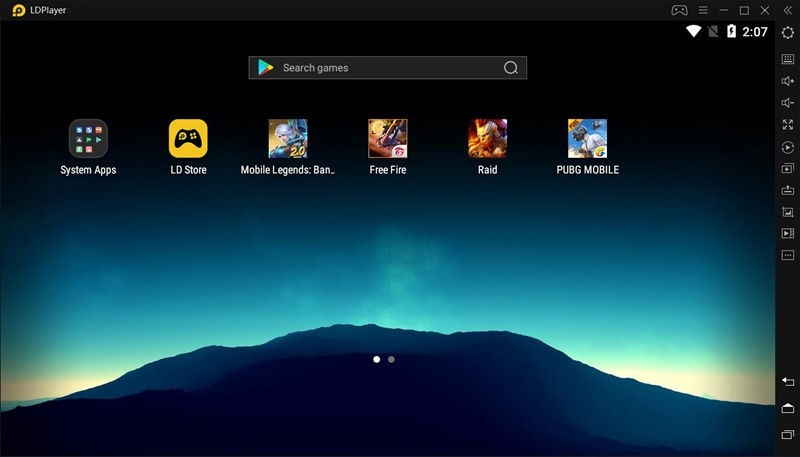
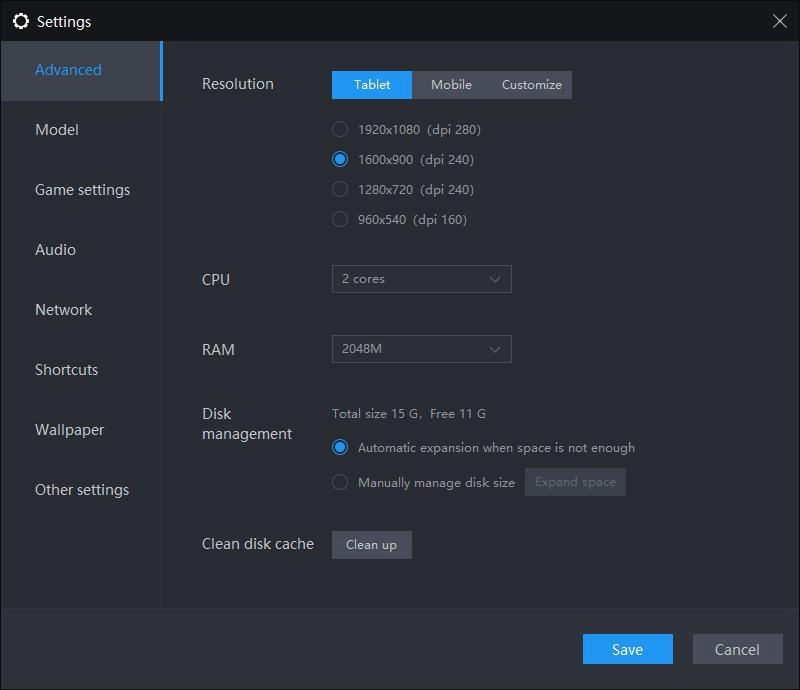
LDPlayer is a program you can download and install on a Windows PC, so the computer can act like an Android phone. Open it, and you get a home screen, an app drawer, a settings page that looks familiar, and from there you grab games and apps like you would on your mobile device using the Google Play Store.
The reason people care is simple: phones are small, they heat up, batteries dip fast, and some games push them too hard. On a desktop or a laptop, you have a bigger screen, a real keyboard, a mouse, fans, and usually more power. So the same mobile title that feels cramped on a 6-inch screen feels different when it fills a monitor and runs steady.
The software is used mostly for games of all categories. Shooters where quick aim helps. MOBAs where you need proper control to last a whole match. RPGs that ask you to farm for an hour. Gacha titles where you flip between menus all night. A lot of players also run chat or streaming apps alongside, because once the emulator is open, it behaves like a normal Android device, and you can stack windows. Some folks record gameplay straight from the PC because that’s easier than capturing with a phone. It’s not fancy. You just open LDPlayer, sign in, install, and play.
Under the surface, some pieces matter, but you don’t need to be an engineer to get it. It can create more than one “phone,” so you can have a second or third instance for another account. It lets you map keys so jump, crouch, reload, move, and aim all sit where your fingers expect them. There’s a simple recorder if you want clips. Most of the time, you won’t touch settings much after day one. Once key mapping fits your hands, you keep it that way and just play.
Why Should I Download LDPlayer?
Comfort first. Touch controls are fine for scrolling a feed, but they’re rough when the game expects fast hands. With LDPlayer, you put WASD on movement, mouse for aim, space for jump, and a few number keys for skills. It feels natural if you’ve played anything on PC before. That alone can change how a match goes. You miss fewer taps because there are no taps.
Performance next. A phone that felt quick a year ago starts stuttering when a new season arrives. You notice frame drops, long loads, and hot back glass. On a computer, that same title pulls frames from your CPU and GPU, and it just breathes better. Higher FPS if your hardware can push it, fewer random freezes, less “wait a second, it’s catching up.” Even on a mid-range laptop, it often feels steadier than an old phone that’s already worn down.
Then there’s the long session problem. A raid that lasts, a ladder run, an event where you sit for hours. Doing that on a phone eats through battery and ages it fast. You can keep charging, but that heat cycle all week isn’t kind to it. Running on an emulator avoids that wear. Your phone stays cool and ready for the rest of the day while the PC takes the load.
Multi-instance is another reason people pick LDPlayer. Some like to farm on one window and play on another. Some split accounts, one for casual, one for ranked, or help a friend with co-op while keeping a main save open. On a phone, you’d need two devices or constant logouts. Here it’s just another window on the taskbar.
It’s also handy if you live at a desk already. You’re writing, studying, working, and between tasks, you check a timer, collect a daily reward, reply to a message, go back to work, all without digging a phone out. Little things, but they add up. And no, you don’t need a top graphics card to try it. LDPlayer aims to be light. A recent i5 or Ryzen with enough RAM runs most mobile games fine. If your PC is stronger, you’ll see more frames; if it’s average, it still avoids the heat and battery issues you get on a handset.
Is LDPlayer Free?
Yes. You download it and use it without paying. No license page that blocks you after a week, no subscription just to open an app. The games themselves still have their own in-app stuff, of course, but that has nothing to do with the emulator. If you’re just testing or you plan to play daily, the cost for LDPlayer itself stays at zero.
What Operating Systems Are Compatible with LDPlayer?
Windows. That’s the platform it’s made for and the one that gets updates. Windows 7, 8, 10, 11, if you can install normal desktop software, you can install this. A few tips help: give it some RAM, make sure you have free disk space, and if your BIOS has virtualization (VT) turned off, flip it on because that often makes things smoother.
On Macs, there isn’t a native build. You’ll find blog posts about running emulators through virtual machines, but that’s not official and usually not worth the trouble. If you want it stable, run it on Windows. If you need an Android Emulator for Mac, check BlueStacks.
What Are the Alternatives to LDPlayer?
Bluestacks. The name most people recognize first. It’s been around for years and supports a huge list of titles. If you search for “how to run X on PC,” half the guides use Bluestacks in the screenshots. That long history helps, although some users say it feels heavy on older machines. If your PC has spare power, it’s fine; if not, you might notice it chewing resources while you multitask. Still, the compatibility and the amount of help online make it an easy pick for a lot of players.
Gameloop. Built by Tencent, so it leans into their games. If your week is basically PUBG Mobile, Call of Duty: Mobile, and other Tencent-published titles, Gameloop often fits out of the box. Preset key maps, quick patches when those games update, and good aim control without much tweaking. It’s less about running every kind of app and more about feeling right for those specific shooters, which for some people is exactly what they want.
NoxPlayer. Chosen by folks who like to tweak. You can record simple macros to repeat boring actions, adjust a lot of small settings, and spin up multiple instances if you need to mirror accounts or farm on the side. Some say it’s lighter than big names; others say it can bog down depending on the PC and what you enable. If you like fine control and don’t mind a bit of setup, it gives you that room.