GameFire is a Windows-only utility that boosts computer performance when launching games and helps you get the maximum potential from your PC. It optimizes system settings, disables background services that aren't needed at the moment, and allocates memory and CPU resources in real time to the active game.
If you notice frame drops, slowdowns, or high resource consumption during your gaming sessions, you should download GameFire. The app works in real time, analyzes your system behavior, and dynamically adjusts different settings to ensure the best performance.
Whether you're a basic user or a professional, GameFire provides tools for hardware diagnostics, monitoring performance, controlling active services, and managing your game library. It's a versatile solution that can make your Windows PC run games much more smoothly.
Why should I download GameFire?
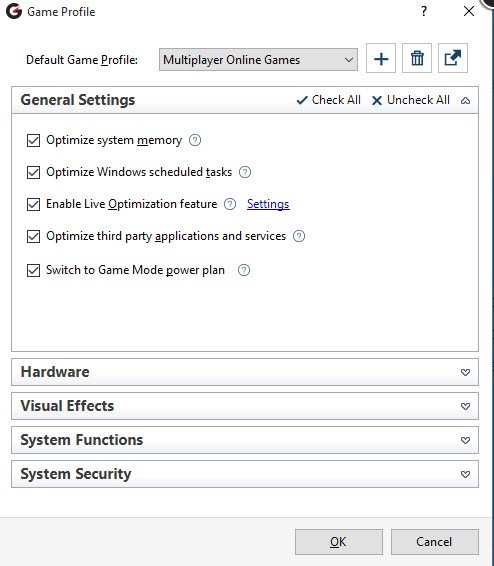
GameFire is an optimization tool for gamers that combines multiple features to automatically improve computer performance. You don't need to manually tweak system settings or disable background services; you simply need to open GameFire and click to enable Game Mode, which will eliminate unnecessary processes and maximize your CPU, GPU, and memory usage for your game.
Depending on your hardware and needs, you can customize the way Game Mode works. It allows you to turn background processes on or off, like update checks, indexing, printer tools, antivirus services, and other apps that could influence performance. You can either rely on GameFire to manage those options or do it yourself. Just keep in mind that you want to prioritize gaming without interfering with your system stability.
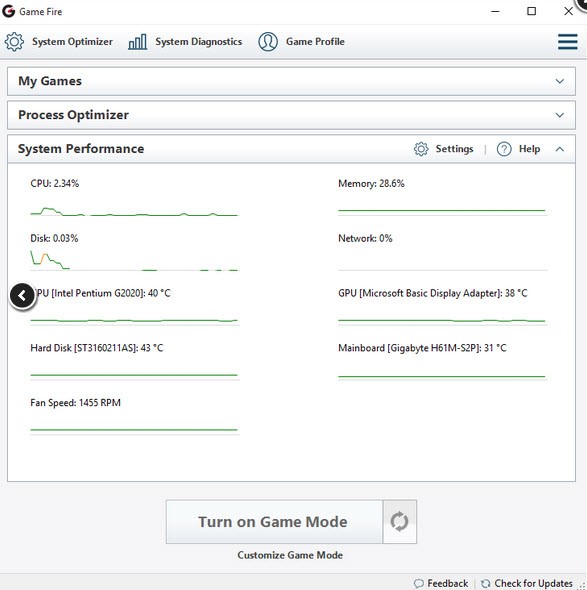
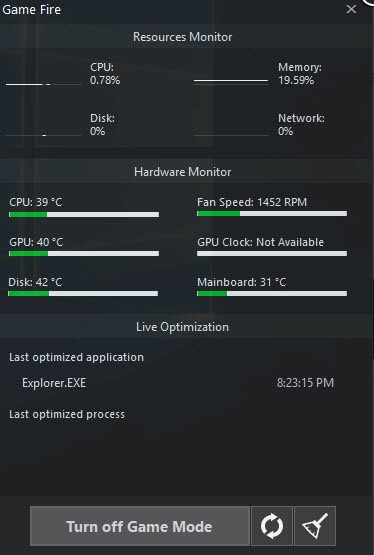
Part of GameFire's suite of features is a live performance monitor. Here, you can check your CPU and RAM usage, GPU load, or operations. This allows you to observe how specific games influence your system and how the behavior changes when you activate the Game Mode. It also helps with troubleshooting your PC when you want to find out if poor performance is caused by hardware limitations or by specific apps.
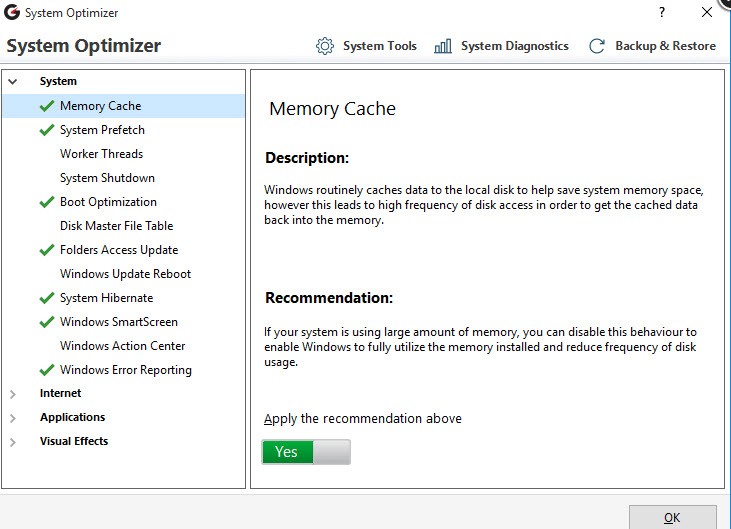
With GameFire, you also get a tool for optimizing your system to help you get better computer performance beyond just gaming. Use it to scan your Windows for registry issues and fix them, repair fragmented files, and optimize startup load. As a result, you will get faster booting, lower consumption of resources by background processes, and better RAM performance. GameFire also includes diagnostic tools that can scan your entire system, generate health reports, and recommend various adjustments based on the issues it finds.
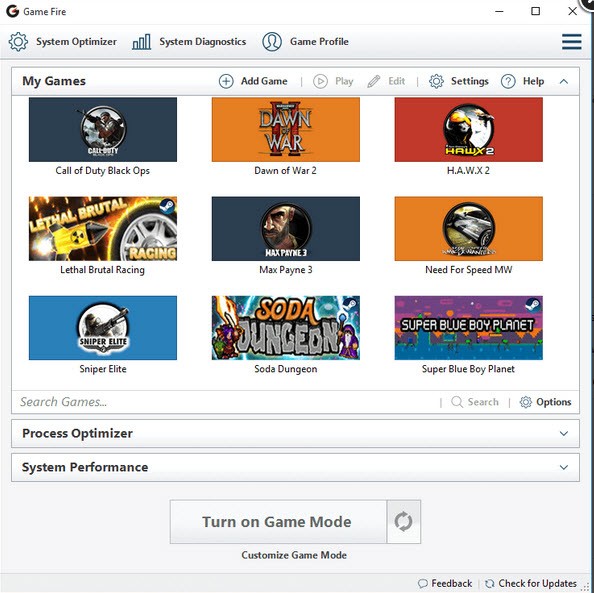
You can also download GameFire and use it to manage your game library, where you can add all installed games and launch them directly from the tool. By using GameFire in this way, you can have custom profiles for each game that include custom Game Mode settings that can prioritize various aspects of your system, depending on the game. You can use those custom profiles and have one optimized for FPS games, another for emulation, and a third for general desktop use.
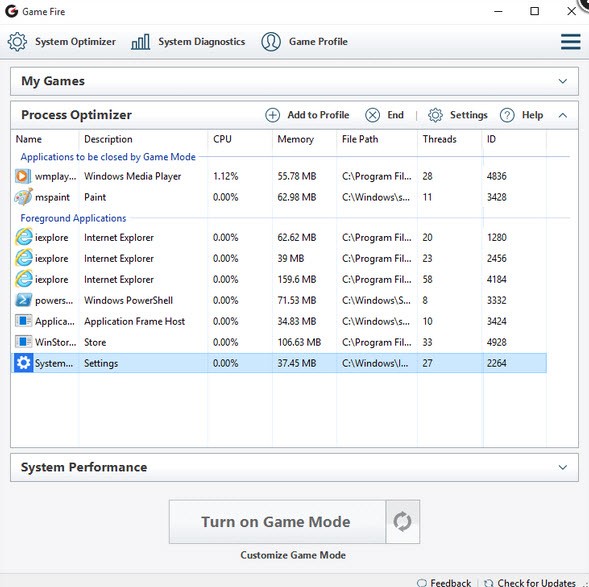
GameFire also offers tools for advanced users, like tuning up processes in real time, where you can set game processes to "High" or "Real-time" priority or selectively end other services that run in the background. These options allow you to close your browser or video processing software without leaving the game. GameFire also gives you the option to optimize your internet connection settings to reduce latency and lag and get a stable ping when you're playing online. You can do it by using GameFire to modify network settings such as TCP/IP stack settings, DNS resolution, and background service delays.
Is GameFire free
While you can download GameFire and use it for free, this version only includes basic game optimization. If you want to unlock the full potential of GameFire and your PC, there's a professional version of the software.
You can buy the PRO version with a single payment and get unlimited access to full game optimization, including services and tasks, third-party apps, and Windows Visual Effects, as well as enhancements to RAM, CPU, and GPU performance. The paid edition also has a real-time game booster, tools for tuning up your system settings and network, and much more.
What operating systems are compatible with GameFire?
You can download GameFire and run it on Windows 7, 8, 8.1, 10, and 11 in both 32- and 64-bit architectures, and you also need to have Microsoft .NET Framework 4.8 installed on your PC.
Currently, GameFire doesn't offer a version for Linux or macOS computers, making it a Windows-only solution.
What are the alternatives to GameFire?
NVIDIA App is a solution for computers running on NVIDIA GPUs and gives you tools for optimizing your games, updating drivers, and capturing screenshots. The app automatically detects all the games you have installed and optimizes graphics settings so that you get the best performance possible with your hardware. The tool is completely free, but you need to have an NVIDIA graphics card, and the app only works on Windows 10 and 11.
GameBoost is a simple tool for improving frame rates and loading times on your computer by optimizing your CPU and RAM usage as well as network settings. You need to buy the program to use it, and GameBoost only works on Windows computers from Windows 7 to Windows 11. It's a simple solution where you can optimize your system with a single click, but advanced users can also adjust settings on a registry level.
Razer Cortex is a game launcher and a performance booster that works with Windows 10 and 11. Use it to clean your RAM, defragment the hard disc, and stop or pause background processes. The app can automatically optimize over 1000 games and works with Steam and Epic Games services. You can download Razer Cortex for free, but you need to set up an account to use it.