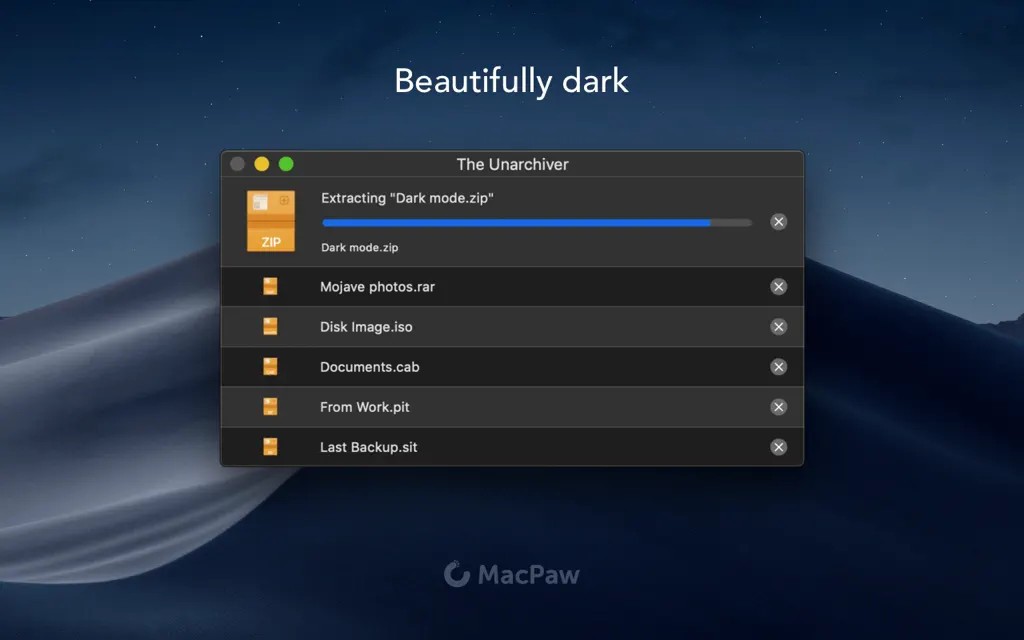
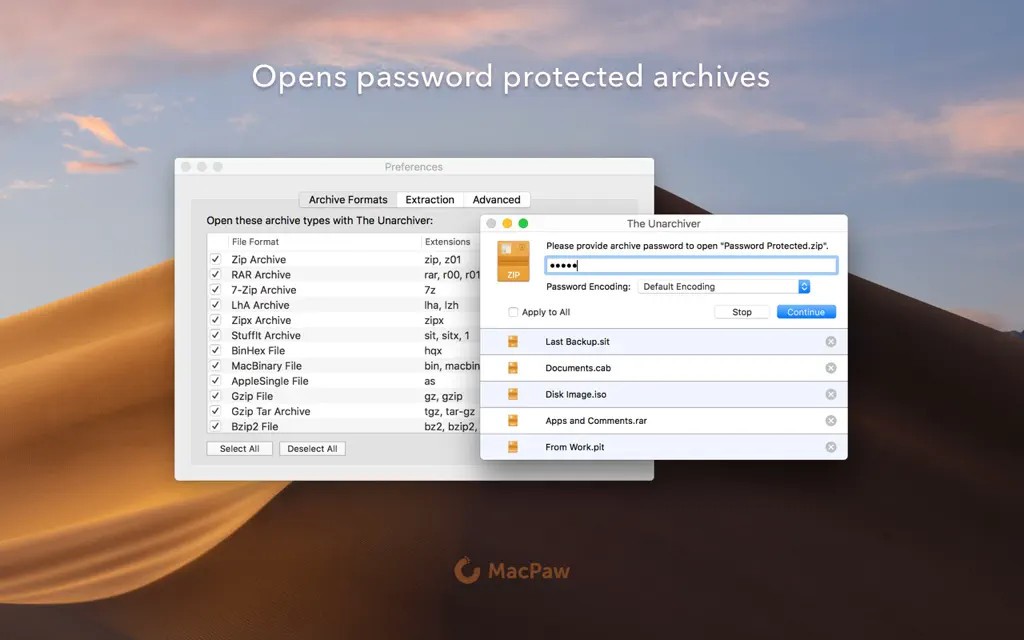
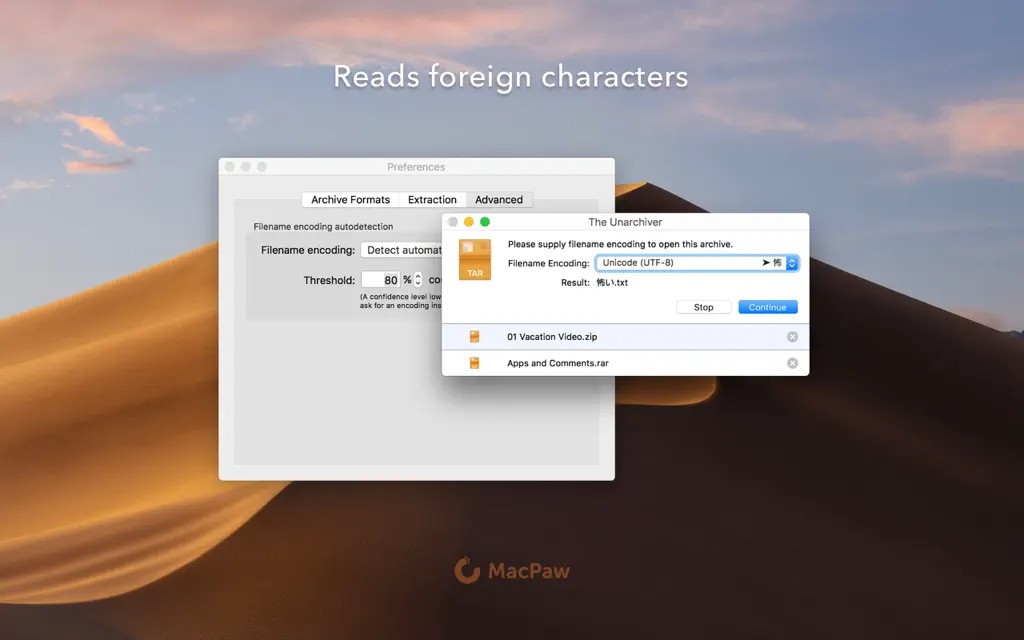
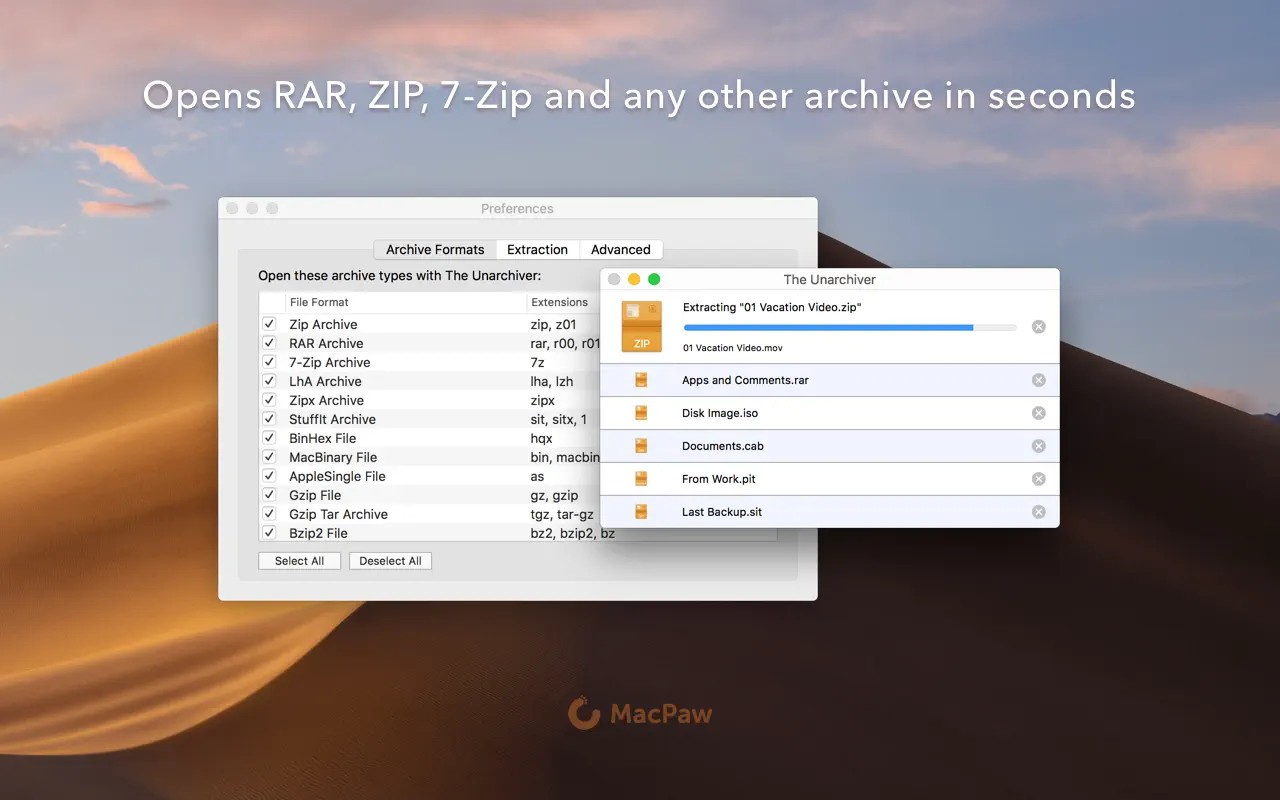
The Unarchiver is made to do a simple thing: open up your compressed files. It seems like an easy design at first, and that’s really what it’s meant to be. Once set up, it quietly resolves any archive files that other expanders either can’t handle or make more complicated to use. Even though the Archive Utility is familiar to most Mac users, The Unarchiver is there to help if it doesn’t handle your file. It handles ZIP, RAR, 7z, StuffIt, TAR, and even older types of Windows archives that might appear if you have old backup files.
It doesn’t require much of you. Drag your file onto the app or double-click it, and nothing gets in your way. You won’t see irritating pop-ups, and it won’t show you anything you might not need. That’s what it does best: it opens files. Since it’s especially good on macOS, the simplicity and broad use have made it popular with those trying to avoid overly complicated software and its settings. Extracting the content from the file is all you have to do; the rest of your day will be plain sailing.
Why Should I Download The Unarchiver?
Should you have downloaded something from the internet and been told your system can’t open it, that’s a great motivation for using The Unarchiver. While a lot of files on the internet are compressed, they don’t always come in formats your computer knows at first. It’s possible you receive a .rar file or bump into a .sit file while going through your archives. If the default app doesn’t recognize the data, this utility tool really excels.
There is not much in the interface. You don’t have to pick up any new knowledge to work with it. After you set up the software, you won’t ever have to worry about it again. Any time you double-click one of the supported files, The Unarchiver handles the job and extracts the contents.
No advertising, no need to sign in, and nothing gets in the way. That’s a reason many users enjoy using The Unarchiver. It doesn't waste your time. You won’t always have to look for new apps when you see a strange file name. You can do it all in one spot, and it’s done quietly and without unnecessary delays.
One advantage is that it extracts data from files that aren’t usually used. Maybe if you’ve tried to get old information from long ago or downloaded from an irregular forum, you found that your system simply stopped. That’s where The Unarchiver adds new and helpful options. Sometimes, it’s the only app that manages to open files that other software can’t handle. Although it isn’t as advanced as others, The Unarchiver is reliable and nearly all devices can use it. You’re probably going to want to stick with it for the same reason—it fixes the things that keep bothering you more regularly than you like.
The app doesn’t need to be noticed to do the job, but it is always available when you need it. It is there, not doing much unless it’s needed. If you’re in school, at work, or just handy with a few files, The Unarchiver is software that consistently pays for itself. Not only is it free, but it won’t add any extra files to your computer.
Is The Unarchiver Free?
It is absolutely free to use The Unarchiver. All plans are free, with no extras hidden and nothing blocked until you subscribe. It gives you everything it promises, and you won’t spend a dime.
What Operating Systems Are Compatible with The Unarchiver?
Unarchiver is only available on Mac and runs with current systems such as Monterey, Ventura, and any release afterward. Installing is very easy since you can find The Unarchiver in the Mac App Store, or use the DMG installation file. Because it’s been incorporated so crisply into the Mac system, most Mac users wouldn’t switch to something else, even if there’s no official Windows version. The Unarchiver is simple, swift, and links nicely with Finder, so you can access right-click functions and the app will automatically handle extraction.
What Are the Alternatives to The Unarchiver?
Mac users like The Unarchiver because of its simplicity and support for many formats, but certain individuals look elsewhere for different reasons or on systems other than Mac. Each of Keka, PeaZip, and Bandizip gives you a little different way to manage compressed files, and all of them are strong in their own right.
Keka is a native macOS app that puts the same attention on compression as on decompression. Although The Unarchiver is only made for extracting, Keka allows you to make archives in many formats. Having this tool comes in handy if you need to regularly compress and password-protect your files before saving or transferring them. Just like The Unarchiver, it has a neat user interface, but also lets users change some settings or options. Since it’s both hosted on GitHub and found in the App Store, it’s as simple to reach as it is to donate.
Users on both Windows and Linux operating systems will find PeaZip useful if they need more features from a file archiver. PeaZip users can view files in over 180 archived format types. Because it can handle encryption, delete safely, and even save archive repairs, it’s more useful for power users. You won’t notice the same smoothness as with The Unarchiver, but those who need safety and control say PeaZip comes out on top.
Bandizip is also a compact tool, mainly used with Windows, and people like it for being fast and attractive. It works with every major file format and can archive quickly, drag files for easy extraction, and offer the option to add passwords to your archives. Even though a free version is available, several of its more advanced features require you to pay. Most users will find that the free version meets their needs, which is important if you manage compressed folders often.