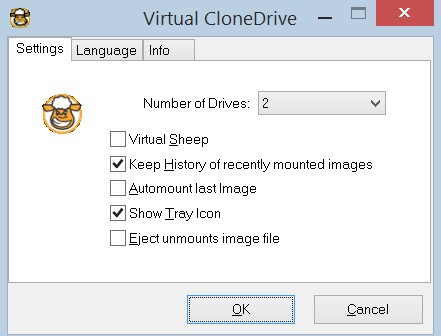
Virtual CloneDrive is a straightforward but powerful tool that allows you to mount disk image files directly on your computer without needing a physical CD, DVD, or Blu-ray disc. In practical terms, it creates a “virtual” drive on your machine that behaves just like a real optical drive. You can open ISO, BIN, and CCD files instantly, as if you had inserted an actual disc into your system.
For anyone who’s had shelves of discs or dealt with scratched media, Virtual CloneDrive is a breath of fresh air. You don’t need stacks of blank discs anymore. If you download a movie, software, or game distributed as an image file, you just mount it virtually and start using it. It makes working with digital media smoother, faster, and a lot less messy.
One of the biggest strengths of Virtual CloneDrive is its simplicity. There are no complicated menus or bloated extras. Once installed, it integrates seamlessly into Windows Explorer, so mounting a file is as easy as right-clicking and choosing “mount.” That’s it. No lengthy setup, no guesswork—just direct, simple access.
Why should I download Virtual CloneDrive?
There are plenty of reasons to consider downloading this tool, even if you’re not a hardcore tech enthusiast. The most obvious one is convenience. Instead of burning every ISO you download onto a disc, you can mount it instantly. That saves time, money, and the clutter of storing discs you’ll rarely use.
It’s also lightweight. Unlike some alternatives that load your computer with dozens of advanced features you may never need, Virtual CloneDrive focuses on doing one job extremely well: mounting virtual drives. Because of that, it doesn’t hog system resources, so even older machines run it comfortably.
Another solid reason is reliability. Virtual CloneDrive has been around for years, and during that time it has built a reputation for being stable and dependable. It supports up to 15 virtual drives at once, which is more than enough for almost any user. Whether you’re testing multiple software packages, storing a collection of digital films, or playing classic games, it keeps everything accessible without a hiccup.
Ease of use is another huge factor. You don’t need to be technically skilled to use it. The program is intuitive and minimal, and most interactions happen inside Windows itself. For example, if you double-click on an ISO, Virtual CloneDrive just mounts it—no complicated steps or separate interfaces. That level of user-friendliness is rare for this type of software.
And finally, there’s security and peace of mind. Using image files instead of physical discs reduces the risk of losing important data to scratches, dust, or wear and tear. You can back up your discs into image files and keep them safe indefinitely, knowing they’re always accessible with a few clicks.
Is Virtual CloneDrive free?
Yes, Virtual CloneDrive is completely free to download and use. Unlike other tools that tease you with a free trial but lock essential features behind a paywall, this one gives you everything upfront. There are no hidden charges, no pro versions, and no license fees.
What’s more, the free nature of Virtual CloneDrive doesn’t mean it’s low quality. Quite the opposite—it’s one of the most reliable and stable virtual drive programs available. Many users have relied on it for years without ever needing to switch to a paid competitor.
Being free also makes it appealing for casual users who only need to mount an image occasionally. You don’t have to justify spending money on a feature you’ll use once in a while. On the other hand, even power users benefit, because there’s no cap on features like mounting multiple drives.
So if cost is a concern, you can rest easy. Virtual CloneDrive delivers a full experience without charging a cent, and that’s a rare deal in the software world.
What operating systems are compatible with Virtual CloneDrive?
Virtual CloneDrive is designed specifically for Windows operating systems. It supports older versions like Windows 7 and 8, as well as more modern systems, including Windows 10 and Windows 11. The installation is quick, and once it’s set up, it works seamlessly within the Windows environment.
Unfortunately, it’s not natively available for macOS or Linux. Users of those systems usually need to look for different tools built for their platforms. But for Windows users, compatibility is excellent. Virtual CloneDrive runs smoothly on both desktops and laptops, doesn’t require heavy hardware, and doesn’t slow down your system.
One of its biggest strengths is how tightly it integrates with Windows Explorer. You don’t need to learn a new interface or open a separate app. Instead, the features blend naturally into the system you’re already familiar with. That makes it accessible not just to IT professionals, but also to everyday users who just want something that works.
What are the alternatives to Virtual CloneDrive?
Although Virtual CloneDrive is an excellent option, other solutions can be used based on your requirements.
One of the most popular ones is PowerISO. It is not only a virtual drive tool but a complete program, which allows you to create, edit, compress, and encrypt ISO files as well. It also enables the creation of bootable USBs. The disadvantage is that it is not free, and to the user who is looking to simply mount something, it can be more complicated than what he or she requires.
Daemon Tools has existed for a long time in the virtual drive market. It provides such sophisticated capabilities as the ability to imitate various disc protections and a wide variety of formats. It is mighty and popular, but once again, it costs something, and it has too many other functionalities, which may overwhelm those who do not need such a heavyweight solution.
Another good alternative is UltraISO. It especially works well with converting between dissimilar image formats and making bootable drives. Similar to PowerISO, it is a feature-rich and versatile product that also happens to be a paid one. UltraISO may prove to be an intelligent investment for users who wish to exercise professional control over the image files.