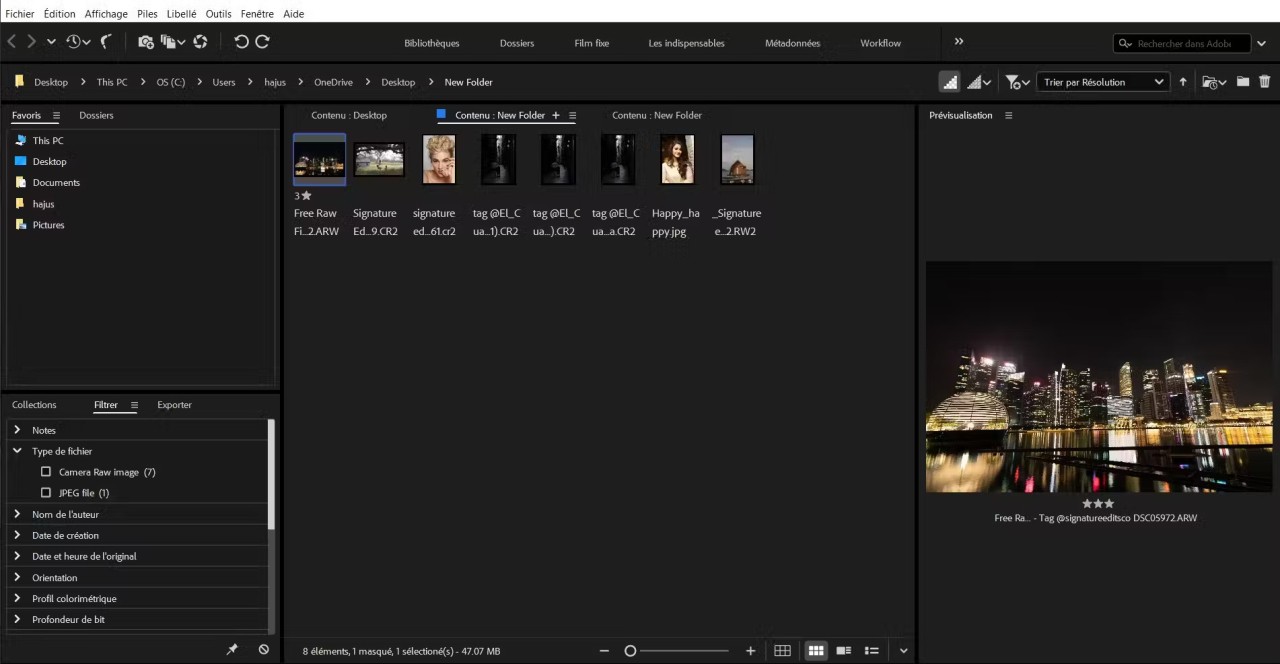
If you want to manage all of your Adobe files in one place, Adobe Bridge is the perfect solution. The app enables users to view all files created or managed in various Adobe Creative Cloud apps, all in a single interface. This is especially useful when you’re working on files in different apps, such as Illustrator and Photoshop, simultaneously, and want to keep track of the files without having multiple apps open.
You can preview files quickly without needing to open them, but that’s not the only feature of this tool. The app allows you to edit multiple files at the same time, give them names, add metadata, and change formats. You can also organize your files by adding labels, and find the file you’re looking for with ease through search filters like keywords and file types.
Why Should I Download Adobe Bridge?
Adobe Bridge is suitable for people who use multiple Adobe apps and have numerous files at their disposal. The platform’s main advantage is its organizational capability. It enables users to view all of their Adobe files in one place instead of looking through folders on their computers or having to open up individual Adobe applications. The way you organize your files is entirely up to you; you are welcome to use Adobe Bridge’s tools, such as keywords, labels, and ratings. This way, big file collections don’t seem so overwhelming and can be sorted through quickly.
Heavy files may take a while to load and open, but you don’t always want to go through that just to view a file. That’s where Adobe Bridge is helpful: it allows you to preview RAW photos, Photoshop files, PDFs, and even videos without running the apps they were created or edited in. Though you will need to open the necessary app if you wish to continue working on your file, you can edit some aspects of it directly through Adobe Bridge. For example, you can change file names and formats, add watermarks, and edit metadata, such as author and tags, through the platform. The fact that you can work on multiple files simultaneously through batch editing can save a lot of time.
Adobe Bridge will be an asset if you want a cleaner way to manage your workflows and are looking for a tool that integrates seamlessly with Adobe Creative Cloud applications.
Is Adobe Bridge Free?
Adobe Bridge is free to download and use. You will need a free Adobe account. There is a paid tier with access to advanced features, like RAW file editing. Keep in mind that you do need a paid subscription to access and use other apps in the Adobe Creative Cloud, such as Photoshop and Illustrator. Without these apps, Adobe Bridge is largely useless.
What Operating Systems Are Compatible with Adobe Bridge?
Adobe Bridge is a desktop application available for Windows and macOS computers. Compatible operating systems for Windows computers are Windows 10 (64-bit) or newer, and Windows 11. Compatible operating systems for macOS computers are macOS Monterey (v12), macOS Ventura (v13), or macOS Sonoma (v14).
To download the tool, you need at least 8 GB of RAM space, 2 GB VRAM GPU, and 4 GB of available disk space, as well as an Intel 6th Gen (or newer) processor or AMD Ryzen 1000 Series (or newer) processor with AVX2 support.
What Are the Alternatives to Adobe Bridge?
While Adobe Bridge remains the best solution for files created in the Adobe Creative Cloud, there are multiple alternatives to manage images and pictures. Chief among them is Peakto—a tool developed by CYME. It is an image management tool that integrates with different platforms, including Lightroom and Apple Photos. The platform catalogs photos from different libraries and uses AI to help you search through them. This is a great solution for people who have images scattered across different galleries and apps, and would like to see them all in one place. The app is available through a paid subscription on Mac computers only.
Mylio Photos is another alternative that is more similar to Peakto than Adobe Bridge in its feature selection. Much like the former, it is an asset manager for multiple galleries and photo libraries. The tool can filter through photos based on geolocation, facial recognition, and calendar dates. It allows users to view and edit photos.
Google Photos is a cloud library for images that conducts automatic backups, so your data never gets lost. Adobe Bridge, on the other hand, works entirely on your hard drive. Compared to Adobe Bridge, Google Photos’ features are very basic, only allowing users to conduct some editing. At the same time, it beats Adobe Bridge when it comes to AI search. Its search capabilities allow you to find images depicting specific objects by typing them into the search bar, while the search function in Adobe Bridge relies heavily on metadata. Users looking for basic cloud-based photo storage will enjoy Google Photos over Adobe Bridge.