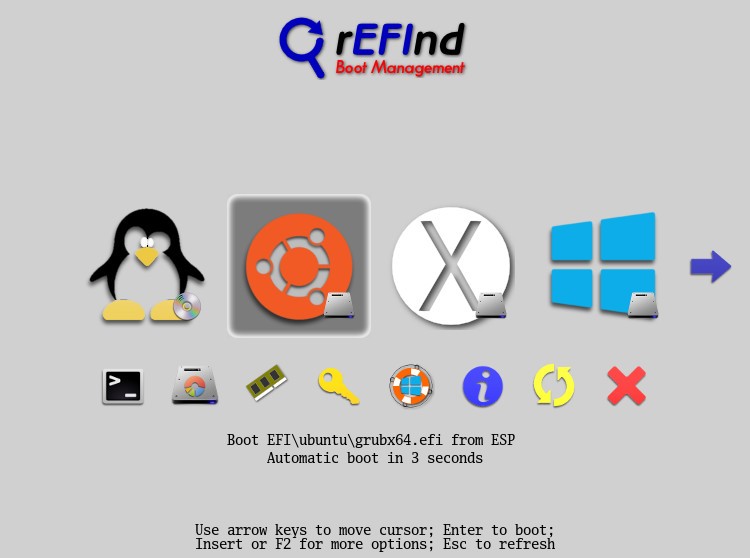
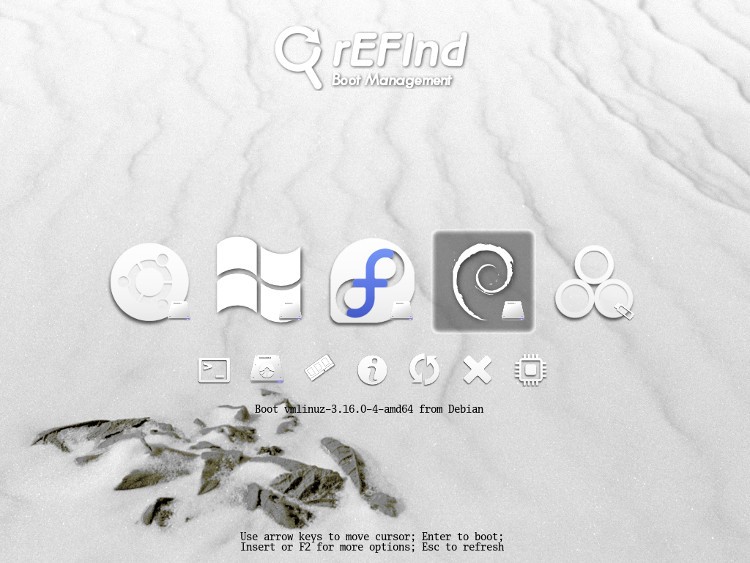
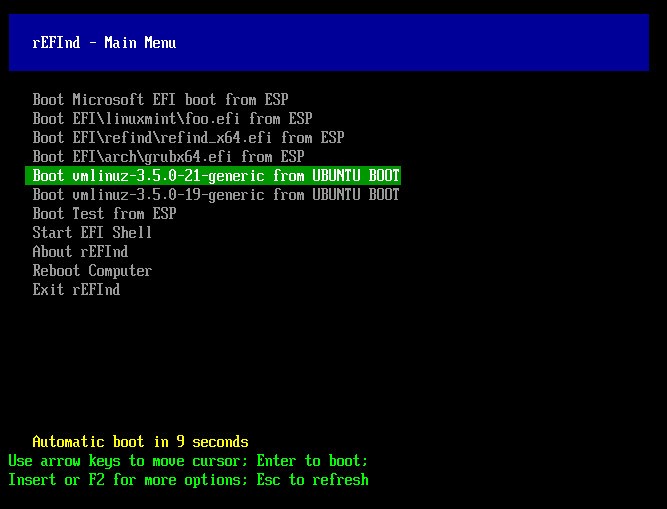
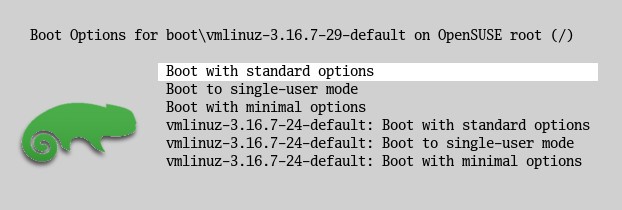
rEFInd is a boot manager that shows you a menu of every operating system installed on your computer, letting you pick which one to start. It's most useful when you're dual-booting or multi-booting, whether that's macOS alongside Linux, multiple Linux distributions, or different versions of Windows on the same machine. Instead of dealing with a blank screen, a blinking cursor, or a barebones bootloader that barely tells you what's available, rEFInd gives you a clean, graphical interface with clearly labeled boot options.
It works with EFI and UEFI firmware, which means it runs well on virtually all modern Macs and PCs. rEFInd automatically detects your installed operating systems without requiring you to manually edit configuration files. On top of that, it supports theme customization, icon changes, and boot entry modifications, so you can shape the boot screen to look and work the way you want. You don't need advanced technical skills to use it, but if you do want to dig deeper, the option is there. rEFInd works just as well for casual users as it does for people who tinker with their systems regularly.
Why Should I Download rEFInd?
If you have multiple operating systems on your machine, like Linux and macOS or several Linux distros for development work, the default boot experience can be frustrating. Built-in bootloaders sometimes fail to detect all your installs, or one OS may hide the others from view. rEFInd solves that problem. Once installed, it scans for every bootable system and presents them all in a single, clean menu where you can pick whichever one you need.
A big part of why people download rEFInd is the feeling of control it brings back. You get direct access to your Linux install, your recovery partition, or any other boot option without jumping through hoops. Every startup gives you a clear view of what's available, and you just select what you want. That kind of reliability matters when your work depends on switching between operating systems throughout the day.
Configuration is another strong point. Out of the box, rEFInd automatically detects most bootable systems without requiring any setup at all. But if you want more control, the configuration files are fully editable. You can hide boot entries you don't need, add custom boot flags, apply themes, swap icons, and reorder the boot menu. It's a full toolkit that stays out of your way until you decide to use it, scaling from simple to advanced depending on what you need.
rEFInd is especially valuable for Mac users who want to dual-boot with Linux. Apple's built-in boot manager only shows Linux partitions if you hold specific keys during startup, which is easy to forget and annoying to rely on. rEFInd replaces that friction with a straightforward selection screen. It can also scan for and load EFI drivers at boot time, which is particularly helpful for Linux developers and anyone running experimental configurations. If you're building a Hackintosh or testing different setups, rEFInd simplifies what would otherwise be a cumbersome startup process.
Overall, rEFInd brings clarity and control to your boot process. Whether you're switching between operating systems daily, testing Linux builds, or troubleshooting a boot issue, having a reliable, visible boot menu removes a surprising amount of stress. It's one of those tools that quietly makes your workflow smoother once it's in place.
Is rEFInd Free?
rEFInd is completely free and open-source. There are no license fees, premium tiers, or subscription requirements of any kind. You can download it, install it, modify the source code, and run it on as many computers as you want without paying anything.
What Operating Systems Are Compatible with rEFInd?
rEFInd works with any computer running UEFI firmware, which covers most modern Macs and PCs built in the last decade or so. It can boot macOS, multiple Linux distributions, Windows, and any other UEFI-compatible operating system.
There are a couple of limitations to keep in mind. rEFInd does not support booting legacy BIOS-based systems, so it won't work on older hardware that hasn't been updated to UEFI. On Macs, it can't directly install operating systems that Apple restricts at the firmware level, which may require additional tools for some configurations. You'll typically install rEFInd from within macOS or Linux, after which it automatically detects all UEFI-bootable systems on the machine.
What Are the Alternatives to rEFInd?
rEFInd strikes a good balance between simplicity and power, but other boot-related tools may suit different needs better.
OpenCore Legacy Patcher serves a different purpose than rEFInd. Rather than being a general-purpose bootloader, it's designed to help older Macs run newer versions of macOS that Apple no longer officially supports. OpenCore handles system-level patches and boot options, but it's more complex to configure than rEFInd. Some users run both together, using rEFInd for boot selection and OpenCore for keeping their unsupported hardware running the latest macOS.
Clover Bootloader has long been the go-to tool in the Hackintosh community. It's a more advanced bootloader that gives you fine-grained control over system-level settings, including kext injection, boot arguments, and detailed macOS/Linux boot configuration. That level of customization can be intimidating for newcomers, but it's exactly what Hackintosh builders require to get macOS to run properly on non-Apple hardware. Clover is gradually being replaced by OpenCore in many newer setups, but it still has a loyal following among users who appreciate its flexibility and familiar interface.
Patched Sur takes a different approach entirely. It's not a boot manager but rather a utility for installing macOS Big Sur and later updates on Macs that Apple has dropped from official support. It simplifies the process of creating bootable install media and automatically applies the necessary patches so macOS runs correctly on older hardware. Patched Sur can complement rEFInd in a multi-boot setup, but it doesn't replace it since its job is getting macOS installed and patched, not managing the boot menu itself.