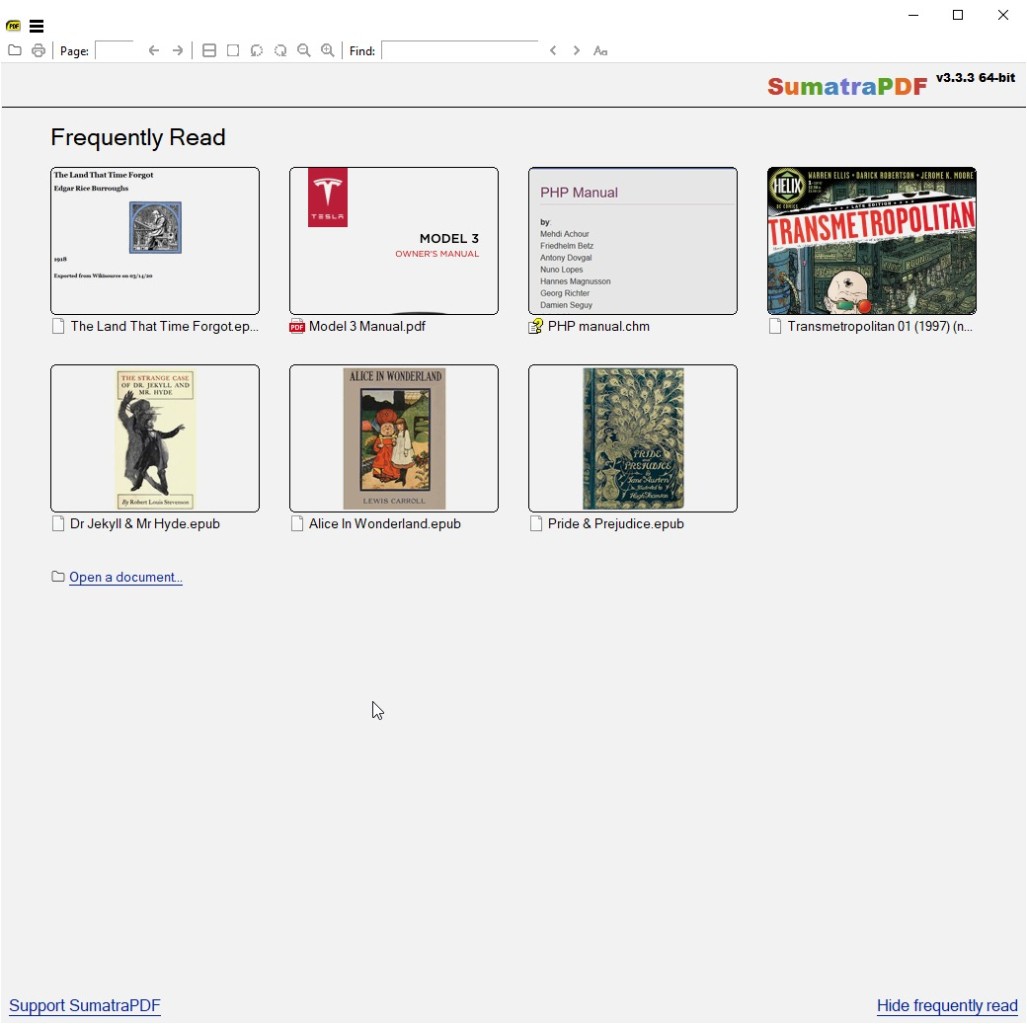
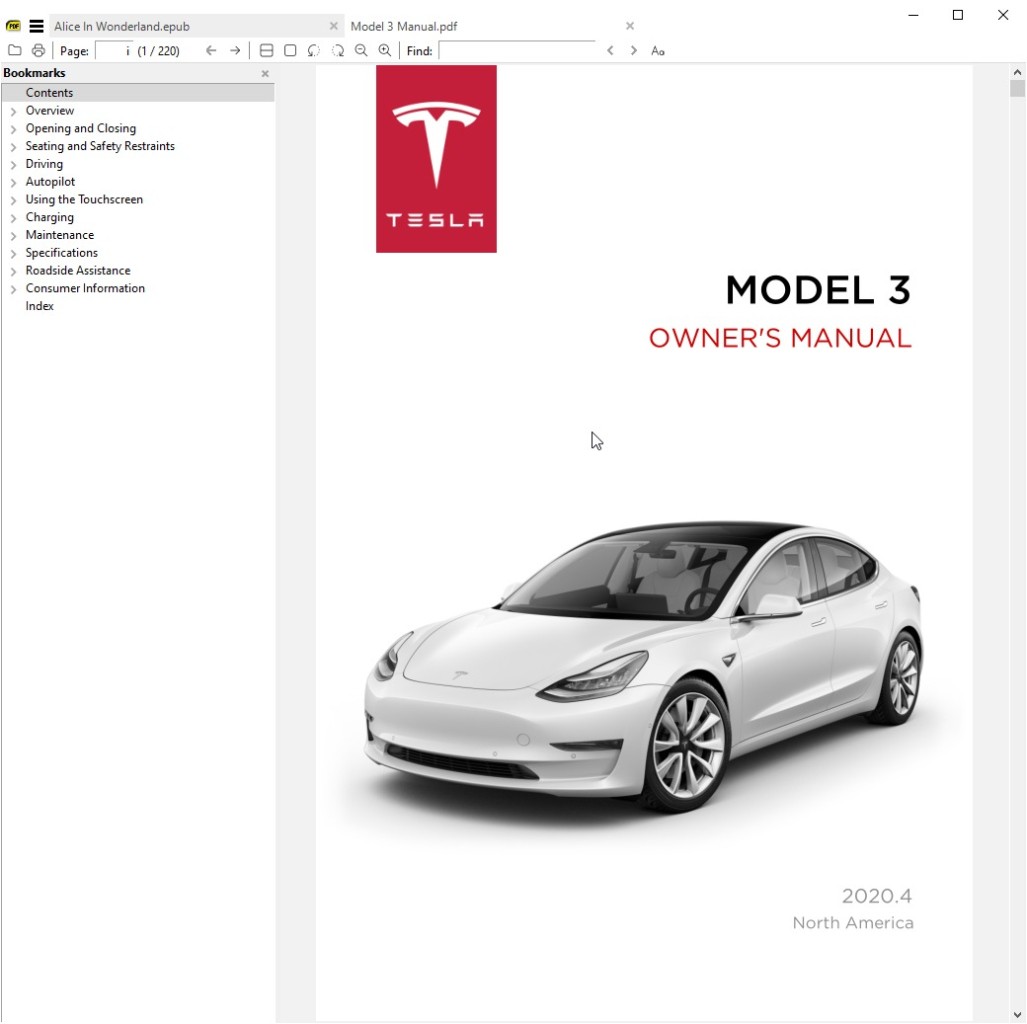
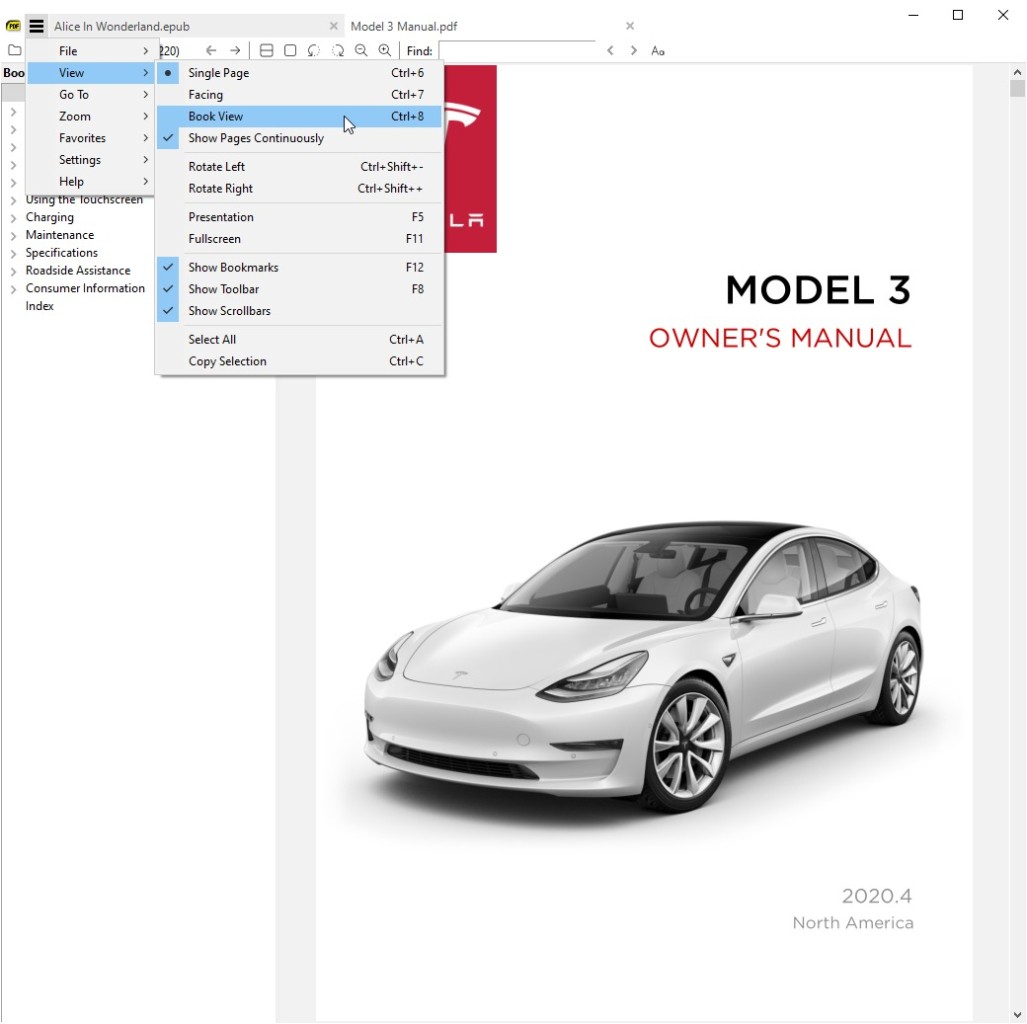
Sumatra PDF is a free PDF reader made for Windows. The software opens documents quickly and runs on almost any hardware. You install it, click a PDF, and it reads.
The main feature is speed. Sumatra uses only a few megabytes of RAM while competing readers consume hundreds. This matters on older computers or netbooks. A 50-page document opens in a fraction of a second instead of the five to ten seconds you might wait with heavier software.
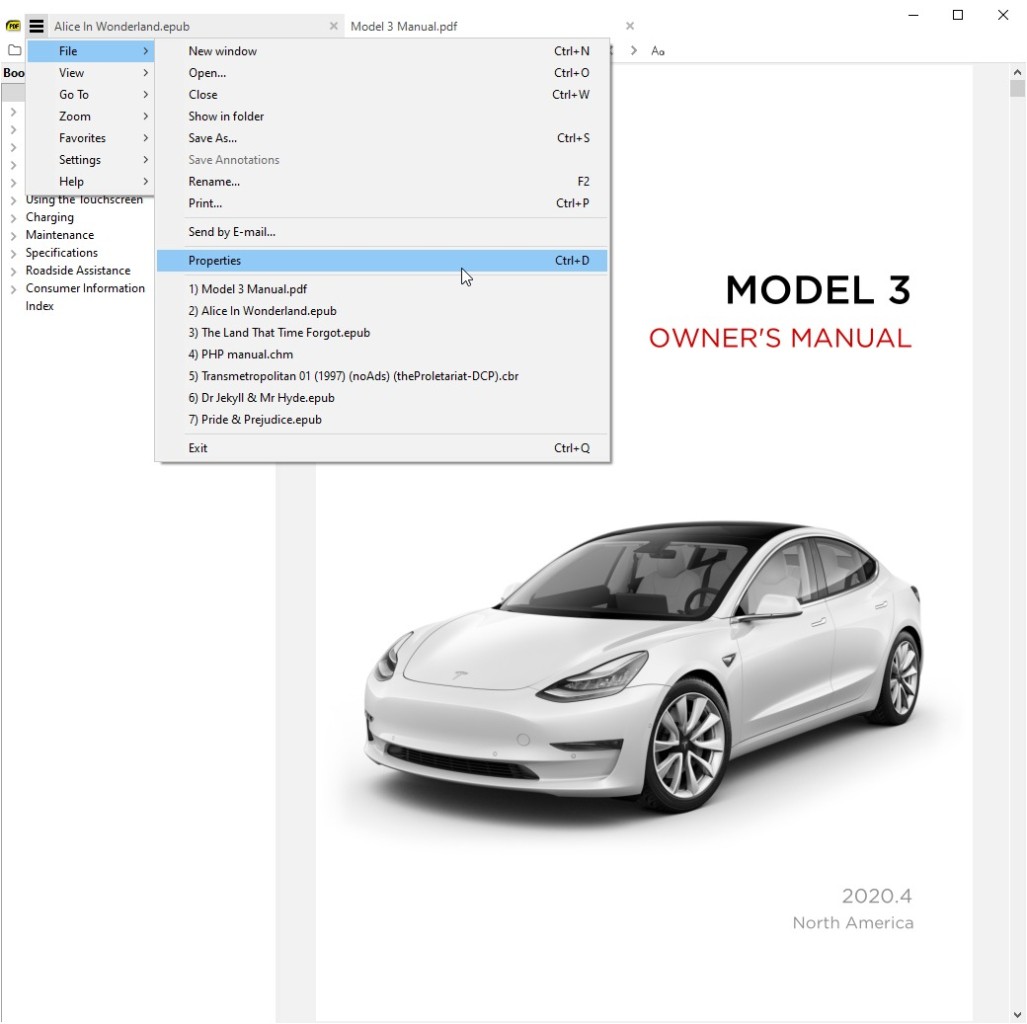
The interface is stripped down. You see the basic tools for moving through pages, zooming in and out, and searching text. There's no toolbar clutter, no sidebar panels trying to sell you upgrades, and no account login screens. It opens files and stays quiet.
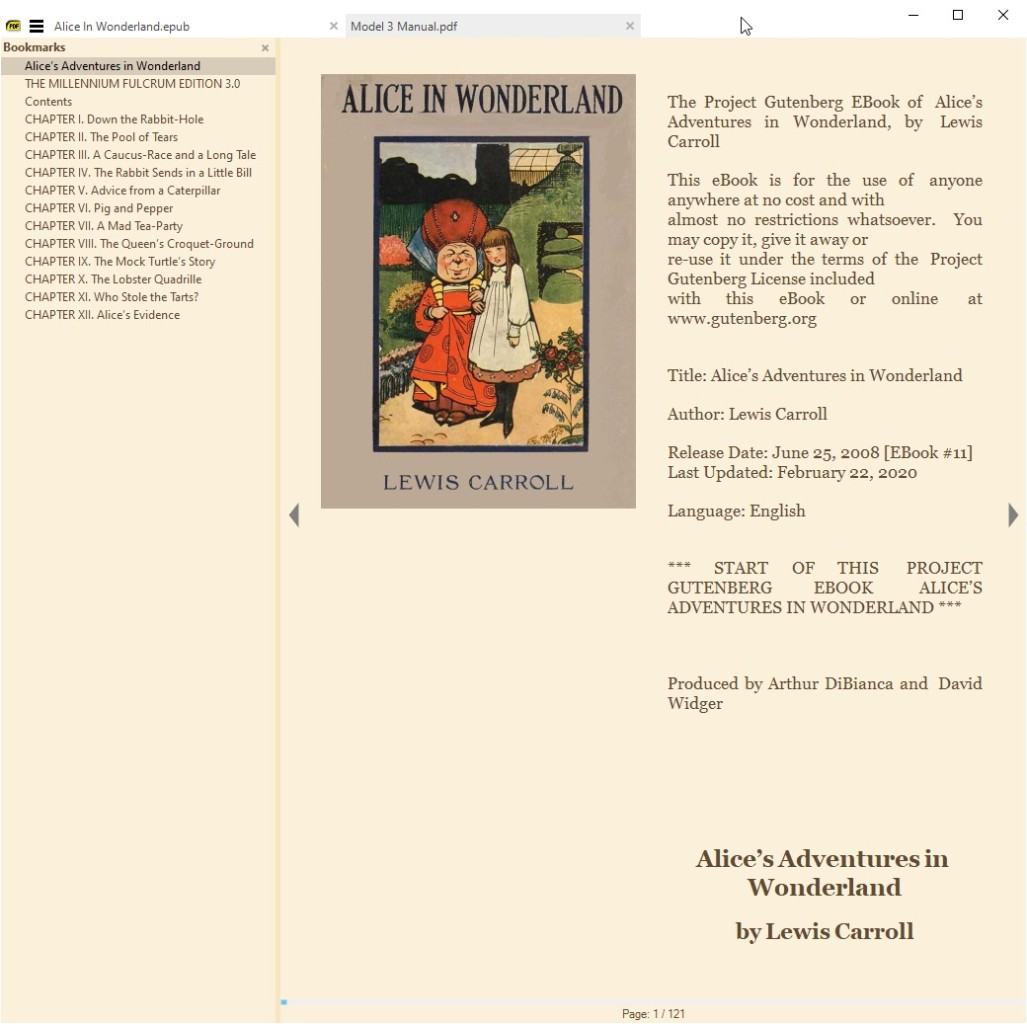
The software reads multiple formats. Beyond PDFs, Sumatra opens eBooks in EPUB format, scanned comics in CBZ and CBR files, and MOBI documents. If you read different document types, Sumatra handles them all in one application.
Sumatra comes from an open-source project. The code is published online so anyone can look at what it does. Users who value privacy appreciate that the software doesn't track activity or send data anywhere.
The catch is that Sumatra only runs on Windows. There's no version for Mac or Linux. If you're on Windows and you read PDFs regularly without needing to edit them, Sumatra solves the problem cleanly.
The software costs nothing. You download it free and use it forever with no time limits or feature restrictions. That covers casual users through to people who read PDFs for work.
Why should I download Sumatra PDF?
Download it if you read PDFs but don't edit them. Sumatra takes a different approach from most readers. Tools like Adobe Acrobat Reader were built for professionals handling complex documents. If you just need to open and read files, Sumatra wastes nothing on features you won't use.
System performance is the real reason to switch. On a laptop, every application you run drains battery life. Sumatra uses so little CPU that you might not notice it running at all. Open a PDF, read it, close it. The overhead is minimal.
Speed makes a difference when you work with large PDFs. A 200-page technical manual opens almost instantly. Adobe Reader takes ten to fifteen seconds to launch and load the same file. If you open dozens of documents per day, those seconds add up.
Sumatra handles multiple document types. You can read a PDF one moment and an EPUB eBook the next without switching applications. This simplifies your workflow if you consume different content formats.
The interface stays out of your way. You won't see notification bars pushing you toward premium versions. You won't get update prompts mid-session. You open a document and read it without interruption.
The software is completely free. No trial period that expires. No watermarks. No paywall hiding advanced functions. You get the complete application right from the first download and keep it forever.
Is Sumatra PDF free?
Yes, Sumatra PDF is free. Download it from the official website and use it at no cost. The software runs under an open-source license, so the source code is publicly available for anyone to examine.
There's no premium version. All features are available to everyone from day one. Some free software programs keep basic functions locked in the free tier and charge for advanced features. Sumatra doesn't work this way. You get the complete reader without paying.
You can also run Sumatra from a USB drive without installing it. This matters if you use computers where you can't install new software or want to carry the reader between machines. The portable version is free just like the installed version.
What operating systems are compatible with Sumatra PDF?
Sumatra PDF works on Windows. It runs on Windows XP and every version after that, including Windows 7, 8, 10, and 11. The software comes in 32-bit and 64-bit builds. If you use any modern version of Windows, you'll find a compatible version.
There is no version for Mac. There's no port to Linux. Users on other operating systems need different PDF readers.
You can run Sumatra from a USB drive or network share without installing it first. This helps in workplaces or schools where you can't install software on the computer itself. You can use it the same way from any storage device.
What are the alternatives to Sumatra PDF?
Foxit Reader is the closest alternative. Foxit also aims for speed and lightweight operation. The difference is that Foxit adds annotation tools so you can highlight text and add notes directly to PDFs. If you mark up documents regularly, Foxit makes more sense. If you only read, Foxit uses more memory and opens files slower than Sumatra.
Adobe Acrobat Reader is what most people use because it comes preinstalled on many Windows systems. Compared to Sumatra, Acrobat Reader is slow. It takes longer to open files and consumes significantly more RAM. Acrobat adds cloud sync features, advanced annotations, and form-filling that Sumatra doesn't have. For basic PDF reading, you're paying a heavy performance penalty to get features you won't use.
PDF-XChange Editor balances speed and features. It's faster than Acrobat but slower than Sumatra. You can annotate PDFs, fill in forms, and make basic edits. If you occasionally need to mark up or edit a PDF without switching to professional software, PDF-XChange occupies the middle ground between a simple reader and a full editor.
Adobe Acrobat Pro is the professional PDF tool. It handles heavy editing, creates forms, manages document workflows. The software is expensive and demands substantial system resources. Buy Acrobat Pro only if you work with PDFs professionally and need those capabilities.
Adobe Creative Cloud includes Acrobat Pro as part of the subscription. If you already pay for Creative Cloud to use Photoshop or other design tools, you get Acrobat Pro included. For someone who only reads PDFs, paying for the entire Creative Cloud suite doesn't make sense.
Sumatra works best for Windows users who read PDFs without editing them. You want the program to open fast and stay out of the way. If you need annotations, go with Foxit Reader. If you need basic editing, use PDF-XChange Editor. If you work with PDFs all day in a professional capacity, buy Acrobat Pro. Choose based on what you actually do, not on features that sound nice to have.