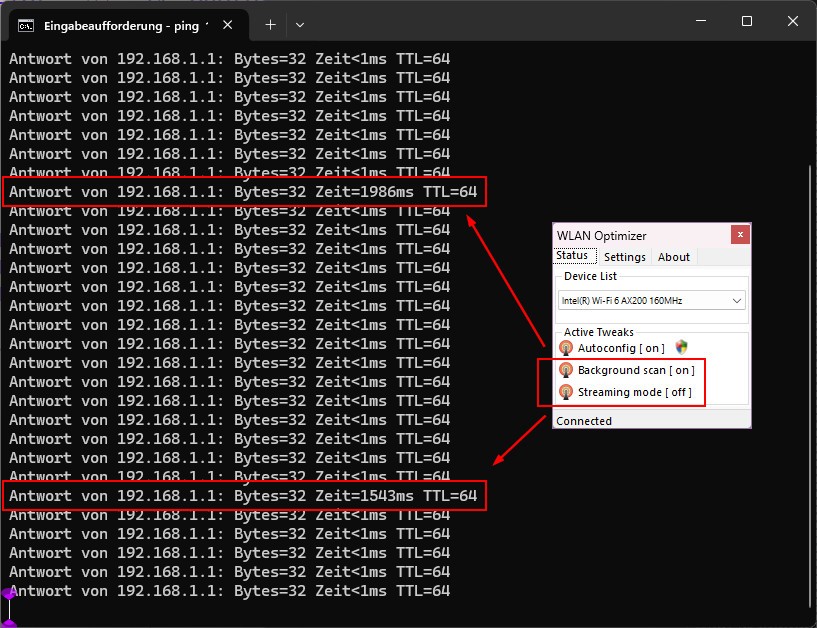
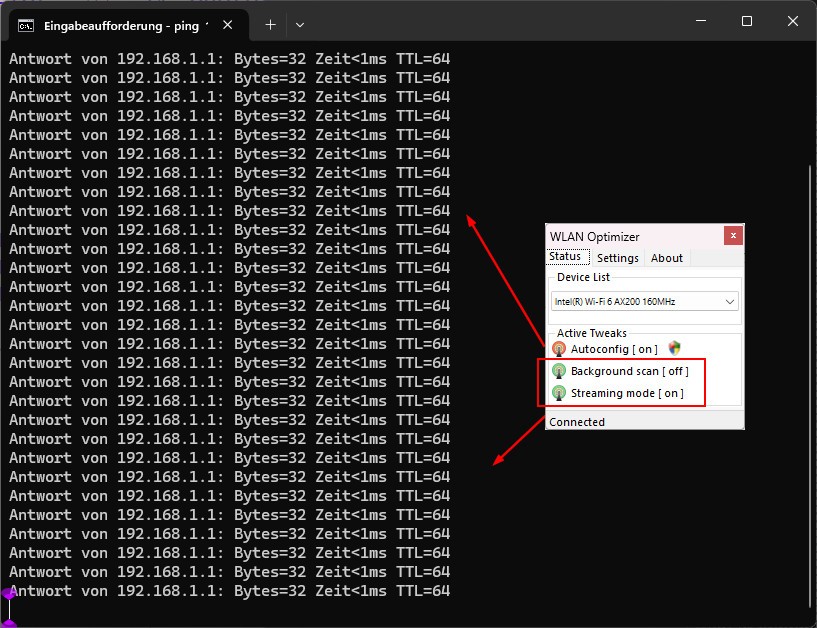
WLAN Optimizer is a small Windows utility that helps improve the stability of your Wi-Fi connection. It’s not a bulky program with a hundred settings you’ll never touch. Instead, it’s straightforward, focusing on one main problem that many users face without even realizing it: background scanning.
Windows devices, by default, constantly search for new wireless networks, even when you’re already connected. While that sounds harmless, those background scans can cause tiny interruptions in your current connection. For regular browsing, you may not notice, but for activities like gaming, streaming, or online meetings, those hiccups can make your experience frustrating.
What WLAN Optimizer does is simple—it stops those unnecessary scans. By turning them off, the program helps keep your connection smoother and more stable. You don’t have to tweak complicated menus buried in your system settings or mess with your router. Just install the software, choose the basic options, and let it run.
The best part? Once it’s up and running, you barely notice it. It sits quietly in the background, using almost no system resources, while keeping your Wi-Fi connection free from random disruptions.
Why should I download WLAN Optimizer?
The most obvious reason is consistency. If you’ve ever been in the middle of a game and seen your ping shoot up, or sat in a video call where the sound drops for a moment, you know how distracting unstable Wi-Fi can be. WLAN Optimizer helps cut down on those interruptions by stopping background scanning that causes lag spikes.
For gamers, this can be the difference between winning and losing. Imagine playing an online shooter or strategy game where every second counts. A split-second freeze can ruin your chance to react. By keeping the connection steady, WLAN Optimizer lets you focus on the game itself instead of your Wi-Fi acting up.
If you’re working or studying, the benefits are just as clear. Nobody enjoys explaining for the third time in a meeting, “Sorry, my internet cut out.” Video calls, online classes, and even casual chats flow more smoothly when your connection isn’t dropping randomly.
It also helps with streaming. Whether you’re watching Netflix, YouTube, or listening to music, buffering breaks the experience. WLAN Optimizer minimizes the chances of your stream pausing just when things get good.
Another reason is simplicity. Some optimization tools overwhelm users with graphs, statistics, and technical settings. WLAN Optimizer keeps it light. You get a clean interface with options like “disable background scan” or “enable streaming mode.” It’s easy enough that you set it once and don’t need to think about it again.
And let’s not ignore the cost factor: it’s free. Instead of buying new networking hardware or signing up for complicated services, you can try this no-cost solution that works with what you already have.
Is WLAN Optimizer free?
Yes, WLAN Optimizer is completely free to download and use. There are no hidden paywalls, premium upgrades, or trial periods. From the start, you get access to all of its features.
That makes it appealing for anyone on a budget, especially students or freelancers who depend on Wi-Fi but don’t want to pay for expensive optimization tools. Because it’s free, there’s no pressure. If it works for you, fantastic—you keep it running in the background. If not, you can uninstall it without losing anything.
The fact that it’s free doesn’t make it less effective. Many users report noticeable improvements, particularly in activities where stability is more important than raw speed. For online games, streaming, or calls, the difference can be significant.
In an era when so much software tries to sell you “pro” versions, WLAN Optimizer feels refreshingly simple. It does its job and doesn’t charge you for it.
What operating systems are compatible with WLAN Optimizer?
WLAN Optimizer was built for Windows. It works with older versions like Windows 7 and 8, and it runs well on Windows 10 too. Because it’s lightweight, it doesn’t ask for powerful hardware. Even an older laptop with modest specs can use it without problems.
There isn’t a version for macOS, Linux, iOS, or Android. This program is specifically for Windows machines. If you’re on another platform, you’ll have to look for alternatives that work with your system.
Still, for Windows users, especially those on laptops that rely heavily on Wi-Fi, it’s a valuable little tool. The installation is quick, and once it’s active, it doesn’t eat up memory or slow down your computer. Laptop users in particular will appreciate that it doesn’t drain battery life.
It’s efficient, reliable, and does exactly what it was designed to do—make your Wi-Fi connection smoother on Windows.
What are the alternatives to WLAN Optimizer?
Although WLAN Optimizer is effective, there is no other tool that can be used. In case you want to learn more about how to watch or adjust your Wi-Fi, then there are three more options that you should be aware of:
WIFI SCANNER is more of a diagnostic than an optimization-based tool. It will scan your surroundings, revealing all the surrounding networks along with the channels they are on. In case your router shares a channel with a number of neighbors, it is possible to be slowed down by the interference. WIFI SCANNER assists you in visualizing that and adjusting the settings of your router to a less busy channel, and enhancing performance.
Real WiFi is monitoring-oriented. It also gives you real-time details about your connection speed, signal strength, and reliability on Wi-Fi. Have you ever wondered why your internet slows down at particular times of day or why particular devices are slowing down the system? Real WiFi can provide the data to identify trends and debug.
WiFi Analyzer is a universal application that can be installed on several platforms, and WiFi Analyzer is used to check and test Wi-Fi power, determine which WiFi router channels work best, and also to debug problem areas. It is more technical than WLAN Optimizer, but it gives users the ability to explore and adjust their setup when they feel like it.