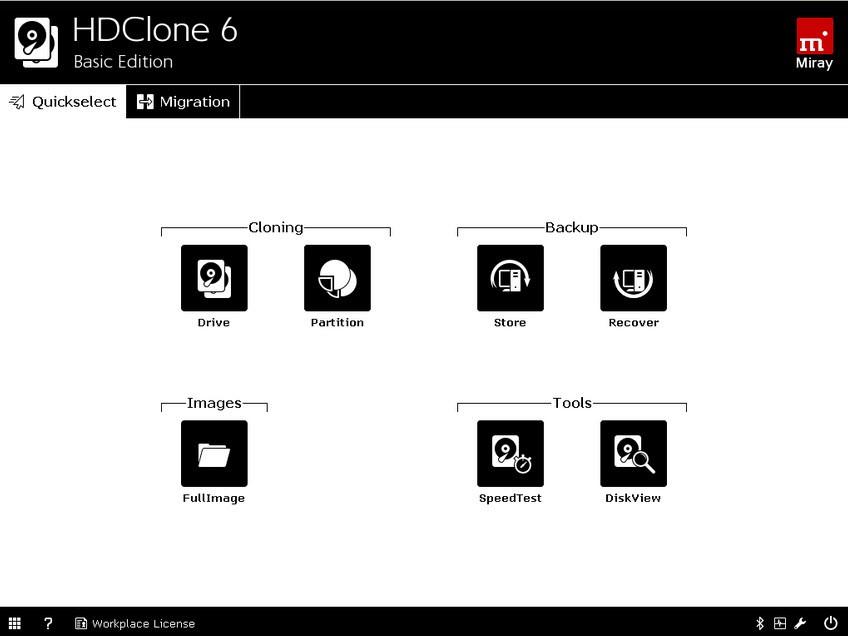
When you need to move everything from one hard drive to another, you can’t afford to make a mistake. Whether you’re upgrading to a larger drive, replacing a failing disk, or deploying the same setup across multiple machines, you need the best possible software. Developed by German software company Miray Software, HDClone is a disk cloning tool built for this exact type of work. It creates physical or logical copies of hard drives and other storage media while working at a level below the operating system. This ensures that partition schemes, file systems, and even proprietary formats that wouldn’t normally be accessible are handled safely.
HDClone runs as a self-booting application, meaning it operates independently of whatever operating system is installed on the drive you are working with. This is important for cloning because you avoid the complications that occur when your OS is running from the same disk you’re trying to copy. You boot HDClone directly from a USB drive or CD, and it takes over from there. The result is a complete, accurate copy of the source drive on the destination drive, including the boot sector and partition layout.
The software covers a wide range of use cases. Home users use it when upgrading an old hard drive to a newer, larger one, or when creating a reliable copy of their system drive before a risky change. IT professionals and technicians use it for deploying identical system images across multiple machines. HDClone also comes with a SafeRescue mode available in higher editions, specifically designed for extracting data from physically damaged or failing drives where a standard copy would simply stop at the first read error.
Why Should I Download HDClone?
HDClone's core function is drive-to-drive cloning, and it handles this across a broad range of hardware. IDE, SATA, eSATA, and USB connections are covered from the Free Edition upward. Higher editions add USB 3.0, Firewire, SCSI, and hardware RAID support, making the Professional and Enterprise editions suitable for more complex storage environments.
SmartCopy, available from the Standard Edition, copies only the used data on a partition rather than every sector, reducing copy time while allowing for cloning to smaller destination drives in some cases. Physical imaging copies every sector regardless of whether it is in use, which is useful for deep forensic or rescue work. Logical images, also called SmartImages, store only the used data in a compressed file, which can be password-protected in the Standard Edition and encrypted in the Professional Edition.
Upsizing and downsizing support means you can clone to a drive that is larger or smaller than the original, with the software adjusting NTFS and FAT partitions to fit the new size. This is super useful when replacing an old drive with a new one of a different capacity. HotCopy allows for cloning while the source drive is active, without you needing to unmount it first.
The SafeRescue mode, one of the specialist features in the higher editions, is designed specifically for damaged media recovery. Rather than stopping when it encounters read errors, SafeRescue repeatedly retries problem sectors and works around bad areas, extracting as much usable data as possible from a drive on its way out.
For large-scale deployments, the Enterprise Edition supports MultiCopy, cloning to 4, 8, or 16 target drives simultaneously from a single source, which saves considerable time when setting up multiple identical machines.
Is HDClone Free?
HDClone offers a Free Edition that handles basic drive-to-drive cloning with physical images and HotCopy, but it caps copy speed at 30 MB/s and is limited to drives under 2 TB. The free version doesn’t support partition copy, compressed images, or USB 3.0. For most straightforward home use cases involving standard-sized drives and basic cloning, the Free Edition is more than adequate.
Paid editions start with the Basic Edition and scale up through Standard, Advanced, Professional, and Enterprise tiers. Each successive edition adds more supported hardware, faster copy speeds, additional copy modes, image options, and features like SafeRescue and encryption. The Professional Edition removes the speed cap entirely. Pricing is per license and varies by edition. A portable version of the Professional Edition is also available for technicians who need to run HDClone on client machines without installation.
What Operating Systems Are Compatible with HDClone?
Because HDClone boots independently rather than running from within an installed OS, it works across a wide range of systems. The self-booting environment supports UEFI BIOS, and the software runs on machines running Windows XP through Windows 11.
Windows Server editions from 2003 through 2012 are supported in the Professional Edition and above. HDClone is a Windows-centric tool in terms of file system support, with NTFS and FAT handled natively, though it can clone any partition type at the sector level regardless of file system.
What Are the Alternatives to HDClone?
Clonezilla is a free, open-source disk imaging and cloning tool that covers similar ground to HDClone's Free and Standard editions. It boots from a USB drive or CD and handles partition and disk imaging for GNU/Linux, Windows, macOS, FreeBSD, and other systems. It supports a wide range of file systems and can save images to local disks, network shares, SSH servers, and NAS devices. Clonezilla Live is the single-machine version, while Clonezilla SE is a server edition capable of cloning dozens of machines simultaneously over a network. The main limitations are that its interface is command-line driven rather than graphical, and images cannot be individually browsed to recover single files. For users comfortable with a text-based setup who want a capable free cloning solution, Clonezilla is the best choice.
O&O DiskImage is a polished Windows backup and disk imaging tool from Berlin-based O&O Software. It creates full system backups, drive images, partition backups, and file backups, and includes hardware-independent recovery so a backup can be restored to a different machine than the one it was taken from. Version 22 introduced Fortress Mode, which runs the application in an isolated environment to prevent other processes from interfering with backup operations and supports direct forensic backups that capture a precise sector-level snapshot of the system. O&O DiskImage offers comprehensive VHD and VHDX virtual disk support, including incremental and differential backups of virtual machines. O&O DiskImage is a paid product with a free trial, and it runs on Windows 10 and Windows 11. It sits closer to the backup and recovery end of the spectrum than the pure cloning focus of HDClone, making it a better fit for users whose priority is scheduled data protection rather than drive-to-drive migration.
UltraCopier is a different kind of tool from HDClone, focused on file copying rather than disk cloning or imaging. Where HDClone works at the drive level, UltraCopier replaces the standard Windows file copy dialog with a more capable alternative that gives you better control over the copy process. It handles error and collision management, letting you decide whether to overwrite, skip, or retry files on a case-by-case basis, and provides more detailed speed and progress information than the default Windows behavior. UltraCopier is available in a free version covering the core copy functionality and a paid Ultimate version that adds checksum verification, pause and resume, speed limiting, and professional support. UltraCopier runs on Windows, Linux, and macOS, and is open source. Users who regularly move large numbers of files and want more reliable, controllable copying, rather than a tool for full drive duplication, should try UltraCopier.