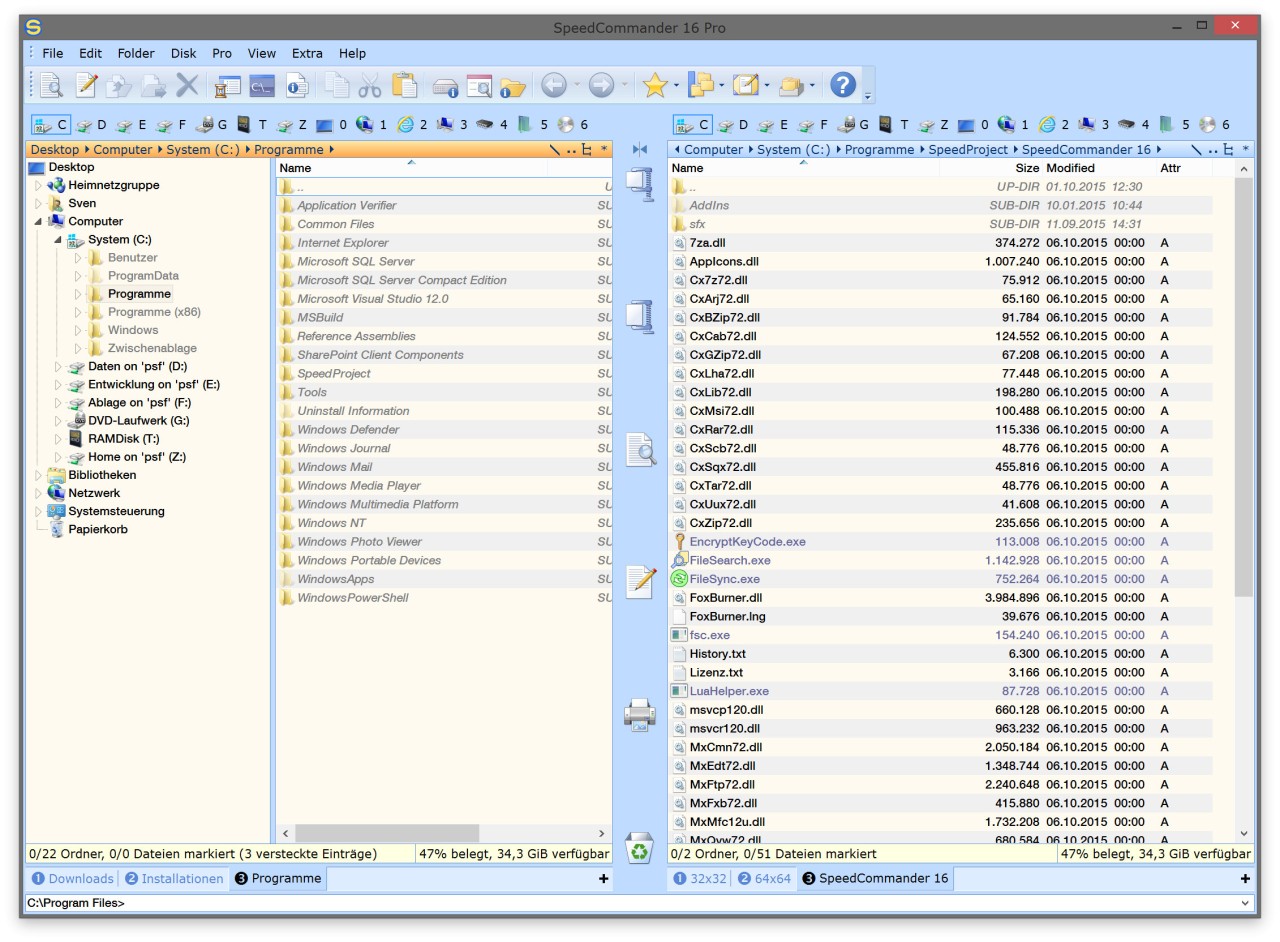
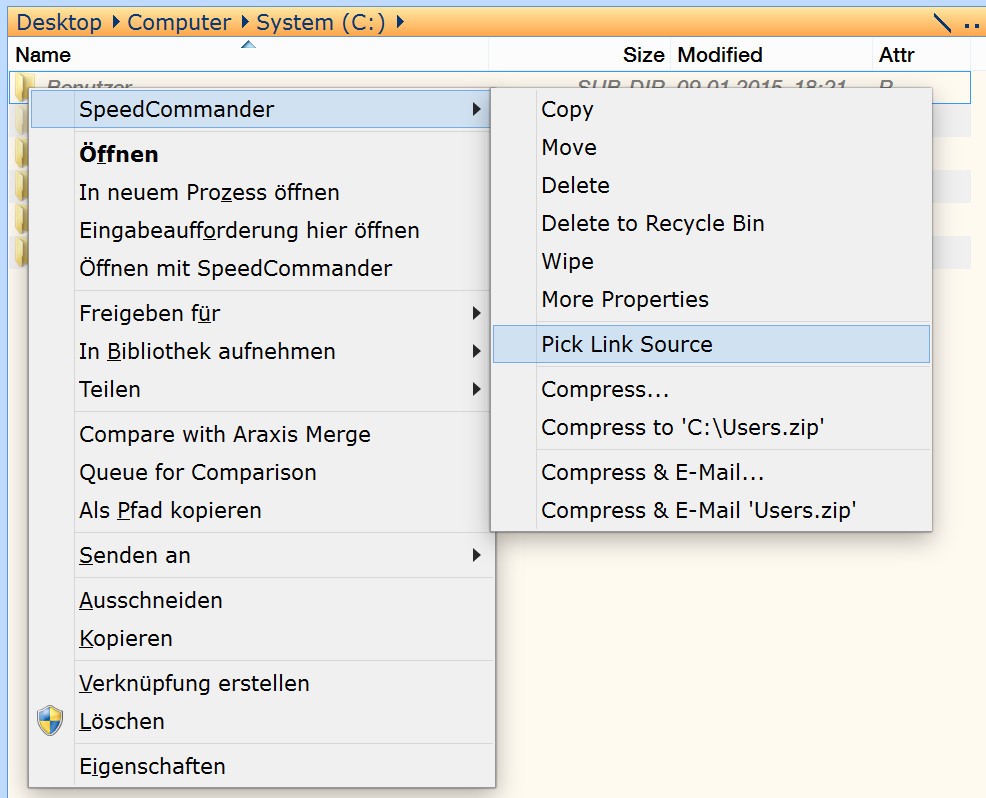
SpeedCommander is a Windows file manager that resembles the File Explorer on steroids. It displays two folders adjacent to one another, enabling you to move, copy, or compare files more rapidly. At first glance, it may look simple, but once you start using it, it completely changes how you manage files. The idea is simple: instead of juggling endless tabs, you just open two windows showing different locations side by side.
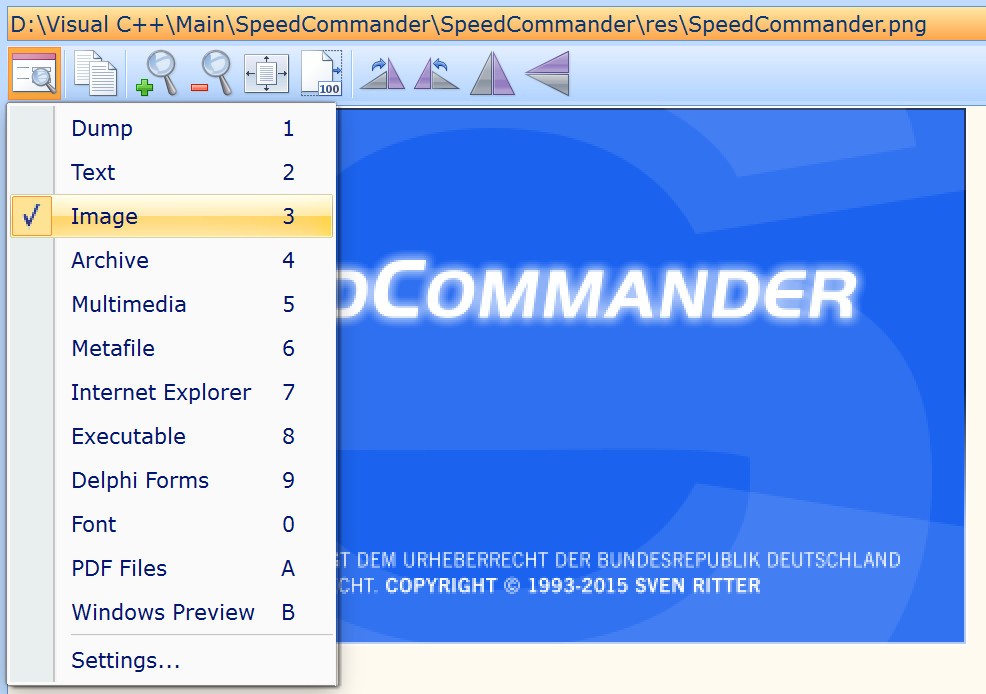
It’s been around for a long time and has built a loyal base among tech-savvy users who deal with large amounts of data or want more control. SpeedCommander can work with all kinds of archive formats: ZIP, RAR, TAR, etc. That’s why you can create or extract compressed files without any external applications. It has an in-built viewer and opens more than 80 file types, such as text, photos, audio, and videos, in the same window.
The program connects to FTP, SFTP, and cloud services, handling remote files just as smoothly as local ones. It also consolidates file-management activities, including folder management, automation, and data synchronization. The interface is not fancy, yet the software is effective and solid in cases when the user has to complete his or her task fast.
Why Should I Download SpeedCommander?
If you spend most of your day working with files, you’ve probably noticed how limited the default Windows File Explorer can be. It is good when working on small tasks, but transferring, sorting, or archiving large collections is cumbersome.
SpeedCommander is bright in that case. The dual-pane interface saves time as there is no need to switch between windows. Dragging between panes is instant, you can stack multiple copy jobs, and even sync folders to keep everything close and organized.
The program also does archives and remote connections without problems. Access a ZIP file like any folder, or attach to an FTP server and drag files in or out like any other drive. SpeedCommander also has cloud storage integration, which is an added advantage provided that you operate files across several devices and services. One app, one place, no switches.
It offers customization as one of its key advantages. Set nearly all the settings, layout, shortcuts, colors, and macros. When you have a repetitive task such as renaming files in a specific order, you can save it and execute it with one click of a button. The program doesn’t force a fixed workflow; you shape it to match the way you like to work.
SpeedCommander is aimed at advanced users. It presents numerous opportunities, and therefore, it is not easy to get accustomed to it. When you get into your pace, you hardly revert. People claim that it becomes a necessity when they fail to use another computer. It values efficiency more than beauty and performs.
Is SpeedCommander Free?
No, SpeedCommander isn’t free. You can get a trial and test any feature, but after some time, you are expected to buy a license. There are the Standard and Pro editions. The Pro version is supplemented by cloud connection and disc-burning capabilities. The license is a one-time purchase with no renewal fees.
What Operating Systems Are Compatible with SpeedCommander?
The program operates with Windows only. It works on Windows 7, 8, 10, and 11, both 32-bit and 64-bit. Since it’s tightly built around the Windows shell, there’s no macOS or Linux version. It may be run on Linux through Wine, but this is not official.
It can be installed regularly or installed in a portable build. The portable is best suited to technicians or IT personnel who travel across systems; it can be run from a USB stick, and all settings are saved. It runs just like a full installation, even when launched from a USB drive.
SpeedCommander is doing well. It opens fast and manages big folders without slowing down, and is stable even when performing bulky copy operations. Background processes do not have an impact on performance. It is compatible with the PCs of older generations as well, and with Windows 7 or 8, users can run it without any problems. It has a practical interface, not flashy, but practical.
What Are the Alternatives to SpeedCommander?
Total Commander is its primary competitor. It is quite old, and its interface looks outdated, but it is highly powerful. It, like SpeedCommander, also has a dual-pane display, archive support, FTP, plugins, and numerous shortcuts. It is light, dependable, and completely customizable. It is faster to learn and consumes less disk space, which makes it preferred by some users. The interface might not be polished, but its effectiveness makes up. Total Commander is a good option for users who consider pure performance and minimalism.
AB Commander is a bit less complicated. It also has dual panes, but with a user-friendly modern appearance. It does not have much automation or scripting of basic operations such as copying, renaming, syncing, or browsing. It is very convenient to use on all occasions, and those who do not like a crowded menu. It is easy to drag and drop, it is easy to switch panes, and it is easy to organize without the heavy setup of folders. It is compatible with Windows and is user-friendly and easy to use, unlike the default Explorer, where users have limited power.
XYplorer has another layout. It has tabbed browsing as opposed to dual panes like a web browser. You are able to create numerous folders at a time without cluttering up the desktop. It has advanced search, file tagging, scripting, and live preview of images, audio, and documents. The mobile version stands out; it can be executed on a USB stick anywhere. XYplorer is lightweight, customizable, and high-speed. It suits users who are not that structured but like being flexible.