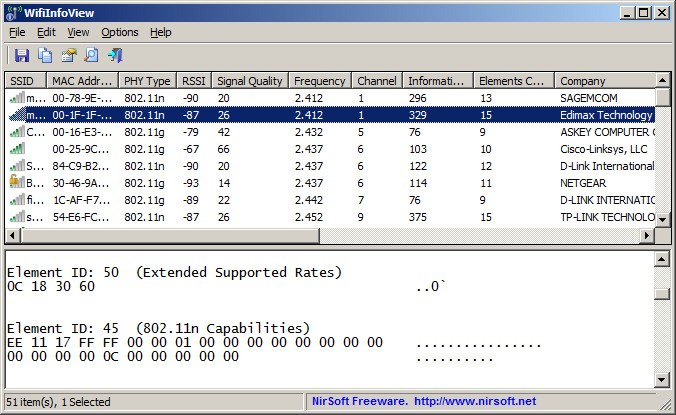
WifiInfoView is a small Windows application that can be used to examine the Wi-Fi networks around you. It is a portable application – just open the file, and it begins scanning automatically, and there is no need to install it. The interface has two panels. The upper panel shows all the identified networks. The bottom panel shows raw Wi-Fi data for whichever network you click on. It shows details that the default Windows list usually hides: SSID, MAC address, signal strength, channel, max speed, and router manufacturer.
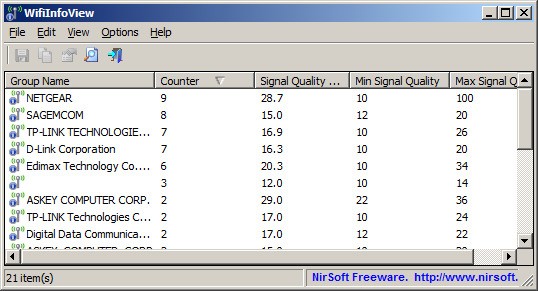
WifiInfoView was developed by NirSoft, which specializes in small, no-frills utilities. The tool is lightweight, portable, and straight to the point. It updates in real time, so you can actually see the signal strength shift as you move around. It also has a “summary mode” where you can sort networks by company, channel, or PHY type in case you are attempting to identify a congestion or overlapping signal. This tool shows everything happening on the wireless layer in one simple, straightforward window without all the clutter.
Why Should I Download WifiInfoView?
The information displayed in the Wi-Fi menu of Windows is just the network name and the strength of the signal. WifiInfoView provides all the information about the routers in the proximity, i.e., model numbers, MAC addresses, frequencies, and even the first time it was detected. This information can be used to troubleshoot or diagnose the interference when your internet seems to be unstable. One can sort the list by signal strength, spot crowded channels, and may find the brand of each access point given its company field.
The “Connect Selected Access Point” option is particularly useful for individuals who use multiple routers or repeaters at home. It also allows you to directly connect to a particular access point as an alternative to Windows choosing one with the same SSID. The tool indicates whether the network is 2.4 GHz or 5 GHz with the dual-band routers. It also lets you export results as .pcap files, which you can open in Wireshark for deeper analysis.
It’s small yet surprisingly deep. Even non-techies will have an idea of the congestion levels on the airwaves, the networks that are overlapping, and the routers that are in proximity. The fact that it is standalone also means that it does not require any installation or uninstallation. WifiInfoView is a silent tool that would get the job done and provide proper information to its users without noise.
Is WifiInfoView Free?
Yes. It was made available as freeware by NirSoft. You have the freedom to share it, provided you do not make any changes to it, and you do not sell it as a paid product. No pop-ups, subscriptions, or hidden junk. You just have to download the ZIP, unzip and run it. The program can be used for both personal and professional work and is free, as long as you share it without changing the original files.
What Operating Systems Are Compatible with WifiInfoView?
WifiInfoView is compatible with almost all modern versions of Windows known to run, including Vista, 7, 8, 10, 1,1, and Windows Server 2008. It supports 32-bit and 64-bit platforms. Windows XP is unsupported, since it does not have the Wi-Fi API that the tool needs.
It requires a matching wireless adapter and driver, which operate with the built-in wireless capabilities of Windows. Provided that your system does not acknowledge your adapter, you will be greeted with an error message stating that it cannot find a wireless adapter. In the case of 5 GHz scanning, the Wi-Fi card should have the capability of two-band networks. In Windows 11 on newer versions (e.g., version 24H2 and higher), use the location access settings in Privacy settings to allow the app; otherwise, it will show the error message Error 5: Access is denied.
The most optimal thing is, no installation or administration rights are required. You can even boot it out of a USB drive. It uses very few resources, doesn’t clutter your system, and starts scanning as soon as you open it. It is portable, and therefore, IT technicians carry it in their toolkits to be used in quick diagnostics or site surveys.
What Are the Alternatives to WifiInfoView?
NetSpot also provides a graphical method of Wi-Fi analysis. It creates signal graphs and heat maps so you can see where your Wi-Fi drops or overlaps. Although it is not portable, it is very useful in planning the coverage and the positioning of the router. NetSpot is both Mac-based and Windows-based and boasts a clean interface, not filled with heavy data tables. Basic scanning is free, but the advanced mapping tools are part of the paid version.
WLAN Optimizer is aimed at enhancing the performance of Wi-Fi and not at data collection. It minimizes lag or stutter caused by background scanning on Windows. Players and streamers utilize it to reduce ping spikes and mini connection drops. The only thing to do is to simply launch it and turn on the streaming mode, and it temporarily removes needless background checks. It is a one-executable file, does not require any installation, and works with any person who notices that the Wi-Fi is intermittent.
WiFi Scanner balances between images and depth. It enumerates local networks, including signal graphs and live information. It displays channel distribution, type of security, network speed, and manufacturer information, like WifiInfoView, though in a refined interface. It can be used when comparing the access points in various rooms or to test the coverage. WiFi Scanner can also export results and separate frequencies between 2.4 GHz and 5 GHz to detect interference. Although it is a bit heavier and a bit commercial, it offers a more convenient method to users who do not like to work with raw tables.