Firefox now includes a free VPN, built into the browser itself. It hides your IP address from the websites you visit and keeps café or hotel Wi-Fi from seeing which sites you open, with no separate app to install. The button can be hard to find.
It doesn’t appear on every computer, Mozilla is still rolling the feature out region by region, and the phone version works differently from the desktop one. Once you know where to look, setting it up takes about a minute.
Firefox VPN: Four-Step Setup
- Update Firefox to the latest version. The built-in VPN requires Firefox 149 or newer.
- Click the VPN icon to the right of the address bar and select Get started.
- Sign in with a Mozilla account, or create one for free.
- Select Turn on VPN, then pick a location if you’d rather not use the Recommended one.
How to Enable Firefox VPN on a Computer
Start by updating Firefox. The VPN arrived in Firefox 149, and newer versions add locations and fixes. Open the menu, go to Help, and select About Firefox to install the latest release. After the restart, the VPN icon should appear to the right of the address bar on Windows, macOS, and Linux, once the feature is available in your region.
Click the icon and select Get started. Firefox then requires a sign-in with a Mozilla account, the same free account used for Firefox Sync. When I set it up with a new account, Firefox showed one more screen before the VPN panel, and I selected Continue there.
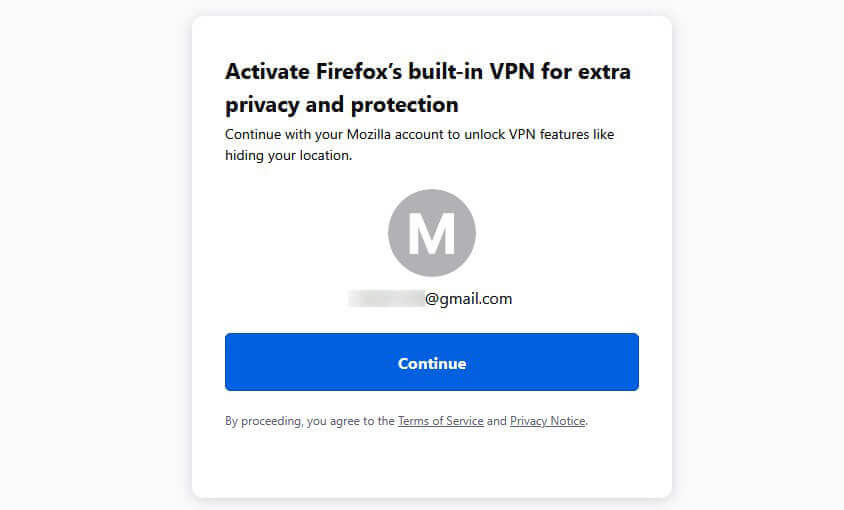
Finally, select Turn on VPN in the panel. From then on, the same icon opens the panel to disable the VPN, change its location, or check its status.
Choose a Location or Exclude a Site
Firefox connects to a Recommended location by default, which picks the best location for your connection. To choose your own, click the location in the VPN panel. On desktop, Mozilla currently offers six locations: the United States, Colombia, Germany, Japan, South Africa, and Australia. The panel also has a switch that disables the VPN on the site you’re on.
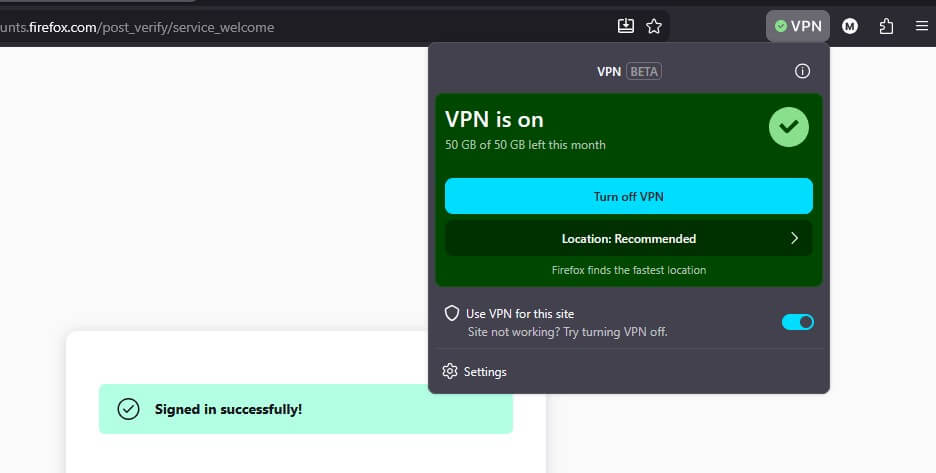
Use it for a banking site that requires extra checks or a store that shows the wrong currency, while your other tabs stay on the VPN. Firefox saves these sites as exceptions. To edit them, open Settings, go to Privacy & Security, scroll to VPN, and select Manage website settings.
Some websites, such as YouTube, react to VPN traffic with a sign-in request. In that case, Mozilla recommends switching to another location, refreshing the page, or disabling the VPN for that site only.
Firefox VPN on Mobile
On Android, the VPN is part of Firefox from version 156 in supported regions. Tap the three-dot menu, open Settings, select VPN, and enable it, then sign in with your Mozilla account. Choosing a location requires Firefox 157 or newer, and Android has the same 50 GB monthly allowance as desktop.
On iPhone and iPad, however, Firefox has no built-in VPN yet. Mozilla has said an iOS version will follow but hasn’t given a date. Until the iOS version arrives, a VPN app for iPhone is the way to protect Firefox and the other apps on the device.
Firefox VPN Not Showing? Try These Fixes
A missing VPN icon usually has one of these causes:
- An older version: versions before Firefox 149 have no VPN, so update from Help and About Firefox.
- Your region: Mozilla lists more than 200 regions. Countries without it include China, India, Iran, Turkey, the UAE, Saudi Arabia, Pakistan, Egypt, and Vietnam.
- The rollout: Mozilla enables the feature gradually, so it can be missing even in a supported region.
- Remote improvements: in Settings, under Privacy & Security, enable “Allow Firefox to improve features, performance, and stability between updates.”
- A study: type about:studies in the address bar. If the “VPN – MVP Beta Holdback” study is listed, Firefox is keeping the VPN hidden on that profile.
- A work computer: type about:policies. An active IPProtectionAvailable policy means your organization has disabled the VPN.
- A removed button: selecting “No thanks” during setup removes the icon. Right-click the toolbar, select Customize Toolbar, and drag it back.
- Your account: make sure Sync is enabled and you know your password, then sign out of your Mozilla account and back in.
The browser.ipProtection.enabled Setting
Firefox also has a hidden setting for the VPN. Type about:config in the address bar, accept the warning, and search for browser.ipProtection.enabled. If it reads false, double-click it to change it to true, then restart Firefox. If the search finds nothing, create it as a Boolean setting, and set it to true.
Mozilla doesn’t present this setting as a way around its region list, though, so it may not help in a country where the VPN isn’t offered. A related setting, browser.ipProtection.added, only records whether Firefox has placed the button on the toolbar.
What Firefox VPN Covers
Firefox VPN protects only what you do in Firefox. Your email app, games, streaming apps, and torrent client still use your own IP address. Technically, it’s an encrypted proxy built into the browser. Mozilla runs the service on servers operated by the cloud company Fastly, and the lookups that turn site names into IP addresses also go through the VPN.
The allowance is 50 GB a month. When you use it up, the VPN pauses until the next calendar month begins. Mozilla says it collects technical data, such as whether connections succeed and how much data you use each day, and that it never logs the websites you visit.
Speed depends on the location, and the distant ones are slower. When we tested it], the US location was fine for browsing and HD video. Still, it was far slower than a full VPN on a US server:
| Connection | Download | Ping |
| No VPN (our baseline) | 190.36 Mbps | 10 ms |
| Firefox VPN, US location | 28.46 Mbps | 199 ms |
| NordVPN, US server | 181.50 Mbps | 118 ms |
Firefox VPN vs. Mozilla VPN
Mozilla VPN is a separate, paid app that encrypts all traffic on the device, from your email client to your streaming apps. It uses the same servers as Mullvad VPN, with Mozilla’s own apps and accounts on top.
| Firefox VPN | Mozilla VPN | |
| Price | Free | About $5 a month on the annual plan |
| Protects | Firefox only | The whole device |
| Data | 50 GB a month | Unlimited |
| Servers | Fastly | Mullvad’s network |
| Apps | Firefox for desktop and Android | Windows, macOS, Linux, Android, iOS |
If you already subscribe to Mozilla VPN, Mozilla recommends removing the Firefox VPN button so the two don’t overlap. On Windows, subscribers can install the Mozilla VPN extension instead. Our Mozilla VPN review goes into more detail.
When a Full VPN Is the Better Choice
Firefox VPN is enough for light browsing on public Wi-Fi. A full VPN makes more sense when you want protection for every app, more locations, or no monthly limit.
We recommend NordVPN, which protects the browser and every other app at once, with no data cap. On the same connection we used for Firefox VPN, its US server was more than six times faster, enough for 4K streaming. Its Firefox add-on also works on its own when you only want the browser covered. T
he app has more settings than Firefox’s simple switch, though, so stick with Quick Connect while you learn it. If you’d rather stay free, Proton VPN’s free plan protects the whole device with no data cap, although it picks the server for you. For browser add-ons alone, see our free VPNs for Firefox.
Other Browsers With a Built-In VPN
Firefox joined a few other browsers that include a VPN:
- Opera: free, with no data limit, three regions, and browser-only protection
- Microsoft Edge: Secure Network, run by Cloudflare, with 5 GB a month and browser-only protection where Microsoft offers it
- Vivaldi: Proton VPN’s free tier on desktop, browser only, with no data limit
- Brave: a paid VPN that covers the whole device
Final Thoughts
Using Firefox VPN takes a minute once the button is there: update Firefox, click the icon, sign in with a Mozilla account, and enable it. When the icon is missing, updating Firefox and enabling remote improvements are the first two things to check. Android has it now, while iPhone users still have to wait.
The free allowance covers everyday browsing away from home. For other apps, streaming, or large downloads, NordVPN is the simplest upgrade, and it ranks among the best VPNs we’ve tested.
Firefox VPN FAQ
Does Firefox have a built-in VPN?
Yes. Firefox includes a built-in VPN on desktop and Android, rolling out region by region. It requires a Mozilla account and covers traffic in the Firefox browser only.
Is Firefox VPN free?
Yes. The built-in VPN costs nothing, within a monthly data allowance. Mozilla VPN, the company's whole-device service with apps for computers and phones, is a separate paid subscription.
Does Firefox VPN work on iPhone?
No, not yet. Firefox for iOS doesn't include the built-in VPN, and Mozilla hasn't announced a release date. On an iPhone, masking the IP address requires a separate VPN app.
Is Firefox VPN safe?
Yes, for everyday browsing. It encrypts Firefox traffic and hides the IP address from websites. Mozilla says it never logs the sites visited, and Fastly, which operates the servers, says the same.
How do you turn off Firefox VPN?
Open the VPN panel from its toolbar icon and choose Turn off VPN. To keep it running everywhere except one website, use the panel's site switch or the exception list in Settings.
Why won't Firefox VPN turn on?
Usually because the monthly data allowance is used up, the feature isn't available in the region yet, or remote improvements are disabled in Firefox's privacy settings. Updating Firefox fixes many other cases.