YouTube TV builds your channel guide around where it thinks you are. Local stations, regional sports networks, and many live games follow the ZIP code on your account, so a work trip to another state, a recent move, or a blacked-out game can change what’s on screen overnight.
Outside the US, the service shows an error instead of channels.
You can change your location on YouTube TV, and Google even offers two official ways to do it. Both come with strict limits, however, and YouTube TV checks more than your IP address, so many VPNs fail here. Here’s how to get the right local channels back, whichever situation you’re in.
Change Your YouTube TV Location: Short Guide
- Subscribe to ExpressVPN and install its app on your Windows PC or Mac.
- Install the ExpressVPN browser extension for Chrome, Firefox, or Edge, and enable Spoof your location in its menu.
- Connect to a US server in the city whose channels you want.
- Clear your browser’s cache and cookies, then sign in at tv.youtube.com.
- Allow location access when YouTube TV requires it, and your new local channels will appear.
How YouTube TV Decides Where You Are
Local channels on YouTube TV come from licensing deals. TV networks and sports leagues decide where their broadcasts can be shown, so a viewer in New York sees different locals than one in Los Angeles, and outside the US, the service isn’t licensed.
To apply those rules, YouTube TV keeps two locations on file: your home area, set by the ZIP code you entered at sign-up, and your current playback area, which is where you are right now. It checks your current location in several ways:
- IP address: Your IP address tells websites roughly where you’re connecting from. A Chicago IP address receives Chicago’s local channels.
- Browser location: On tv.youtube.com, local channels can require location access. Your browser then reports where you are from nearby Wi-Fi networks, and a VPN alone leaves that reading unchanged.
- Phone GPS: The mobile app reads your phone’s GPS, which pinpoints you far more precisely than an IP address. It’s the same check behind which NFL games you can watch outside your market.
- Verification page: Smart TVs have no GPS, so YouTube TV sends you to tv.youtube.com/verify on your phone and uses the phone’s location instead.
Google is open about blocking VPNs, too. Its help page states that YouTube TV content won’t stream over a VPN or proxy, and in practice, it blocks IP addresses it recognizes as VPN servers. The VPN you choose decides most of the outcome.
Official Ways to Change Your YouTube TV Location
Before you pay for a VPN, check whether YouTube TV’s own settings cover your situation. Both options follow its terms of service, and both require you to be physically in the place you’re switching to.
Change Your Home Area After a Move
Your home area decides your local channels, your regional sports networks, and what you can record. Change it only after a permanent move:
- Go to tv.youtube.com and sign in.
- Select your profile photo, then Location.
- Select Update next to Home area.
- Allow location access so YouTube TV can confirm you’re in the new area.
- Follow the prompts. The new local channels appear once the change goes through.
YouTube TV allows only two home area changes in any 12 months, and it won’t accept a new home area unless you’re there. In a family group, only the family manager can change it.
Update Your Current Playback Area While Traveling
Away from home but still in the US? The current playback area switches your locals to wherever you are, as often as you like:
- Enable location services on your phone or computer.
- Open YouTube TV, select your profile photo, then Location.
- Select Update next to Current playback area and allow location access.
- On a smart TV, select Location, then Current Playback Area, and finish the check on your phone at tv.youtube.com/verify.
Note: This change is temporary and leaves your home area as it was. Outside your home area, you can watch the locals where you are, but you can’t record them or watch your home stations. Google also recommends using the service in your home area at least once every three months to keep the right locals. From abroad, neither setting helps, because YouTube TV won’t verify a location outside the US.
How to Spoof Your YouTube TV Location With a VPN
When the official settings can’t help, a VPN can. It replaces your IP address with one from a US server, and on YouTube TV, it also has to make your browser report the same location.
That second part is called location spoofing: your browser shows websites a made-up position that matches the server. The principle is the same as changing your Netflix region, with one extra layer. We tested several VPNs on tv.youtube.com, and ExpressVPN required the fewest steps, so it’s the one in this tutorial.
Step 1: Install ExpressVPN on Your Computer
Subscribe to ExpressVPN, then download and install its app for Windows or Mac and sign in. The browser extension works as a remote control for this app, so install the app first.
Step 2: Install the Extension and Enable Location Spoofing
On YouTube TV, simply changing your IP address often isn’t enough, because local channels also check your browser’s location. Install the ExpressVPN extension for Chrome, Firefox, Edge, Brave, or Vivaldi, open its main menu, and make sure Spoof your location is enabled.
Your browser then reports the location of the server you’re connected to instead of where you are.
Step 3: Connect to a US Server in the Right City
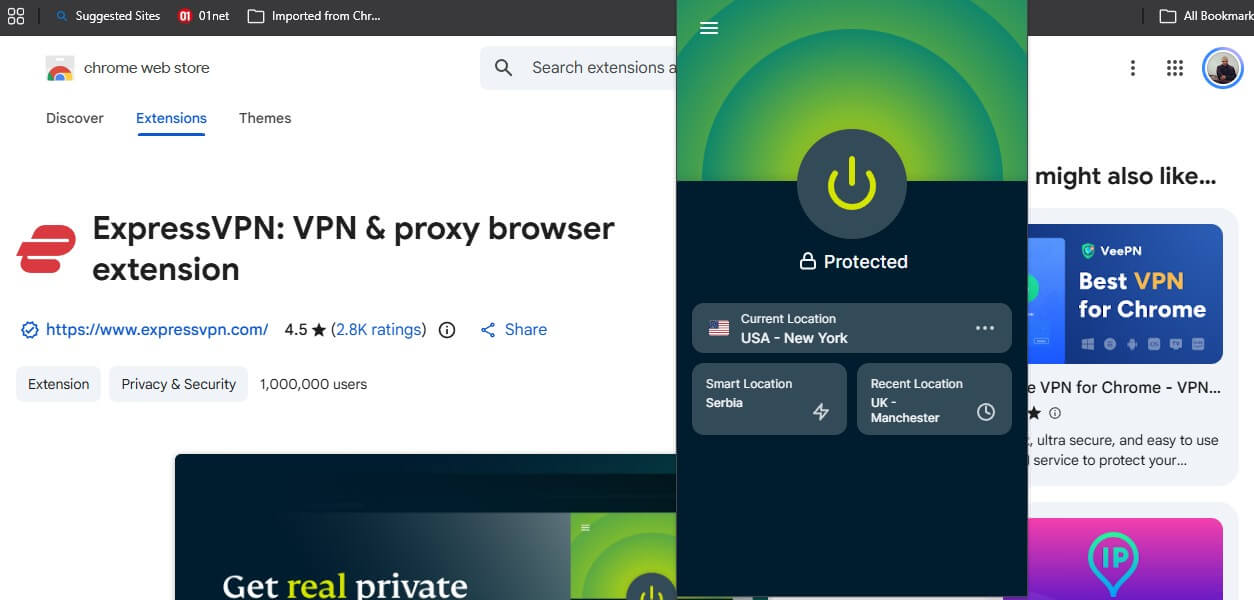
In the extension, pick a server in the city whose channels you want. Want New York’s locals? Connect to New York. The same goes for Los Angeles, Chicago, or any other US city in ExpressVPN’s server list.
Step 4: Clear Your Browser’s Cache and Cookies
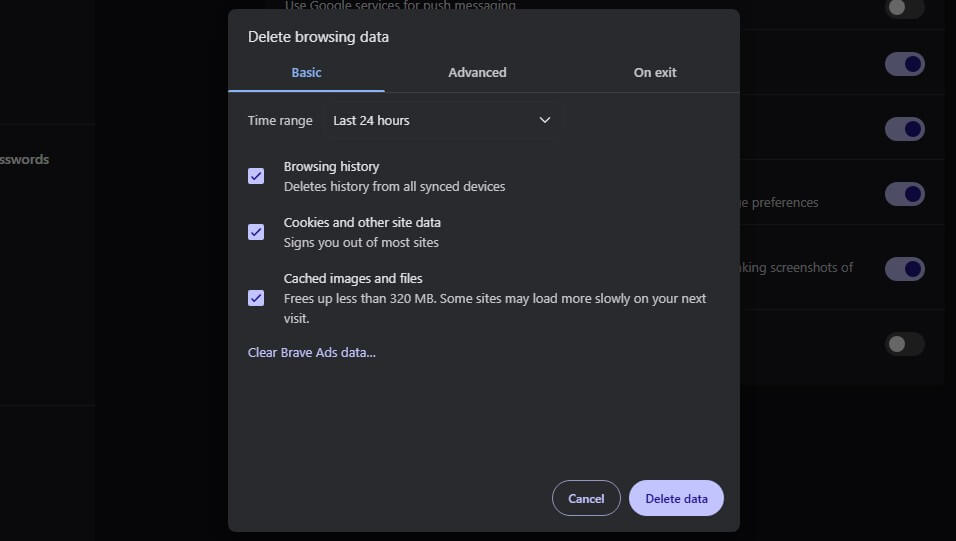
Before you open YouTube TV, clear your cache and cookies so the site can’t read your real location from data it stored earlier. Google’s own help page lists this as a fix for location problems. Wipe the browsing data, but keep your passwords and sign-ins, so you don’t have to log back in everywhere.
Step 5: Sign In and Confirm Your Area
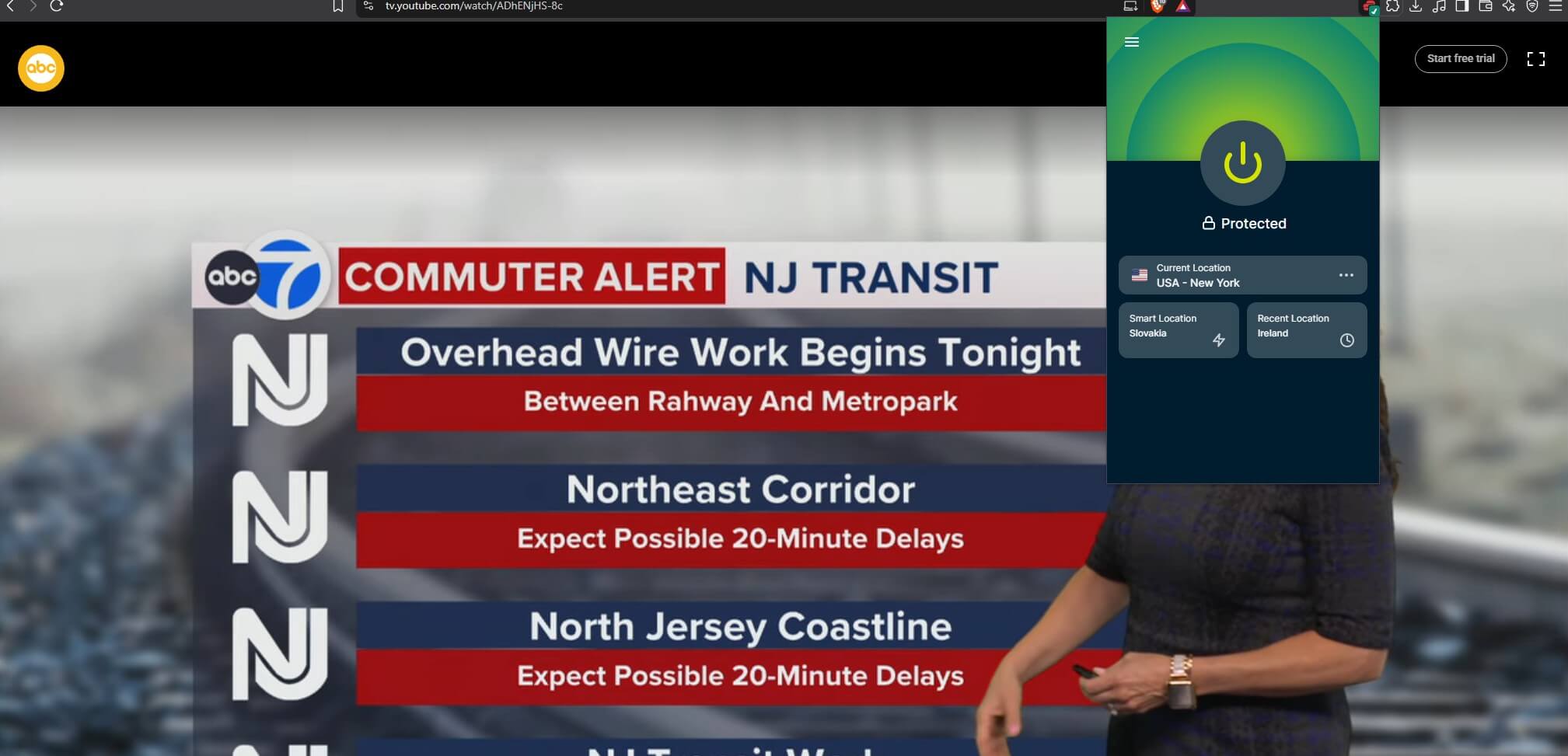
Open tv.youtube.com and sign in. When a local channel requires location access, allow it, and YouTube TV reads the spoofed location instead of your real one. If the guide still shows your old locals, select your profile photo, then Location, and update your current playback area.
One warning from our tests: allowing location access without spoofing exposes your real location, and YouTube TV then stopped every stream, including cable channels. If that happens, set the site’s location permission back to Block in your browser settings and reload the page.
A VPN or proxy error usually means that server was detected, so connect to another one in the same city and clear your cookies again.
Phones, Smart TVs, and iPhones
The browser method works best on a computer. Other devices check your location in different ways, and faking a location on a phone takes its own tools:
- Android: The YouTube TV app reads your phone’s GPS. Surfshark’s Android app has a GPS override setting that moves your phone’s reported location to the server you connect to, once you choose Surfshark as the mock location app in Developer options. We tested it with the YouTube TV app, and the app accepted the server’s location.
- iPhone and iPad: iOS doesn’t let apps change your GPS location, and the YouTube TV app requires Location Services, so it always reports where you actually are. Change your location in a computer browser and watch there instead.
- Smart TVs and streaming sticks: The TV confirms your area through your phone at tv.youtube.com/verify, so a VPN on the TV alone rarely works. The simplest option is to connect a laptop using the browser method to the TV with an HDMI cable. To use the VPN on the TV itself, start with a VPN that has a Fire TV Stick app.
VPNs That Worked With YouTube TV
YouTube TV detects and blocks many VPN servers, and two well-known names failed here. NordVPN and Private Internet Access didn’t work with YouTube TV in our tests. Three VPNs did, and our YouTube TV VPN rankings compare them in more detail.
| VPN | Cable channels | Local channels | Setup for local channels |
|---|---|---|---|
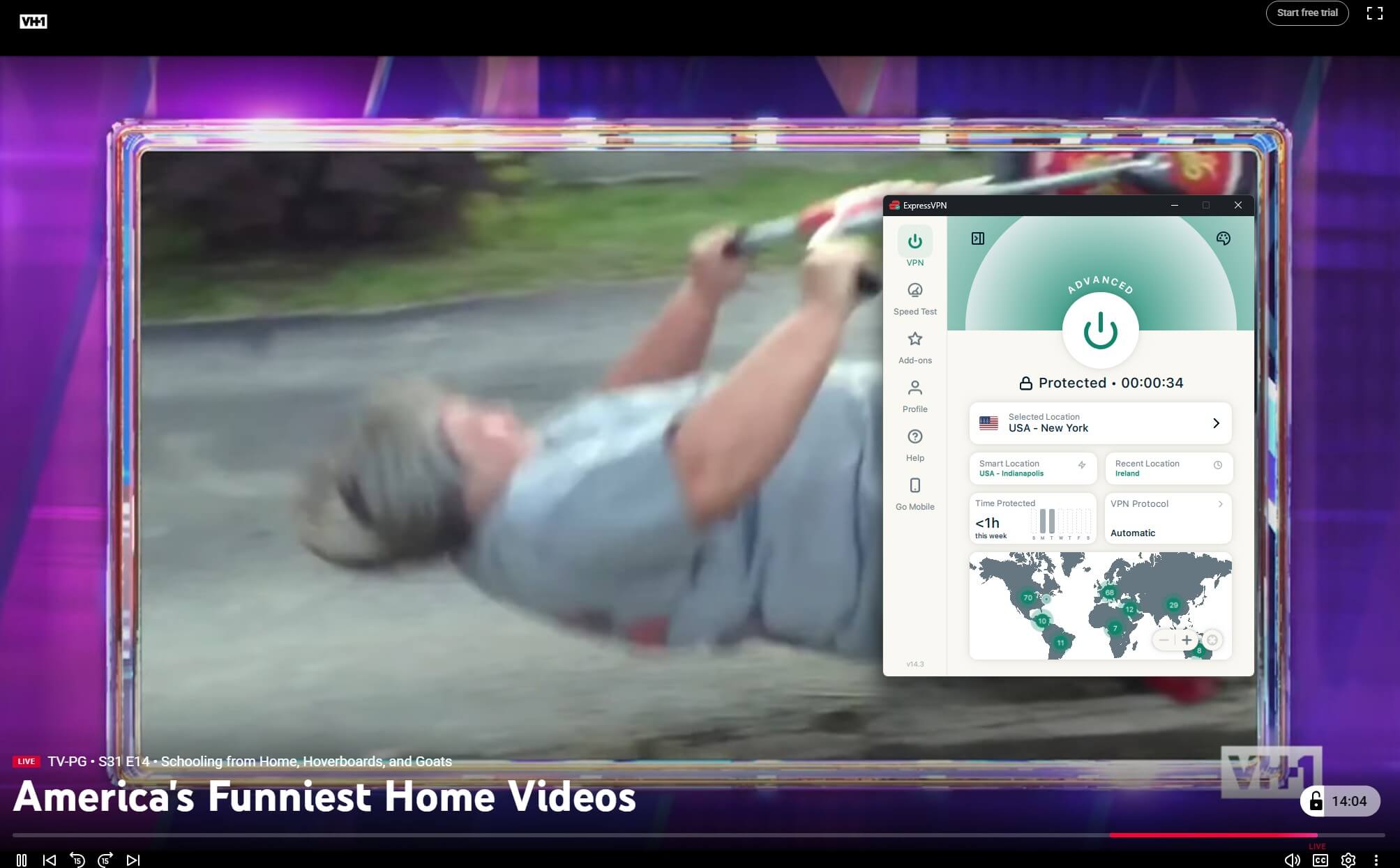
| ExpressVPN | VH1 worked | ABC 7 New York worked | Extension location spoofing |
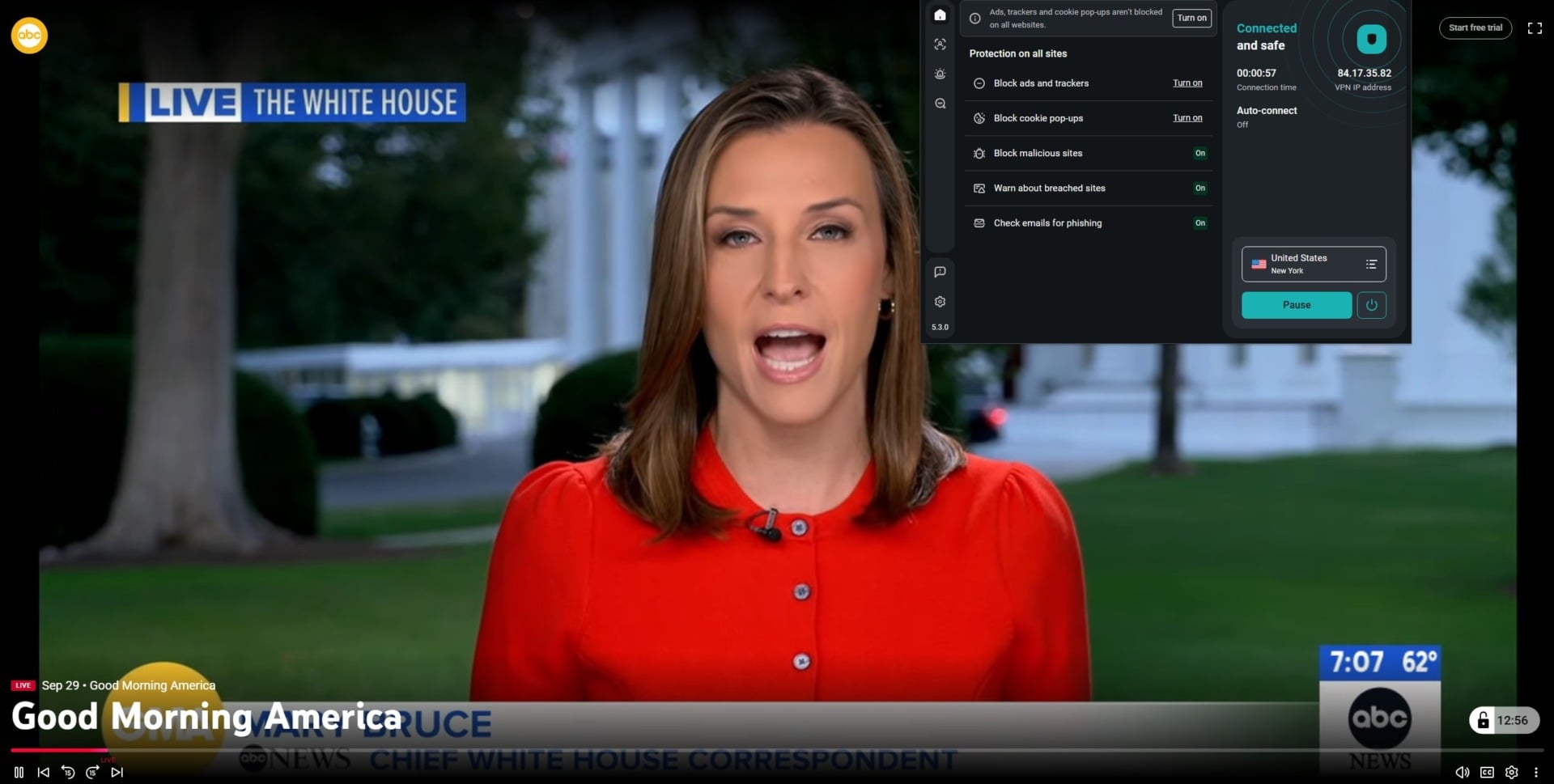
| Surfshark | VH1 worked | ABC 7 New York worked | Extension location spoofing |
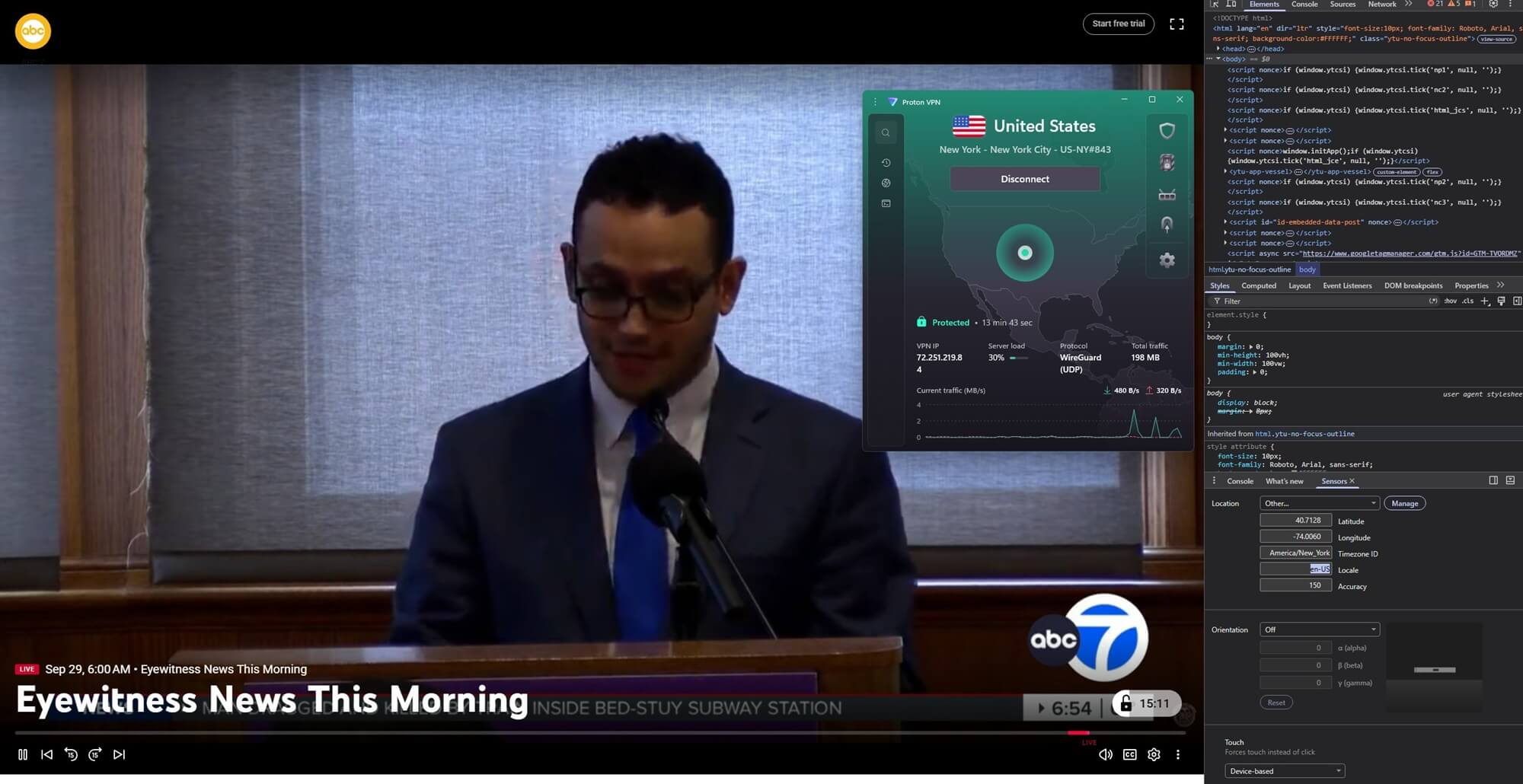
| Proton VPN | Bravo and ESPN worked | ABC 7 New York worked | Manual location override in Chrome |
1. ExpressVPN: Best for Local Channels in a Few Clicks
Pros
- Spoof your location in every extension
- Unblocked cable and local channels
- Extensions for five browsers
- Fast Lightway protocol
- Apps for TVs and streaming sticks
Con
- Location spoofing only in desktop browsers
ExpressVPN made the whole process the easiest. On its New York server, VH1 worked through the desktop app, and ABC 7 New York worked once the extension’s location spoofing was enabled, with no developer tools or extra settings.
The extension also controls the connection, so you pick a city, connect, and open YouTube TV from one menu. It’s one of our favorite VPNs for streaming sports, a good match for a service built around live games. Speed won’t limit you either.
ExpressVPN had a 7.8% speed loss in our ExpressVPN tests, which you won’t notice on a live HD or 4K stream. Its Lightway protocol, the method its apps use to connect to a server, is built for fast, stable connections. Its extensions aren’t available on phones, however, so plan to watch on a computer or use the HDMI method above.
On a long plan, ExpressVPN costs under $3 a month, with a 30-day money-back guarantee, and current ExpressVPN deals can bring that down further.
2. Surfshark: Best Value for YouTube TV on Every Device
Pros
- Location spoofing in its browser extension
- GPS override worked in the Android app
- CleanWeb ad and tracker blocker
- Unlimited devices on one plan
- Low long-term price
Con
- Price increases at renewal
Surfshark matched ExpressVPN on YouTube TV, and the streams were just as smooth. On a New York server, VH1 launched through the Windows app, and Good Morning America on ABC 7 New York worked with only the extension’s location spoofing enabled.
On Android, its GPS override setting makes your phone report the server’s location, and the YouTube TV app worked with it in our tests. That setting is Android-only, so iPhone users still have to use the computer method.
Surfshark is also strong for streaming in general. CleanWeb removes ads and trackers on the sites around your streams, and one plan covers every device in the house, so you can install it on your laptop, phone, and TV at once.
On a two-year Starter plan, it costs about $2.50 a month. The price increases at renewal, so choose the longest term you’re comfortable with to keep the low rate for as long as possible.
3. Proton VPN: Best for Cable Channels and Privacy
Pros
- Bravo and ESPN unblocked on US servers
- Open-source, audited apps
- Stealth protocol for VPN-blocking networks
- NetShield ad blocker
- Swiss privacy laws
Con
- Local channels required a manual browser setting
- Slower on very distant servers
Proton VPN unblocked YouTube TV’s cable channels with no extra setup. On a New York server, Bravo and ESPN streamed smoothly as soon as we connected. Local stations took more work. ABC 7 New York required browser location.
I had to set Chrome’s developer tools to New York’s coordinates and time zone before it worked. That takes a few minutes per session, so if you watch mostly cable networks, Proton VPN is simple, and for locals, ExpressVPN or Surfshark requires less effort.
Outside YouTube TV, Proton VPN stands out on privacy. Its apps are open-source and independently audited, NetShield blocks ads and malware, and the Stealth protocol disguises VPN traffic on networks that block VPNs, such as some hotel or office Wi-Fi.
It’s also one of the more affordable premium VPNs: on a two-year term, the VPN Plus plan is under $3 a month, with a 30-day money-back guarantee.
Final Thoughts
Changing your location on YouTube TV takes two things: a US IP address and a browser that reports the same place. The official settings handle a permanent move or a trip within the US, but they require you to be there, and the home area changes only twice a year. For everything else, a VPN with location spoofing does the job well.
In our tests, ExpressVPN’s extension got local channels working without extra setup, and Surfshark did the same in the browser, with a GPS override that also worked in the YouTube TV app on Android. iPhones can’t be spoofed, so on an iPhone, change your location in a computer browser and watch there.
Frequently Asked Questions
Can you trick YouTube TV location?
Yes. A VPN with US servers changes the IP address, and a location-spoofing browser extension makes the browser report the same city. Without both, YouTube TV usually detects the real location.
How many times can you change your home area on YouTube TV?
Twice in any 12-month period. YouTube TV also requires the account holder to be physically in the new home area, and in a family group, only the family manager can change it.
Does YouTube TV work outside the US?
No. YouTube TV is licensed only in the United States and shows an error abroad. A VPN with US servers and location spoofing is the usual way to keep watching while traveling.
Can you change YouTube TV location on iPhone?
No. iOS doesn’t let apps fake GPS coordinates, and the YouTube TV app reads them directly. Updating the location in a computer browser with a spoofing VPN extension works instead.
Why does YouTube TV say I’m outside my home area?
Because the location it detects doesn’t match the account’s home area. Updating the current playback area, or using YouTube TV at home at least once every three months, fixes it.