Most smart TVs and game consoles don’t support VPN apps, but almost all of them let you change two numbers in their network settings: the DNS servers. Smart DNS works through those two numbers.
Enter a Smart DNS service’s addresses there, and a streaming app that showed a “not available in your region” message can treat you as a viewer in another country. There’s a trade-off, though.
Smart DNS changes where streaming services think you are, but it doesn’t encrypt anything or hide your IP address from other sites. So it’s a streaming tool for the living room, and it pays to know where it stops being useful before you set it up.
How to Set Up Smart DNS on a TV or Console
- Subscribe to NordVPN and sign in to your Nord Account on a computer connected to your home network.
- Disconnect any VPN, then open the NordVPN section and activate SmartDNS so your home IP address is registered.
- Copy the two DNS server addresses that appear once activation finishes.
- Enter both addresses in your TV’s or console’s network settings, in the manual DNS fields.
- Restart the device and launch your streaming app.
What Is Smart DNS?
Every time you open an app or website, your device first asks a DNS server, the internet’s address book, where to find it. Your ISP normally handles that lookup for you. Smart DNS replaces it with a different one, run by a VPN company or a dedicated Smart DNS service.
For most sites, that new address book behaves like any other. For a list of streaming services, however, it sends part of your connection through a proxy server in another country, so the service sees a location where its catalog is available. In practice, that means a TV in Europe can launch the American Netflix catalog without a VPN app installed.
The rest of your connection doesn’t change. Your IP address remains the same for every other site, and nothing is encrypted. For that reason, Smart DNS is best described as a location tool for streaming. It offers no privacy.
How Smart DNS Works
Behind the scenes, the process takes three steps, and they all happen in the second or two before a stream starts:
- The lookup: your TV asks the Smart DNS server for a streaming service’s address instead of asking your ISP’s server.
- The location check: for supported services, the Smart DNS server points your TV to a proxy server in the right country, so the requests a service uses to check your location appear to come from there.
- The stream: the video and the rest of your traffic travel over your normal connection, so Smart DNS barely affects speed.
There’s one more piece. Smart DNS services answer only connections they recognize, so you register your home IP address with the Smart DNS service first.
If your ISP later changes that IP address, which happens on most home connections, streams can stop working until you register the new one. Some VPNs handle this automatically.
Smart DNS vs. VPN vs. Proxy
These three tools all change where a website thinks you are, but they do it in different ways and protect you to very different degrees. A VPN encrypts your whole connection and sends it through a server in the country you choose.
A proxy reroutes traffic from one app or browser without encrypting it. Smart DNS reroutes only the location checks of supported streaming services.
| Smart DNS | VPN | Proxy | |
| Encryption | No | Yes, all traffic | No, in most cases |
| Changes your IP address | No | Yes | Yes, for one app or browser |
| What it covers | Supported streaming services | The whole device | One app or browser |
| Effect on speed | Almost none | Small on nearby servers | Depends on the proxy |
| Works on TVs and consoles | Yes, through DNS settings | Only with an app, a router, or a shared connection | Rarely |
In short, a VPN changes your location for everything on the device and protects it as well, while Smart DNS changes your location for a short list of streaming services and protects nothing. If you want to change your IP address for banking, shopping, or privacy, Smart DNS won’t do it.
Why Use Smart DNS?
Smart DNS makes the most sense on devices where a VPN is awkward or impossible. These are its main advantages:
- Devices without VPN apps: PlayStation, Xbox, Nintendo Switch, many Samsung and LG TVs, and older streaming sticks support custom DNS but not VPN apps.
- Apple TV owners have a choice: tvOS now supports VPN apps, and NordVPN offers a full VPN app for Apple TV, but Smart DNS still works if you’d rather not use one.
- Almost no speed loss: since the video travels over your normal connection, 4K streams aren’t slowed down.
- No app to manage: once the DNS addresses are entered, there’s nothing to connect each time you turn on the TV.
- One setup for the whole home: entering the addresses in your router’s settings covers every device on your Wi-Fi.
Smart DNS Limitations
On the other hand, Smart DNS has clear weaknesses, and some of them only show up after setup. Check them before you choose it over a VPN:
- No privacy: your ISP still sees the sites you visit, and nothing protects you on public Wi-Fi. For online banking or private browsing, use a VPN.
- Few locations: Smart DNS usually covers a handful of countries, often only the US, so UK services such as BBC iPlayer may not work.
- Changing IP addresses: when your ISP assigns a new home IP address, you have to register it again unless your VPN does it for you.
- ISP interference: some ISPs redirect all DNS requests to their own servers, which stops Smart DNS from working. Setting the addresses on your router instead of the TV can help, and if it doesn’t, a VPN is the only option.
- Detection: streaming services update their detection regularly, so an address that works today can stop working. To change your Prime Video region or switch between many catalogs, a VPN app offers more servers to try.
Best VPNs With Smart DNS
Some of the top VPNs include Smart DNS with every subscription, so you can use the VPN app on phones and computers and Smart DNS on the TV, with one account. Proton VPN and Surfshark don’t offer Smart DNS, so we tested the three VPNs that do, with each one’s Smart DNS set up on an Apple TV.
| VPN | Smart DNS name | Smart DNS locations | Netflix US with Smart DNS | Price |
| NordVPN | SmartDNS | US services | Unblocked | About $3.50 a month |
| ExpressVPN | MediaStreamer | US services | Unblocked | About $3 a month |
| Private Internet Access | Smart DNS | US, UK, Germany, Netherlands, Japan | Unblocked | About $2 a month |
1. NordVPN: Best Smart DNS for US Streaming
Pros
- SmartDNS included with every plan
- Activation takes a few clicks
- Covers the main US streaming services
- Full VPN apps for Apple TV and Fire TV
- Next-gen antivirus on the Complete plan
Cons
- SmartDNS covers US services only
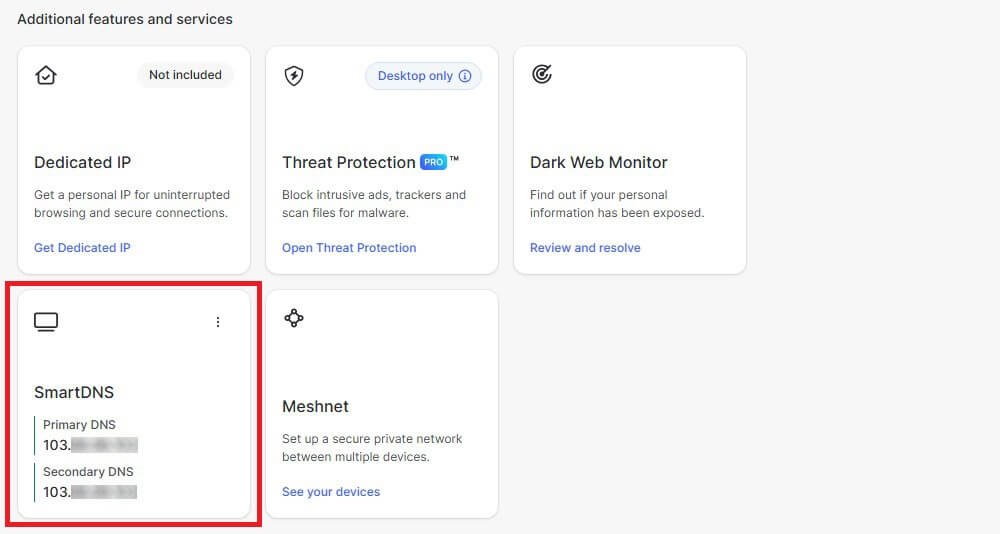
NordVPN makes SmartDNS the easiest of the three to switch on. You activate it in your Nord Account, it registers your home IP address for you, and the two DNS addresses appear within ten minutes. It supports Netflix, Prime Video, HBO Max, Paramount+, Peacock, and Fubo, and it unblocked Netflix US in our tests.
SmartDNS also requires an IPv4 address, the older format most home networks still use, since NordVPN doesn’t support IPv6 for SmartDNS yet. SmartDNS works only with US streaming services, so for UK or Japanese catalogs you’ll use the VPN app instead. That’s where NordVPN is strongest.
Servers in 152 countries, SmartPlay, which adds the same unblocking to the VPN app automatically, and a 7.8% average speed loss in our NordVPN tests. The two-year Basic plan costs about $3.50 a month, with a 30-day money-back guarantee.
2. ExpressVPN: Best for Automatic IP Registration
Pros
- Registers a changed home IP address automatically
- Supports dynamic DNS for frequent IP changes
- Fast, one-button VPN apps
- Router app for whole-home protection
Cons
- MediaStreamer has no location choice
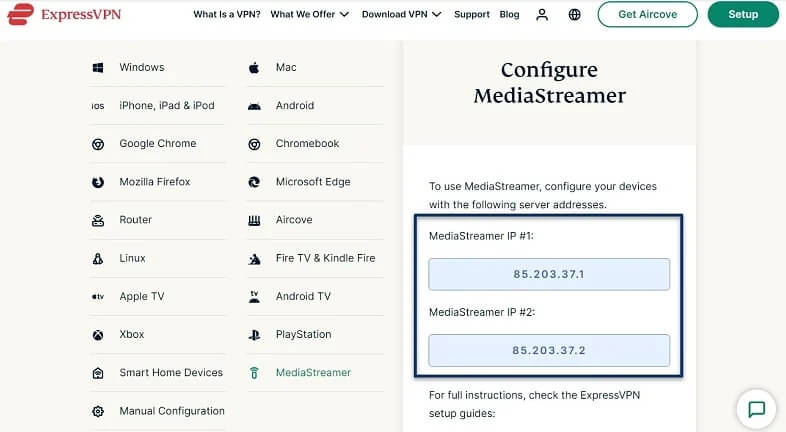
ExpressVPN calls its Smart DNS MediaStreamer, and its main advantage is how it deals with changing IP addresses. A toggle on its DNS settings page registers your new home IP address automatically, so streams keep working when your ISP changes it.
If your IP address changes very often, you can also link a dynamic DNS hostname, a fixed name that always points to your current IP address. However, MediaStreamer serves US streaming services only, and there’s no setting to choose another country. For other countries, ExpressVPN’s VPN apps are quick to use.
One button connects, and it tied NordVPN with a 7.8% average speed loss in our tests. It also offers a router app, so every device at home can use the VPN. The two-year Basic plan costs about $3 a month, covers ten devices, and includes a 30-day money-back guarantee.
3. Private Internet Access: Best for Smart DNS Outside the US
Pros
- Smart DNS in five countries
- Different location for each device
- Unlimited devices on the VPN
- Low long-term price
Cons
- Smart DNS limited to three devices
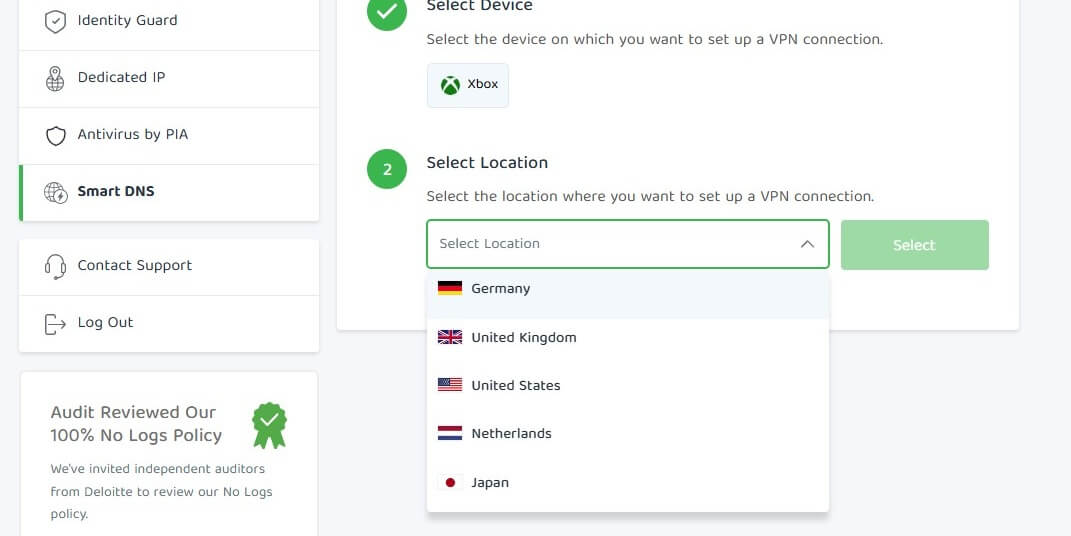
Private Internet Access (PIA) is the only one of the three with Smart DNS outside the US. It covers the US, the UK, Germany, the Netherlands, and Japan, and you choose the location separately for each device in the Client Control Panel.
So a TV in the living room can use the US location while a console upstairs uses the UK one. However, you can register only three devices, so a larger household will run out of slots. The VPN itself covers 113 countries and has no device limit, which makes PIA good value for a family.
Our Private Internet Access review covers the rest. The long-term plan costs about $2 a month, the lowest of the three, with a 30-day money-back guarantee.
Conclusion
If the TV or console is the only screen you want to use for another country’s catalog, Smart DNS is the simplest setup available. Once you also want privacy, or catalogs outside the US, the VPN app has to do the rest, and the VPNs that offer Smart DNS include both in one subscription.
So set up Smart DNS on the devices that don’t support VPN apps, and keep the VPN app on your phone and computer. If a stream suddenly shows a region error after weeks of working, check your registered IP address before anything else, since an ISP change is a likely cause.
FAQs
Does NordVPN have Smart DNS?
Yes. NordVPN includes Smart DNS with every subscription. It's activated from the Nord Account dashboard, works with US streaming services, and suits smart TVs and consoles that can't run the NordVPN app.
Does Smart DNS hide your IP address?
No. Smart DNS changes only the location streaming services detect, and every other site still sees the real IP address. A VPN is required to replace the IP address and encrypt traffic.
Is Smart DNS legal?
Yes, in most countries. Changing DNS servers is a normal network setting. Watching another region's catalog can break a streaming service's terms of use, and the usual result is a blocked stream.
Can you use Smart DNS and a VPN at the same time?
Not on the same device. A connected VPN sends DNS requests through its own servers, so Smart DNS settings are ignored. Many households use Smart DNS on TVs and a VPN on phones.
Does Smart DNS slow down your internet?
No, not noticeably. Smart DNS doesn't encrypt traffic, and the video travels over the normal connection. Only the location check passes through a proxy server, adding a moment before a stream starts.
Is Smart DNS free?
Usually not. NordVPN, ExpressVPN, and Private Internet Access include Smart DNS with a paid subscription, and standalone Smart DNS services charge a monthly fee. Free DNS services don't change streaming locations.