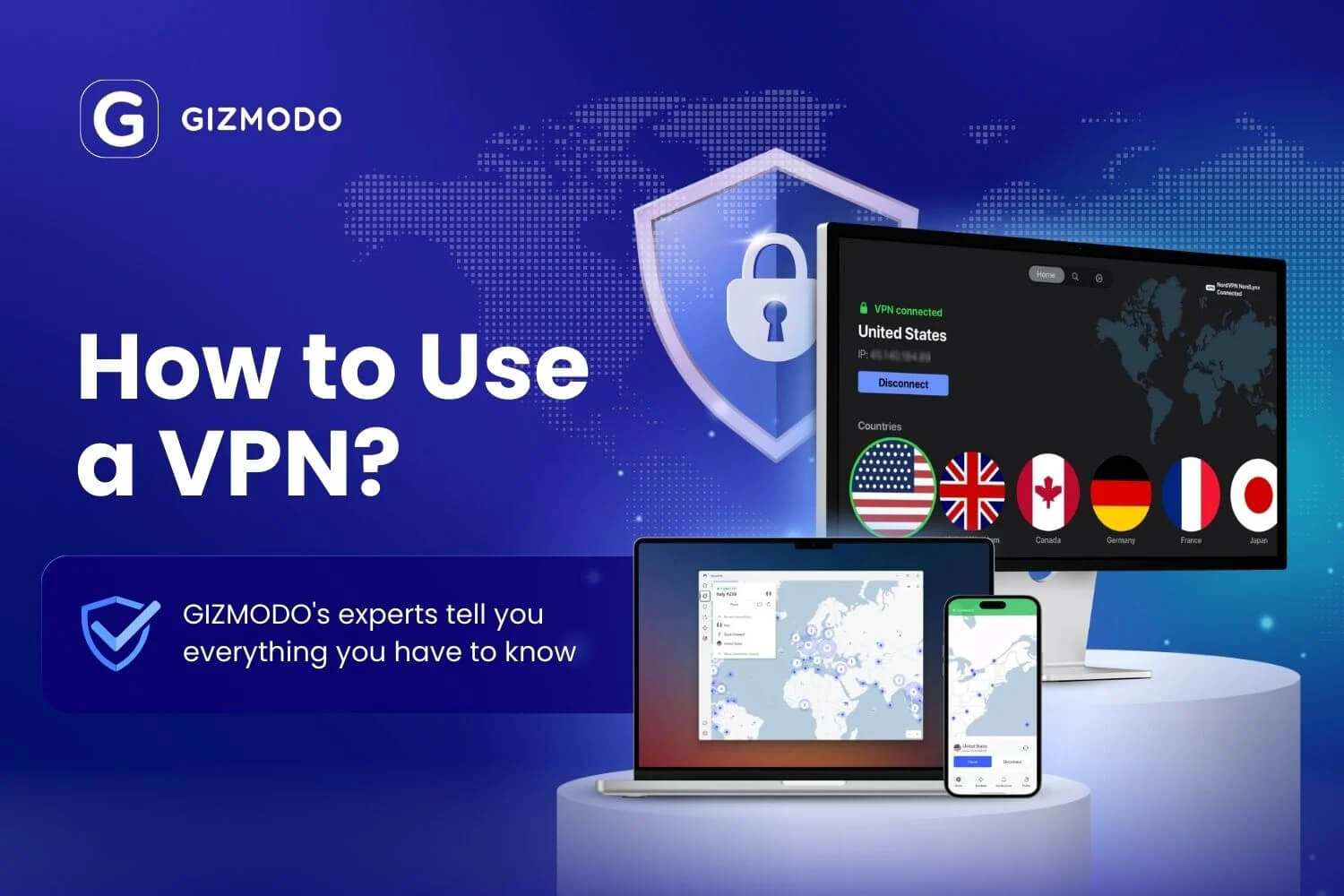
Using a VPN takes four steps: subscribe, install the app, sign in, connect to a server. The order never changes, whether the device is a laptop, a phone, a smart TV, or a router, and five minutes covers it. What follows covers each device, the settings worth changing once the app opens, what to do when a connection fails, and how to cancel if you decide against it.
How to Set Up a VPN in Four Steps
- Subscribe. NordVPN starts at $3.49 a month on its 2-year plan, and current promo codes are worth checking first. A 30-day money-back guarantee covers every plan.
- Install the app from the company’s website or your device’s official store, then confirm the email and set a password.
- Sign in with that email and password. The account works on every device you own, up to the connection limit on your plan.
- Connect to a server. Quick Connect selects the fastest nearby option, or open the country list and choose a location yourself.
Server choice follows purpose. Your IP address changes either way, so pick a nearby country when speed is the priority and the target country when a regional catalog or banking app is.
How to Use a VPN on Windows and macOS
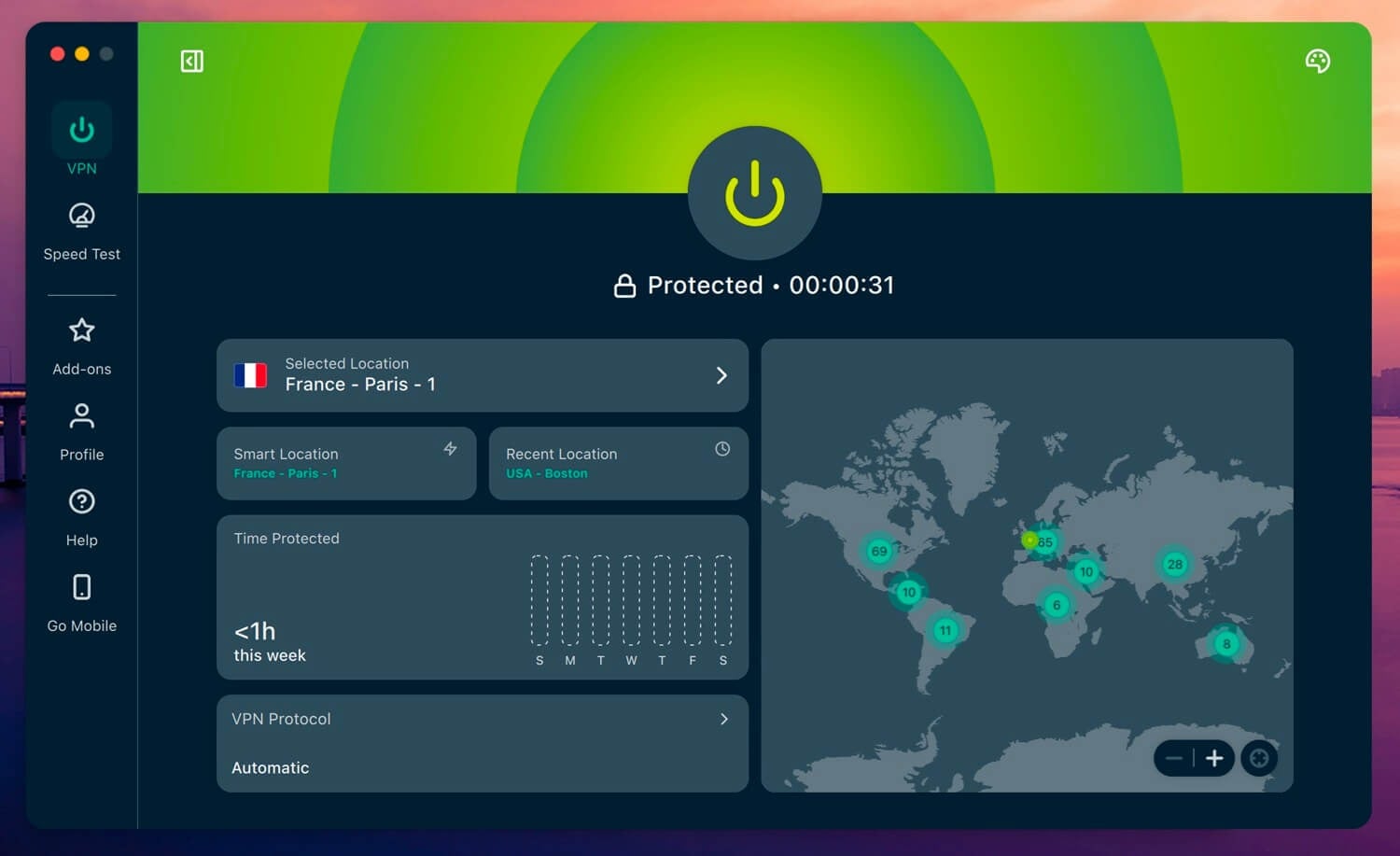
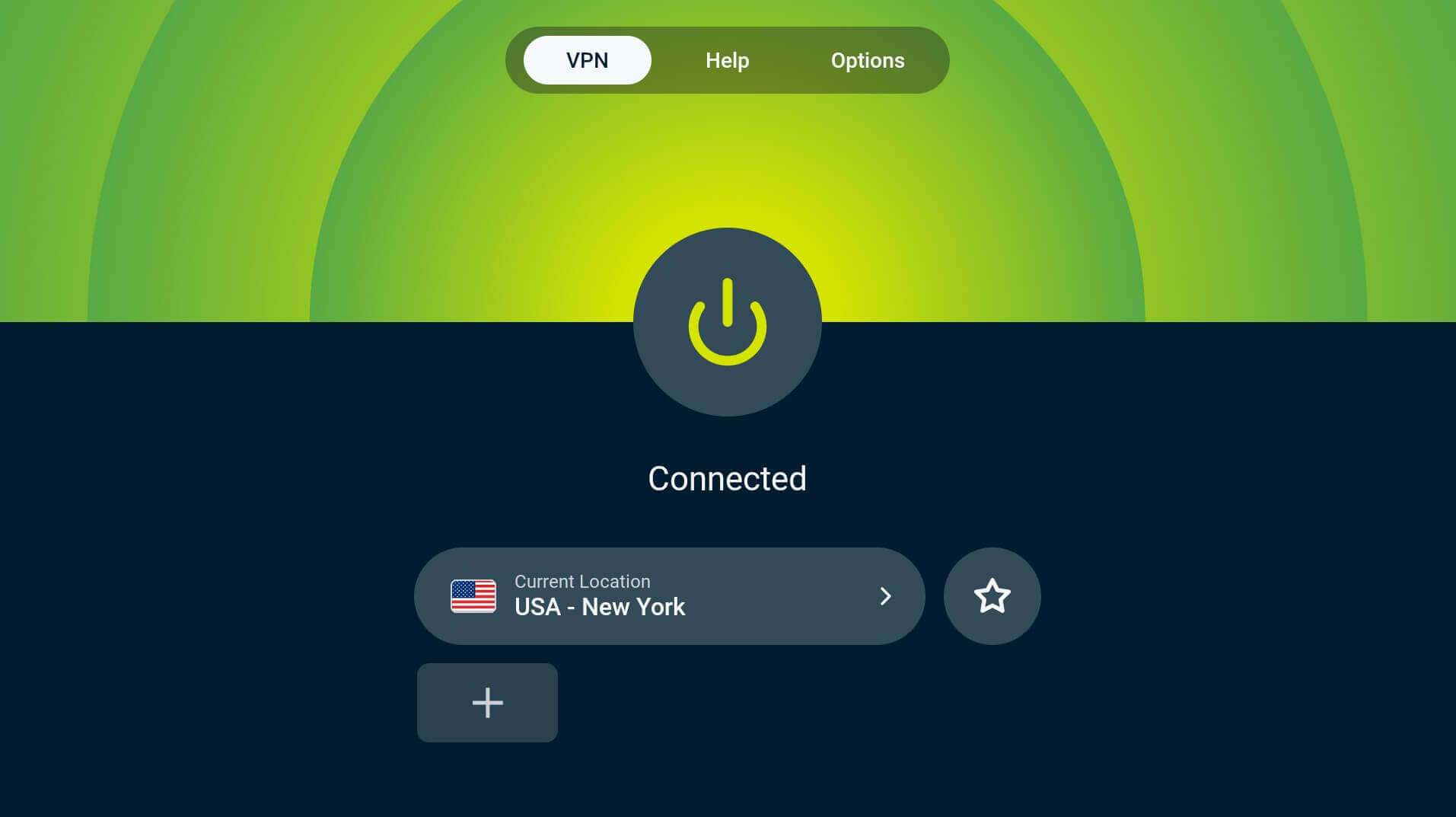
Desktop apps include every feature, which makes them the easiest place to learn the settings. Download the installer from the company’s site, open it, and sign in. The dashboard opens on a map or a server list with a single connect button. Press it, and the status changes to Connected within a few seconds, usually with the new country and IP address displayed.

To pick a country instead, open the location list, search for the country, and click it. Some apps offer specialty servers in the same list: Double VPN for a second encryption layer, P2P servers for torrents, obfuscated servers for networks that block VPN traffic.
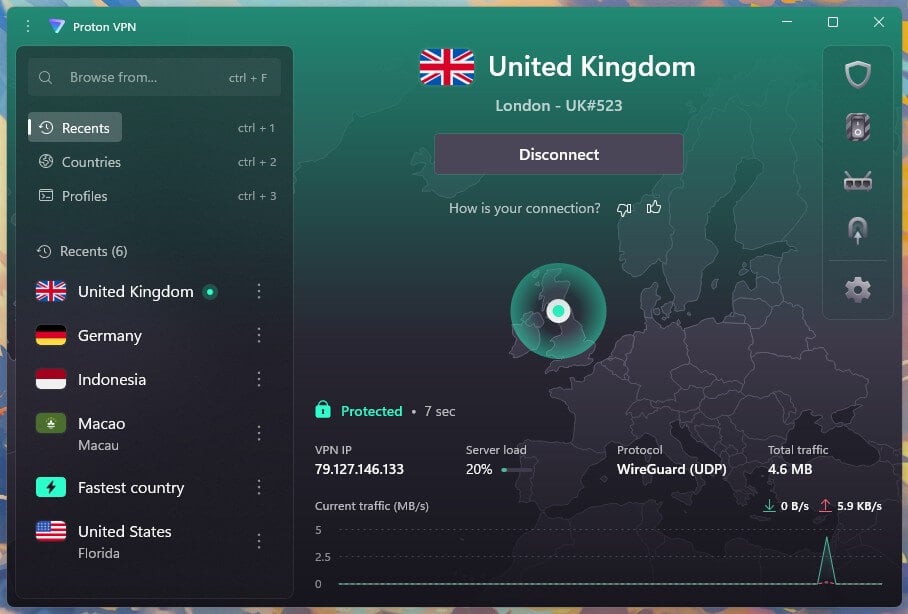
macOS works the same way, with one difference. The App Store version of some apps is more limited than the one downloaded from the company’s site, so take the direct download when both exist.
How to Use a VPN on Android and iPhone
Mobile setup is shorter, and the only extra step is a permission prompt. Take the app from Google Play or the App Store, sign in, and tap connect. Both systems ask permission to add a VPN configuration the first time.
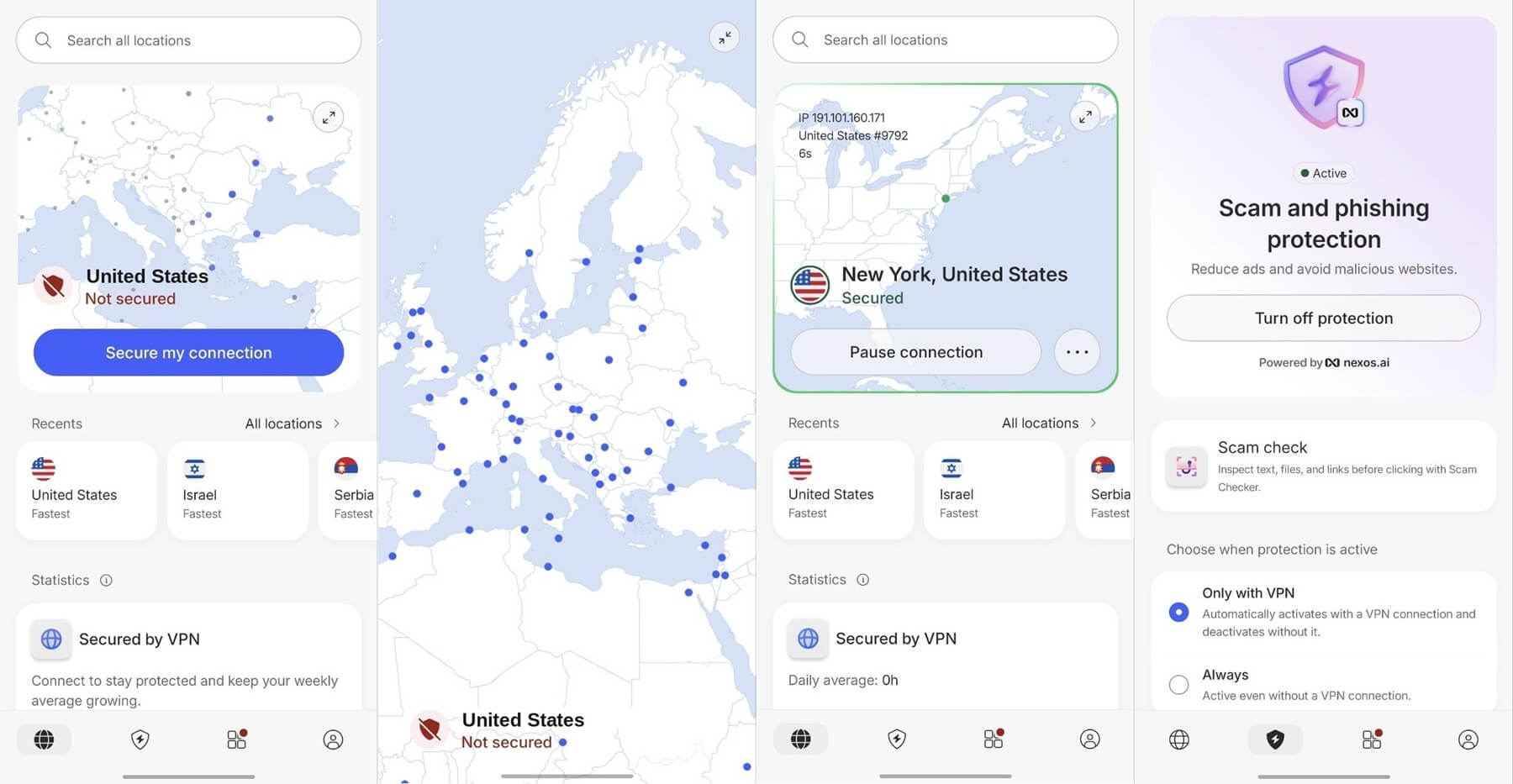
Approve it once, and the prompt never returns, after which a VPN badge appears in the status bar while the tunnel is up. Three settings matter more on a phone. Auto-connect on untrusted Wi-Fi starts the app by itself on hotel and cafe networks. Split tunneling keeps chosen apps outside the tunnel, which suits banking apps that question foreign logins.
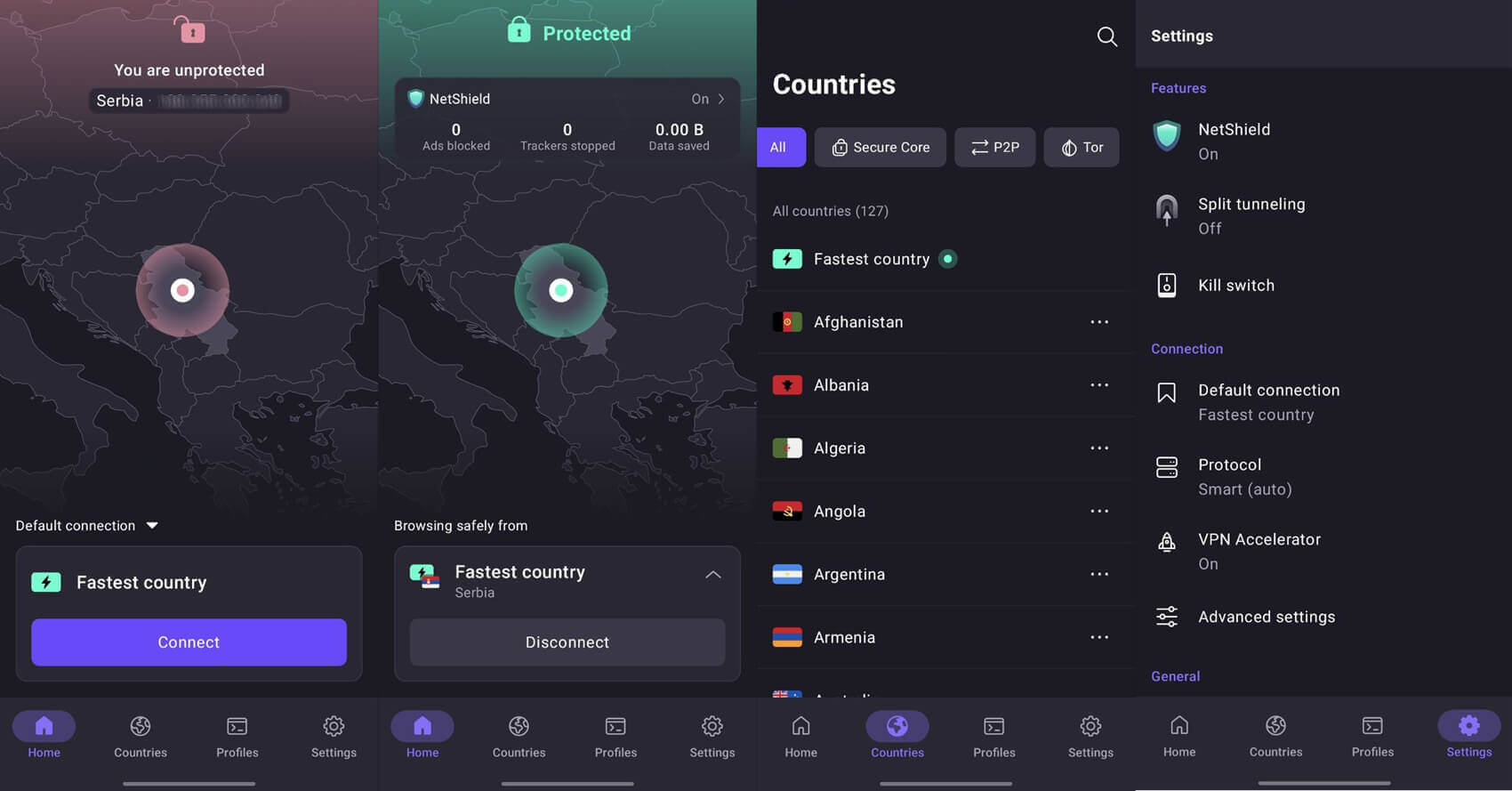
Always-on VPN, in Android’s own settings, blocks traffic until the VPN connects. Our iPhone VPN guide and Android rankings cover the apps in detail.
How to Use a VPN on a Smart TV or Fire Stick
TV platforms split into those that take an app and those that don’t.
Fire TV Stick and Android TV both have proper app stores. Find the VPN by name and set it up as you would on a phone. Signing in with a TV remote is tedious, so use the QR code option where the app offers it. Note that Fire Stick VPN apps require a second-generation device or newer.
Apple TV has supported native VPN apps since tvOS 17, and each VPN in the list further down has one. Download it, sign in with the remote, and choose a country.
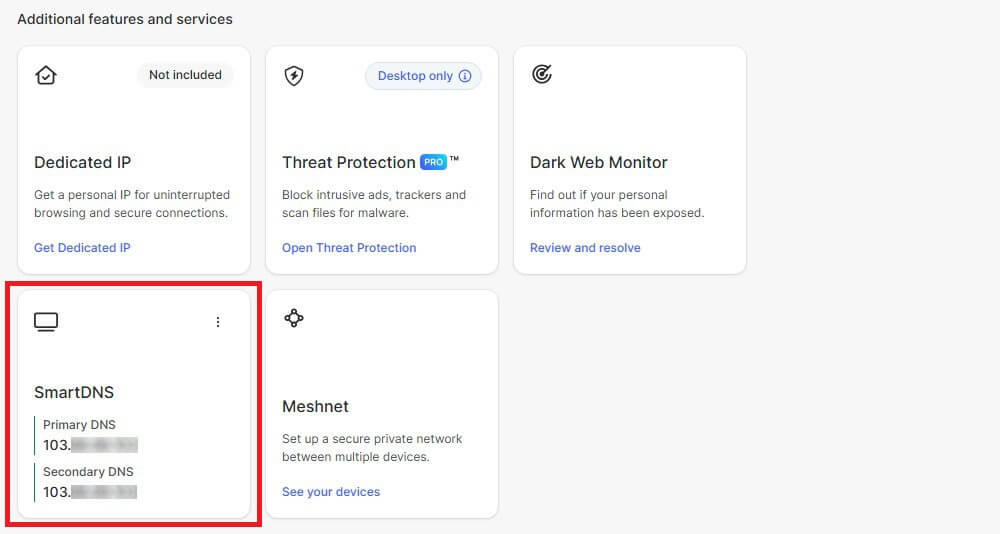
Everything else, meaning most Samsung, LG, and older sets, takes no VPN app. Two paths remain: Smart DNS, which changes the region with no encryption attached, or a VPN on the router, which covers the TV automatically. Our Apple TV guide goes further on the streaming side.
How to Use a VPN on a Router
One router connection protects every device in the house, consoles and smart TVs included, while using a single slot on your plan. Check compatibility first. Most stock router firmware has no VPN client, so this usually means a router with DD-WRT, AsusWRT, or OpenWRT, or one of the pre-configured models the VPN companies sell. Setup happens in the router’s admin page.
Download the configuration files from your VPN account, enter them in the VPN client section, and apply. From then on, the tunnel is always on for everything connected, which is also the drawback. Changing country means going back into the admin page, so keep the app on your laptop and phone where flexibility matters.
Settings to Change on the First Run
- Kill switch. On by default in some apps, off in others. It cuts your internet if the tunnel drops, which prevents your home IP address from appearing mid-session. Our kill switch explainer covers the variations.
- Protocol. Leave it on automatic unless something misbehaves. WireGuard, NordLynx, and Lightway are the fast modern protocols; OpenVPN is the compatible fallback, and Stealth or NordWhisper disguise VPN traffic where a network blocks it.
- Threat filtering. Every company brands it separately, as Threat Protection Pro, NetShield, or Advanced Protection. The effect is the same, with ads, trackers, and malware domains filtered at no cost to speed.
- Auto-connect. Set the app to launch with the system and connect on untrusted networks, so protection doesn’t depend on remembering.
When a VPN Won’t Connect
- Change server. A single overloaded or blocked server explains most failures, and a different city in the same country fixes it.
- Switch protocol. If WireGuard stalls, OpenVPN often connects on networks that filter by protocol signature.
- Turn on obfuscation where the network blocks VPN traffic, which is common on school, office, and hotel Wi-Fi.
- Clear the site data when a website still shows the old country. Cookies and cached DNS records outlast the connection change.
- Restart the app before the device. A stuck client is more common than a broken connection, and reinstalling resolves the rest.
Speed problems answer to the same first step. A server closer to home, or simply a different one in the same city, recovers most of the loss.
Easiest VPNs to Use
Any decent app will connect in one tap. These three make the rest of it simple too, and all three refund within 30 days.
1. NordVPN
Pros
- Quick Connect everywhere
- Specialty servers labeled clearly
- TV and router apps
- Fast live chat
- 10 devices at once
Cons
- Busy settings menu
- Renewal costs more
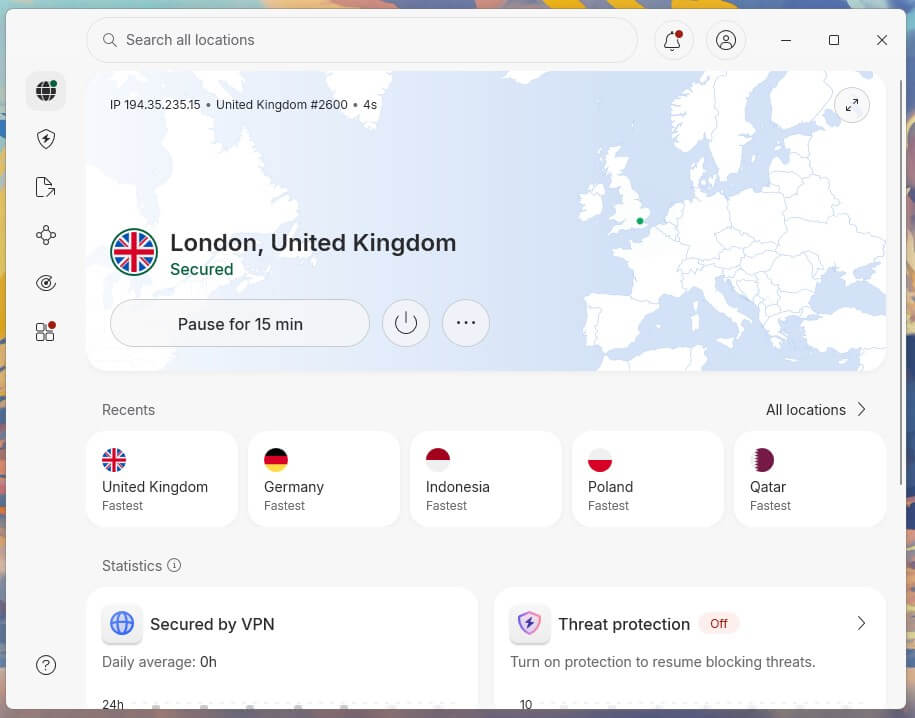
NordVPN covers more platforms than the rest, including Fire TV, Apple TV, Android TV, and pre-configured routers, so the same account behaves the same everywhere. Its map interface is the fastest way to pick a country, and specialty servers appear in a labeled list instead of a submenu. Speed loss averaged 7.8% in our October 2026 testing, the smallest of the ten VPNs measured. The Basic plan is $3.49 a month.
2. Proton VPN
Pros
- Free tier included
- One-click profiles
- Open-source clients
- Swiss jurisdiction
- Sign-up requires no card
Cons
- Complex settings menu
- Slower support replies
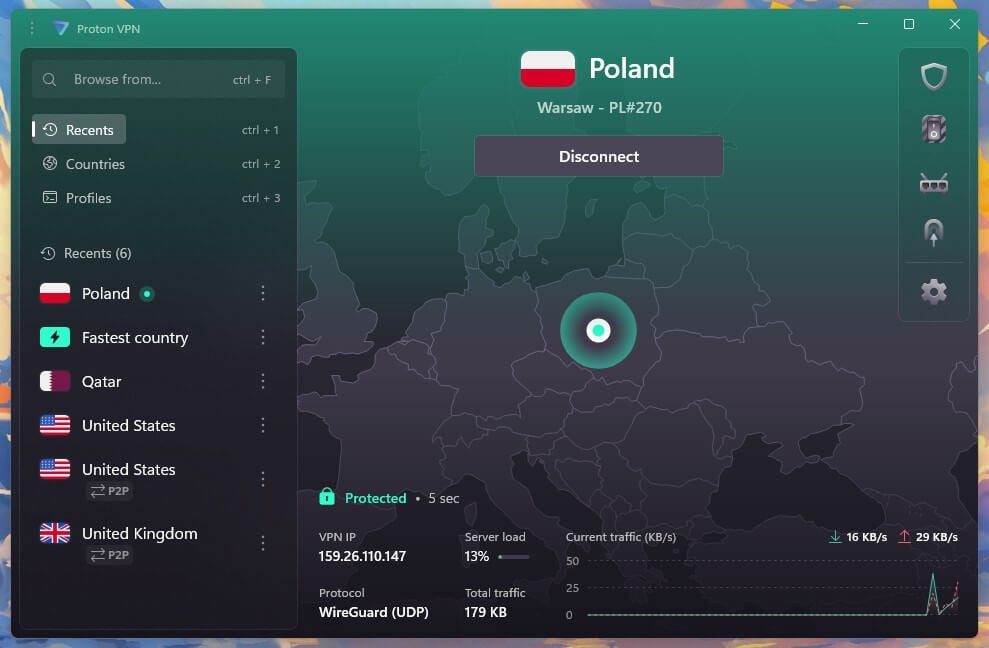
Start on Proton VPN, since the free plan teaches the app before any payment. Data is uncapped there, sign-up requires no card, and profiles save a country and protocol combination to a single button. Depth costs it. The menus go further than beginners expect, and support takes about a minute of chat before a person appears. The Plus plan is $2.99 a month on the two-year term, and it unblocks everything: streaming, P2P, faster speeds, 149 countries, and more.
3. ExpressVPN
Pros
- One button, little else
- Obfuscation always on
- MediaStreamer for older TVs
- Router firmware included
- 24/7 live chat
Cons
- Few settings to adjust
- No MultiHop option
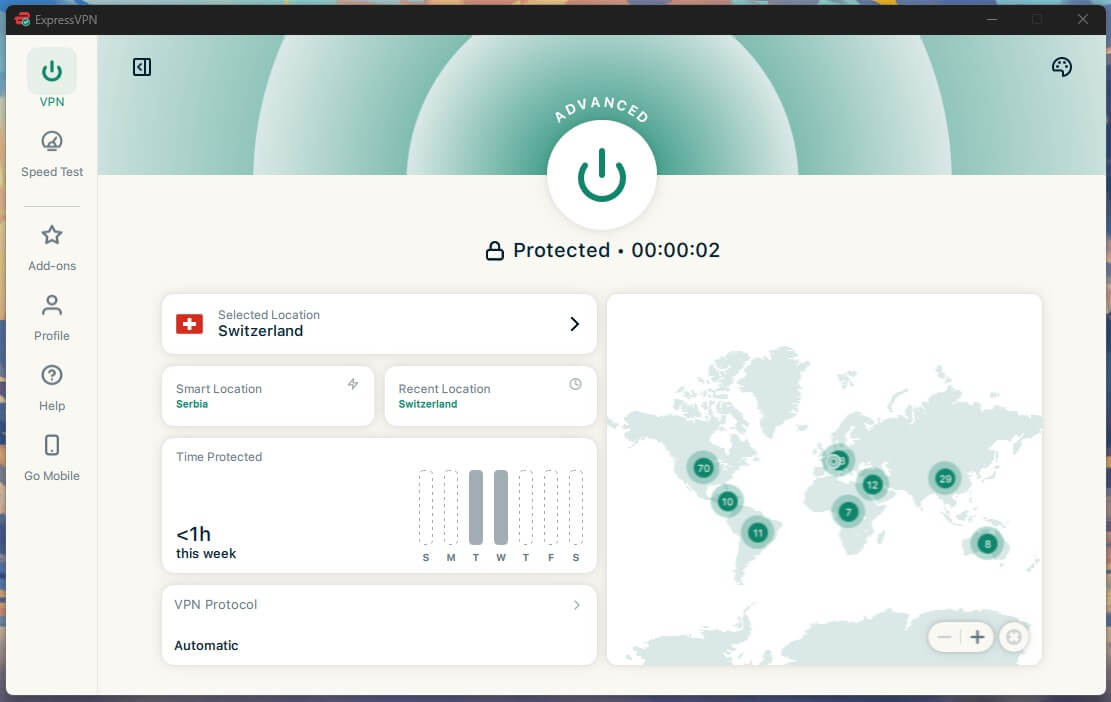
ExpressVPN strips the interface back to a connect button, some statistics, and a location picker, and that restraint does the work. Every connection is obfuscated automatically, and the Aircove router firmware covers devices that take no app. At 44 ms, its British ping was the quickest figure in our round. ExpressVPN charges $2.99 monthly across 28 months, and the comparison with NordVPN covers the rest.
How to Cancel a VPN and Get a Refund
Uninstalling the app doesn’t cancel the subscription, and the two steps are separate.
- Remove the app the usual way: Add or Remove Programs on Windows, drag to Trash on macOS, long-press and delete on a phone.
- Cancel the billing. Live chat is the quickest path, and asking for both cancellation and a refund in the same message usually settles it the same day. The guarantee returns everything within 30 days. Beyond that, cancelling stops the renewal without a refund.
A subscription bought inside Google Play or the App Store is cancelled in that store instead, since the VPN company never took the payment.
Conclusion
A VPN asks very little of the person using it. Subscribe, install, sign in, connect, and the app takes care of encryption, protocol choice, and DNS without further input. Few settings matter: leave the kill switch on, set auto-connect for public networks, and keep an obfuscated protocol for places that block VPN traffic. Everything else can stay on automatic. For the concepts behind it, our VPN explainer covers how the tunnel works, and why use a VPN sets out where it helps.
Frequently Asked Questions
How do you use a VPN for the first time?
Subscribe, install, sign in, connect. It's the same process on all VPNs. Some free VPNs just require a download and no subscription, but you still connect to a server through the app, and the VPN takes care of the rest.
Should a VPN stay on all the time?
Yes, on untrusted networks and for general privacy. Turning it off helps only when a service blocks VPN traffic, or when a local device such as a printer stops responding.
Which server should I connect to?
The nearest one for speed, since distance adds ping and reduces download speeds. A specific country is required only for that region's streaming catalog, banking app, or local site.
Does a VPN work on a smart TV?
Yes, on Fire TV, Android TV, and Apple TV. Older Samsung and LG sets don't support VPN apps, so Smart DNS or a router-level VPN covers those.
Why is my VPN slowing the connection?
Usually because of the slow server. A distant location adds ping and loses speed, and an overloaded one does both, so switching to a nearer city recovers most of it.
How do I cancel a VPN subscription?
Live chat settles it fast with the VPN company. App-store purchases cancel in the store. Removing the app leaves billing active either way.