
Tinder builds its whole model around who’s nearby, and it doesn’t hand out the location switch for free. Without Tinder Passport, your pin follows your GPS. A Tinder VPN changes that, and on Android a mock location app finishes the job.
We tested both approaches, plus Tinder’s own paid feature, to see which combination moves your profile and which one leaves you swiping through the same local faces. Here’s every method, what each one costs, and where each falls short.
Why You Might Want to Change Tinder Location
Tinder’s proximity model works until it doesn’t. Common reasons to move your pin:
- Matching before a trip so you arrive with conversations already going
- Dating across a distance or scouting a city you plan to move to
- Seeing a different dating culture without booking a flight
- Refreshing a stale queue when your area has run dry
The obstacle: Tinder Plus, Gold, and Platinum subscribers get Passport, and everyone else is locked in place. Even Passport only moves your pin inside Tinder. Your phone’s GPS doesn’t budge. That’s the opening a VPN fills.
It changes the IP address Tinder reads, and paired with a GPS tool on Android, it moves both signals at once. Of the providers we tested, NordVPN handled Tinder most cleanly, with fast server switching, a solid Android app, and none of the location errors that other apps triggered.
Change Tinder Location With NordVPN
Can You Change Location on Tinder Without Paying?
Partly. Tinder’s own Passport feature is behind a subscription, so the free path means using a VPN you already have, or a VPN’s money-back guarantee, with a mock location application on Android. iPhone users have fewer options, since Apple blocks GPS spoofing. One thing worth knowing before you start.
Spoofing your location runs against Tinder’s terms of service. Accounts rarely get banned for a VPN alone, but rapid country hopping and mismatched signals do trigger flags, so keep it consistent and slow.
Method 1: Use Tinder Passport (Plus, Gold, or Platinum)
Paying subscribers already have Passport. Drop a pin anywhere and start swiping as if you’re there. How it works:
- Open Tinder.
- Tap your Profile, then Settings.
- Scroll to Location and tap Add new location.
- Drop your pin in Tokyo, Rio, Paris, or anywhere else.
- Start swiping.
Simple and limited. It moves your Tinder pin only, not your phone’s GPS, so other apps still report your true position, and Tinder itself may notice the mismatch. It also costs money. And if you want your location changed across more than one app, Passport does nothing outside Tinder.
Method 2: Use a VPN to Change Your Tinder Location
Passport is fine for Tinder alone. A VPN moves your location across every app, hides your real IP address, and encrypts your connection while it does it. We tested several providers to find which ones moved Tinder’s location without login errors or soft bans. NordVPN came out ahead, which tracks with how it performs when switching Prime Video regions or moving your Hulu library.
Step 1: Install the VPN. Download NordVPN on your phone. The Android and iOS apps are both straightforward, though Android gives you far more room to work with.
Step 2: Connect to your target country. Swiping in Sydney means an Australian server; Berlin means a German one. With 9,500+ servers in 149 countries, NordVPN reaches almost anywhere you’d want a pin. Our walkthrough on picking and switching server locations covers the basics.
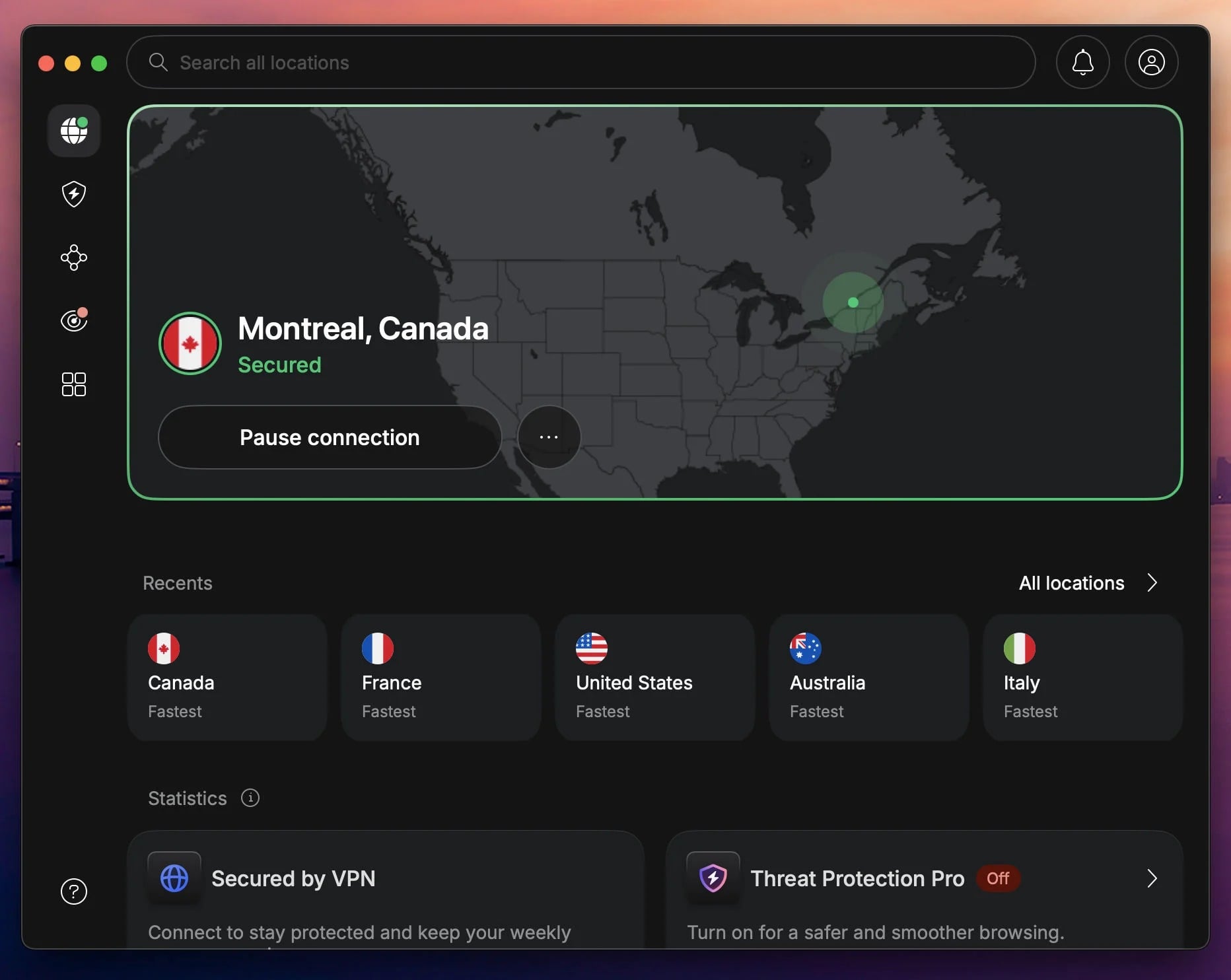
Step 3: Set your mock location (Android). Override your phone’s GPS so it reports the same city as your VPN server.
Step 4: Open Tinder and swipe. With both signals aligned, Tinder places you where your VPN and GPS say you are. We matched in Tokyo, Cape Town, and São Paulo.
Tinder reads your IP address and your GPS. A VPN handles the first. On Android, a mock location app handles the second, and only then do both produce a clean result.
Mock Location on Tinder: The Android Method
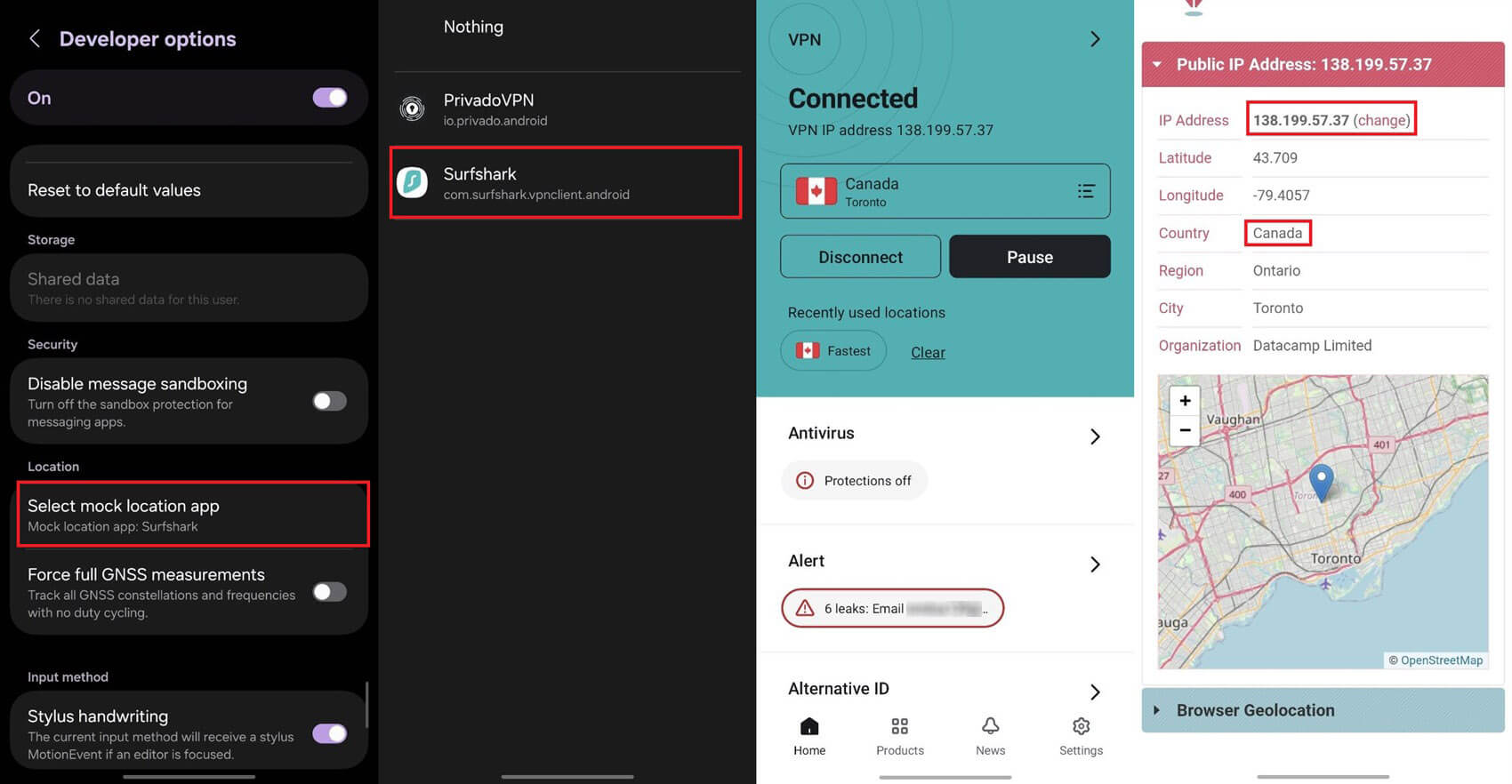
Tinder mock location is the step most guides skip, and it’s the one that decides whether this works. Android lets you nominate an app to supply fake GPS coordinates system-wide. Setting it up:
- Enable Developer Options. Open Settings, go to About phone, and then tap Build number 7 times
- Install a GPS spoofing app from the Play Store
- Grant mock location permission. In Developer Options, find “Select mock location app” and choose the one you installed
- Set your coordinates to the same city as your VPN server
- Force-close Tinder and reopen it so it reads the new position
iPhone users don’t have this option. Apple restricts location spoofing on unmodified devices, so Passport or actual travel are the realistic choices on iOS.
Fake GPS for Tinder: Which Apps Work
Fake GPS and GPS Joystick are the 2 that handled our tests without crashing. Both let you drop a pin on a map and hold that position. Whichever you pick, set the coordinates inside the city your VPN server operates from. Tinder’s radius is measured in miles, and a spoofed pin 400 miles from your VPN exit looks inconsistent.
Why NordVPN Works Best for Tinder
NordVPN outperformed the alternatives during testing: no IP leaks, no crashes, no location mismatches. Here’s what stood out.
Server Coverage
NordVPN operates 9,500+ servers in 149 countries, which gave us plenty of places to test from, including London, Buenos Aires, and Seoul. Every switch registered with Tinder correctly, with no bans and no downtime.
Speed on NordLynx
Against our 190.36 Mbps baseline in Serbia, NordVPN’s UK servers returned 184.73 Mbps and its Japanese servers 160.47 Mbps on the NordLynx protocol. Tinder loaded instantly at both distances.
Mock Location Support on Android
Pairing NordVPN with a GPS spoofer on Android took seconds, and the app didn’t attempt to interfere with the mock location setting. Matches came in from wherever we set the pin, so everything worked.
Privacy While You Swipe
Dating apps hold personal data, and Tinder is no exception. NordVPN’s no-logs policy has been audited by Deloitte 6 times, most recently in February 2026. It uses AES-256 encryption, RAM-only servers that wipe on every reboot, and post-quantum key exchange on NordLynx.
Testing It Without Committing
Every NordVPN plan comes with a 30-day money-back guarantee, which covers the full setup process. If you’d rather start without paying, our NordVPN trial guide explains the current options. ExpressVPN finished close behind on the strength of its Lightway protocol and clean app design, and if you’re torn between them, our ExpressVPN and NordVPN head-to-head settles it.
Proton VPN suits technical users, with deep customization and 10-device support. All 3 work best on Android with a mock GPS app alongside. Whichever you pick, keep the VPN server and the spoofed coordinates in the same city.



 9200 servers
 128 covered countries
 30 days money-back guarantee
 10 simultaneous connections
9.4 /10

20396 servers
148 covered countries
30 days money-back guarantee
10 simultaneous connections
9.2 /10

3000 servers
105 covered countries
30 days money-back guarantee
10 simultaneous connections
9.1 /10
VPN Not Working With Tinder? Try These Fixes
Your VPN is connected, your spoofer is set, and Tinder still shows local matches. These are the causes we ran into, in order of how often they came up.
- Your GPS and VPN server don’t match. Tinder reads both signals, so a Berlin IP address with Brooklyn coordinates fools nobody. Set the mock GPS app to the same city as your server and restart Tinder.
- Location permissions are still active. Open Tinder’s app permissions on Android or iOS and turn off native location access if you’re relying on a spoofed GPS. Otherwise, Tinder reads your real position and overrides everything you configured.
- Your VPN server is flagged. Some server addresses appear on blocklists, and others have too many users. NordVPN’s obfuscated servers worked when standard ones didn’t, and moving to a less-used server in the same city often fixed it.
- Cached location data is giving you away. Tinder stores your last known position locally. Force-close the app and clear its cache before reopening with a new setup. On iOS, deleting and reinstalling does the same job.
- You’re skipping the mock location step. A VPN alone changes your IP address. On Android, without a GPS spoofer, Tinder still knows where you are.
Still stuck? NordVPN’s 24/7 live chat sorted out 2 configuration problems for us faster than trial and error would have.
Final Thoughts
Changing your Tinder location comes down to moving 2 signals. A VPN handles your IP address, and on Android a mock location app handles your GPS. Skip either one and Tinder keeps showing you the same neighborhood. Of everything I tested, NordVPN gave the most consistent results, with quick server switching, speeds that kept photos loading, and no interference with mock location settings.
ExpressVPN and Proton VPN worked well with a GPS spoofer on Android. Keep your IP and GPS in the same city, clear the cache when you move, and avoid hopping between continents in a single afternoon. Avoid free VPNs, since most leak DNS requests and give Tinder your real position.
Change Location on Tinder With NordVPN
Frequently Asked Questions
🪪 Can you change location on Tinder without Passport?
Yes, on Android. A VPN changes the IP address Tinder reads, and a mock location app overrides the phone's GPS coordinates. Both signals have to point to the same city. On iPhone, GPS spoofing is blocked on unmodified devices, so Passport is the only reliable option there.
🆓 Can you use a free VPN to change your Tinder location?
Yes, but rarely with good results. Free services offer limited server choice, and many leak DNS requests that reveal the true location anyway. None of them spoof GPS, which is the half that matters most on Android. A paid provider with a money-back guarantee costs nothing to test.
⛔ Does Tinder ban VPN users?
No, not for using a VPN by itself. Flags come from inconsistency: a GPS reading that contradicts the IP, or an account that appears in 5 countries within an hour. Staying in one region at a time and matching both signals avoids the issue.
🆚 Is it better to use Tinder Passport or a VPN?
Passport is simpler and requires a Tinder Plus, Gold, or Platinum subscription. It changes the PIN inside Tinder and nothing else. A VPN costs less, moves the apparent location across every app on the device, and encrypts the connection at the same time.
🗺️ What is mock location on Tinder?
Mock location is an Android developer setting that lets a nominated app supply fake GPS coordinates to the entire system. Tinder reads those coordinates as the device's real position. Combined with a VPN server in the same city, it moves both signals Tinder checks.