Most online games show a small number in milliseconds next to your name on the scoreboard. That’s your ping, the time your inputs take to travel to the game server and back. When it climbs past 100, shots you were sure of stop registering, and your character starts snapping back to where it stood a second earlier.
The cause is rarely the game itself. More often, it’s Wi-Fi, a download running in the background, a distant server, or an ISP that slows gaming traffic in the evening. Most of these problems start inside your home, so that’s where the fixes to reduce ping start too.
Lower Your Ping in Five Steps
- Restart your router and gaming device to clear errors that build up over days of use.
- Plug in an Ethernet cable instead of playing over Wi-Fi.
- Choose the closest game server in the game’s region or matchmaking settings.
- Stop downloads, streams, and updates on every device sharing your connection.
- Connect to a nearby NordVPN server if your ISP slows your connection during peak hours.
What Causes High Ping?
Ping, also called latency, measures a round trip: data leaves your device, arrives at the game server, and returns. Every delay along the way adds milliseconds, and the result is lag: freezes, commands that register late, and rubberbanding, where players jump from one spot to another.
These are the usual causes:
- Distance: data needs time to cross an ocean. If you’re in the US and join an Australian server in Fortnite or League of Legends, expect a high ping however fast your internet plan is.
- Wi-Fi: walls, other devices, and distance from the router weaken the signal, and a weak signal adds delay and dropped data.
- A busy connection: downloads, 4K streams and cloud backups on other devices compete with your game for bandwidth.
- ISP throttling: some ISPs deliberately slow certain traffic when the network is busy, a practice called ISP throttling.
- Old hardware or software: an aging router, a dated network adapter, or old drivers can’t always keep up with a modern connection.
- An overloaded game server: even a nearby server lags when too many players connect to it at once.
What’s a Good Ping for Gaming?
The lower your ping, the sooner the server sees what you do, and that’s a real advantage in a close fight. There’s no fixed rule, but these ranges apply to most online games:
- Under 20 ms: excellent, the range competitive players aim for.
- 20 to 50 ms: very good for every genre, including fast shooters.
- 50 to 100 ms: playable, though you’ll feel the delay in shooters and fighting games.
- 100 to 150 ms: noticeable lag, still workable in slower games such as strategy titles or MMOs.
- Over 150 ms: frequent lag in most games, and a clear sign of a connection problem.
Genre makes a difference too. A card game or a turn-based strategy game tolerates a ping that would ruin a match in Valorant or Call of Duty, so judge the number against what you play.
How to Check Your Ping
Before you change a setting, measure your ping so you can tell whether a fix worked. There are three easy ways:
- In the game: most online games have a network or performance overlay in their settings that shows ping during a match. It’s the most accurate figure, since it measures the server you’re actually playing on.
- With a speed test: sites such as Speedtest.net show ping and jitter, the variation in ping from one moment to the next. However, the test server isn’t your game server, so treat the result as a baseline.
- From the command line: open Command Prompt on Windows or Terminal on a Mac, type ping followed by a website or server address, and press Enter.
Watch for packet loss as well. If the game reports lost packets, data isn’t arriving, and you’ll see rubberbanding even when the ping looks low. Wi-Fi and a faulty cable or router are the usual causes, and the same fixes help.
11 Ways to Reduce Ping and Lag
No single fix works every time, because high ping has several causes. Start with the first few, which cost nothing, and check your ping after each one.
1. Restart Your Router and Device
Restarting is simple, but it works more often than you’d expect. A router that has been on for weeks builds up errors and memory problems that slow it down, and a restart clears them.
Turn off the router, wait about 30 seconds, and turn it back on. Then restart your PC or console as well, along with any network switch between them, so every device starts on a fresh connection.
2. Use a Wired Connection
If you play over Wi-Fi, an Ethernet cable is the single most effective change. A wired connection is faster and more stable, since it isn’t affected by walls or by other wireless devices, and it lets you use the full speed of your internet plan.
Ethernet cables come in categories from Cat3 to Cat8, and higher categories support higher speeds. For gaming, Cat5e or Cat6 is enough, and Cat8 is overkill for a home connection. If the router is too far away for a cable, a powerline adapter, which sends the signal through your home’s electrical wiring, is the next best option.
3. Move Your Router
If you keep using Wi-Fi, think about where the router is. A wall or a large piece of furniture between the router and your gaming setup weakens the signal, and a weak signal means more delay and lost data. Moving the router a few feet can make a difference.
For the best results, place it in a central, raised spot away from obstacles, and keep it away from microwaves and cordless phones, which use the same 2.4 GHz band as many routers. If your router and device support it, connect to the 5 GHz band instead, which is faster and less crowded over short distances.
4. Choose a Closer Game Server
Many online games let you choose a server region in their settings or matchmaking menu. Choose the region closest to you, since a shorter trip means a lower ping. Distance isn’t the only factor, though.
A nearby server that’s overloaded can still lag, so if your usual region feels slow at busy times, compare it with the next closest one. Sites such as Game Server Ping show the ping to many popular games’ servers from your connection, which helps you choose before a match.
5. Close Background Apps and Pause Updates
Music streaming, a browser full of tabs, and cloud sync tools all use bandwidth and processing power your game could use. Before a session, close any app you don’t need.
On Windows, open Task Manager, go to the Processes tab, right-click each task you don’t need, and select End task. Leave system processes alone.

Automatic updates cause the same problem when they start mid-match. Pause them on your PC or console while you play, and resume them when you finish for the day, since updates fix bugs and network problems.

6. Disconnect Other Devices or Prioritize Your Game
In a large household, smart TVs, phones, laptops, and even fridges share the same connection, and each one takes some of the available bandwidth. Disconnect the ones you don’t need while you play, and ask others to avoid large downloads or 4K streams.
If that isn’t practical, check your router for Quality of Service (QoS) settings. QoS lets you prioritize your console or PC, so your game traffic goes first when the connection is busy.
7. Play Outside Peak Hours
Your neighborhood shares part of its network, and evenings are when everyone streams at once. If your ping is normal in the afternoon but climbs after 7 p.m., congestion is the likely cause. Game servers have peak hours too, often right after work and on weekends.
Playing earlier or later can lower your ping with no other changes, and if the evening slowdown is severe, your ISP may be throttling your connection, which a VPN can help with.
8. Update Drivers and Router Firmware
Outdated network drivers and router firmware handle data less efficiently and can slow down good hardware. Keep your PC’s network adapter driver, your game, and your router’s firmware up to date, and install game patches when they’re released.

Do this before a session. Otherwise, the download competes with your game, which is the problem the previous fixes avoid.
9. Use a VPN When Your ISP Throttles or Routes Badly
A VPN normally adds a little ping, because a VPN routes your data through its own server before it reaches the game. In our tests, NordVPN added about 30 ms on a nearby server, small enough for most games. However, a VPN can lower your ping in two situations:
- Your ISP throttles gaming traffic: a VPN encrypts your connection, so your ISP can’t tell gaming traffic apart and slow it down during peak hours.
- Your ISP’s route is poor: sometimes an ISP sends data to a game server the long way round. A VPN server near you, or near the game server, can offer your data a more direct path.
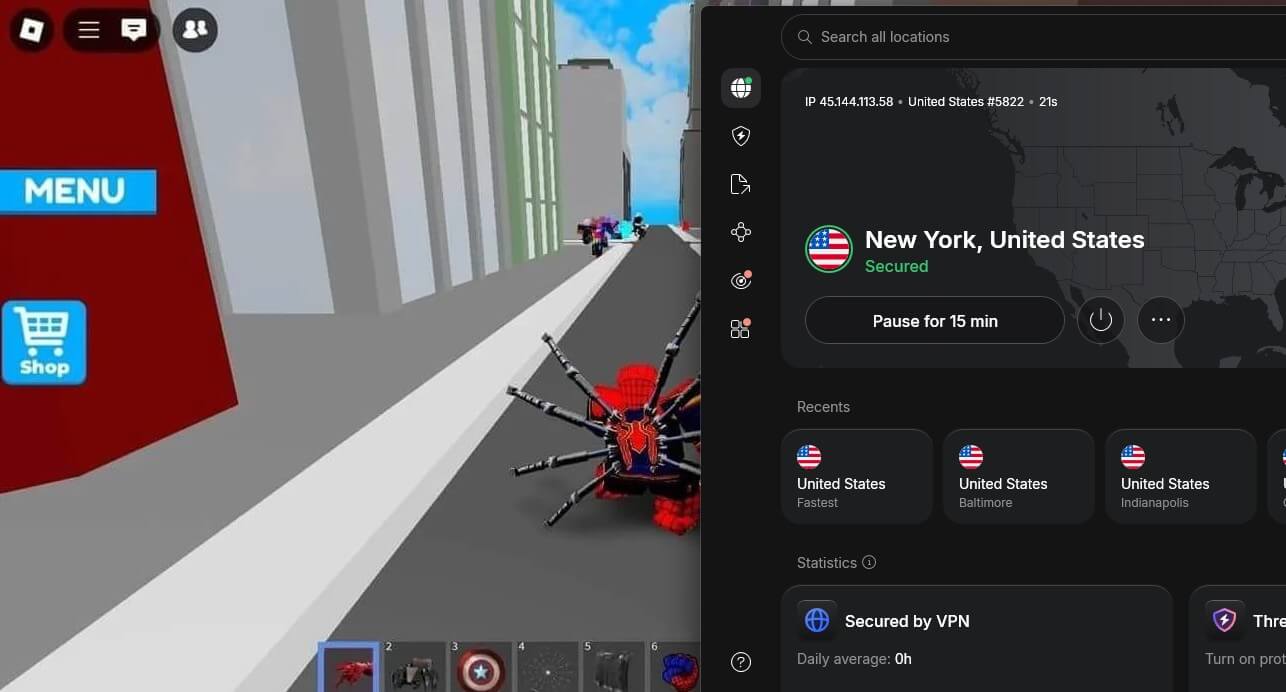
A gaming VPN also hides your home IP address from other players, so a DDoS attack, a flood of traffic meant to knock you offline, hits the VPN server instead of your router. Here’s how to test whether a VPN can reduce ping on your connection:
- Subscribe to a fast VPN such as NordVPN, and install its app.
- Note your in-game ping without the VPN.
- Connect to a VPN server in your own country and check your ping again.
- If it’s higher, try a server in the same region as the game server.
- Keep the setup with the lower ping, or play without the VPN if neither helps.
Consoles don’t support VPN apps, so to use a VPN on Xbox or PlayStation, set it up on your router or share the connection from your PC.


 9200 servers
 128 covered countries
 30 days money-back guarantee
 10 simultaneous connections
9.4 /10

20396 servers
148 covered countries
30 days money-back guarantee
10 simultaneous connections
9.2 /10

3000 servers
105 covered countries
30 days money-back guarantee
10 simultaneous connections
9.1 /10
10. Upgrade Your Internet Plan or Router
If your plan is slow to begin with, the other fixes can only do so much. A low-tier plan struggles when several devices are active, and some ISPs slow low-tier plans first during busy hours. When you upgrade, choose a plan with higher upload and download speeds and no data cap, and read the terms closely
Some ISPs call a capped plan unlimited. Your router may be the weak link instead. Routers age like any other device, and an old model can’t keep up with a fast plan and many devices.
If you replace it, consider a gaming router, which typically includes QoS and features such as beamforming, which aims the Wi-Fi signal at your device, to keep ping steady.
11. Contact Your ISP
If nothing else works, the problem may be on your ISP’s side, such as a faulty line, a congested local network, or a routing issue. Contact your ISP’s support, tell them when the lag happens and which games are affected, and ask them to check the line to your home.
Before calling, run a speed test and a command-line ping test at the time the lag happens. Showing the figures makes it easier for support to find the fault instead of suggesting a restart.
Summary
Lowering ping is mostly a process of elimination. A restart, a cable, and a closer server solve most cases in a few minutes, and any lag that remains after them points to your plan, your router, or your ISP.
That’s also the point where a VPN is worth testing, if the lag comes back every evening and your ISP can’t explain it. Throttling and poor routing are problems no setting at home can solve.
FAQs
Is 100 ms ping good for gaming?
It's playable but not good. At 100 ms, slower games such as strategy titles and MMOs work normally, while fast shooters and fighting games feel delayed. Under 50 ms is the usual target.
Why is my ping high when my internet is fast?
Speed and ping measure different things. A fast plan carries more data, but ping depends on distance to the server, Wi-Fi quality, network congestion, and how the ISP routes traffic.
Does changing DNS lower ping?
No, not in-game. DNS only finds a server's address before a connection starts, so a faster DNS server can help pages load sooner but doesn't change the delay during a match.
Does more RAM reduce ping?
No. RAM affects how smoothly a game runs on the device. Ping depends on the network connection, the distance, and the server's load.
Is ping the same as FPS?
No. Ping is the delay between a device and the game server, measured in milliseconds. FPS (frames per second) is how many images the graphics card draws, and it depends on hardware.