A VPN for TV use depends first on whether the television installs apps. There is still no VPN app for Samsung or LG Smart TV models. Sets built on Android TV or Google TV install one from the Play Store, as do Fire TV models and any Apple TV on tvOS 17 or later. We measured five VPNs in October on a 190.36 Mbps home connection. Surfshark came in at 186.96 Mbps on the British server, a 1.8% loss.
NordVPN and ExpressVPN tied on the three-location average at 7.8%. CyberGhost came last at 164.97 Mbps on average, a 13.3% loss. A Tizen or webOS set requires the router or the DNS settings instead. That takes longer to arrange, and it covers every screen in the house at once.
Smart TV VPN Shortlist for October 2026
- NordVPN – Best VPN for smart TV overall
- Proton VPN – Best smart TV VPN for privacy
- ExpressVPN – Best for a router setup
- Surfshark – Best for homes with several televisions
- CyberGhost – Cheapest smart TV VPN
Smart TV VPNs Compared
| VPN | Native TV apps | Samsung and LG method | Streaming platforms opened (of 14) | Money-back | Price |
| NordVPN | Fire TV (Fire OS and Vega OS), Android TV, Google TV, Apple TV | SmartPlay Smart DNS or router | 14 | 30 days | $3.49/mo |
| Proton VPN | Fire OS, Android TV, Google TV, Apple TV | Router only | 10 | 30 days | $2.99/mo |
| ExpressVPN | Fire TV (Fire OS and Vega OS), Android TV, Google TV, Apple TV | MediaStreamer or an Aircove router | 14 | 30 days | $2.99/mo |
| Surfshark | Fire TV (Fire OS and Vega OS), Android TV, Google TV, Apple TV | Router only | 13 | 30 days | $2.49/mo |
| CyberGhost | Fire OS, Android TV, Google TV | Smart DNS or router | 11 | 45 days | $2.19/mo |
Test conditions: speeds come from a 190.36 Mbps home connection measured on Speedtest in October, with British, American, and Japanese servers on each app’s fastest protocol. The 14 streaming platforms were checked on a clean browser profile, and the Android app results matched the desktop round.
The Best VPNs for Smart TVs in 2026
1. NordVPN: Best VPN for Smart TV Overall
Pros
- Android TV app
- SmartPlay for Tizen sets
- Post-quantum encryption
- Wide country coverage
- Malware blocking included
Cons
- Higher renewal price
- Samsung setup takes work
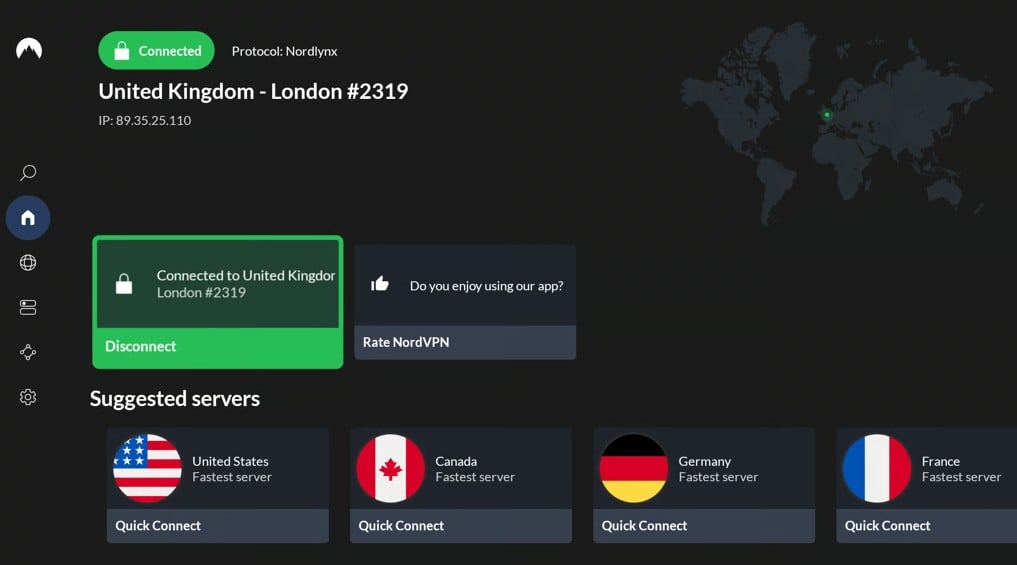
NordVPN is a VPN that a Samsung or LG owner can use without buying a router. SmartPlay is in the account settings and changes the streaming location through DNS, which a Tizen or webOS television accepts. On Sony, TCL, Philips, and Hisense sets, the Android TV app does the same job with encryption attached. On the British server, it measured 184.73 Mbps against our 190.36 Mbps baseline, and its three-location average loss of 7.8% was the smallest here.
It’s matched only by ExpressVPN. All 14 streaming platforms opened, including Now TV, Peacock, and Hulu, and the network covers 149 countries, so most regional catalogs have a local server. Setting it up on a Samsung or LG set is the slow part, since SmartDNS has to be switched on in the account and the two addresses typed into the television’s network settings.
NordVPN’s Basic plan is $3.49 a month over 27 months, and the second year jumps to $139.08, more than any rival on this list charges.
2. Proton VPN: Best Smart TV VPN for Privacy
Pros
- Secure Core servers
- Google TV support
- Unlimited bandwidth
- Verified no-logs policy
- High device allowance
Cons
- Nothing for Tizen sets
- No post-quantum encryption
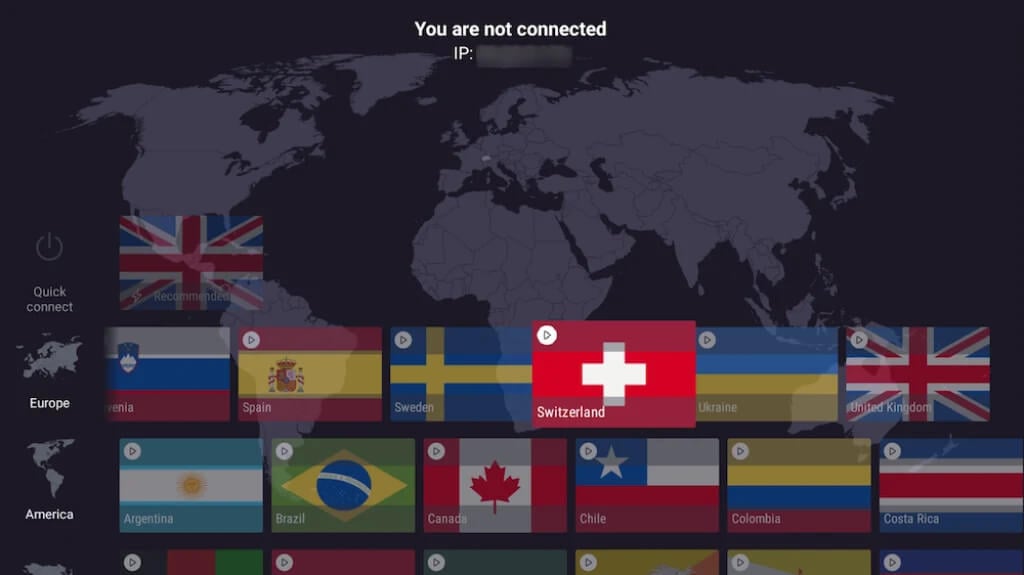
Proton VPN publishes apps for Android TV, Google TV, Fire OS and Apple TV, which covers most televisions sold with a Play Store on board. Swiss law governs the company, and an independent audit of the no-log policy has been repeated every year since 2022. Secure Core earns its price on a TV that logs viewing history. It passes the connection through a second server in Switzerland before the exit country.
We measured the cost at 152.71 Mbps from Switzerland to the US, against 173.68 Mbps on the direct American server. That is 12.1% of DL speed for a second layer of separation. Two things rule it out for some televisions. There is no Smart DNS, so a Samsung or LG set requires a router, and 10 of the 14 streaming services opened, with Hulu, Disney+, Pluto TV, and ITVX blocking it.
Proton VPN is priced at $2.99 a month on the 2-year term, $71.76 for the first 24 months. It also has a 30-day money-back guarantee.
3. ExpressVPN: Best Smart TV VPN for Router Setups
Pros
- Aircove router option
- Apple TV app
- Automatic obfuscation
- Small speed loss
- Simple remote controls
Cons
- Costly monthly plan
- Occasional connection failures
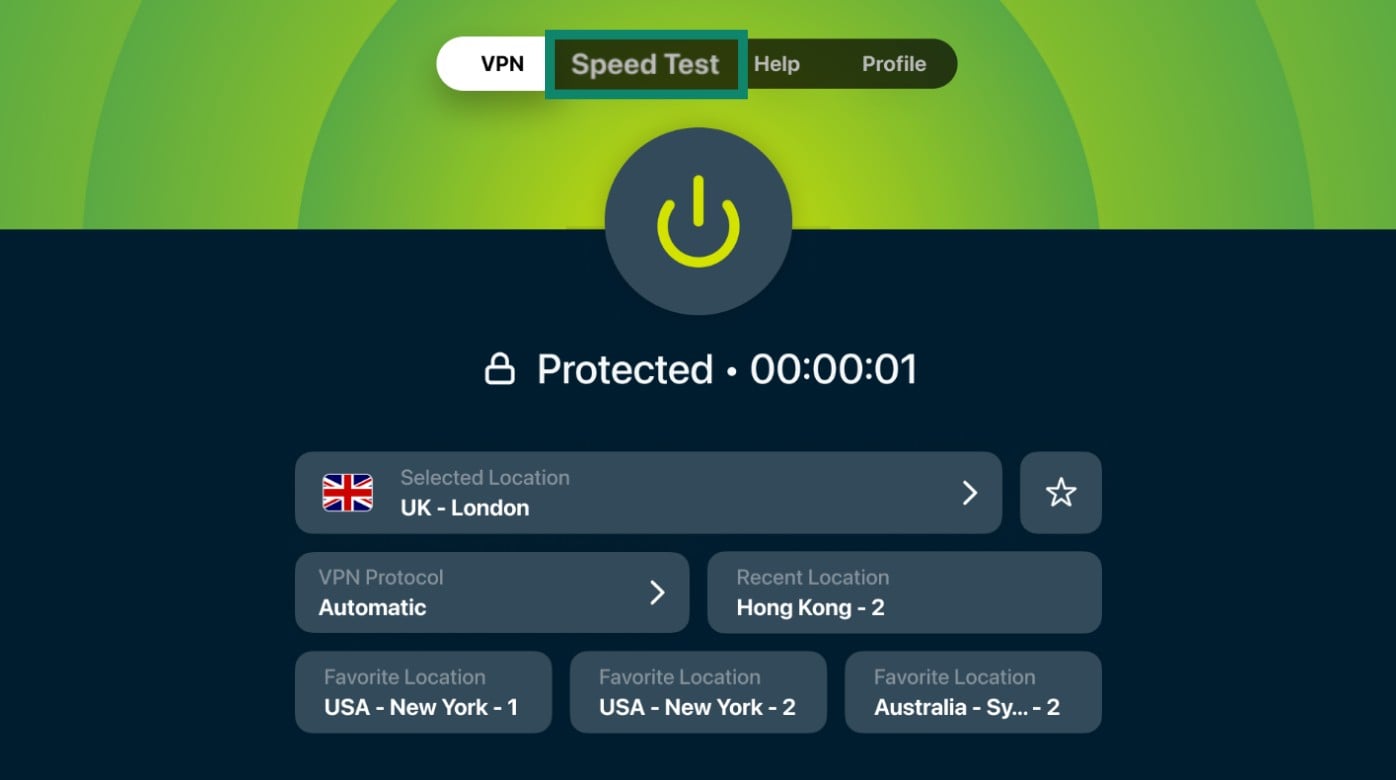
Flashing router firmware is the part of smart TV setup people abandon. ExpressVPN removes it: Aircove is a Wi-Fi router with the VPN, so a Samsung, LG, or Vizio set connects to it as a normal network, and the encryption applies to the whole house. Owners of a compatible router can install ExpressVPN’s own firmware instead. MediaStreamer covers a television that only requires a location change.
However, it serves American and British locations only. In London, it measured 185.74 Mbps, second only to Surfshark, and all 14 streaming apps opened. Obfuscation applies to every connection, which keeps the television working on networks that filter VPN traffic. The VPN’s Basic plan is $2.99 a month over 28 months and renews at $99.95 a year. It’s a steep renewal price, but a worthy one.
4. Surfshark: Best Smart TV VPN Without a Device Limit
Pros
- Apps for every platform
- CleanWeb ad blocking
- RAM-only servers
- Web content blocker
- Low first-term rate
Cons
- Router setup for Samsung
- Renewal price jump
- Occasional slow connections
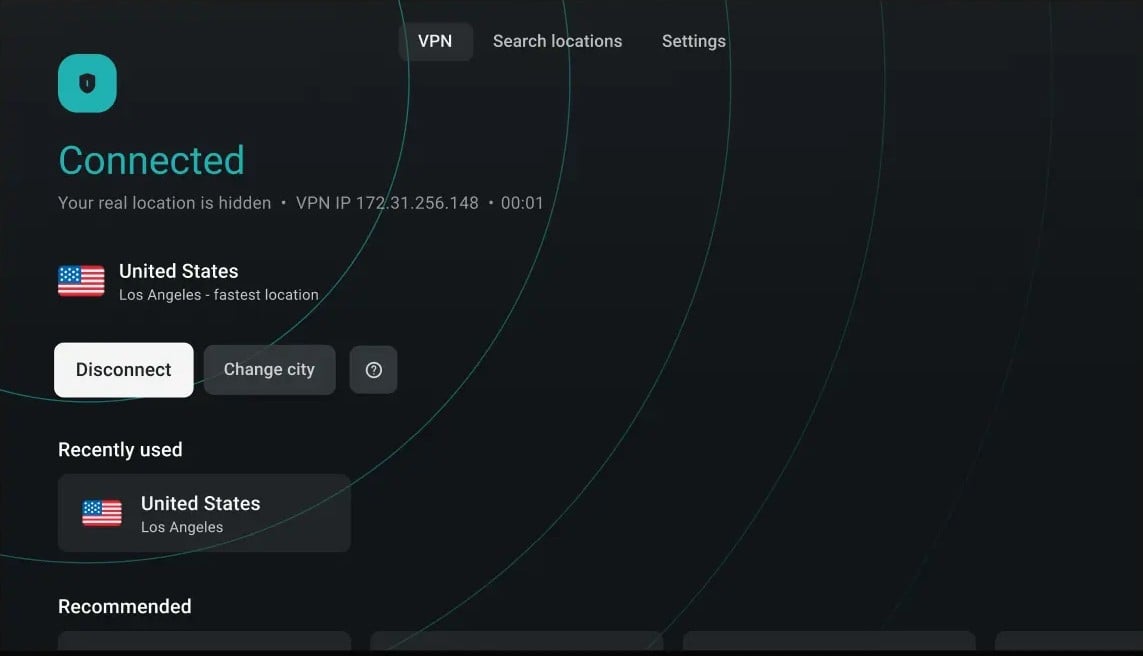
Three televisions, two laptops, and four phones cost the same as one connection with Surfshark, because the account has no device limit. It was the fastest VPN we measured in London at 186.96 Mbps, a loss of 1.8%, and the American Netflix catalog opened from a European address. ITVX blocked it on every attempt, so a household watching British catch-up TV should start elsewhere.
CleanWeb strips ads and trackers inside the TV apps, and the Web Content Blocker adds whole categories such as gambling and adult sites, useful on a set the children use. The Starter plan is priced at $2.49 a month. That covers 27 months for $67.23, and each renewal year is $79.
5. CyberGhost: Cheapest Smart TV VPN
Pros
- Smart DNS for Samsung
- Servers grouped by platform
- Audited no-logs policy
- Optional antivirus add-on
- Six-week refund period
Cons
- No Vega OS app
- Higher speed loss
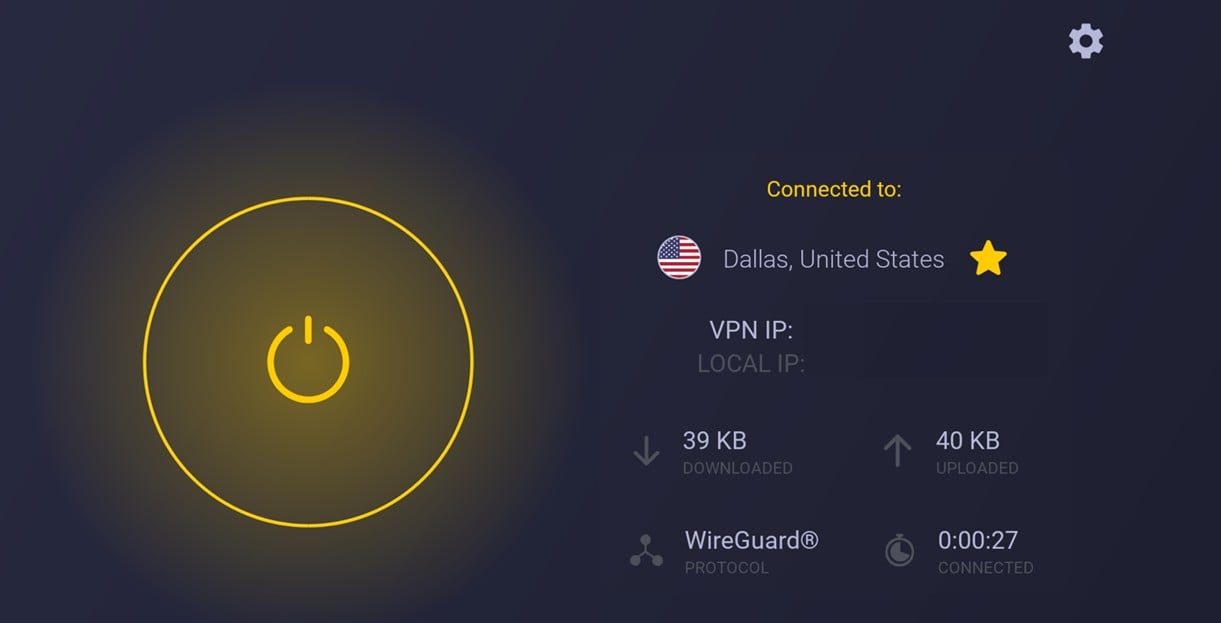
CyberGhost costs $2.19 a month on the 2-year plan, $56.94 for 26 months, and the refund period is 45 days, while most VPNs allow 30. Its Smart DNS includes addresses for American and non-American streaming services, so a Samsung or LG owner has a choice of region without touching the router. Download speeds came last of the five, at 178.95 Mbps in London, 166.23 Mbps in the US, and a three-location average loss of 13.3%.
Its streaming access was the narrowest of the five, though ITVX worked from CyberGhost’s dedicated British entry after blocking two rival apps. The Android TV app groups servers by the platform they are tuned for, which reads better on a television than a list of cities. There is no Vega OS app, so the newest Fire TV sticks are out, and there is no obfuscation for filtered networks.
Which Smart TVs Support VPN Apps
- Install an app directly: Sony, TCL, Philips, Xiaomi, and most Hisense sets, which use Android TV or Google TV. The best VPN for Android TV is ranked separately, as is the Apple TV choice for tvOS 17 and later.
- Add a streaming stick: any television with an HDMI port. A Fire TV Stick costs about $40 and supports VPN apps of its own, the quickest fix for a television that doesn’t. The Fire TV Stick apps are ranked separately.
- Router or Smart DNS only: Samsung (Tizen), the best VPN for LG smart TV sets, Vizio (SmartCast), Philips Saphi, some Hisense models on VIDAA, Roku televisions, game consoles, and older Chromecast dongles.
To check, open the TV settings and look under About, Support, or System Information for the operating system name.
How to Set Up a VPN on a Smart TV
How to use a VPN on a smart TV depends on the model, and four methods cover every set. The app install is by far the quickest.
Install the app on the TV
Subscribe on a phone or a computer, then open the Play Store or the Amazon Appstore on the television, search for the VPN by name, and install it. Sign in with the QR code the app shows, since scanning it with a phone beats typing a password with the remote. Then pick a country and connect: Netflix, Prime Video, and BBC iPlayer load that country’s catalog.
Use Smart DNS on a Samsung or LG set
Smart DNS replaces the DNS addresses in the television’s network settings, which moves the apparent location for streaming apps. It applies no encryption, so it does nothing for privacy and nothing against a throttling ISP, and streaming platforms detect it more easily than a full connection. Setup guides:
- Smart DNS with NordVPN
- Smart DNS with ExpressVPN
- Smart DNS with CyberGhost
Put the VPN on the router
A router covers the television, the consoles, and the phones at once, and it counts as a single connection. ISP-supplied routers usually block custom firmware, so this method starts with a compatible model or an Aircove. Manual guides:
- Router setup with NordVPN
- Router setup with Proton VPN
- Router setup with ExpressVPN
- Router setup with Surfshark
- Router setup with CyberGhost
Share a connection from a computer
With the VPN active on a Windows machine, open Settings, then Network & Internet, switch on Mobile hotspot, then open Change adapter options, right-click the VPN adapter, open Properties, and tick the sharing box for the hotspot. The television joins that network. On macOS, the same controls are under System Settings, Sharing, Internet Sharing, with the VPN chosen as the source and Wi-Fi or Ethernet as the output. The PC has to stay on for the whole film.
What a VPN Adds on a Smart TV
Samsung, LG, and Vizio sets use automatic content recognition, which samples what’s on screen and sends it back to the manufacturer to build an advertising profile. The setting is buried in the menus under a friendly name. Encrypted traffic and a changed IP address cut off part of that collection, and an ad blocker such as CleanWeb or NetShield stops the trackers inside the apps.
Catalogs differ by country, so a British server opens BBC iPlayer from abroad, and a location change keeps a home subscription usable in a rented flat overseas. Most people start with Netflix regional access, and Kodi setups come next. An ISP that slows video traffic in the evening can’t classify what it can’t read, so the encrypted connection keeps its speed. The advantages and trade-offs are set out separately.
Free VPNs on a Smart TV
A free VPN for smart TV streaming is quick enough these days. PrivadoVPN lost 9.5% of our baseline across British and American servers, and Windscribe 10.0%, within range of paid apps. Data is the problem. Free allowances are monthly, and one evening of 4K video consumes several gigabytes, after which PrivadoVPN drops to 1 Mbps emergency servers, and Windscribe cuts the connection.
Access is thinner too. Each opened 8 of the 14 platforms, with Hulu, Disney+ and JioHotstar blocked on both. Neither has an Indian server. Proton VPN’s free plan assigns one of ten countries at random, which rules it out when a specific catalog is the goal, although the data is uncapped. Our free VPN ranking has the full picture.
Best VPN for Smart TV: Conclusion
NordVPN is the first choice for TV streaming on most sets, and the only one that solves a Samsung or LG TV without buying a router, thanks to SmartPlay. Choose Proton VPN for Swiss jurisdiction and a second server between the TV and the site. ExpressVPN belongs on a router, where Aircove skips the firmware work. Surfshark fits a house with more screens than most subscriptions allow
Finally, CyberGhost is for the smallest budget, with six weeks to change your mind. All five publish Android TV apps, and a Tizen, webOS, or SmartCast television requires a workaround.
Frequently Asked Questions
Can I put a VPN on a smart TV?
Yes, though the method depends on the operating system. Android TV, Google TV, Fire TV, and Apple TV install apps directly, while Samsung and LG sets require a router or Smart DNS.
What is the best VPN for Samsung smart TV models?
The best VPN for Samsung smart TV sets is NordVPN, because SmartPlay changes the streaming location through the DNS settings with no app involved. Proton VPN covers Samsung sets through a router instead.
Which VPN is easiest to use on a smart TV?
NordVPN is the easiest, with an Android TV app that connects from the remote in two presses. Proton VPN is equally simple on Google TV and leaves bandwidth uncapped.
Does a free VPN work on a smart TV?
Yes, but monthly data caps make it impractical. Windscribe and PrivadoVPN publish television apps, and a single evening of 4K video consumes most of a free allowance.
Can a VPN unblock every streaming service on a TV?
No. Disney+ blocks the television apps of every major VPN, while NordVPN and ExpressVPN open Netflix, BBC iPlayer, Hulu, and Peacock without difficulty.
Do LG smart TVs support VPN apps?
No. webOS has no VPN app in its store, so an LG television connects through a VPN-enabled router, Smart DNS from NordVPN or CyberGhost, or a streaming stick.